Introduction: Welcome to Enhanced Messaging
Let’s talk about taking your WhatsApp experience to the next level. If you’ve ever wished for more control, more features, or just a fresher look, Delta WhatsApp Ultra 2025 might be the answer you’ve been searching for. As one of the most popular and refined versions derived from WhatsApp Plus, Delta Ultra stands out. Why? Because it packs a powerful punch with unique interfaces and cleverly placed shortcuts, making advanced features surprisingly easy to access. Forget complicated menus; everything feels intuitive.
In this definitive guide, we’ll dive deep into everything Delta WhatsApp Ultra 2025 offers. You’ll learn exactly what it is, how to safely download and install the latest version, explore its groundbreaking new features, and master its extensive customization and privacy controls. We’ll also address the big question: Is it safe? By the end, you’ll have all the knowledge to decide if Delta Ultra is your perfect messaging upgrade.
Chapter 1: What Exactly is Delta WhatsApp Ultra? Your Questions Answered
Think of Delta WhatsApp Ultra as a supercharged version of your familiar WhatsApp. It’s built upon the official app’s foundation but meticulously modified by independent developers (originally spearheaded by Is. Jensen) to unlock capabilities that the standard app simply doesn’t provide. Its visual signature is a sleek black icon, contrasted by vibrant green default interfaces. However, don’t let the default fool you – changing these colors or even the entire theme is incredibly simple, a hallmark of Delta Ultra’s flexibility.
But it’s far more than just a pretty face. Delta Ultra empowers you in ways the official app can’t. Imagine being able to:
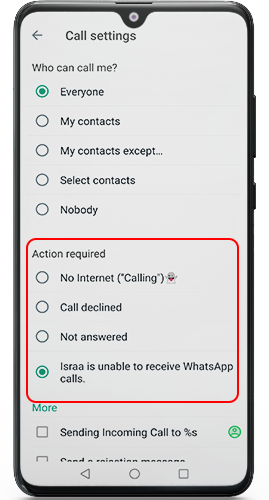
- Reject calls discreetly with custom messages.
- Secretly save photos and videos sent as “View Once” media.
- Read messages that the sender thought they deleted.
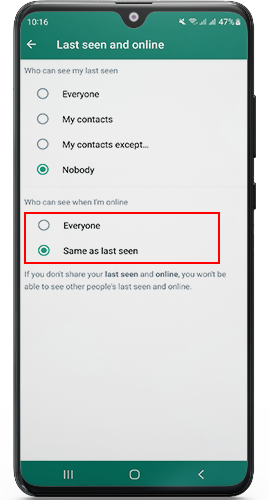
- Hide your online status or “Last Seen” completely.
- Enjoy massively increased file size limits for sending documents, videos, and audio.
- Pin important messages directly within your chats.
- Link your account seamlessly to up to four other devices.
- Lock sensitive conversations with an extra layer of security.
Delta Ultra fundamentally transforms WhatsApp from a basic communication tool into a highly personalized and powerful messaging hub tailored precisely to your needs and preferences. It delivers functionality many users have craved for years.
Chapter 2: First Impressions: Navigating the Delta Ultra Interface
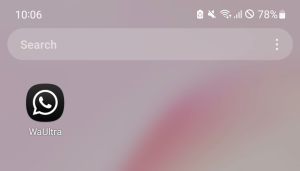
So, you’ve downloaded Delta WhatsApp Ultra. What greets you? Upon launching, you’ll immediately notice its distinct black application icon, setting it apart from the familiar green official WhatsApp icon on your home screen. Open the app, and the core structure will feel reassuringly familiar – your chats, calls, and status tabs are right where you expect them. This familiarity makes the transition smooth.
The key visual difference lies in the default green theme accents. The chat icons, notification bars, and certain buttons sport this signature green hue against a clean background. Crucially, the app clearly identifies itself as “Delta Ultra” within the interface, usually visible in settings or the main chat list header, ensuring transparency. While the green is vibrant, remember this is just the starting point. Delta Ultra’s true power shines in its deep customization options, allowing you to transform this look completely – more on that later!
Chapter 3: Step-by-Step: Downloading & Installing Delta Ultra (2025)
Ready to experience Delta Ultra? Follow these precise steps carefully to ensure a smooth and successful installation:
- Locate the Official Download: Find a trusted source providing the authentic Delta Ultra v5.1.2F EXT APK file for 2025. Reputable mod sites like Tech4GSM often host verified versions. Crucially, click the download button on the provider’s page.
- Enable “Unknown Sources”: Before installing, your phone needs permission. Go to your phone’s main Settings > Security (or Settings > Apps > Special App Access > Install Unknown Apps on newer Android versions). Find the browser or file manager you’ll use to install the APK (e.g., Chrome, Files by Google) and toggle on “Allow from this source”.
- Find & Launch the APK: Open your device’s File Manager app. Navigate to the “Downloads” folder (or wherever your browser saves files). Locate the downloaded file, usually named something like
Delta_Ultra_2025.apk. Tap on it to start the installation. - Run the Installer: The Android package installer screen will appear. Carefully review the permissions requested (these are typical for a messaging app replacing WhatsApp). If satisfied, tap “Install”. The process usually takes just a few seconds.
- Verify Your Number: Once installed, open Delta WhatsApp Ultra. You’ll see a welcome screen similar to official WhatsApp. Enter your full phone number (including country code). Tap “Next”.
- Enter the 6-Digit Code: You’ll receive a standard 6-digit SMS verification code from WhatsApp. Enter this code into the Delta Ultra app. (Note: Delta Ultra uses your official WhatsApp number and account; it doesn’t create a separate account).
- Optional: Restore Backup: If prompted, Delta Ultra will look for a local backup of your official WhatsApp chats (made within the last 7 days). You can choose to “Restore” this backup to bring your message history into Delta Ultra. Alternatively, tap “Skip” to start fresh.
- Profile Setup: Set your profile name and, optionally, add a profile picture.
- Explore & Enjoy! You’re in! Take a moment to explore the interface. Head to Settings > DWA Ultra Settings to start discovering the wealth of customization and privacy features at your fingertips.
Important Note: If you already have the official WhatsApp installed, Delta Ultra will NOT automatically replace it. You’ll have both apps installed side-by-side. Delta Ultra requires a separate verification using your same phone number. This process typically unregisters your number from the official app. To avoid confusion, many users choose to back up chats (via Google Drive for official WhatsApp or locally within Delta Ultra) and then uninstall the official app after successfully setting up Delta Ultra.
Chapter 4: Keeping Current: Updating Your Delta WhatsApp Ultra
Staying updated is crucial for accessing the latest features, critical bug fixes, and vital security patches. Updating Delta Ultra is straightforward:
- Check for Updates: Open Delta Ultra. Go to the Main Menu (three dots) > DWA Ultra Settings > App Info > Check for Updates.
- Download the Update: If a newer version is available, the app will notify you. Tap “Download Update”. The new APK file will download.
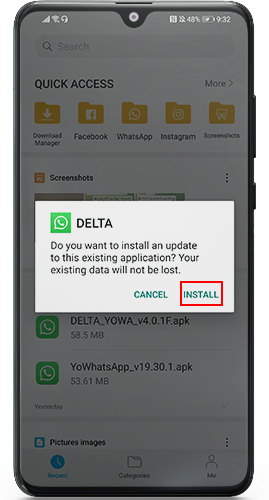
- Install the Update: Once downloaded, tap “Install” on the notification or open the APK file from your downloads. You might need to briefly re-enable “Unknown Sources” for this specific installation if your settings reverted.
- Launch & Verify: After installation, open Delta Ultra. It should load normally with the new features active. You can usually confirm the version in Settings > DWA Ultra Settings > App Info.
Chapter 5: What’s New? Exclusive Features in the 2025 Update
The Delta WhatsApp Ultra 2025 update brings significant enhancements, focusing on user convenience, privacy refinement, and media handling:
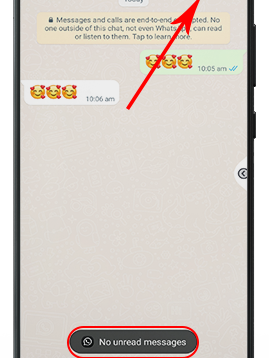
- Smarter “Mark as Read” with Hidden Blue Ticks: This solves a common frustration. Previously, if you hid blue ticks (read receipts), manually marking a chat as “read” was impossible. Now, even with blue ticks hidden, you can long-press a chat and select “Mark as Read”. This gives you control over your chat list without revealing you’ve seen the message.
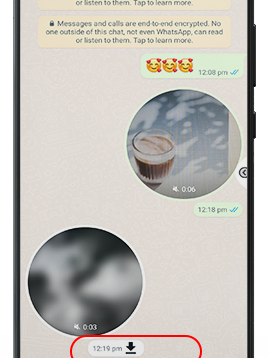
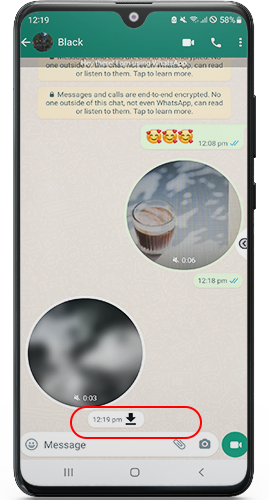
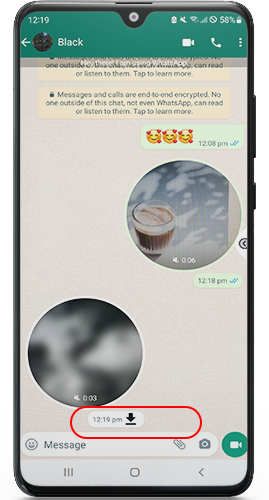
- Enhanced Video Messages: Video messages just got more powerful. You can now record and send video messages directly within chats that are up to 60 seconds long – a substantial increase over the official limit. Even better, you can now save these received video messages directly to your gallery with a simple tap, something the official app restricts.
- Universal Message Pinning: Pin crucial messages not just in groups, but now also within your private one-on-one chats. You can also receive and view pins sent by others in private chats, ensuring important info isn’t buried.
- Massive File Sharing Boost: Tired of compression? Delta Ultra 2025 lets you send documents, high-quality videos, and audio files up to a whopping 100MB (and often beyond, depending on network conditions). Share presentations, longer videos, and music files with ease.
- Transparency in Edits: See the original version of a message before it was edited. When someone edits a message they sent, Delta Ultra can show the “Original Chat” text, giving you context on what was changed. (Note: This feature might need enabling in settings).
- Device-to-Device Chat Transfer (No Cloud): Migrating chats to a new phone? Go to Settings > Chats > Chat Transfer. This feature allows you to transfer your entire chat history directly between two phones connected to the same Wi-Fi network, bypassing the need for Google Drive backups. It’s fast and private.
- Official-Style Chat Lock: Strengthen privacy for specific conversations. Open the Chat Info screen for any chat (tap the contact/group name at the top), and you’ll find a “Lock” option. This secures the chat behind your device’s PIN, pattern, or fingerprint, mirroring the official WhatsApp’s chat lock feature but integrated smoothly into Delta Ultra.
- Multi-Device Linking Stability: The ability to link your Delta Ultra account to up to four companion devices (like tablets or PCs) simultaneously, even if your phone is offline, has been further refined in the 2025 update for improved reliability and speed.
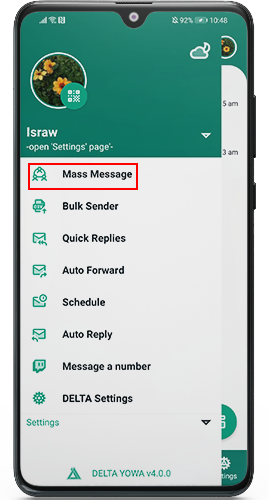
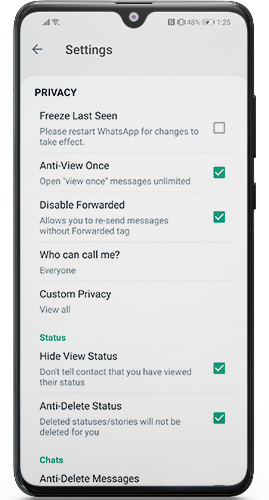
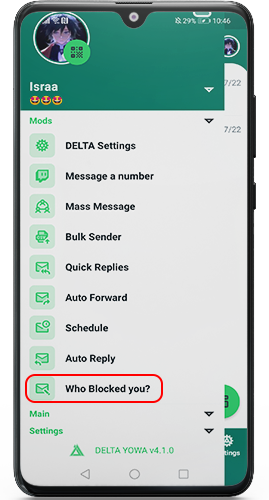
Chapter 6: Deep Dive: Core Features of Delta WhatsApp Ultra (2025)
Beyond the flashy new updates, Delta Ultra’s core feature set is incredibly robust. Let’s break down the key areas:
Unmatched Customization (Themes & UI):
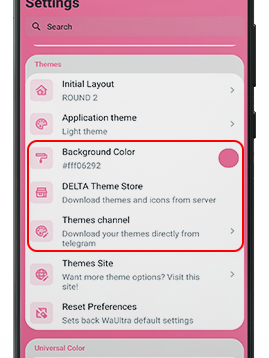
- Theme Store: Access a vast built-in library of themes. Forget just green! Find sleek minimalistic designs, vibrant colorful explosions, professional dark suits, or playful feminine aesthetics.
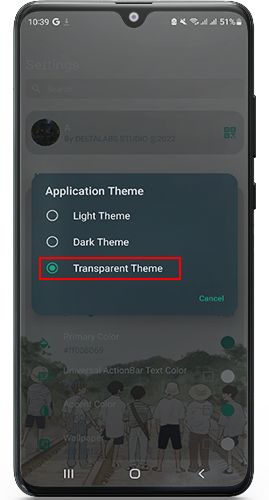
- Color Control: Change everything – conversation bubbles (sent/received), action bar color, status bar color, tick colors, notification icons, and more. Fine-tune the exact shade using hex codes.
- Feminine & Pink Themes: Easily achieve a “Pink WhatsApp Delta Ultra” look. Either apply a pre-made pink theme from the store or manually customize interface elements to pink hues. The level of control is granular.
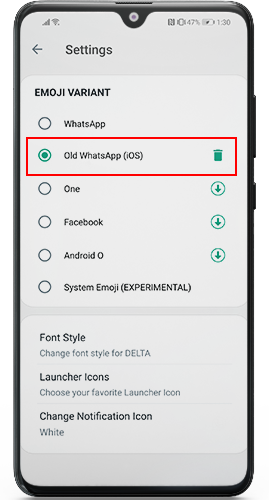
- Icons & Fonts: Change app launcher icons and even modify the font style used within chats and menus.
- Home Screen Styles: Alter how your main chat list appears (e.g., iOS style, Android style, hidden archived chats).
- Dark Mode Mastery: Go beyond the system setting. Force pure black AMOLED dark mode, schedule dark mode, or set custom colors for dark mode elements independently. Access it quickly via Settings > DWA Ultra Settings > Theme > Dark Mode.
Granular Privacy Control (Take Back Your Secrets):
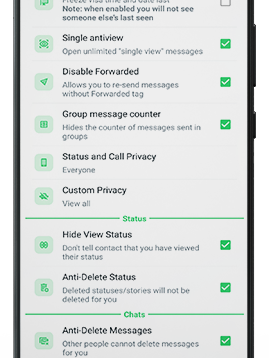
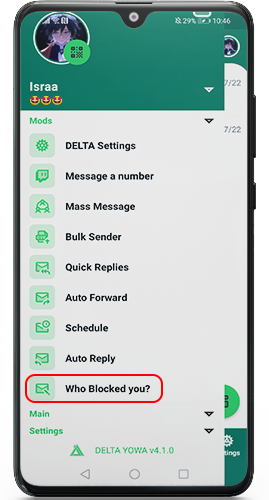
- Freeze Last Seen & Online Status: Truly disappear. Choose exactly who can (or can’t) see when you were last online or if you’re currently active. You can even appear offline while actively using the app.
- Hide Blue Ticks (Read Receipts) & Second Ticks (Delivered Receipts): Read messages without triggering the dreaded blue checkmarks. Hide the double grey ticks too, if desired.
- Hide Typing Status: Prevent others from seeing the “typing…” indicator.
- Disable Forwarding Tag: Remove the “Forwarded” label from messages you forward, making them appear as original.
- Read Deleted Messages: When a sender deletes a message for everyone, Delta Ultra can often preserve it for you to read. A powerful privacy tool.
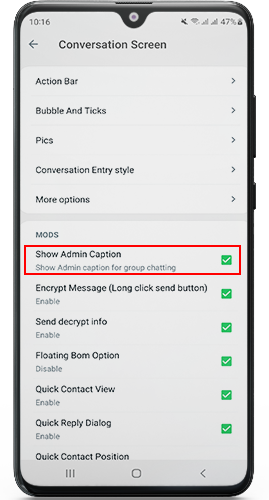
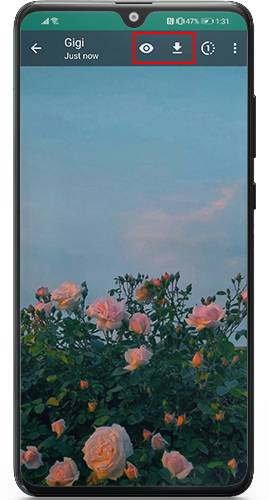
- Stealth Viewing: View others’ Status updates (photos/videos) completely anonymously – they won’t see you viewed it. Download Statuses directly to your phone.
- Anti-Revoke: Similar to reading deleted messages, this often prevents senders from revoking (deleting) media files they sent you.
Advanced Messaging Tools (Work Smarter):
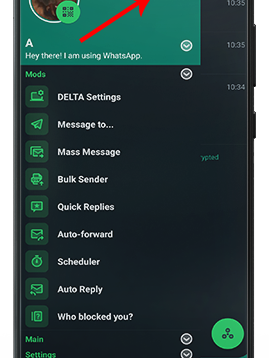
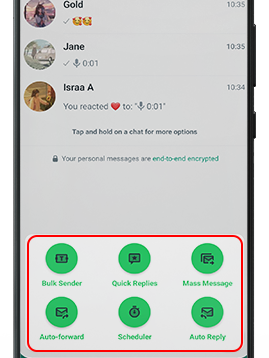
- Message Scheduler: Compose messages now and schedule them to be sent automatically at a specific future date and time. Perfect for birthdays, reminders, or different time zones. (DWA Ultra Settings > Chats > Scheduled Messages).
- Auto-Reply: Set up automatic responses when you’re busy, driving, or sleeping. Can be triggered by specific keywords or for all messages. Great for professional use or managing high-volume chats.
- Broadcast Without Limits: Send a single message (text, image, video) to multiple groups simultaneously – a massive time-saver compared to the official app’s restrictions.
- Extended Character Limit: Write longer statuses and captions than the official app allows.
- Pin to Top Enhancements: Pin more chats than the official limit and customize the pin icon.
Media Mastery (View, Save, Share More):
- Save “View Once” Media: This is a flagship feature. When someone sends a photo or video marked “View Once,” Delta Ultra can silently save it to your gallery without notifying the sender. Accessible via DWA Ultra Settings > Privacy > Save View Once Media.
- High-Quality Image Sharing: Option to send images with significantly reduced compression, preserving detail.
- Increased Status Video Duration: Share longer videos (often up to 7 minutes) on your Status compared to the official limit.
- Story Downloader: Easily download any contact’s Status story (image or video) directly to your phone.
- Media Visibility Control: Choose whether to show media from specific chats in your phone’s main gallery app.
Convenience & Utility:
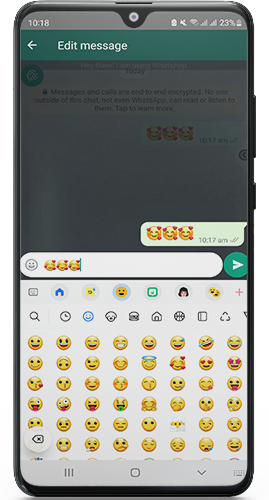
- Large Emojis: Send super-sized emojis for emphasis.
- Copy Chat on Exit: Automatically copy the entire chat text when you close a chat window.
- Resizeable Chat Bubbles: Make chat bubbles larger or smaller for better readability.
- Hide Specific Chats: Archive chats but also completely hide them from the main list, accessible only via a secret menu or search.
- Lock Individual Chats: Add PIN/pattern/fingerprint protection to specific sensitive conversations (as mentioned in the 2025 updates).
- Multi-Device Support: Use your account on your phone + up to 4 other devices simultaneously.
Chapter 7: Addressing the Elephant in the Room: Is Delta WhatsApp Ultra Safe?
This is the most critical question, and the answer requires nuance: “It depends, and caution is essential.”
Understanding the Risks:
- Not Official, Not on Play Store: Delta Ultra is a modified app (mod). It is not developed or endorsed by WhatsApp Inc. or Meta. It cannot be downloaded from the Google Play Store due to policy violations (modifying official apps). This means you rely on third-party websites (like Tech4GSM) for APK files.
- APK Source Risk: Downloading APKs from unknown or untrustworthy websites is the biggest security risk. Malicious actors can inject spyware, adware, or trojans into fake “Delta Ultra” APKs. Always use extremely reputable mod sites known for verifying their files.
- Ban Potential: Using mods violates WhatsApp’s Terms of Service. While bans are not extremely common for users of popular mods like Delta Ultra, and often start with temporary suspensions, there is always a non-zero risk that your account could be temporarily or permanently banned by WhatsApp. This risk might increase if you use features aggressively antagonistic to WhatsApp’s policies (like massive broadcast spamming).
- Privacy Concerns: Because it’s a mod, you inherently trust the developer(s) more than you would WhatsApp Inc. While Delta Ultra has a long history and a large user base suggesting legitimacy, its code isn’t open for full public audit like some apps. The features require extensive permissions. The potential exists, however small with reputable mods, for data misuse if the developer were malicious.
Mitigating the Risks & Making an Informed Choice:
- Download ONLY from Trusted Sources: This is paramount. Stick to well-known, established mod repositories like Tech4GSM or the developer’s official channels (if they have one). Check comments and community feedback about the site and the specific APK file. Avoid random blogs or file-sharing sites.
- Verify the APK (If Possible): Some sites provide MD5 or SHA checksums for their files. Use a checksum verification app to ensure the file you downloaded hasn’t been tampered with. Reputable sites often do this automatically.
- Keep it Updated: Developers patch security vulnerabilities. Using the latest version is crucial. Enable update notifications within Delta Ultra.
- Regular Backups: Back up your Delta Ultra chats locally frequently (Settings > Chats > Chat backup > BACK UP). This protects you if you need to reinstall or switch phones unexpectedly.
- Understand the Ban Risk: Acknowledge that using any mod carries this inherent risk. Avoid behaviors that might flag your account (e.g., spamming broadcasts). If your account is crucial (e.g., for business), weigh the benefits against this potential disruption.
- Consider Your Threat Model: If you handle highly sensitive communications (e.g., activism, confidential business), the additional risks of a mod might outweigh the benefits. For general users prioritizing features and customization, the risk from a trusted Delta Ultra source is often considered acceptable by millions.
The Verdict:
Delta WhatsApp Ultra itself, when downloaded from a highly reputable source like Tech4GSM, and kept updated, has a strong track record among its vast user base. The developers focus on enhancing features and privacy within the app. However, the safety ultimately hinges on:
- The trustworthiness of your APK source.
- Your acceptance of the ban risk from WhatsApp.
- Your personal need for the enhanced features versus the potential (though low with caution) privacy unknowns compared to the official app.
For most users seeking powerful customization and privacy tools, downloading Delta Ultra 2025 from a top-tier site represents a calculated risk that many find worthwhile. Proceed with awareness and caution.
Chapter 8: Mastering Customization: Creating Your Pink Delta Ultra (or Any Color!)
Want a truly personalized look, like a beautiful Pink theme? Here’s how to transform Delta Ultra:
Method 1: Apply a Pre-Made Theme (Fastest):
- Open Delta Ultra > Main Menu > DWA Ultra Settings > Theme > Theme Store.
- Browse the extensive categories. Look for themes labeled “Pink,” “Feminine,” “Girl,” or similar. Preview them.
- Found one you love? Tap “Download”, then “Apply” once downloaded. The theme will instantly change the interface colors, backgrounds, and icons to pink and complementary shades.
Method 2: Manual Customization (Total Control):
- Go to DWA Ultra Settings > Theme > Custom Theme.
- You’ll see a vast list of elements:
Action Bar,Status Bar,Bubble (Outgoing),Bubble (Incoming),Tick (Read/Unread),Conversation Screen,Sending Panel,Icon Color, etc. - Tap on any element (e.g.,
Action Bar). - You’ll see options for
Color,Image, orTransparent. Choose “Color”. - A color picker appears. Drag the selector or enter a specific hex code for pink (e.g.,
#FFC0CBfor light pink,#FF1493for deep pink,#DB7093for pale violet red). - Tap “OK”.
- Repeat steps 3-6 for every element you want to change to pink or another color (
Bubble Incoming,Icon Color,Conversation Screen Background, etc.). - For bubbles, you can also change the text color inside them for contrast (e.g., black or white text on pink).
- Once satisfied, tap “Save Theme” at the top. Give your custom pink creation a name and save it. You can apply it or share it.
Pro Tip: Combine a pink base theme from the store with manual tweaks for the perfect unique shade!
Chapter 9: Privacy Powerhouse: Configuring Your Fortress
Delta Ultra gives you unparalleled control over your digital footprint. Let’s configure key privacy settings:
Hide Online Status & Freeze Last Seen:
- Go to DWA Ultra Settings > Privacy Mods.
- Tap “Hide Online Status”. Choose who can see it:
Everyone,My Contacts,My Contacts Except..., orNobody. - Tap “Last Seen”. Choose visibility:
Everyone,My Contacts,My Contacts Except...,Nobody. Select “Freeze Last Seen” to lock it at a specific time.
Hide Blue Ticks (Read Receipts) & Second Ticks (Delivered):
- In Privacy Mods, tap “Read Receipts (Blue Ticks)”. Toggle it OFF to disable them completely.
- Tap “Second Tick (Delivered Receipt)”. Toggle it OFF to hide the double grey ticks too.
Hide Typing Status:
- In Privacy Mods, tap “Hide Typing Status”. Toggle it ON.
Disable Forwarding Label:
- In Privacy Mods, find “Disable Forwarded Label”. Toggle it ON. Forwarded messages won’t show the “Forwarded” tag.
Enable Anti-Revoke (Read Deleted Messages):
- In Privacy Mods, tap “Anti Revoke Messages”. Toggle it ON.
- You might see options like
Show NotificationorShow in chat. Configure as desired. Deleted messages will usually appear in the chat with a note like “This message was deleted.”
Save View Once Media:
- In Privacy Mods, tap “Save View Once Media”. Toggle it ON.
- Saved images/videos will be stored in a dedicated folder (e.g.,
DeltaUltra/Media/ViewOncein your internal storage). Remember, this happens silently.
Stealth Status Viewing & Downloading:
- In Privacy Mods, tap “Status Downloader”. Toggle it ON.
- Tap “Hide Status Views”. Toggle it ON to view Statuses anonymously.
Lock Individual Chats:
- Open the specific chat you want to lock.
- Tap the contact/group name at the top to open Chat Info.
- Scroll down and tap “Lock Chat”.
- Follow the prompts to set a PIN, pattern, or register your fingerprint. Confirm.
Chapter 10: Advanced Messaging: Scheduling, Auto-Reply & Broadcasts
Become a messaging maestro with these powerful tools:
Scheduling Messages (Send Later):
Open the chat where you want to send the scheduled message.
Type your message as usual.
Instead of the send arrow, long-press the send button.
A scheduling menu will pop up. Set the Date and Time you want the message sent.
Tap “Schedule” or “OK”. The message will be saved and sent automatically at the specified time. You can manage scheduled messages in DWA Ultra Settings > Chats > Scheduled Messages.
Setting Up Auto-Reply:
Go to DWA Ultra Settings > Chats > Auto Reply.
Toggle “Enable Auto Reply” to ON.
Configure settings:
Reply To:
All ChatsorOnly Contacts not in Address Book(useful for unknown numbers).Reply When:
Always,When Busy (Call),When Driving,When Battery Low,Custom(set specific times/days).Reply Message: Type the message you want to send automatically (e.g., “Hi! I’m currently busy. I’ll get back to you soon.”).
Keyword Reply (Optional): Set specific keywords that, if received, trigger a different auto-reply message.
Tap “Save”.
Sending Broadcasts to Multiple Groups:
Open the Delta Ultra main chat screen.
Tap the “Broadcast” button (often represented by a megaphone icon, usually near the new chat/pencil icon). If you don’t see it, check DWA Ultra Settings > Chats for a broadcast enable option.
The broadcast list screen opens. Tap the “+” icon or “New Broadcast”.
Select Groups: You’ll see your list of groups. Tap the checkbox next to every group you want to receive this broadcast message. You can select dozens at once.
Tap “Create” or “Next”.
You are now in a special broadcast composition screen. Type your message, add media, documents, etc.
Tap the send icon. Your message will be sent instantly to all selected groups. Recipients see it as a normal message in that group; they won’t know it was a broadcast.
Chapter 11: Media Mastery: Saving View Once & More
Conquer media limitations:
Saving “View Once” Photos & Videos (The Easy Way):
Ensure “Save View Once Media” is enabled (DWA Ultra Settings > Privacy Mods > Save View Once Media > Toggle ON).
When someone sends you a View Once photo or video:
Photo: Simply open the photo. Delta Ultra will automatically save it silently in the background to
Internal Storage > DeltaUltra > Media > ViewOnce > Images(or similar).Video: Open the video and start playback. The saving happens automatically during playback. Saved videos go to
... > ViewOnce > Videos.
No additional taps or actions are needed beyond viewing the media. The sender receives no notification it was saved. Access your saved media via any file manager app.
Sending High-Quality Images (Less Compression):
When sending an image, after selecting it from your gallery, look for an HD icon or “Quality” option (often near the caption field or send button).
Tap it. You’ll usually see options like
Standard(high compression) andHD(lower compression, better quality). Select “HD”.Send the image as usual. It will retain significantly more detail.
Downloading Status Stories:
Ensure “Status Downloader” is enabled (DWA Ultra Settings > Privacy Mods > Status Downloader > Toggle ON).
Open the Status tab.
Find the Status story (image or video) you want to download.
Long-press on the Status bubble (the circle with the contact’s profile picture).
A menu will appear. Tap “Download”.
The Status will be saved to
Internal Storage > DeltaUltra > Media > StatusSaver(or similar).
Chapter 12: Troubleshooting Common Delta Ultra Issues
Even the best apps hiccup. Here’s how to fix common Delta Ultra problems:
Installation Blocked (“Install Forbidden”):
Cause: “Unknown Sources” permission not enabled correctly.
Fix: Go to Phone Settings > Security > Install Unknown Apps (or Apps > Special App Access). Find the app you used to download the APK (Browser or File Manager) and ensure “Allow from this source” is ON. Try installing again.
Verification Code Not Received:
Cause 1: Using official WhatsApp simultaneously. Delta Ultra registration unregisters your number from the official app.
Fix 1: Close official WhatsApp completely. Force stop it if necessary. Wait 5 minutes, then retry verification in Delta Ultra. If it fails, uninstall the official WhatsApp, then retry.
Cause 2: Poor network connection.
Fix 2: Switch between Wi-Fi and mobile data. Ensure good signal.
Cause 3: Outdated app version.
Fix 3: Download the latest Delta Ultra APK from your trusted source.
Cause 4: Temporary WhatsApp server issue.
Fix 4: Wait 1-2 hours and try again. Use the “Call Me” option if available during verification.
App Crashes or Freezes:
Fix 1: Force Stop & Restart: Go to Phone Settings > Apps > Delta Ultra > Force Stop. Then reopen the app.
Fix 2: Clear Cache: Go to Phone Settings > Apps > Delta Ultra > Storage > Clear Cache. Do NOT tap “Clear Data” unless instructed, as this deletes your messages.
Fix 3: Update: Ensure you have the absolute latest version installed (v5.1.2F EXT or newer).
Fix 4: Reinstall (Last Resort): Back up chats locally (Settings > Chats > Chat backup > BACK UP). Uninstall Delta Ultra. Download the latest APK again from your trusted source and reinstall. Restore from the local backup during setup.
Features Not Working (e.g., Saving View Once):
Fix 1: Check Settings: Ensure the specific feature (e.g., “Save View Once Media”) is actually enabled in DWA Ultra Settings > Privacy Mods.
Fix 2: Update: Older versions might lack features or have bugs. Update to the latest version.
Fix 3: Permissions: Go to Phone Settings > Apps > Delta Ultra > Permissions. Ensure it has permission for Storage (essential for saving media, backups).
Backup/Restore Issues:
Local Backup Failed: Ensure sufficient storage space on your device. Check the backup path in Settings > Chats > Chat backup. Try changing the backup location if possible. Backup manually immediately before major actions.
Restore Failed: Ensure the backup file exists in the correct folder (
Internal Storage > WhatsApp > Databasesfor Delta Ultra backups, usually). Verify the backup is from the same phone number and isn’t corrupt. Try restarting the app/phone before restoring.
“App Not Installed” Error:
Cause: Usually a conflict with a previous installation signature or corrupted APK.
Fix 1: Uninstall any existing version of Delta Ultra or other WhatsApp mods. Reboot your phone. Download the latest APK again and install.
Fix 2: Try downloading the APK from a different trusted source in case the first download was corrupted.
Conclusion: Is Delta WhatsApp Ultra 2025 Right For You?
Delta WhatsApp Ultra 2025 represents the cutting edge of modded messaging. It delivers an astonishing array of features – deep customization, unparalleled privacy controls, powerful messaging tools, and media freedom – that simply aren’t possible with the official WhatsApp app. The ability to save “View Once” media, truly hide your online status, schedule messages, send massive broadcasts, and personalize every pixel of the interface is transformative.
However, the decision isn’t without considerations. Using any mod carries the inherent, albeit often low, risk of a temporary or permanent ban from WhatsApp. Security depends entirely on downloading the genuine APK from a trusted source. If you handle extremely sensitive communications, the official app remains the most audited and sanctioned option.
For the vast majority of users seeking to break free from WhatsApp’s limitations, who value customization and powerful privacy tools, and who exercise caution in sourcing the app, Delta WhatsApp Ultra 2025 is an exceptional choice. It elevates the messaging experience from functional to phenomenal. Download the latest version today, configure it to your heart’s content (maybe even make it pink!), and experience messaging on your own terms. The future of WhatsApp customization is here.
Comparison: Delta WhatsApp Ultra vs. Official WhatsApp
| Feature | Delta WhatsApp Ultra | Official WhatsApp |
|---|---|---|
| App Icon Customization | Yes | No |
| Enhanced Security Lock | Yes (extra layers) | No |
| Recover Deleted Messages | Yes | No |
| Auto-Reply Messages | Yes | No |
| Hide “Forwarded” Label | Yes | No |
| Freeze Last Seen Timestamp | Yes | Yes |
| Show Online Status | Yes | Yes |
| Theme Library | Yes (thousands of options) | No |
| Message Forward Limit | Unlimited chats | 5 chats max |
| Image Sharing Size | Up to 100 MB | Up to 30 MB |
| Bulk Messaging | Yes | No |
| Do Not Disturb (DND) Mode | Yes (mute notifications) | No |
| Download Others’ Statuses | Yes | No |
| Customize Home Screen Name/Status | Yes | No |
| Additional Fonts & Stickers | Yes | No |
| Custom Wallpapers | Yes | No |
| Share Live Location | Yes | Yes |
| Multi-Language Support | Yes (extended languages) | Limited |
Key Takeaways:
- Customization & Privacy: Delta WhatsApp Ultra offers extensive personalization (icons, themes, fonts) and privacy tools (security locks, hidden forwarded tags). Official WhatsApp prioritizes simplicity.
- Functionality: Delta supports bulk messaging, auto-replies, and higher media limits. WhatsApp focuses on stability and core features.
- Security Note: Official WhatsApp provides end-to-end encryption by default. Delta WhatsApp Ultra is a third-party mod—use cautiously as it violates WhatsApp’s terms.
- User Experience: Delta adds niche tools (DND mode, status downloads); WhatsApp ensures universal accessibility and updates.