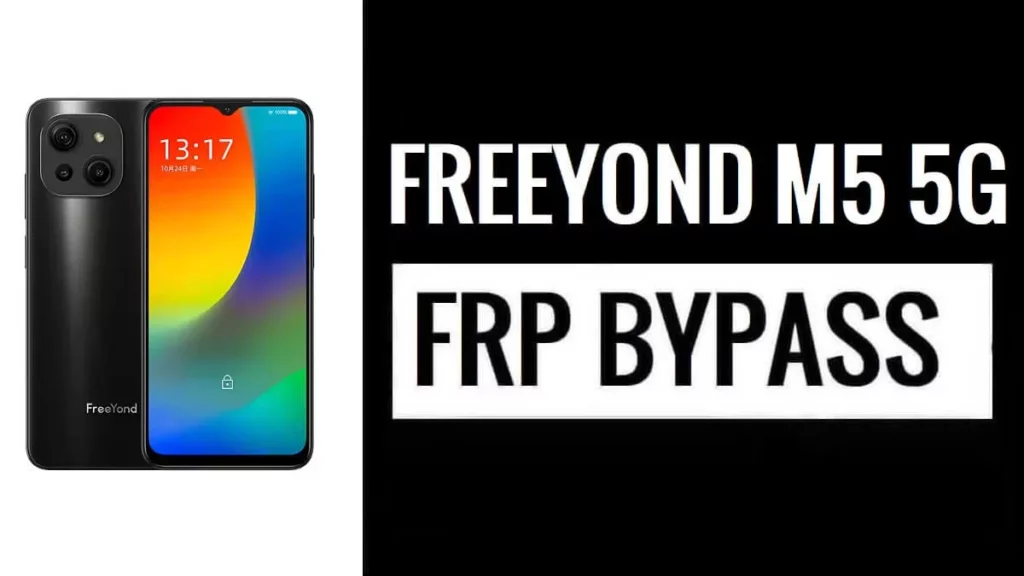
Introduction
To unlock the Google verification lock and get back into your FreeYond phone, use the FreeYond M5 5G Bypass FRP Lock. After a factory reset, the security feature known as FRP activates and prompts users to confirm their most recent Google login credentials, also known as a pattern lock. Users who are stuck at the Google verification page and have forgotten their last synchronized credentials may find the following information useful. To get around the problem and get access again, the process calls for the FRP Bypass Apk, a FRP bypass program, to access the settings and log in using a different Google account.
How to Bypass Google FRP Lock on FreeYond M5 5G
- First, turn on your FreeYond F9S phone to begin the FRP Bypass procedure.
- Press the Start button.
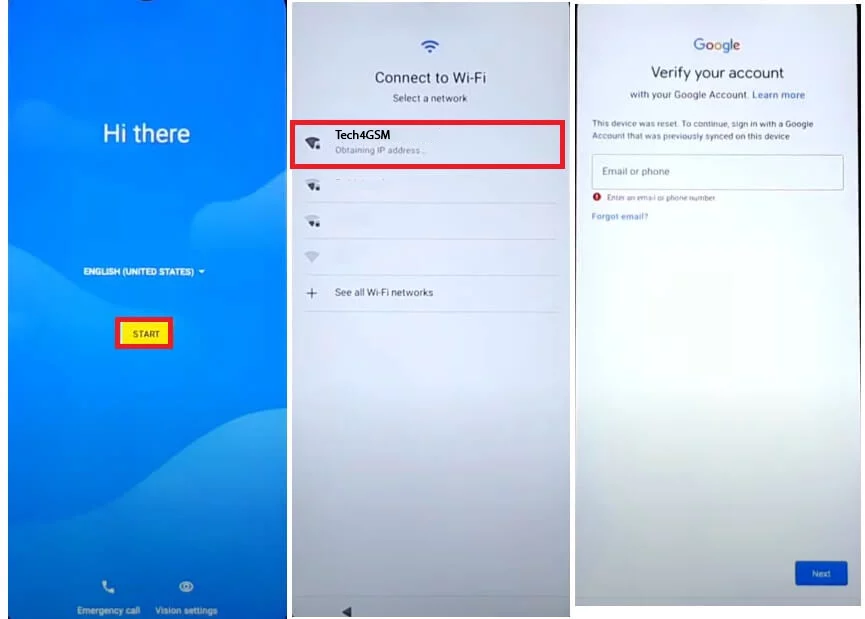
- Next, establish a WiFi connection with your phone.
- Return to the original Welcome Screen.
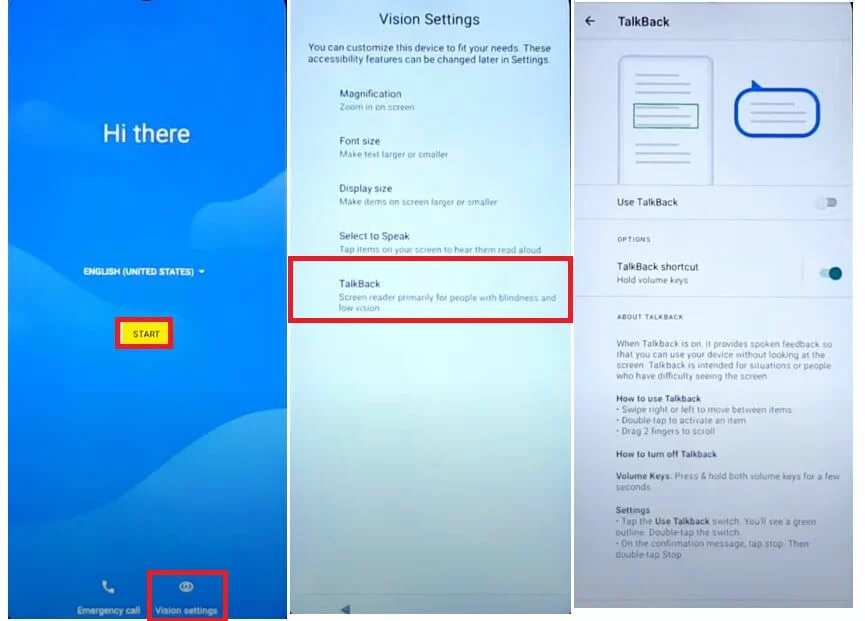
- To use talkback, tap Vision Settings > Talkback.
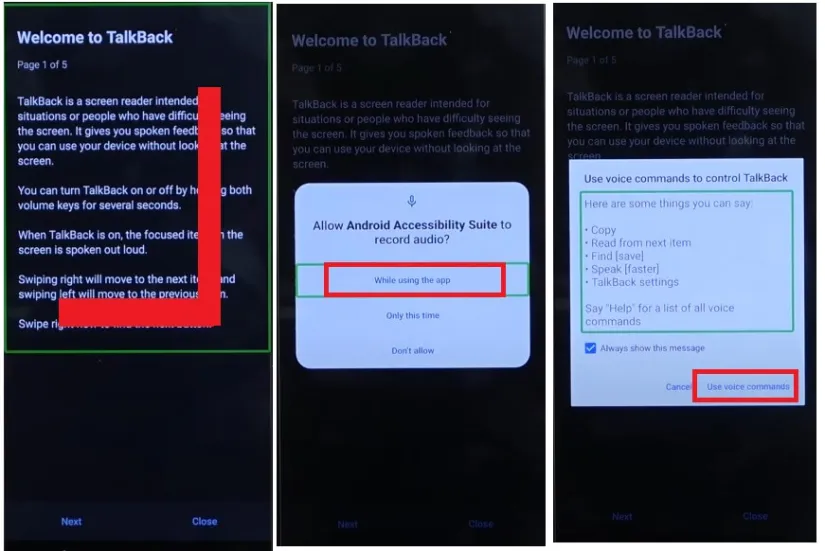
- Draw “⅃” (Reverse L) now.
- To use voice command, choose it.
- Next, say “Open Google Help.”
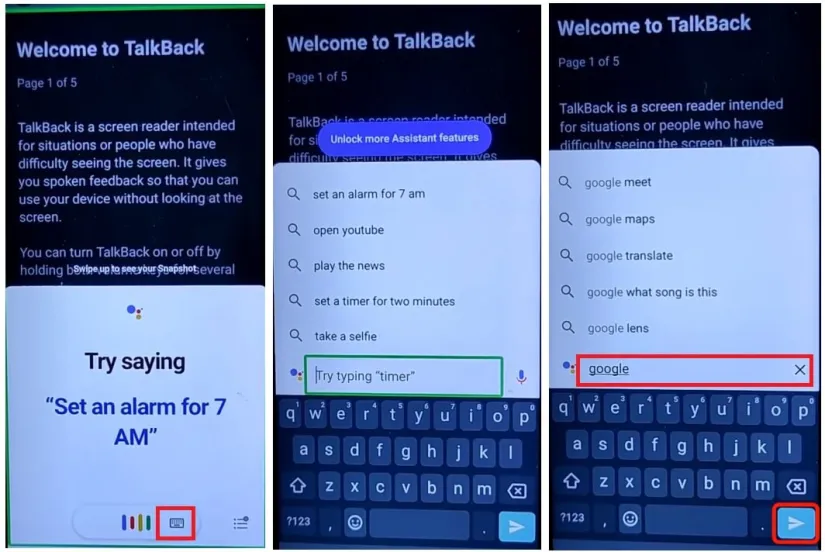
- To select the keyboard, double tap.
- Now press Vol Up + Vol Down to turn off talkback.
- Enter Google and press Enter.
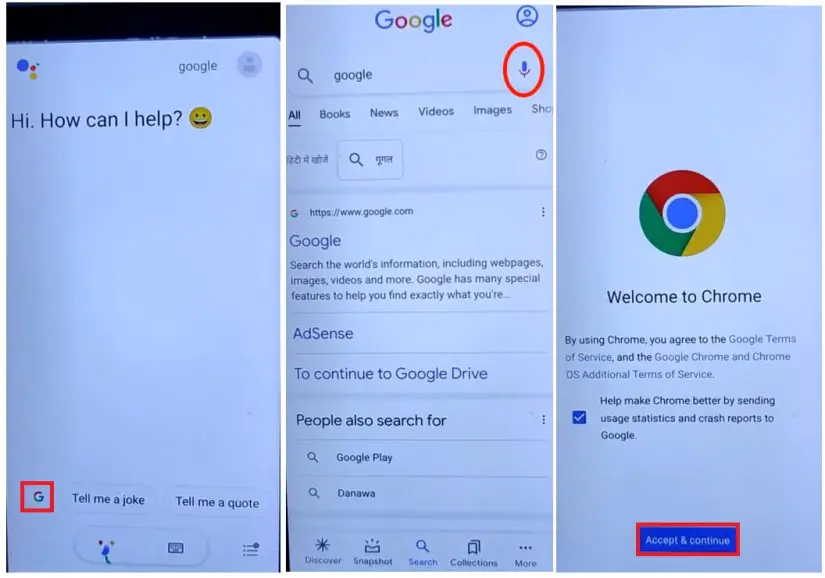
- Press the Google symbol.
- Now, speak “Open Chrome” while tapping the “Google Mic.”
Open Chrome Browser
- It will now direct you to the Chrome web browser.
- Press the Search button.
- Tap To Open FRP APPS under the FRP bypass APK area.
- Tap Open after selecting Open Settings App.
- It will take you to the settings on your smartphone.
- Select Accessibility by going down.
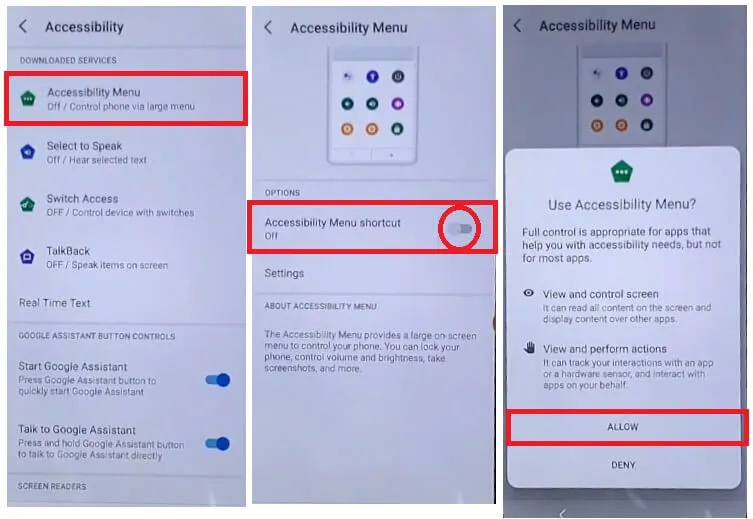
- Activate Accessibility by selecting Allow > Got it from the menu shortcut.
- Now Return to the Settings menu.
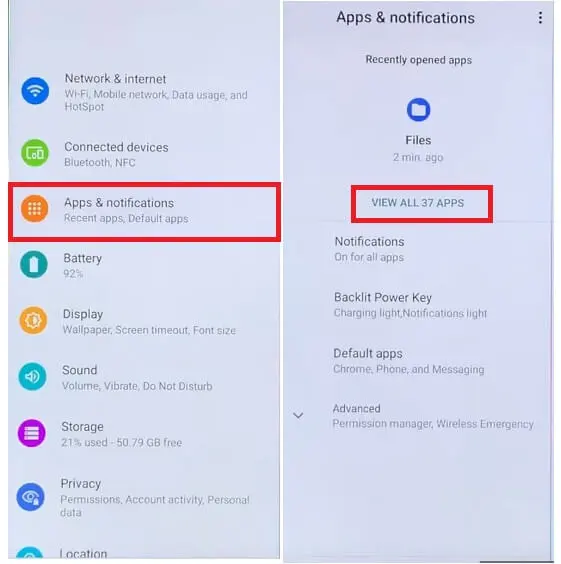
- Open Apps & Notifications.
- Select See All Apps.
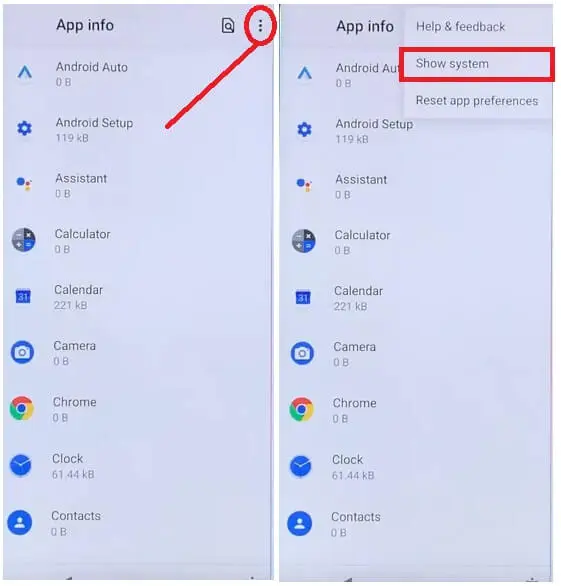
- Tap the three dots and choose Show System.
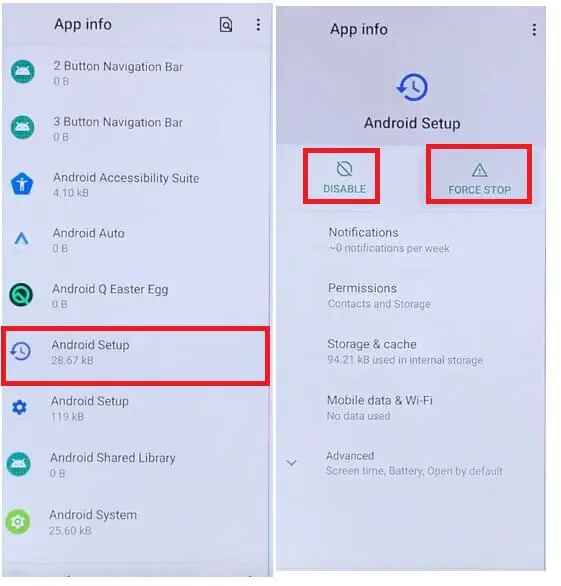
- Now choose Disable & Force Stop under Android Setup.
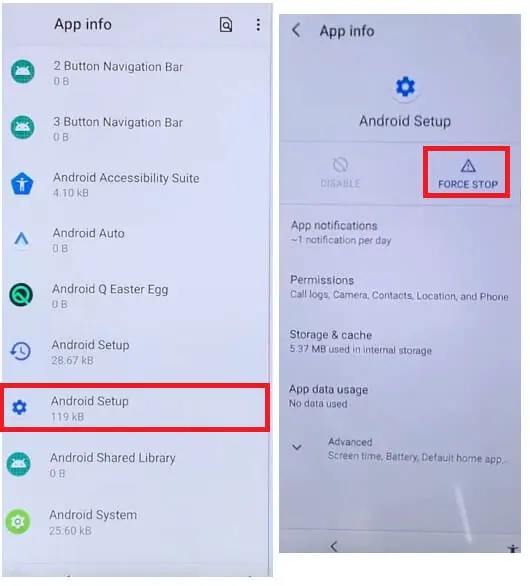
- Force-stop the second Android setup after opening it.
- Press the back button.
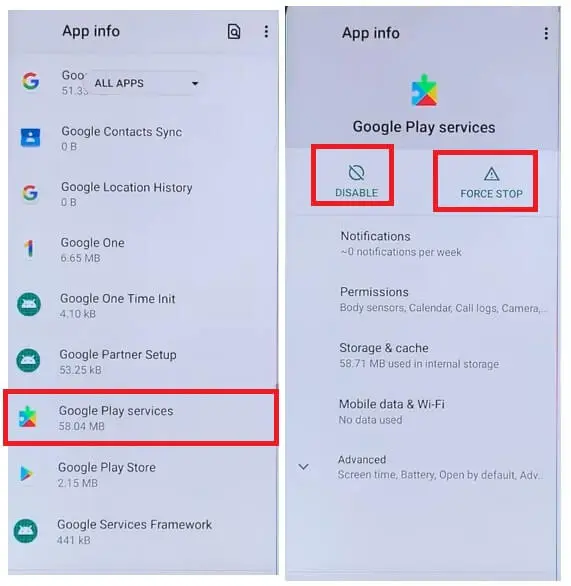
- Select Google Play Services by going down.
- Disable and stop it with force.
Few steps more to Unlock FRP
- Now, repeatedly press the back key to return to the Main Welcome Setup Wizard screen.
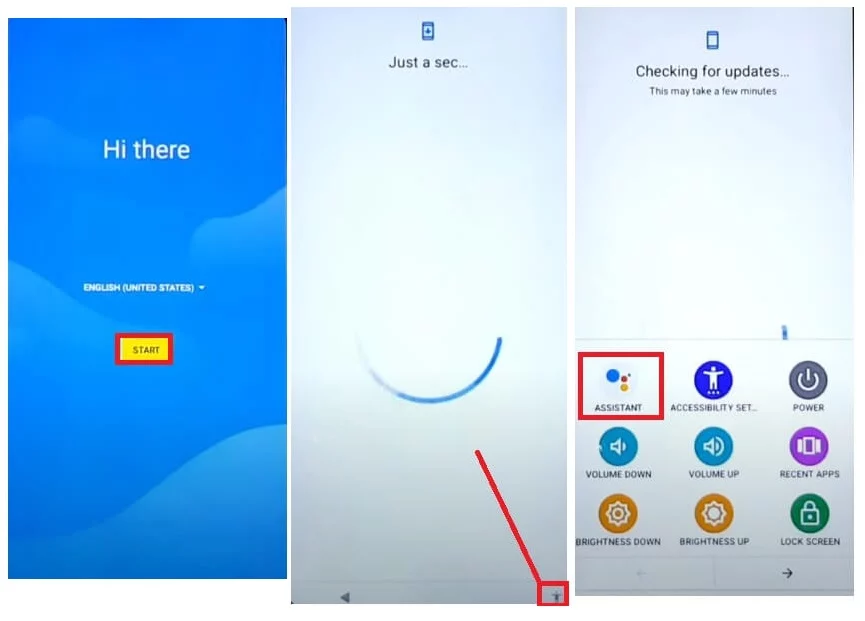
- Press the START button.
- It will now remain at the “Checking for Updates” screen.
- Toggle Assistant by tapping on the Accessibility Shortcut icon.
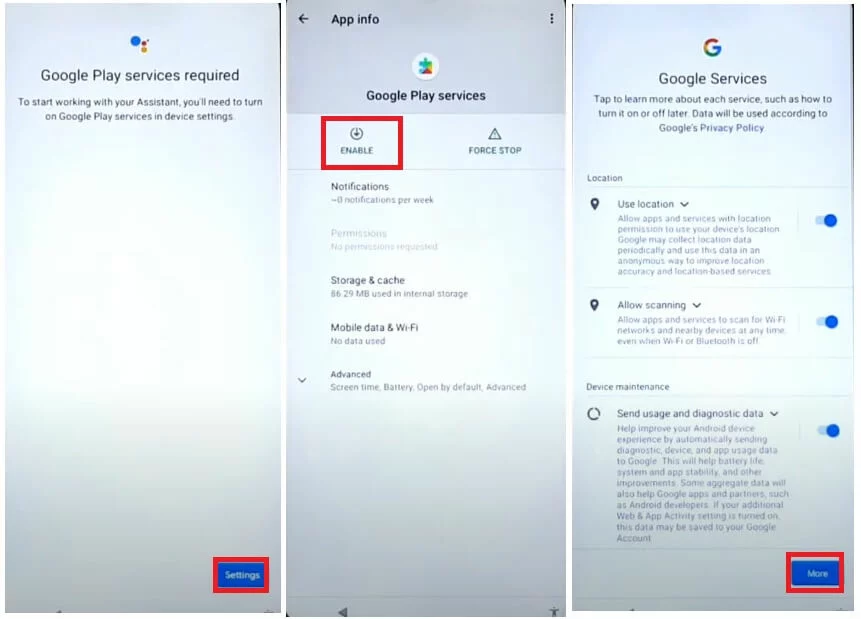
- Try it till your device’s screen displays the “Setting” button.
- Afterwards, select Settings > Turn on Google Play Services.
- Return to the setup page, tap More (Google Services), and then click Accept.
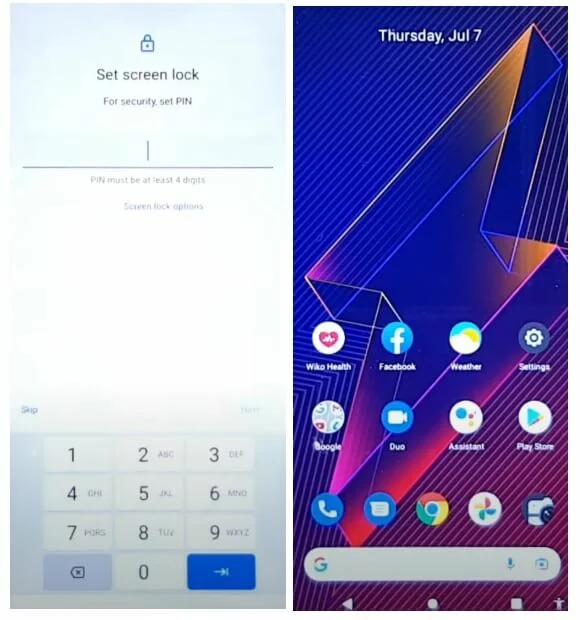
- Now finish the setup procedure.
- After that, confirm that you have successfully unlocked your FreeYond F9S phone.
- That is everything.