Introduction
Here, we’ll show you how to quickly go around Google FRP on a FreeYond PAD A5 phone without a computer and get back into your phone’s settings. so that you may unlock the phone by turning off or on applications. To get over the obstacle and restore access, the process calls for a FRP bypass tool, FRP Bypass programs to access settings and log in with a different Google account.
How to FreeYond PAD A5 Bypass Google FRP Lock
- Turn on your FreeYond PAD A5 first.
- Press the Start button.
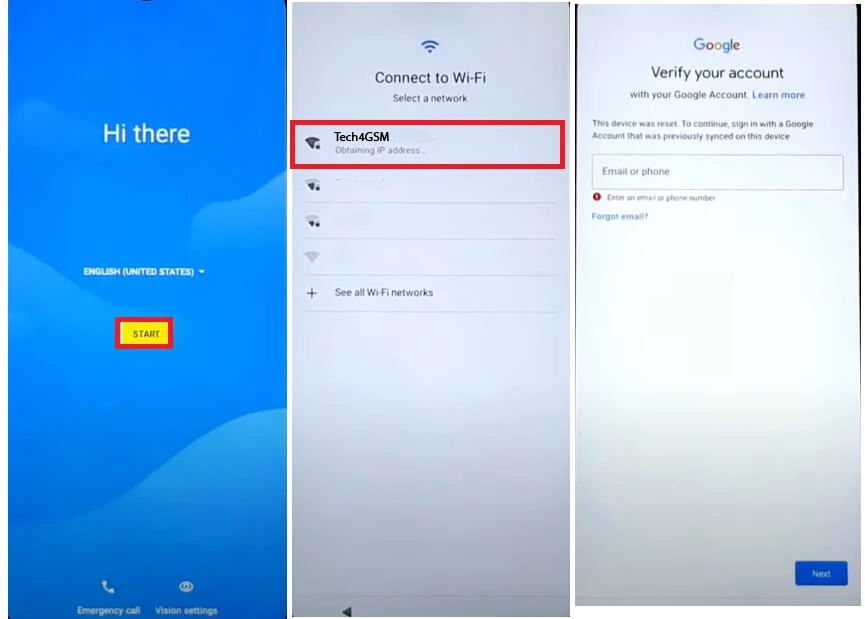
- Android 12 Freeyond FRP Bypass: Unlock Google Verification Without a Computer 3. Next, connect your phone to a wireless network.
- Return to the first Welcome Screen.
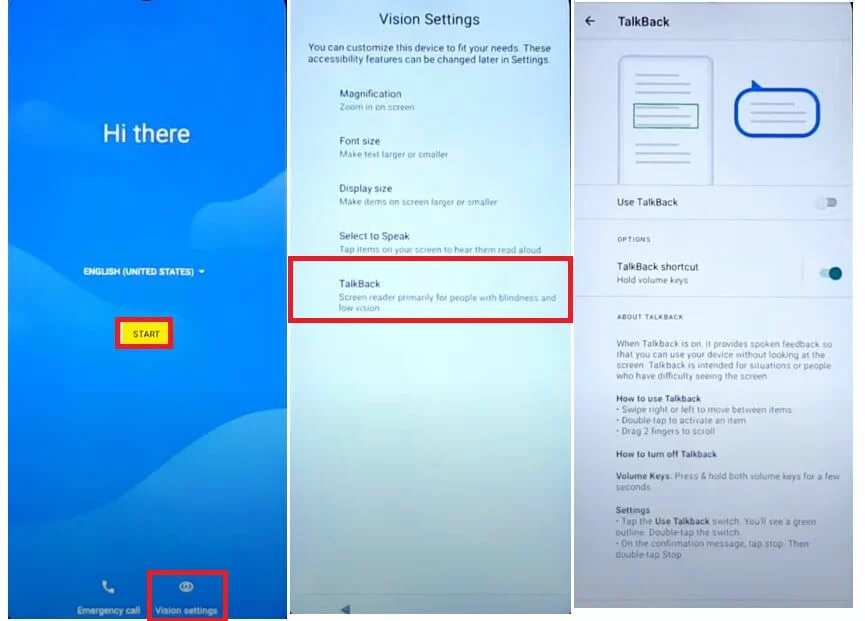
- Turn on Talkback to Get Around FRP Without Using Android 12 Get Google Verification Without a Computer 5. To use talkback, tap Vision Settings > Talkback.
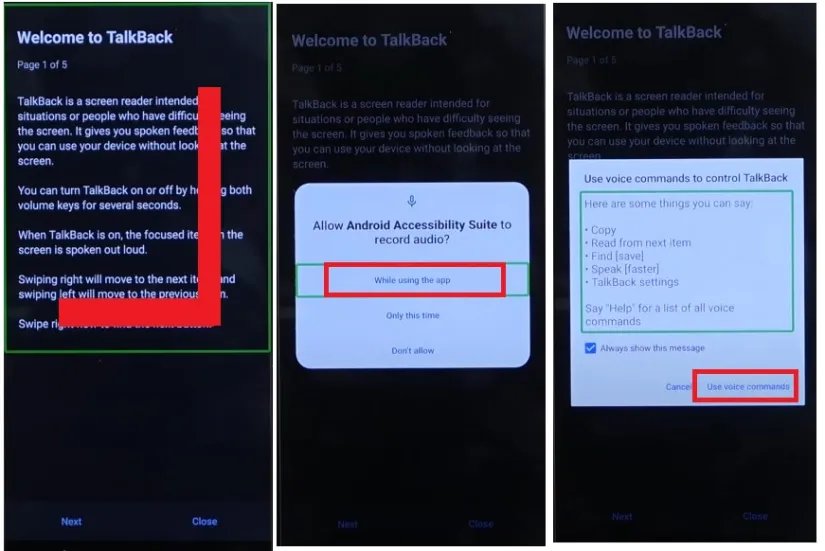
- Draw L to Unlock Google Verification Without PC 6 and FreeYond FRP Bypass Android 12. Draw “⅃” (Reverse L) now.
- Choose “Use Voice Command.”
- Next, say, “Open Google Help.”
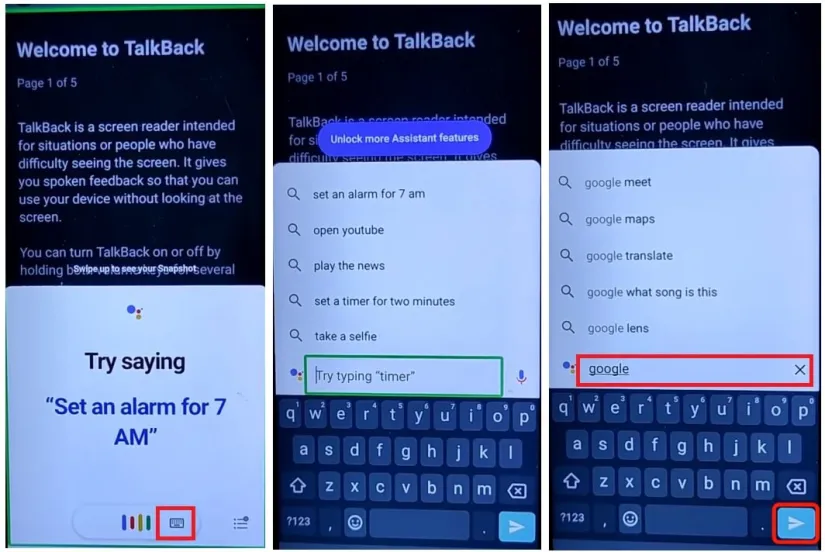
- To get around FRP on Android 12, use Google to unlock Google Verification without a computer.
- To choose the keyboard, double tap.
- Press Vol Up + Vol Down to turn off talkback.
- Enter Google and press Enter.
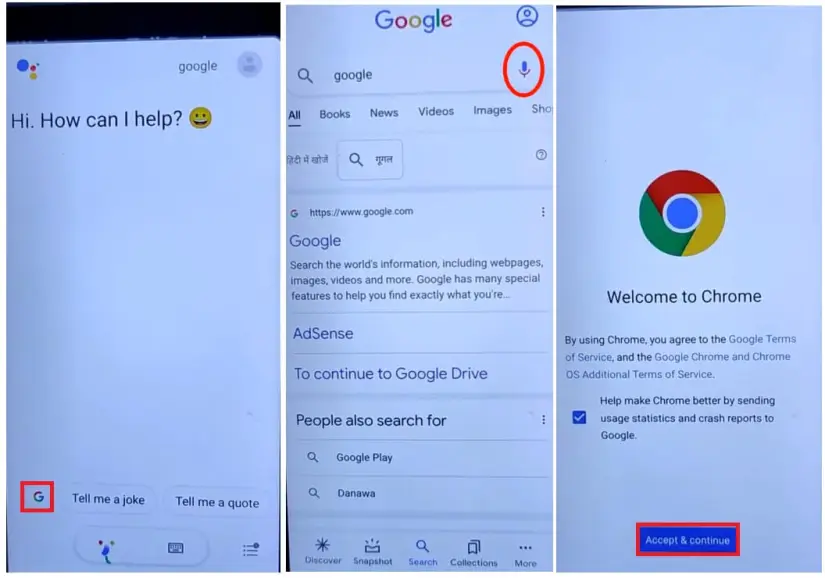
- To get around FRP on Android 12, launch Chrome. How to Get Google Verification Without a Computer 12. Press the Google symbol.
- Press the “Google Mic” button and say “Open Chrome.”
On Your Phone, Launch The Chrome Browser App
- You will now be sent to the Chrome browser.
- Press the Search button.
- Navigate to the section labeled “To Open FRP APPS” in the FRP bypass APK.
- Tap Open after choosing Open Settings App.
- 5It will take you to the settings on your smartphone.
- Choose Accessibility by descending.
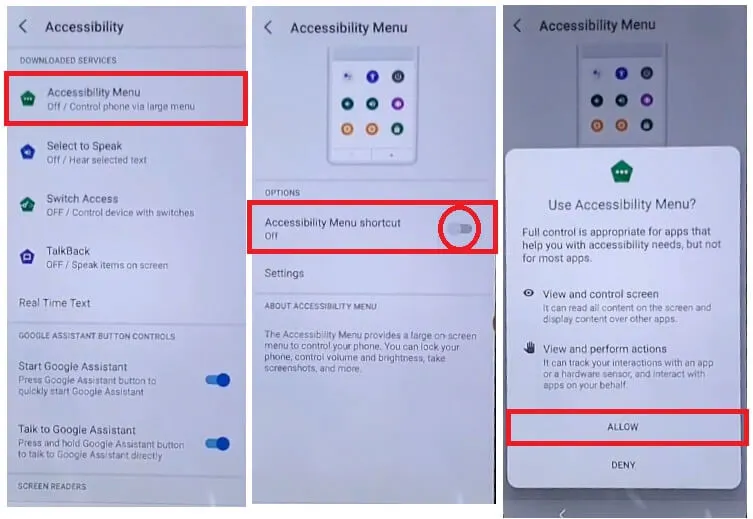
- Select Allow > Got it from the Accessibility menu shortcut.
- Now Return to the Settings menu.
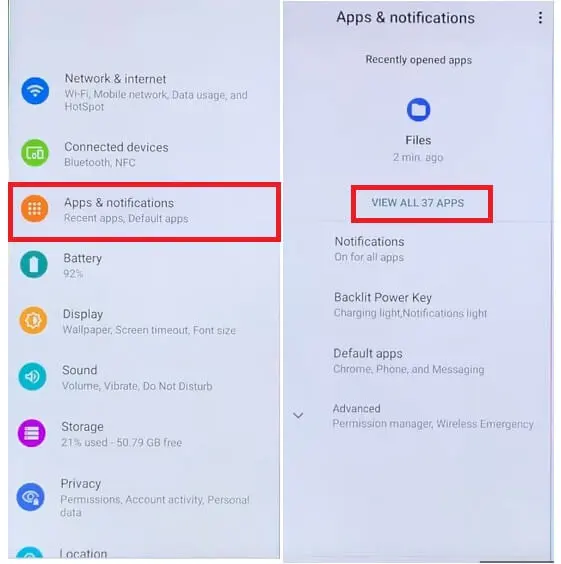
- Launch Apps & Alerts.
- Click on View All Apps.
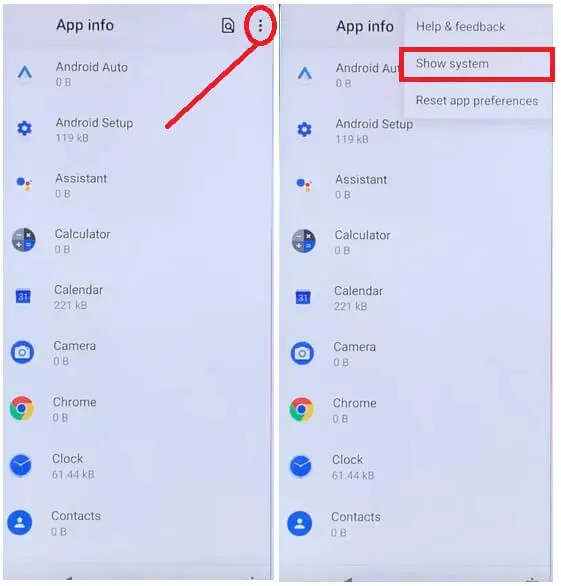
- Tap the three dots and choose “Show System.”
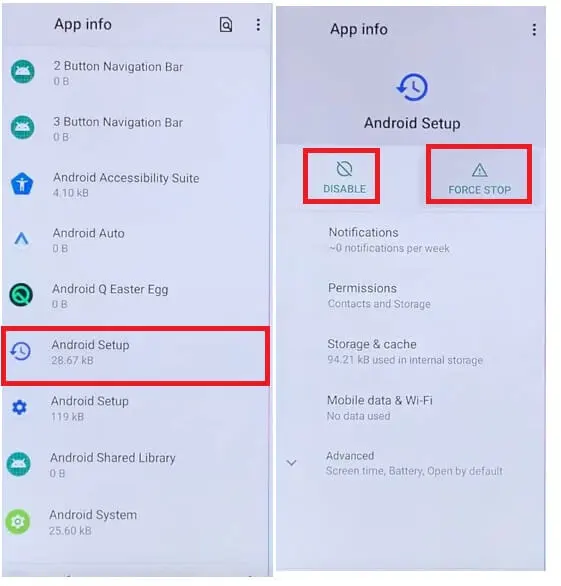
- Now choose Disable & Force Stop under Android Setup.
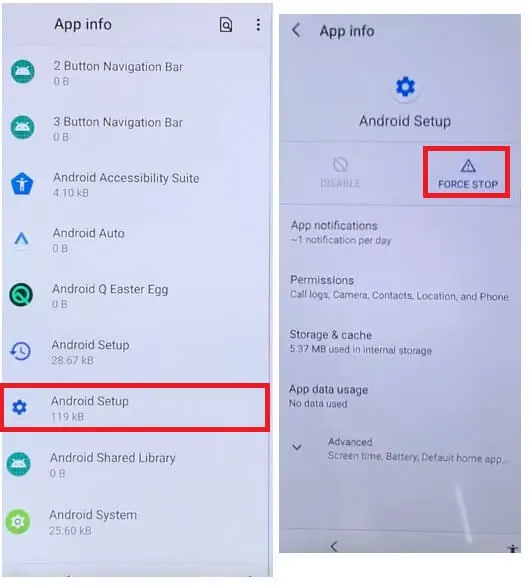
- Force-stop the second Android setup after opening it.
- Press the Back button.
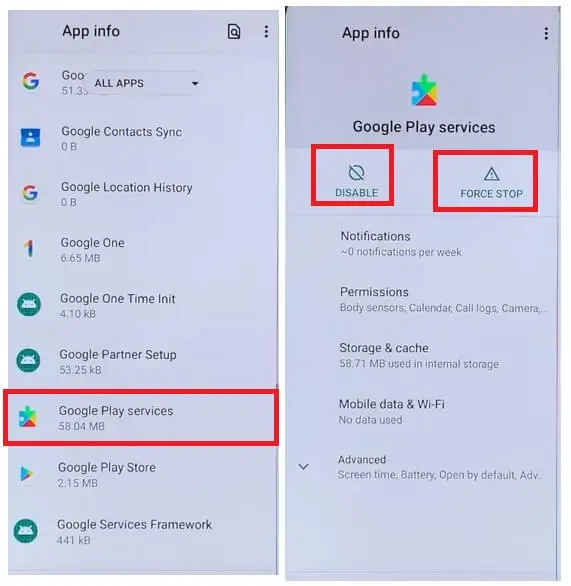
- Choose Google Play Services by descending.
- Force Stop and Disable.
Android Setup Wizard
- Right now Tap the back key several times to return to the Main Welcome Setup Wizard screen.
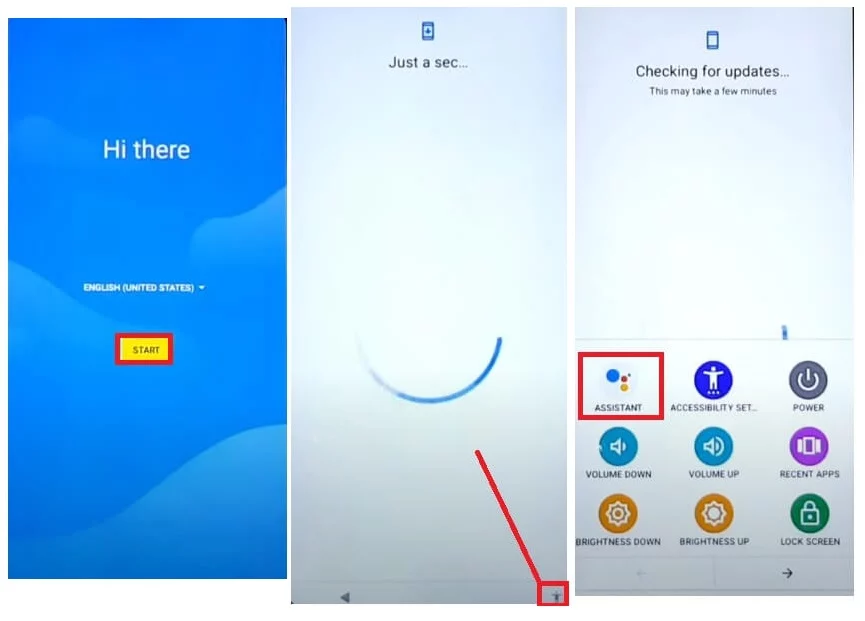
- Press the START button.
- At this point, the “Checking for Updates” screen will remain.
- Select Assistant by tapping on the Accessibility Shortcut icon.
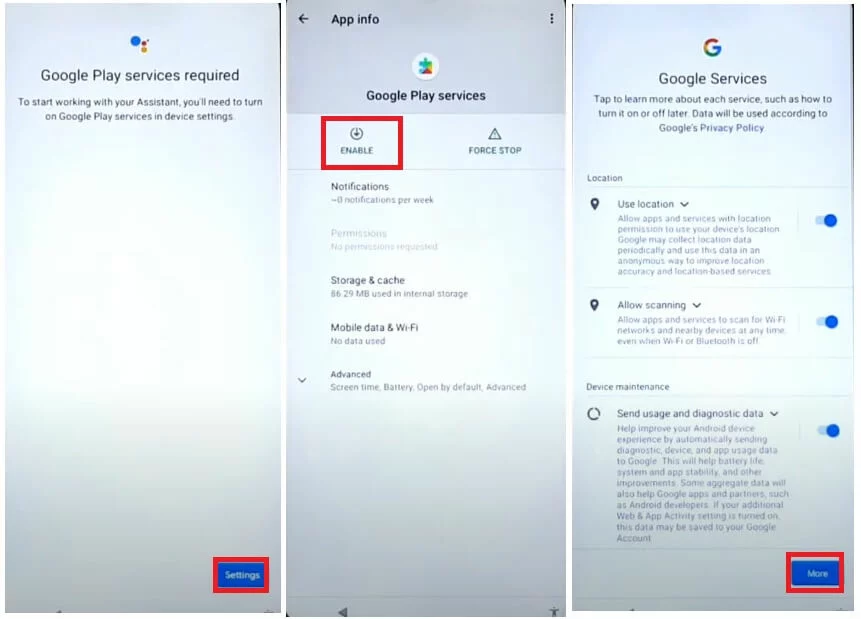
- Keep trying until the “Setting” button shows up on the screen of your smartphone.
- Next, choose Settings > Google Play Services Enable.
- Return to the Setup page, choose More (Google Services), and then click Accept.
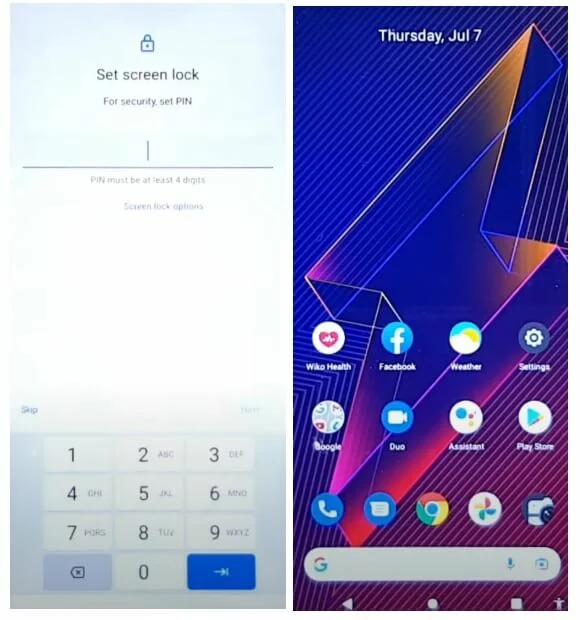
- Now finish the setup procedure.
- Next, verify that you were able to get past the FRP lock on your FreeYond PAD A5 phone.
- That’s all.