Introduction
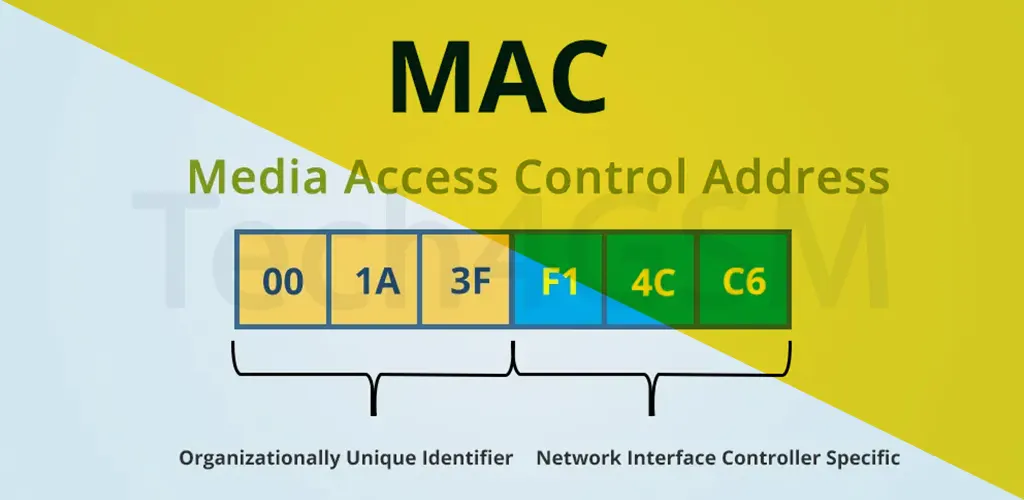
A MAC (Media Access Control) address is like a social security number for your devices – it’s a unique 12-digit code assigned to every network interface (like Wi-Fi cards or Ethernet ports) by the manufacturer. Here’s the breakdown:
- Format: Six pairs of letters/numbers, separated by colons or hyphens (e.g.,
00:1A:2B:3C:4D:5E). - Purpose: Identifies devices on a local network (e.g., your home Wi-Fi) so data reaches the right gadget.
Fun Fact: The first three pairs (OUI) reveal the manufacturer. For example, 00:1A:2B might belong to Intel!
MAC Address vs. IP Address: What’s the Difference?
| MAC Address | IP Address |
|---|---|
| Unique hardware ID for devices. | Logical ID for internet communication. |
| Works on Layer 2 (Data Link). | Works on Layer 3 (Network). |
Example: 00:1A:2B:3C:4D:5E | Example: 192.168.1.1 or IPv6 |
| Fixed (usually). | Changes (e.g., when switching Wi-Fi). |
Analogy:
- MAC address = Your name (stays the same everywhere).
- IP address = Your current address (changes when you move).
3 Types of MAC Addresses Explained
- Unicast MAC Address
- Use: One-to-one communication (e.g., laptop sending a file to a printer).
- Example: Sending an email to a specific colleague.
- Multicast MAC Address
- Use: One-to-many communication (e.g., live video streaming to subscribers).
- Format: Starts with
01-00-5E(e.g.,01:00:5E:00:00:01).
- Broadcast MAC Address
- Use: One-to-all communication (e.g., router announcing a network update).
- Format:
FF:FF:FF:FF:FF:FF(all devices “listen”).
Can a MAC Address Be Spoofed? (And Should You Do It?)
Yes! MAC spoofing lets you temporarily change your device’s MAC address using software. People do this to:
- Bypass network restrictions (e.g., free Wi-Fi time limits).
- Enhance privacy (hide from local tracking).
But Beware:
- Spoofing is banned on many networks.
- It doesn’t hide your IP address from websites.
How to Protect Your Network:
- Use MAC filtering (only allow known devices).
- Enable 802.1X authentication (requires login).
- Learn more at tech4gsm.com/router-security.
How to Find Your MAC Address
Windows:
- Open Command Prompt.
- Type
ipconfig /all→ Look for Physical Address.
Mac:
- Go to System Settings → Network.
- Click your connection → Details → Hardware.
Android/iOS:
- Settings → About Phone → Status or Network.
Why Change a MAC Address?
- Privacy: Prevent tracking on public Wi-Fi.
- Access: Bypass MAC-based bans (e.g., gaming networks).
Steps to Change (Windows):
- Open Device Manager → Network adapters.
- Right-click your adapter → Properties → Advanced → Network Address.
- Enter a new MAC (e.g.,
00:1A:2B:3C:4D:5F).
Note: Changes reset after reboot.
MAC Filtering: Friend or Foe?
What It Does: Lets routers block/allow devices based on MAC addresses.
Pros:
- Easy to set up.
- Blocks unauthorized devices.
Cons:
- Not foolproof (spoofing is easy).
- Managing lists is time-consuming.
Tip: Pair MAC filtering with WPA3 encryption for better security.
The Future of MAC Addresses (2025 and Beyond)
By 2025, expect:
- Randomized MACs: Phones/laptops will use temporary addresses to prevent tracking (already in iOS/Android).
- AI-Driven Networks: Smart systems detecting spoofed MACs instantly.
- IPv6 Dominance: Reduced reliance on MACs for routing.
FAQs
1. Is a MAC address permanent?
Mostly! It’s burned into the hardware but can be spoofed.
2. Can websites see my MAC address?
No – MACs only work locally. Websites see your IP address.
3. Does a VPN hide my MAC address?
No, but it hides your IP and encrypts data.
4. How do I block devices using MAC filtering?
Go to your router settings (e.g., 192.168.1.1) → Security → MAC Filtering.
5. Why does my phone have two MAC addresses?
One for Wi-Fi and one for Bluetooth – they’re separate interfaces!
Conclusion
MAC addresses are the unsung heroes of local networks, ensuring your devices chat smoothly. While tech evolves, understanding basics like MAC vs. IP or spoofing risks helps you stay secure.