Introduction: Boost Your PC’s Power Without Spending a Dime!
Did you know your dusty old PC could run like a high-end machine without upgrading hardware? Sounds like magic, right? Well, it’s not—it’s called overclocking, a trick tech enthusiasts use to squeeze up to 50% more performance from their Intel or AMD processors. And guess what? You don’t need to be a rocket scientist to do it!
In this guide, we’ll explore the top 5 overclocking tools of 2025 that’ll transform your sluggish PC into a speed demon. Whether you’re gaming, editing videos, or just tired of endless loading screens, these free (and safe) software options are your ticket to a faster machine. Let’s dive in!
What is Overclocking? A Beginner’s Cheat Sheet
Before we jump into the tools, let’s break down the basics. Overclocking means pushing your CPU or GPU beyond its factory-set speed limits. Think of it as revving a car’s engine to go faster—but for your computer!
Why Overclock?
- Play games at smoother frame rates.
- Render videos faster.
- Multitask without lag.
But Wait—Is It Safe?
Yes, if done right. Overclocking can generate extra heat, so proper cooling is a must. Also, not all processors are built the same. For example, Intel’s “K-series” CPUs (like the i9-14900K) and AMD’s “Ryzen X” chips are designed to handle overclocking. Push others too hard, and you might fry your system.
Pro Tip: Always monitor temperatures! Tools like HWMonitor or Core Temp are your best friends here.
Pre-Overclocking Checklist: Don’t Skip This!
- Cooling System: Stock coolers? Upgrade to air or liquid cooling.
- Power Supply: Ensure your PSU can handle extra voltage.
- Backup Data: Better safe than sorry.
- Update BIOS: Newer versions often support better overclocking.
Ready? Let’s explore the software!
1. MSI Afterburner: The GPU Overclocking Legend
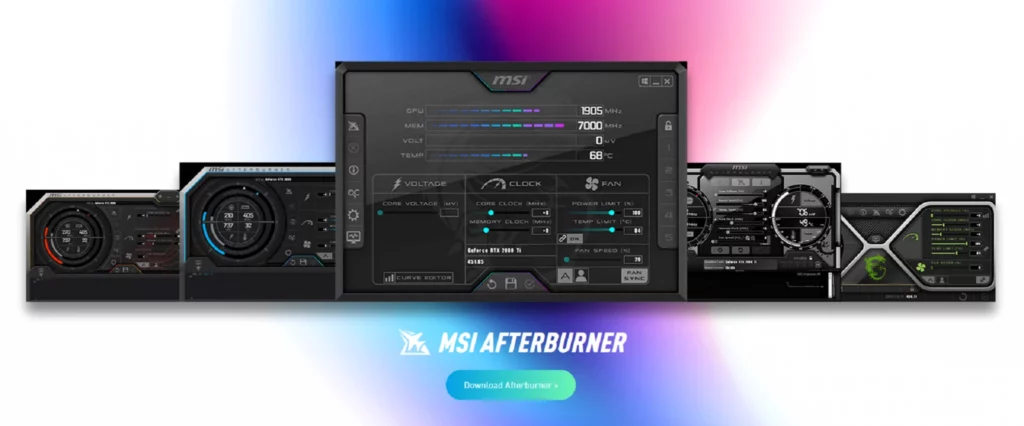
Best For: Gamers and Nvidia/AMD GPU users.
Compatibility: Windows 10/11 (2025 updates supported).
Why It’s Awesome:
Developed by MSI, this tool is a GPU overclocking powerhouse. It’s free, user-friendly, and packed with features:
- Real-Time Monitoring: Track GPU temp, clock speed, and usage.
- Custom Fan Curves: Keep your GPU cool under pressure.
- Voltage Control: For advanced users craving precision.
Step-by-Step Guide:
- Get from MSI’s official site.
- Slide the “Core Clock” bar +50MHz.
- Run a stress test using the built-in scanner.
- If stable, push further. If it crashes, dial back.
Pro Tip: Use the On-Screen Display to monitor FPS and temps while gaming.
Pros
- Works with ANY GPU (Nvidia/AMD).
- Supports 4K resolution tuning.
- Community profiles for popular games.
Cons
- CPU overclocking? Nope.
- Beginners might find advanced settings overwhelming.
2. Intel XTU: Unleash Your Intel CPU’s Hidden Power
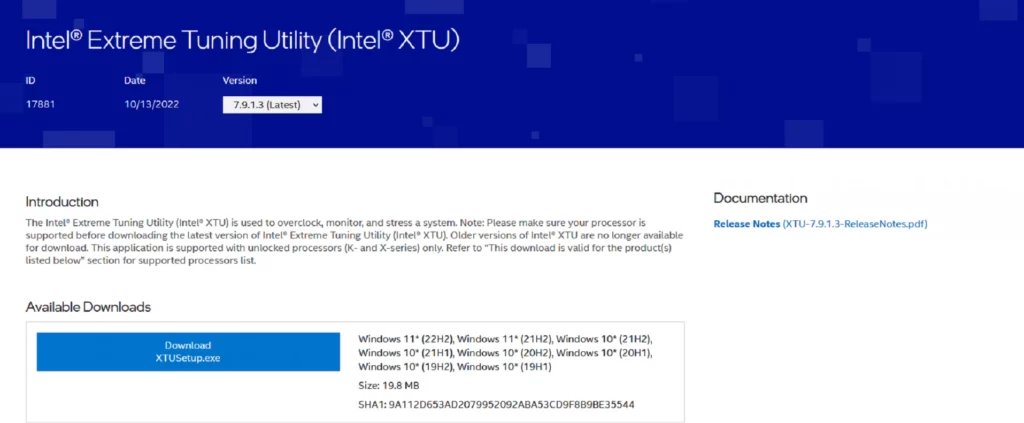
Best For: Intel CPU owners (i5, i7, i9 K-series).
Compatibility: Windows 10/11, Intel 12th Gen and newer.
Why It’s Awesome:
Intel’s official tool, Extreme Tuning Utility (XTU), is a goldmine for CPU tweaking. It’s like giving your processor a caffeine shot!
Key Features:
- Per-Core Overclocking: Boost individual cores for specific tasks.
- Benchmarking: Test stability with one click.
- Thermal Monitoring: Avoid meltdowns with real-time temp alerts.
2025 Updates:
- Added support for Intel’s 14th Gen CPUs.
- Simplified UI for beginners.
Step-by-Step Guide:
- Install Intel XTU and reboot.
- Navigate to “Advanced Tuning.”
- Increase “Core Ratio” by 1.0 (e.g., 40 → 41).
- Run a 10-minute stress test. No crashes? Repeat!
Safety Net: XTU auto-reverts to default settings if your system crashes.
Pros
- Official Intel software (safe and reliable).
- Detailed performance logs.
Cons
- No AMD support.
- Limited GPU controls.
3. AMD Ryzen Master: Overclocking Made Sexy
Best For: AMD Ryzen 5000/7000/9000 series CPU users.
Compatibility: Windows 10/11, Ryzen 3 and up.
Why It’s Awesome:
AMD’s answer to Intel XTU, Ryzen Master, is a sleek, no-nonsense tool tailored for Ryzen CPUs. It even lets you overclock RAM!
2025 Highlights:
- Precision Boost Overdrive 2 (PBO2): Automatically optimizes clock speeds.
- Zen 4 Support: For Ryzen 9000 series chips.
Step-by-Step Guide:
- Open Ryzen Master and click “Auto Overclock.”
- For manual control, adjust “CPU Voltage” and “Multiplier.”
- Apply settings and test with Cinebench.
Pro Tip: Enable “Game Mode” to disable extra cores for higher clock speeds.
Pros
- RAM overclocking included.
- Temperature safeguards prevent overheating.
- Simple UI with dark/light themes.
Cons
- Requires AMD processor (duh!).
- No GPU controls.
4. CPU Tweaker: The Underdog for Older PCs
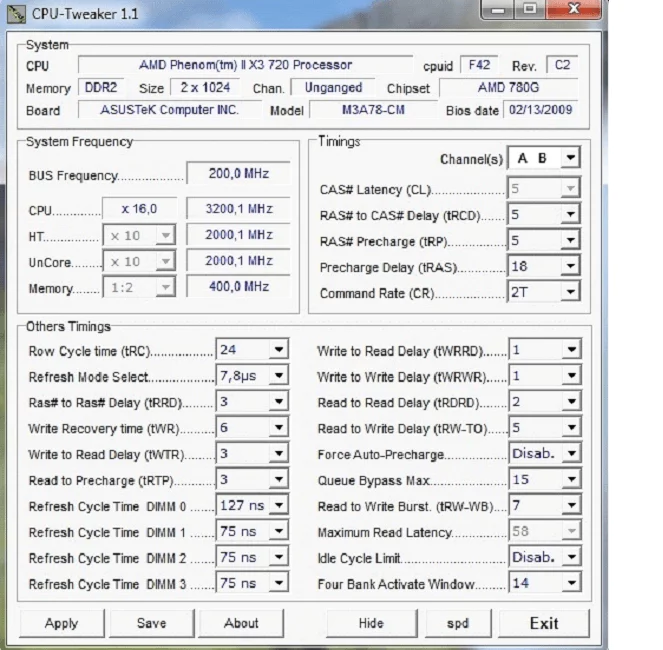
Best For: Legacy systems (Windows XP/Vista) or budget builds.
Compatibility: All Intel/AMD CPUs, even pre-2010 models!
Why It’s Awesome:
While others chase shiny UIs, CPU Tweaker focuses on raw power. It’s lightweight, free, and works on ancient PCs.
Features:
- Multi-Thread Optimization: Perfect for old quad-cores.
- Low Resource Usage: Runs smoothly on 2GB RAM.
Step-by-Step Guide:
- Get and run as Administrator.
- Under “Clock Settings,” increase FSB (Front Side Bus).
- Save profile and reboot.
Warning: Older CPUs lack thermal protection. Monitor temps closely!
Pros
- Works on Windows XP!
- No bloatware or ads.
Cons
- Dated, confusing interface.
- Limited documentation.
5. EVGA Precision X: Nvidia GPU’s Best Friend
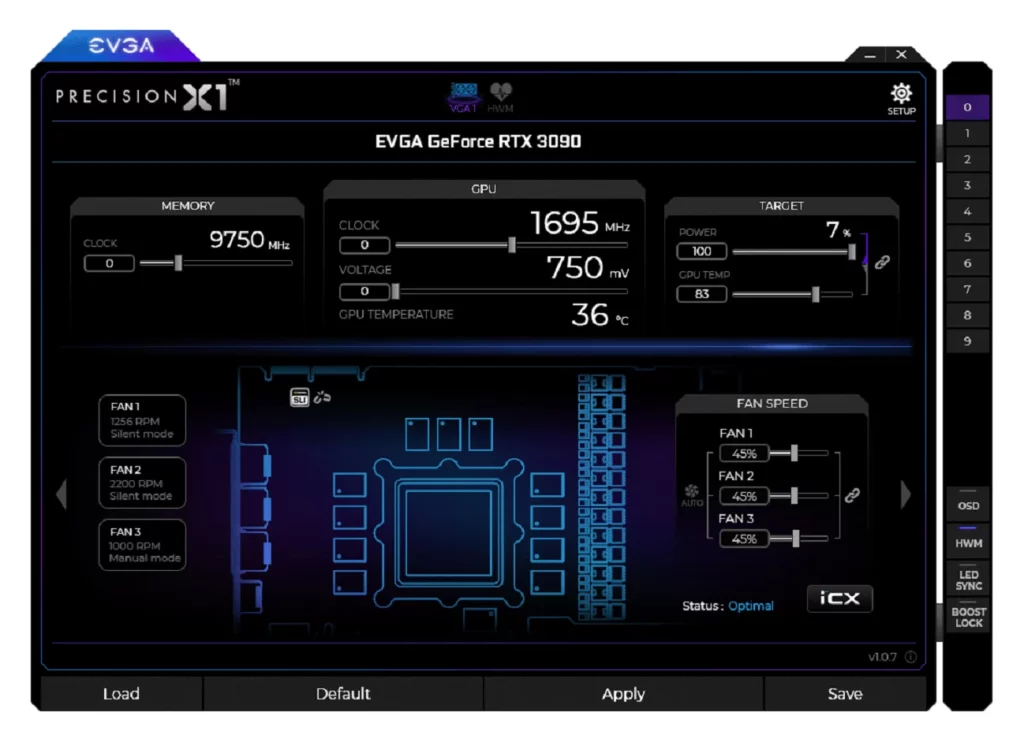
Best For: Nvidia GPU owners (RTX 3060, 4070, etc.).
Compatibility: Windows 10/11, GTX 900 series and newer.
Why It’s Awesome:
EVGA’s Precision X is like MSI Afterburner’s quirky cousin. It offers 10 profile slots, RGB controls, and a slick interface.
2025 Perks:
- AI Overclocking: Automatically finds stable settings.
- ARGB Sync: Match GPU lighting with your setup.
Step-by-Step Guide:
- Install Precision X and hit “Scanner.”
- Let the AI test optimal overclocks.
- Save as “Gaming Profile” and apply.
Pros
- Best-in-class RGB customization.
- Supports all Nvidia GPUs.
Cons
- No AMD GPU support.
- Slightly heavier on resources.
Honorable Mentions
- ASUS GPU Tweak III: For ROG Strix GPU owners.
- NVIDIA Inspector: Unlocks hidden GPU settings.
- ThrottleStop: Fix CPU throttling on laptops.
Overclocking for Different Needs
- Gaming: Focus on GPU (MSI Afterburner/Precision X).
- Video Editing: Prioritize CPU/RAM (Ryzen Master/Intel XTU).
- Legacy Systems: CPU Tweaker is your hero.
Common Mistakes to Avoid
- Skipping Stress Tests: Use Prime95 or FurMark.
- Ignoring Voltage: Too much = fried components.
- Copying Settings Online: Every system is unique!
FAQs
Q: Will overclocking void my warranty?
A: Yes, for most manufacturers. Use discreetly!
Q: Is a 50% boost realistic?
A: On older CPUs/GPUs, yes. Newer ones? 10-20% is safer.
Q: Can I overclock a laptop?
A: Possible but risky due to cooling limits.
Conclusion: Turbocharge Your PC in 2025!
Overclocking is like finding free horsepower under your PC’s hood. With the right tools—MSI Afterburner, Intel XTU, AMD Ryzen Master, CPU Tweaker, or EVGA Precision X—you can breathe new life into your system. Just remember: patience and caution are key!