Introduction: Your Photos Aren’t Gone Forever!
We’ve all been there—a slip of the finger, a mistaken tap, and poof! Precious photos vanish. Whether it’s vacation memories, family moments, or that perfect selfie, losing photos feels like losing a piece of your life. But here’s the good news: In 2025, recovering deleted photos on Android is easier than ever!
This guide walks you through three foolproof methods to restore your pictures, even if you’re not tech-savvy. From free apps to Google’s hidden tricks, let’s dive in!
Why Do Photos Get “Deleted” Anyway?
Before we jump to solutions, let’s understand how Android handles deletions. When you delete a photo:
- It’s moved to a “Trash” or “Recently Deleted” folder (if enabled).
- The phone marks the storage space as “available” but doesn’t erase the data immediately.
- Over time, new files overwrite the space, making recovery harder.
Act fast! The sooner you attempt recovery, the higher your chances.
Method 1: Recover Deleted Photos Using PC Software (Advanced but Effective)
Best for: Deep scans, recovering large batches, or heavily damaged storage.
Tools Needed: A Windows/Mac PC, USB cable, and data recovery software.
Top 5 Data Recovery Software for 2025
- EaseUs MobiSaver Pro 2025 (Paid)
- Pros: User-friendly, supports 4K video recovery.
- Cons: Requires purchase for full features.
- Wondershare RecoverIt Ultra (Paid)
- Pros: AI-powered scans, 98% success rate.
- Disk Drill 2025 (Free/Paid)
- Free Version: Recovers up to 500MB.
- PhotoRescue Pro (Paid)
- Tailored for photo/video recovery.
- Stellar Data Recovery (Free Trial)
Step-by-Step Guide Using EaseUs MobiSaver (2025 Edition)

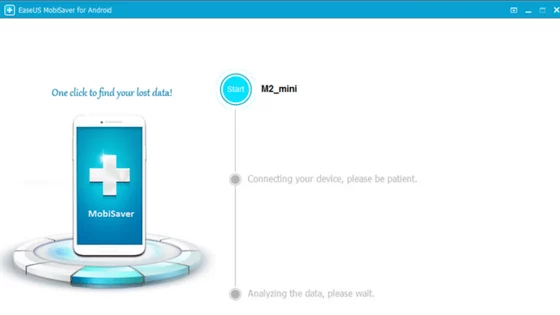
- Download & Install: Get the latest version from EaseUs.com.
- Enable USB Debugging:
- Go to Settings > About Phone > Tap “Build Number” 7 times to unlock Developer Options.
- Return to Settings, open Developer Options > Enable USB Debugging.
- Connect Phone to PC: Use a high-quality USB cable (cheap cables can fail mid-process!).
- Launch EaseUs: Click “Start” to scan your device.
- Scan & Recover:
- Choose “Deep Scan” for thorough results.
- Preview recoverable photos.
- Select files and click “Recover” (save to PC, not the phone, to avoid overwriting).
⚠️ Note:
- Rooting is no longer required for most 2025 software.
- Avoid saving recovered files back to the same device.
Method 2: Recover Photos Using Android Apps (No PC Needed!)
Best for: Quick recovery, non-rooted devices, or if you’re on the go.
Top 3 Recovery Apps in 2025
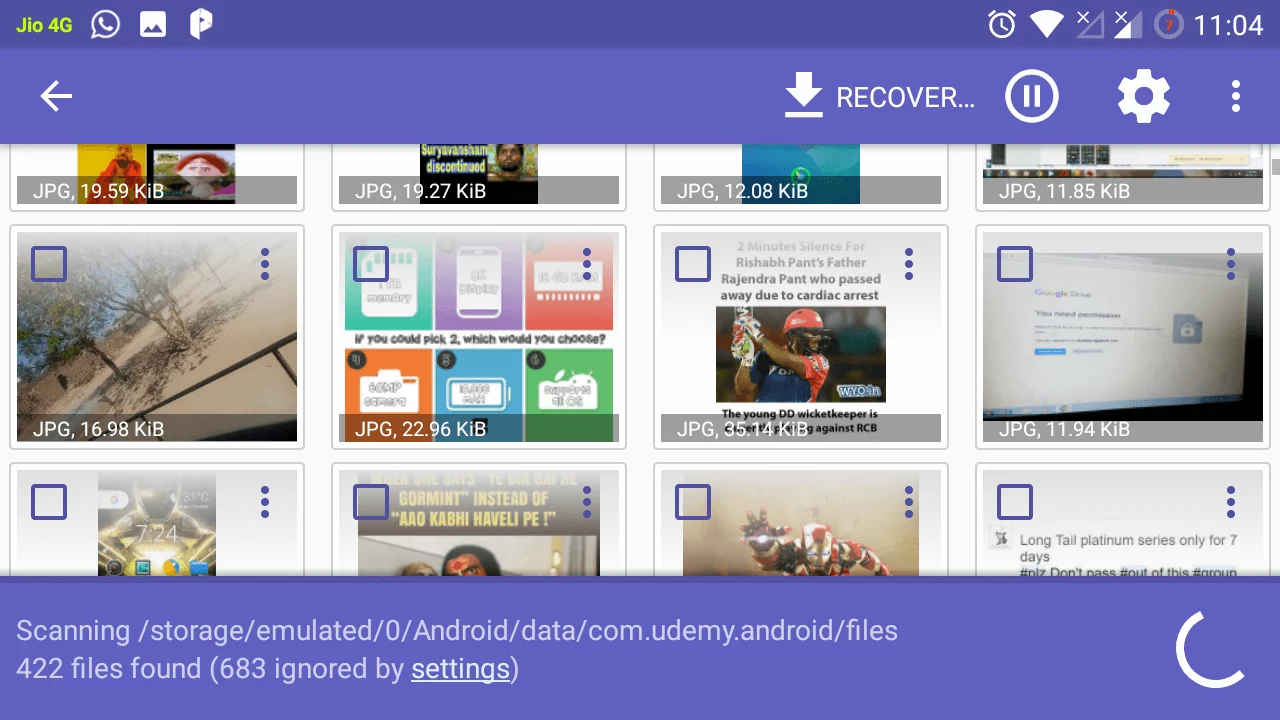
- DiskDigger Pro
- Free Version: Basic scan.
- Pro ($9.99): Deep scan + cloud uploads.
- Dumpster 2025
- Acts like a recycle bin for Android.
- RescuePixel Photo Recovery
- Recovers RAW images and 8K videos.
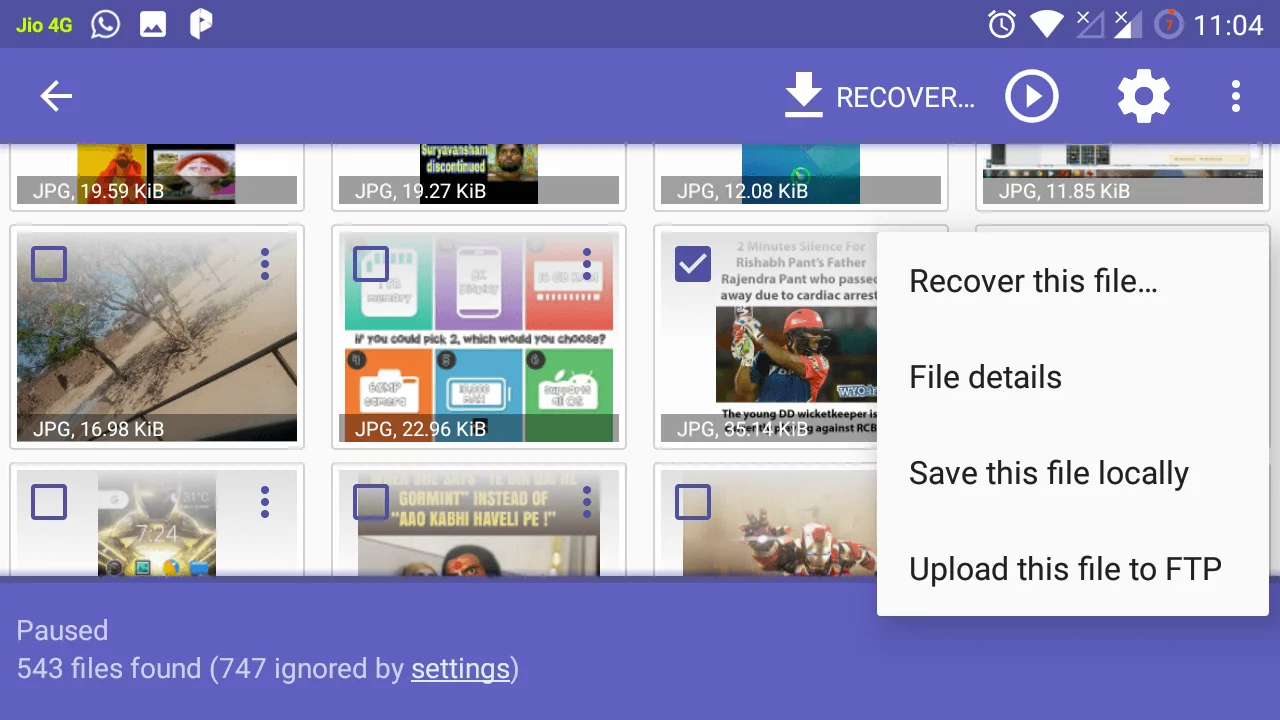
How to Use DiskDigger in 2025
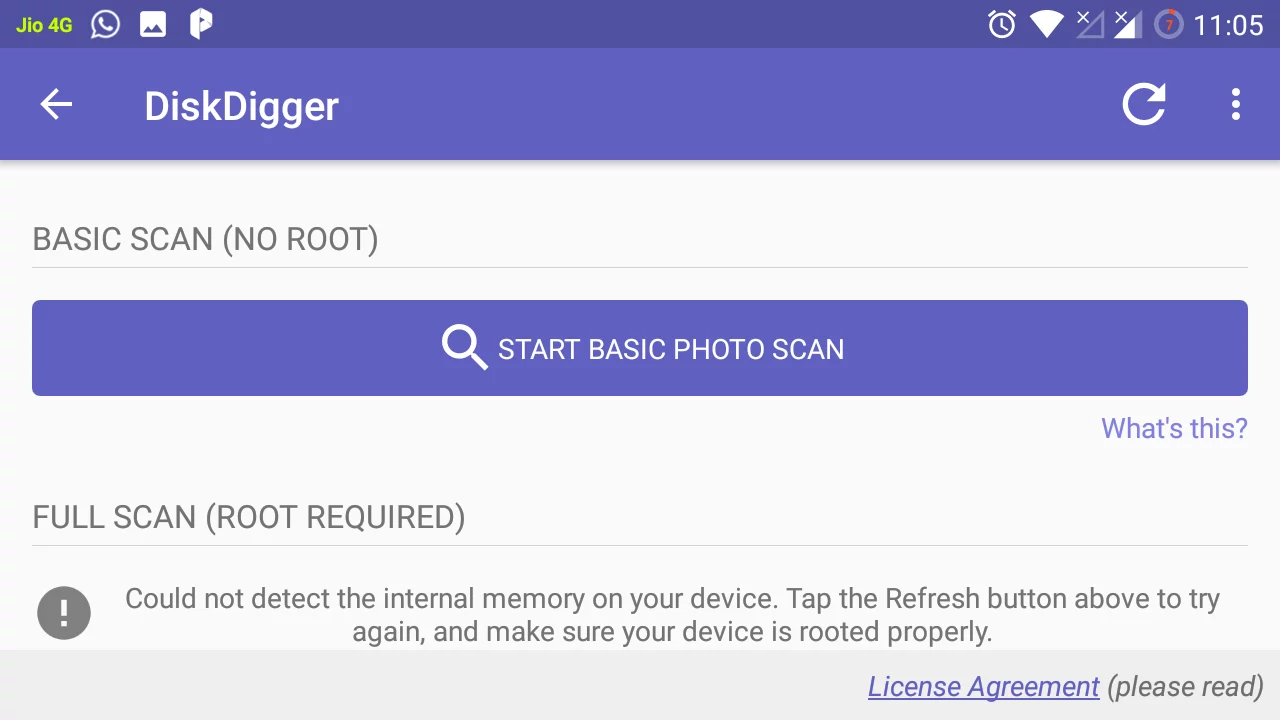
- Install from Google Play: Search “DiskDigger Photo Recovery.”
- Choose Scan Type:
- Basic Scan: For recently deleted files.
- Deep Scan: Requires SD card access (no root needed in 2025).
- Select Photos: Tap thumbnails to preview.
- Recover: Save to your device, Google Drive, or email.
Pro Tip: Enable “Auto-Scan SD Card” in settings to catch deletions instantly.
Method 3: Restore from Google Photos (The Easiest Fix!)
Works if: You had “Backup & Sync” enabled before deletion.
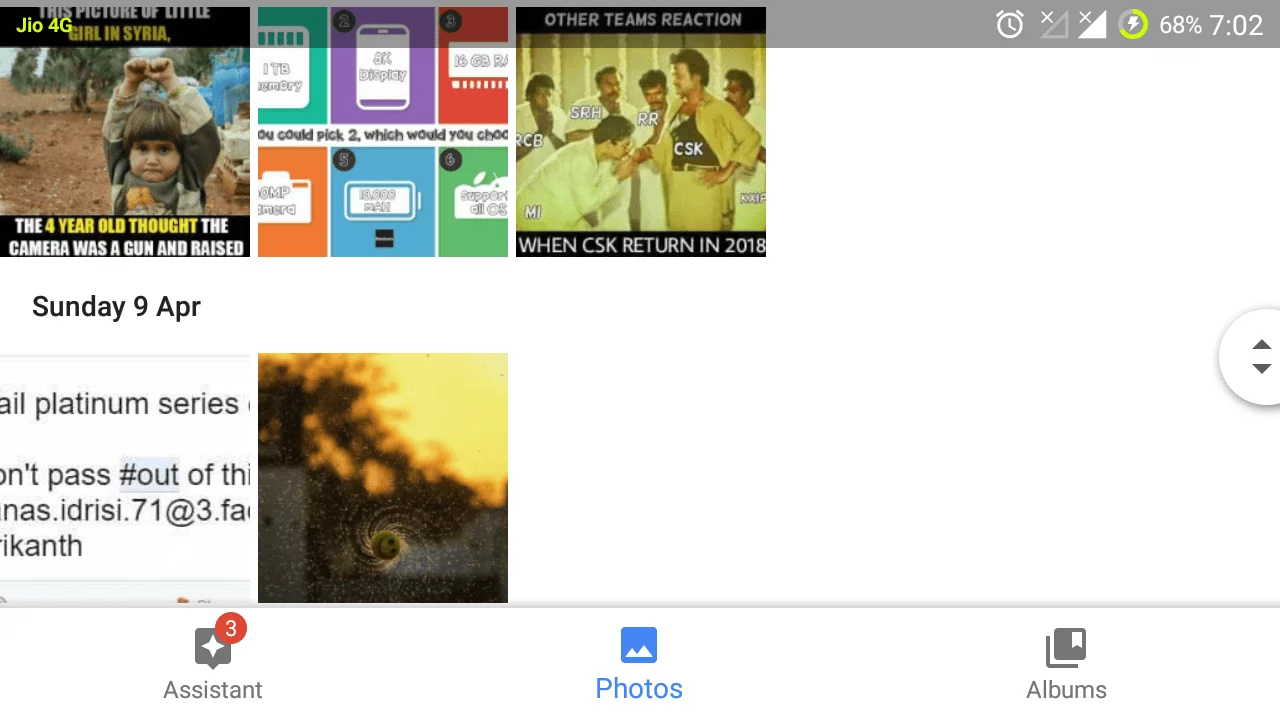
2025 Updates to Google Photos
- Extended Trash Period: Deleted items stay 60 days (up from 30).
- Face Recognition Search: Type “Mom’s birthday 2024” to find specific photos.
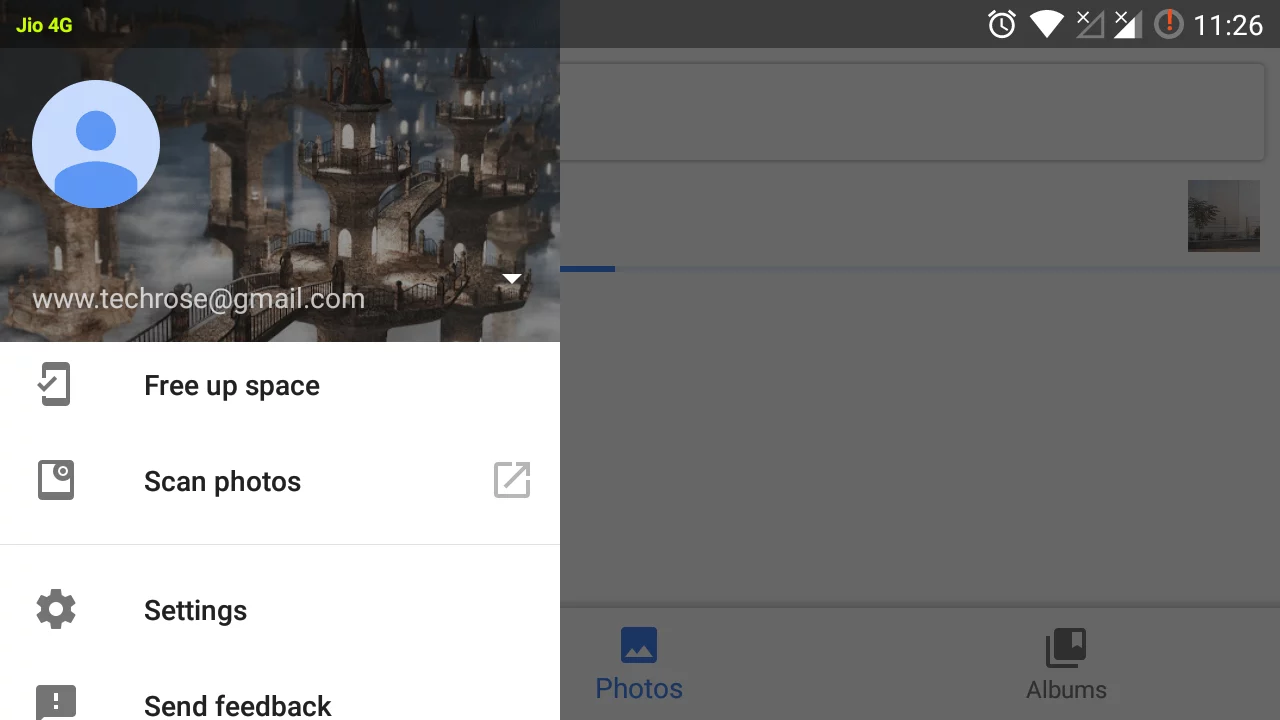
Steps to Recover Photos:
- Open Google Photos App.
- Tap Library > Trash.
- Select photos and click “Restore”.
- Photos return to their original folders!
⚠️ Backup Tip: Use Google One (starts at $2/month for 200GB) for extra storage.
Bonus: 5 Pro Tips to Avoid Future Photo Disasters
- Enable Auto-Backup: Use Google Photos, Dropbox, or Amazon Photos.
- SD Card Saver: Store photos on a removable card.
- Daily Cloud Sync: Apps like Autosync for Google Drive automate backups.
- Use a Dumpster App: Think of it as insurance for accidental deletions.
- Check Trash First: Always peek in Google Photos’ Trash before panicking!
“What If Nothing Works?” Troubleshooting Q&A
Q1: My phone fell in water! Can I recover photos?
A: Remove the SD card immediately! Soak it in rice, then use PC software to scan it.
Q2: I deleted photos years ago. Any hope?
A: Sadly, if backups don’t exist, recovery is unlikely. This is why backups are crucial!
Q3: Are free recovery apps safe?
A: Stick to trusted names like DiskDigger. Avoid shady apps requesting odd permissions.
Final Thoughts: Your Memories Matter!
Losing photos is heartbreaking, but 2025’s tools make recovery a breeze. Start with Google Photos, then try apps, and finally PC software for tough cases. Prevent future losses by enabling backups today!
Did these methods work? Share your story below or ask for help—we’re here for you!