8 Ways to Improve Your Phone’s Signal Strength
We’ve all been there: urgent calls drop, videos buffer endlessly, or texts refuse to send—all because of a weak signal. While modern smartphones are powerful, they’re not immune to connectivity hiccups. Fortunately, improving your phone’s signal doesn’t always require technical expertise. Below, we’ve compiled eight practical, expert-backed solutions to tackle this issue head-on.
1. Toggle Airplane Mode or Restart Your Phone
Phones occasionally “freeze” on outdated network information, especially when moving between areas. Instead of constantly searching for the strongest signal (which drains battery life), your device might cling to a weak one.
Quick Fix:
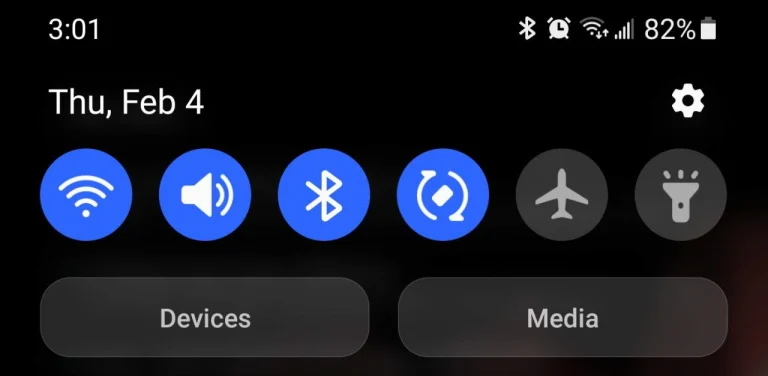
- Activate Airplane Mode for 10 seconds, then turn it off. This forces your phone to reconnect to the nearest tower.
- Restart your phone if you’ve recently traveled internationally or switched carriers.
- Update your software: Manufacturers often release patches to resolve signal-related bugs. Check Tech4GSM’s updates section for news on stable iOS/Android versions.
2. Replace or Clean Your SIM Card
Older SIM cards may lack compatibility with modern network bands. Dust or wear on the metal contacts can also disrupt connections.
Steps to Try:
- Remove the SIM, gently clean it with rubbing alcohol, and reinsert it.
- Request a new SIM from your carrier via their online chat (free in most cases).
- eSIM users (iPhone 14+ or newer Android models): Skip physical SIM issues by activating a digital eSIM through your carrier’s app.
3. Switch Between 4G and 5G Networks
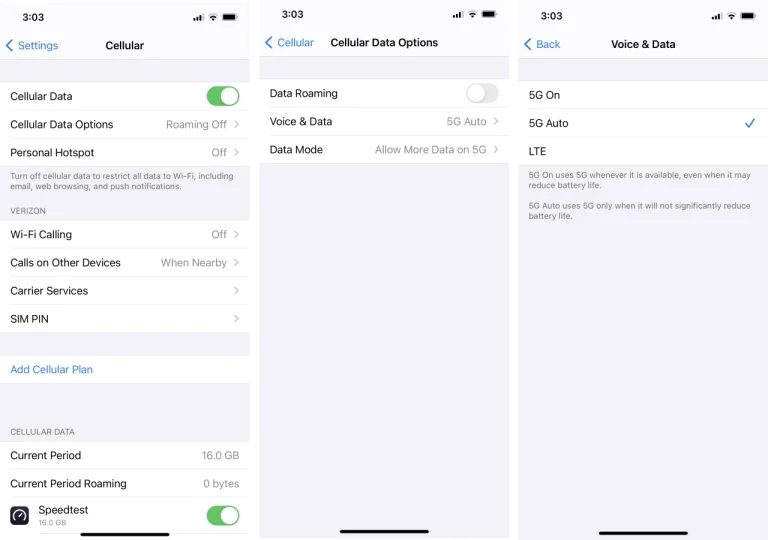
While 5G promises faster speeds, it often has shorter range than 4G. Your phone might prioritize showing a “5G” icon over a stronger 4G signal.
How to Adjust Network Settings:
- iPhone: Go to Settings > Cellular > Cellular Data Options > Voice & Data. Select “LTE” for 4G-only mode.
- Android: Navigate to Settings > Network & Internet > Mobile Network. Disable “5G” to stick with 4G.
4. Maximize Wi-Fi Calling
Weak cellular signal at home? Use Wi-Fi for calls and texts. Most carriers offer free Wi-Fi calling—no extra apps needed.
Setup Guide:
- Enable Wi-Fi Calling in your phone’s cellular settings.
- Invest in a mesh Wi-Fi system (like Google Nest or Eero) to eliminate dead zones indoors.
- Check Tech4GSM’s recommendations for top-rated Wi-Fi gear.
5. Verify Your Phone’s Frequency Band Compatibility
Older phones may lack newer 5G/4G bands. Use these tools to check compatibility:
- CellMapper.net: Identify nearby towers and their frequencies.
- FrequencyCheck.com: Cross-reference your phone’s supported bands.
- If mismatched, consider upgrading to a 2025-model phone with updated band support.
6. Relocate or Switch Carriers
Building materials like concrete or metal can block signals. Try these:
- Move near a window (critical for mmWave 5G).
- Test different rooms or outdoor areas.
- If issues persist, switch carriers. Recent 2025 data from Ookla Speedtest shows T-Mobile leads with median speeds of 188.96Mbps, outpacing Verizon (91.62Mbps) and AT&T
- (90.82Mbps). (Note: Ookla is owned by Tech4GSM’s parent company.)
7. Monitor Data Throttling and Congestion
Carriers may slow speeds due to:
- Data caps: Plans with 10GB/25GB highspeed limits throttle to 396Kbps afterward.
- Network congestion: Crowded events or peak hours strain local towers.
- Solution: Wait for your billing cycle to reset or avoid high-traffic times.

8. Invest in a Cellular Signal Booster
For persistent weak signals, boosters amplify existing coverage:
- Portable units (e.g., weBoost Reach): $200+ for single-device use.
- Whole-home systems (e.g., Cel-Fi GO X): $1,200+ for full coverage.
Final Thoughts
Weak signals don’t have to ruin your day. From simple reboots to carrier switches, these strategies cater to varying needs and budgets.