Introduction
Imagine this: You’re binge-watching your favorite show, gaming online, or finishing urgent work when suddenly—poof—your internet dies. Your device says, “WiFi Connected,” but nothing loads. Panic sets in. Before you scream into the void, take a deep breath. This 2025 guide is your lifeline, packed with 11 proven fixes for the dreaded “WiFi connected but no internet access” issue on PCs, Android, iPhones, and smart devices. Whether you’re tech-savvy or a beginner, these easy, human-friendly solutions will save your day.
Why Does “WiFi Connected But No Internet” Happen?
Let’s decode the mystery. Your WiFi router is like a postman: it delivers data between your device and the internet. If the postman can’t reach the outside world, you’re stuck. Common culprits include:
- Loose/Damaged Ethernet Cables
- Overprotective Antivirus Software
- Proxy Settings Gone Rogue
- Outdated Network Drivers
- ISP (Internet Service Provider) Outages
- Router Wireless Mode Mismatches
- Channel Congestion on Your WiFi
- IP Address Conflicts
Let’s fix these, step by step.
1. Check Ethernet Cables – The “Duh!” Moment
Why It Works: A loose or frayed cable is the #1 overlooked culprit.
Steps:
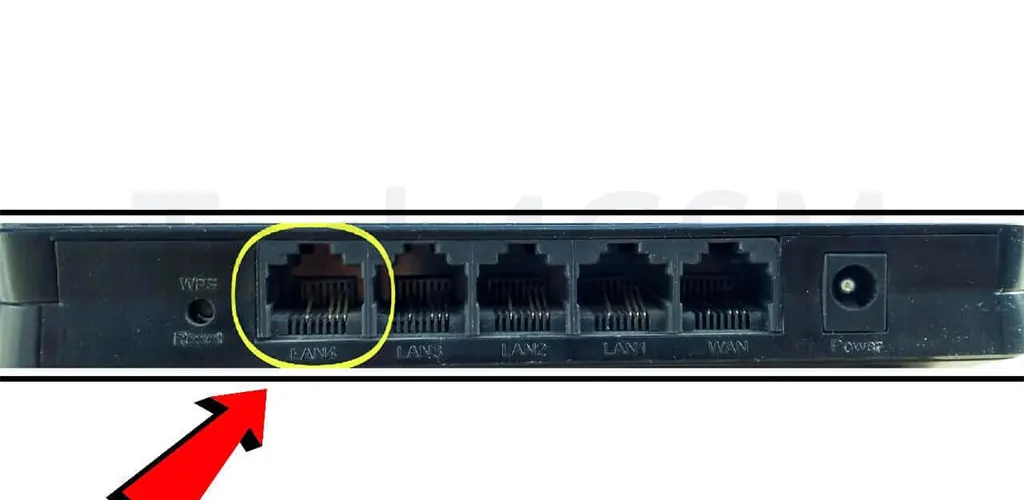
- Follow the Cable: Trace the Ethernet cable from your router to the modem/wall. Ensure both ends are snugly plugged in.
- Inspect for Damage: Look for cuts, pet bites, or bent pins. Test with a spare cable if possible.
- Try a Different Port: Plug the cable into another port on your router.
Pro Tip (2025): Modern Cat-7 cables offer better durability. If you’re using old Cat-5, consider an upgrade.
2. Temporarily Disable Antivirus/Firewall – The Overzealous Guard
Why It Works: Antivirus tools like Norton or McAfee sometimes block “suspicious” traffic, including your legit internet.
Steps for Windows:
- Right-click the antivirus icon in the system tray (bottom-right).
- Select “Disable for 1 hour” or similar.
- Test your internet.
Steps for Android:
- Open settings > Apps.
- Find your antivirus app (e.g., Avast).
- Tap “Force Stop” and “Disable” temporarily.
If It Works: Whitelist your network in the antivirus settings instead of disabling it permanently.
3. Disable Proxy Settings – The Sneaky Middleman
Why It Works: Proxies reroute your traffic. If misconfigured, they’ll block access.
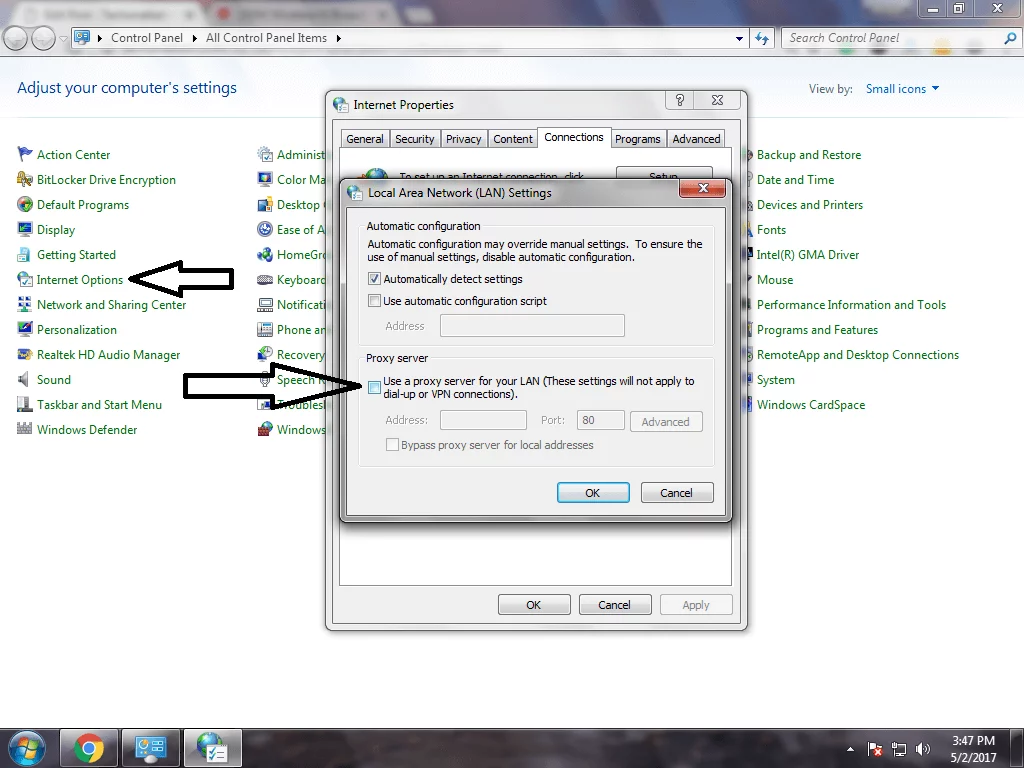
On Windows 11/10 (2025):
- Press Win + I > Network & Internet > Proxy.
- Turn off “Use a proxy server”.
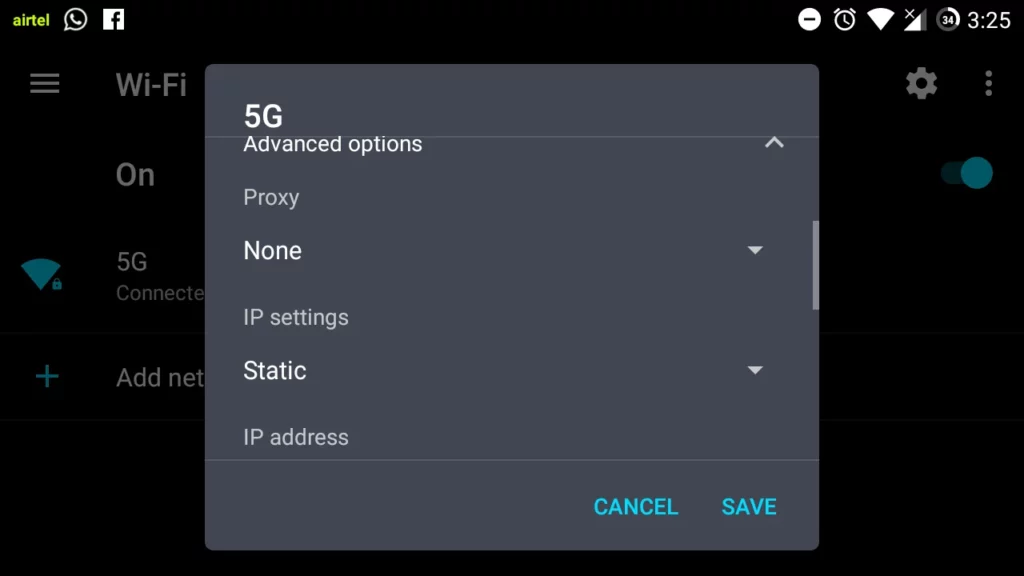
On Android:
- Go to Settings > WiFi.
- Long-press your network > Modify.
- Under “Proxy”, select “None”.
Fun Fact: Proxies are rare in 2025—most apps handle security natively!
4. Update Network Drivers – The Unsung Heroes
Why It Works: Outdated drivers can’t communicate with modern networks.
Auto-Update (Windows):
- Press Win + X > Device Manager.
- Expand “Network Adapters”, right-click your driver > “Update Driver”.
- Select “Search automatically”.
Manual Update:
- Visit your PC manufacturer’s site (e.g., Dell, HP) or use tools like Driver Booster for hassle-free fixes.
Android Users: Carrier updates often include driver fixes. Check Settings > Software Update.
5. ISP Issues – The Invisible Enemy
Why It Works: Sometimes, the problem isn’t you—it’s your ISP.
Steps:
- Visit your ISP’s outage page (e.g., Comcast Xfinity Status Center).
- Tweet/DM them for faster responses.
- Restart Your Modem: Unplug for 30 seconds, then reconnect.
2025 Tip: Many ISPs now offer real-time outage maps in their apps.
6. Tweak Router Wireless Mode – Speak the Same Language
Why It Works: Older devices struggle with 802.11n-only mode.
Steps:
- Open your router’s admin page via 192.168.1.1 (check the router label for exact IP).
- Go to Wireless Settings > Mode > Select “802.11 b/g/n”.
- Save and reboot.
Note: In 2025, WiFi 6E (802.11ax) is standard. Ensure your devices support it!
7. Change WiFi Channel – Avoid Traffic Jams
Why It Works: Crowded channels (1, 6, 11) slow down speeds.
Steps:
- Use apps like WiFi Analyzer to find the least busy channel.
- In your router settings, switch to channels 3, 8, or 13 (varies by region).
2025 Insight: Modern routers auto-select channels, but manual tweaks still help in dense areas.
8. Flush DNS – Clear the Cobwebs
Why It Works: Corrupted DNS cache = No internet.
On Windows:
- Press Win + S, type cmd, then “Run as Administrator”.
- Type:
ipconfig /flushdns
ipconfig /release
ipconfig /renew
On Android:
- Enable Airplane Mode for 30 seconds, then disable it.
9. Reset Network Settings – The Nuclear Option
Why It Works: Resets all network configurations to factory state.
Windows:
- Go to Settings > Network & Internet > Advanced Network Settings > Network Reset.
Android:
- Settings > System > Reset Options > Reset WiFi/Bluetooth.
Caution: You’ll need to re-enter WiFi passwords!
10. Factory Reset Your Router – The Fresh Start
Why It Works: Clears firmware glitches and incorrect settings.
- Press the reset button (use a paperclip) on your router for 10 seconds.
- Reconfigure WiFi name/password post-reset.
2025 Pro Tip: Backup router settings to the cloud (if supported) for quick restoration.
11. Assign a Static IP – Bypass Conflicts
Why It Works: Dynamic IPs might clash; a static IP ensures stability.
Android:
- Settings > WiFi > Modify Network > IP Settings > Static.
- Enter:
- IP: 192.168.1.150 (replace 150 with unused numbers)
- Gateway: 192.168.1.1
- DNS: 8.8.8.8 (Google) or 1.1.1.1 (Cloudflare)
Windows:
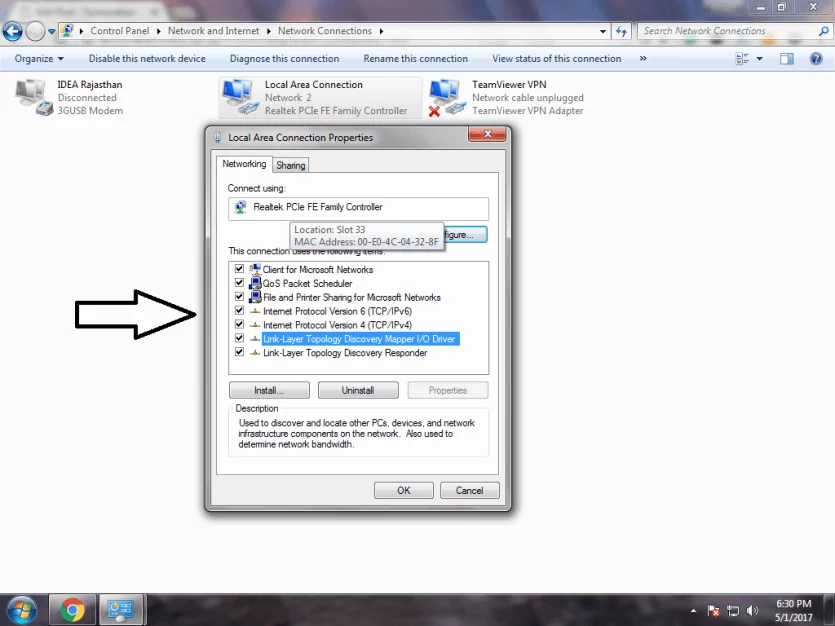
- Control Panel > Network Adapters > Properties > IPv4 > Manual Setup.
Preventative Measures for 2025
- Regular Reboots: Restart router/modem monthly.
- Firmware Updates: Enable auto-updates in router settings.
- Quality Hardware: Invest in mesh WiFi systems for larger homes.
FAQs
Q1. Why does my iPhone say “No Internet” on WiFi?
- Try “Forget This Network” > Reconnect, or reset network settings.
Q2. Can a VPN cause “No Internet Access” errors?
- Yes! Disable your VPN to test.
Q3. Is “WiFi 7” more reliable in 2025?
- Absolutely—faster speeds and reduced congestion.
Final Words
No more rage-quitting over WiFi woes! Whether it’s a loose cable, stubborn antivirus, or ISP hiccup, this guide’s got you covered. Bookmark it, share it, and breathe easy knowing you’re the WiFi whisperer of 2025.