Introduction
Imagine spending hours perfecting a document in Google Drive, only to discover someone made unwanted changes. Frustrating, right? Luckily, Google Drive lets you lock files to prevent edits, ensuring only authorized users can modify them. This guide will show you how to lock your files, why it’s important, and share best practices to keep your documents secure.
Why Locking Files in Google Drive is Important
Locking files helps you:
- Prevent Accidental Edits: Avoid mistakes when multiple people have editing access.
- Maintain Document Integrity: Keep finalized documents like contracts or reports unchanged.
- Simplify Version Control: Reduce the need to restore previous versions.
- Enhance Security: Protect sensitive information from unauthorized changes.
By locking files, you can share them confidently while keeping full control over their content.
How to Lock Files in Google Drive
Locking a file is quick and easy. Follow these steps:
Step 1: Open Google Drive
- Go to Google Drive and sign in to your account.
- Locate the file you want to lock.
Step 2: Access File Options
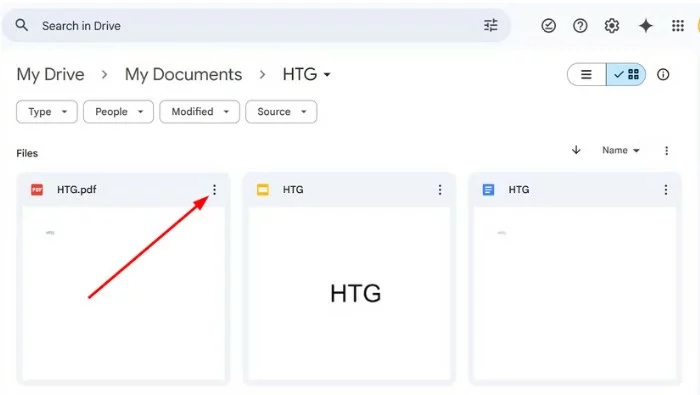
- Right-click on the file.
- Alternatively, select the file and click the three-dot menu (More Actions) in the top-right corner.
Step 3: Lock the File
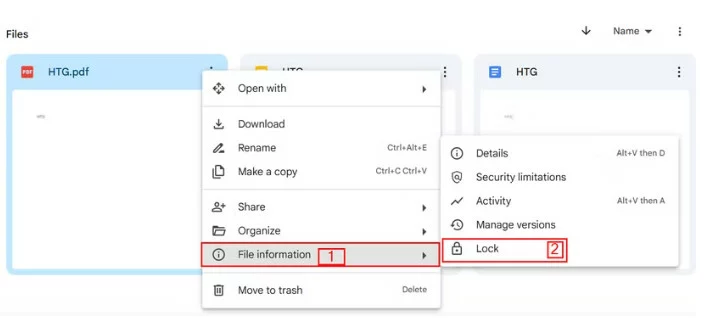
- Click File information > Lock.
- A confirmation message will appear:
- “Lock the file? This will prevent anyone from editing or commenting. Editors can unlock the file.”
- Click Lock to confirm.
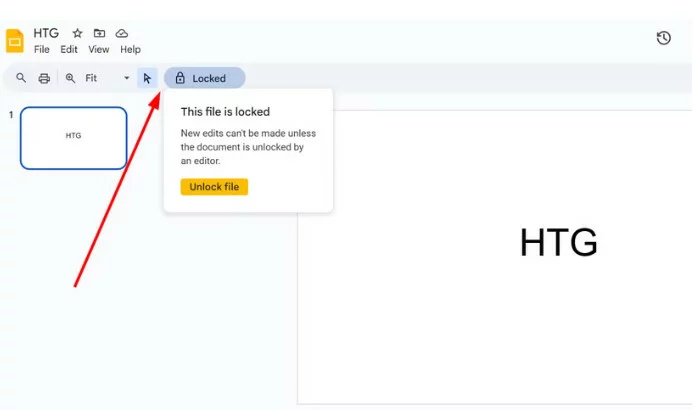
Step 4: Verify the Lock
- Once locked, a pop-up message will confirm the action.
- If someone tries to edit the file, they’ll see a notification stating it’s locked.
Note: Locked files are still viewable, downloadable, and shareable, but no edits can be made unless unlocked.
How to Unlock a Locked File
If you need to edit a locked file:
- Open Google Drive and locate the locked file.
- Right-click the file or click the three-dot menu.
- Select File information > Unlock.
- A confirmation message will appear:
- “Unlock the file? The ability to make changes will be restored.”
- Click Unlock to confirm.
Tip: Only users with editor access can lock and unlock files. Ensure only trusted team members have these permissions.
Best Practices for Locking Files
To make the most of Google Drive’s file-locking feature:
- Lock Finalized Documents: Use this feature for finalized reports, contracts, or guidelines.
- Review Locked Files Regularly: Periodically check if locked files need updates.
- Limit Editor Access: Only grant editing rights to those who truly need them.
- Communicate with Your Team: Let everyone know which files are locked and why.
- Use Version History: Enable Version History to track changes and restore previous versions if needed.
Common Use Cases for Locking Files
Here are some scenarios where file locking is especially useful:
- Business Reports and Presentations: Prevent last-minute edits to finalized reports.
- Legal Contracts and Agreements: Ensure no one alters contract terms without authorization.
- Academic and Research Papers: Maintain proper citations and prevent unnecessary changes.
- Instruction Manuals and Guidelines: Keep internal documents consistent and accurate.
- Financial Statements and Budgets: Protect financial records from unauthorized edits.
What If You Need to Edit a Locked File?
If you don’t have editor access but need to make changes:
- Request Access: Click the Request Edit Access button. The owner can unlock the file or grant temporary permissions.
- Make a Copy: Right-click the file and select Make a Copy to edit the duplicate while preserving the original.
- Check for Time-Sensitive Updates: If the file requires regular updates, implement a workflow for periodic reviews.
Final Thoughts
Locking files in Google Drive is a simple yet powerful way to protect your documents from unwanted edits. Whether you’re safeguarding a business report, a legal contract, or a research paper, this feature ensures your content stays exactly as intended.
By following the steps and best practices in this guide, you can prevent accidental changes, streamline collaboration, and keep sensitive information secure.