Introduction
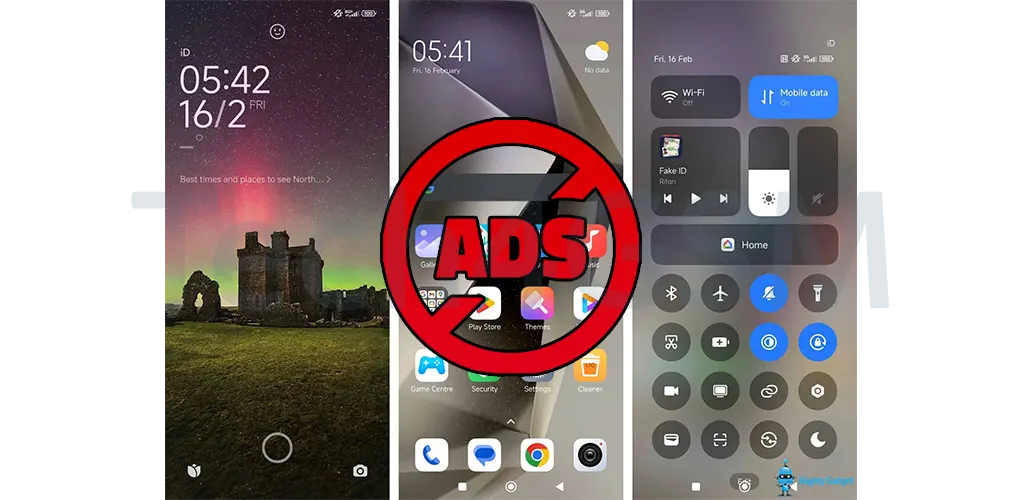
HyperOS, Xiaomi’s latest Android-based software skin, is now available on all the newest Xiaomi, Redmi, and POCO phones. Like its predecessor MIUI, HyperOS boasts a wealth of features designed to enhance the user experience. However, many users find it bogged down by bloatware and an excessive number of advertisements. These issues can hinder performance, consume valuable resources, and diminish user satisfaction.
Optimizing HyperOS: A Comprehensive Guide to Cleaner, Safer, and More Efficient Performance
Fortunately, you can take several straightforward steps to optimize HyperOS by removing unwanted ads and bloatware. This guide provides a detailed, step-by-step process to declutter your device, improve its efficiency, and ensure a more enjoyable and secure experience.
Step 1: Remove Ads from HyperOS
HyperOS is notorious for its integrated ads, which can appear throughout the system and its pre-installed apps. These ads not only disrupt the user experience but may also compromise your device’s privacy. Here’s how to disable them:
1. Remove System Ads
- Access Settings: Open the Settings app on your device.
- Navigate to Privacy Settings: Scroll down to the option labeled Fingerprints, face data, and screen lock and tap on it.
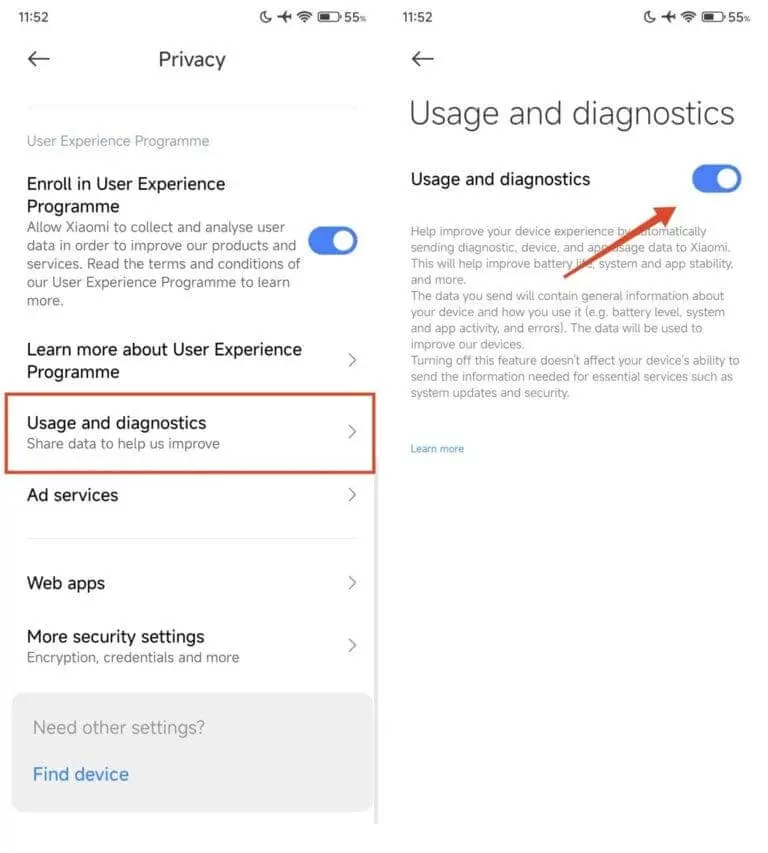
- Turn Off Participation in Programs:
- Go to Privacy and disable the User Experience Program.
- Turn off Usage and diagnostics.
- Disable Personalized Ads.
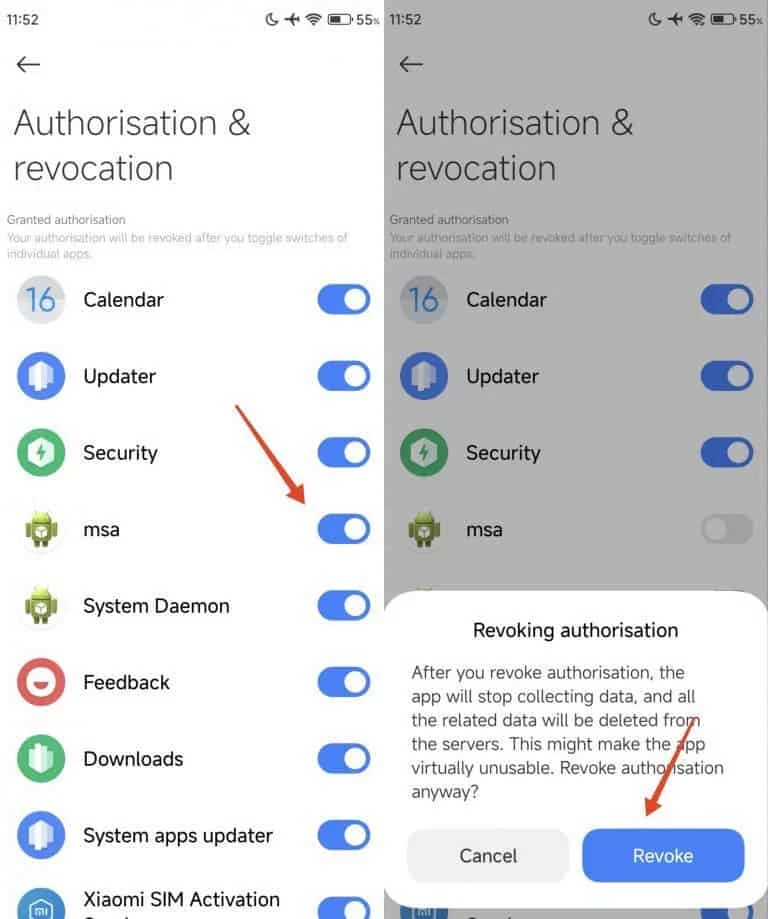
- Revoke Permissions for Ad Services:
- Return to Fingerprints, face data, and screen lock.
- Tap on Authorization and revocation.
- Disable System Daemon and msa (MIUI System Ads).
2. Remove Ads from System Apps
Ads are embedded in many pre-installed system apps, including Security, Music, Mi Browser, File Manager, Themes, and Get. To remove these:
- Open the desired system app.
- Go to its settings.
- Turn off the option labeled Show ads or Recommendations.
3. Remove Ads from the App Drawer
- Open the App Drawer.
- Tap the gear icon in the upper right corner.
- Turn off App Recommendations.
Step 2: Disable Wallpaper Carousel
The Wallpaper Carousel feature frequently displays unwanted ads and can drain your device’s battery. Follow these steps to disable it:
- Open the Settings app.
- Go to Applications > Manage Applications.
- Tap the three-dot menu in the upper right corner and select View all apps.
- Search for Wallpaper Carousel.
- Select it and choose the option to Uninstall or Disable the app.
Step 3: Disable Ads from Security Scan
The Security app on HyperOS includes a feature that scans apps before installation but also displays ads. To turn this off:
- Open the Security app.
- Access the app’s settings.
- Select Security scan and disable the Scan before installation option.
Step 4: Turn Off Notifications from Unwanted Apps
Unnecessary notifications can be a source of frustration and distraction. To manage app notifications:
- Go to the information page for the app you want to adjust.
- Tap on Notifications.
- Turn off notifications entirely or disable specific types of notifications based on your preference.
Step 5: Remove Bloatware from HyperOS
Bloatware refers to pre-installed apps that you might not use or need. Removing these apps can free up storage, improve battery life, and enhance your device’s performance.
1. Basic Method to Remove Apps
- Open the App Drawer.
- Tap and hold the app you wish to remove.
- Select the minus icon and tap on Remove. Alternatively:
- Go to Settings > Apps > Manage apps.
- Select the app you want to remove and tap Uninstall.
2. Advanced Method for Tech-Savvy Users
For apps that cannot be removed through traditional methods, consider using a tool like Universal Android Debloater, available on GitHub. This tool enables advanced users to remove app packages, but caution is advised to avoid removing critical system apps.
Important Note: Avoid removing essential apps related to system operations or those containing personal data.
Frequently Asked Questions
What is HyperOS Bloatware?
Bloatware refers to the pre-installed apps that come with HyperOS. These apps may not be useful to you and can consume valuable storage and system resources. For a detailed list of bloatware apps specific to HyperOS, you can search online forums such as Reddit, where other users often share recommendations for safe removal.
What are HyperOS Ads?
HyperOS includes advertisements integrated into the software interface, which are displayed in system apps, the app drawer, and other areas. These ads can be disabled by turning off MSA, disabling personal ad recommendations, and tweaking the settings in specific apps as described above.
Is Bloatware Harmful to My Phone?
Bloatware isn’t inherently harmful but can negatively impact your device by:
- Consuming storage space.
- Draining battery life.
- Slowing down performance.
Removing bloatware allows you to free up resources for apps and features you find genuinely useful.
Final Thoughts
By following the steps outlined in this guide, you can transform your HyperOS experience into a cleaner, faster, and more secure environment. While ads and bloatware are common challenges with many Android-based software skins, they don’t have to hinder your enjoyment of your device.