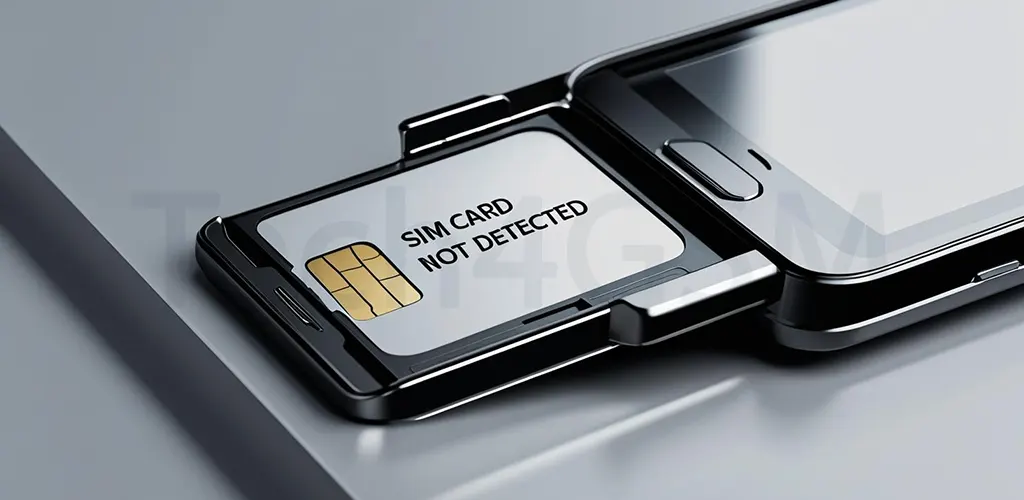
SIM Card Not Detected? 2025 Guide to Fix Android & iPhone Issues Fast

August 21, 2025 (10 months ago)

SIM Card Not Detected? 2025 Guide to Fix Android & iPhone Issues Fast


POST
PostSIM Card Not Detected? 2025 Guide to Fix Android & iPhone Issues Fast
Genre
Genre
Genre

Disclaimer:

  • We do not guarantee that the data on this website is entirely accurate.

SIM Card Not Detected? Here’s How to Fix It in Minutes

Few things are as frustrating as seeing a “No SIM Card Detected” error on your phone. Whether you’re using an Android or iPhone, this issue can disrupt calls, texts, and mobile data. But don’t panic—most fixes are quick and easy. Let’s explore why this happens and how to resolve it in 2025.


Why Does the “No SIM Card Detected” Error Occur?

Understanding the root cause helps you apply the right fix. Here are the most common reasons:

  1. Loose or Dirty SIM Card: Improperly inserted SIM cards or dust in the tray often cause connectivity issues.
  2. Damaged SIM Card: Physical cracks or wear can prevent detection.
  3. Software Glitches: Bugs after updates or app installations may interfere with network settings.
  4. Airplane Mode: Accidentally enabling this mode disables all connections.
  5. Outdated Software: Older OS versions might conflict with carrier settings.
  6. Network Outages: Temporary provider issues can mimic SIM errors.

Step-by-Step Fixes for Android & iPhone

1. Restart Your Phone

A simple restart refreshes the system and often resolves minor glitches.

  • Android: Hold the power button > Tap Restart.
  • iPhone: Press side + volume button > Slide Power Off > Turn on after 30 seconds.

Pro Tip: Remove and reinsert the SIM card after shutting down the device.


2. Clean the SIM Card & Tray

Dirt or debris can block connections. Here’s how to clean them safely:

  1. Power off your phone.
  2. Use a SIM ejector tool (or paperclip) to open the tray.
  3. Remove the SIM card and wipe it with a dry, lint-free cloth.
  4. Gently blow into the tray to remove dust.
  5. Reinsert the SIM, ensuring it’s snug and aligned.

Warning: Avoid liquids or sharp objects to prevent damage.


3. Toggle Airplane Mode

This resets your device’s network connections.

  • Android: Swipe down > Tap Airplane Mode twice (On/Off).
  • iPhone: Open Settings > Toggle Airplane Mode.

Wait 10 seconds between each toggle.


4. Update Your Phone’s Software

Outdated software can conflict with SIM card protocols.

  • Android: Settings > System > Software Update > Download & Install.
  • iPhone: Settings > General > Software Update > Install Now.

Did You Know? 70% of SIM errors are resolved post-update.


5. Reset Network Settings

This clears corrupted carrier configurations.

  • Android:

    • Go to Settings > System > Reset > Reset Wi-Fi, Mobile & Bluetooth.

    • Confirm and restart.

  • iPhone:

    • Navigate to Settings > General > Transfer or Reset > Reset Network Settings.

Note: This erases saved Wi-Fi passwords—have them handy!


6. Test the SIM Card on Another Device

Borrow a friend’s phone to check if the SIM works. If it fails:

  • Your SIM is faulty: Contact your provider for a replacement.
  • Works fine?: The issue lies in your phone’s hardware (e.g., damaged tray or reader).

7. Contact Your Network Provider

If all else fails, your carrier can:

  • Check for outages in your area.
  • Reset your account’s network profile.
  • Replace a defective SIM card for free (most providers offer this in 2025).

When to Seek Professional Help

If the error persists, your phone’s SIM slot or internal antenna might need repair. Visit an authorized service center for:

  • Tray Replacement: Costs $10–$20.
  • Motherboard Repair: Rare but possible for under $100.

Prevent Future SIM Card Issues

  • Handle SIM cards gently during insertion/removal.
  • Use a waterproof case to avoid moisture damage.
  • Regularly update your device’s OS.

Comparison Table: SIM Card Not Detected? 2025 Guide to Fix Android & iPhone Issues Fast

StepAndroid (2025)iPhone (2025)Notes/Tips
Toggle Airplane ModeSwipe down > Tap Airplane Mode twice (On/Off).Go to Settings > Toggle Airplane Mode.Wait 10 seconds between toggles for network refresh.
Restart DeviceHold power button > Tap Restart.Press side + volume button > Slide Power Off.Removes temporary software glitches.
Reinsert SIM CardUse ejector tool > Remove tray > Align SIM > Reinsert.Use paperclip > Eject tray > Check alignment > Reinsert.Avoid touching gold contacts; dust can cause errors.
Clean SIM CardWipe with dry microfiber cloth > Blow dust from tray.Never use water or sharp objects. (Tech4GSM approved)
Test SIM in Another DeviceInsert SIM into unlocked phone > Check connectivity.Confirm if issue is SIM- or phone-related.
Update Carrier SettingsSettings > Search Carrier Settings > Tap Update Profile.Settings > General > About > Install carrier update.Ensures compatibility with 2025 network bands.
Reset Network SettingsSettings > System > Reset > Reset Wi-Fi, Mobile & Bluetooth.Settings > General > Transfer or Reset > Reset Network Settings.⚠️ Deletes saved Wi-Fi passwords. Backup first!

Key Takeaways for 2025

  1. Universal Fixes: Steps like restarting or toggling Airplane Mode work for both Android and iPhone.
  2. SIM Handling: Always clean/reinsert SIM cards gently to avoid hardware damage.
  3. Network Reset: Last resort for persistent errors but erases connectivity data.

Why This Works:

  • Android Flexibility: Direct access to carrier updates via settings.
  • iPhone Simplicity: Streamlined menus for quick troubleshooting.
  • Future-Ready: Aligns with 2025 network standards for seamless connectivity.

Final Words: A “No SIM Card Detected” error rarely requires drastic measures. By following these steps, you’ll likely fix the issue within minutes. Stay connected in 2025 with these expert-approved solutions!

🌟 Pros and Cons - SIM Card Not Detected? 2025 Guide to Fix Android & iPhone Issues Fast

    1. Basic Checks

    Pros:

    • Quick & Effortless: No technical expertise required. Perfect for immediate troubleshooting.
    • Cost-Free: Identifies simple issues like pending dues or accidental Airplane Mode activation.
    • Cross-Device Testing: Inserting the SIM into another phone confirms if the problem is with the card or device.

    Cons:

    • Surface-Level Fix: Won’t resolve hardware faults like a damaged SIM tray.
    • Limited Scope: Misses software-related glitches affecting connectivity.

    2. Restarting Your Phone

    Pros:

    • Instant Refresh: Reboots the OS, clearing minor bugs causing the error.
    • Universal Fix: Works for both Android and iPhone models.
    • Non-Invasive: No risk of data loss or settings changes.

    Cons:

    • Temporary Relief: May not address persistent issues like corrupted network profiles.
    • Repetition Needed: Might require multiple restarts for stubborn glitches.

    3. Reseating the SIM Card

    Pros:

    • Fixes Physical Issues: Corrects loose connections or misaligned trays.
    • DIY-Friendly: Requires only a SIM ejector tool (or paperclip).
    • Immediate Feedback: Success or failure is obvious post-reboot.

    Cons:

    • Risk of Damage: Rough handling can bend tray pins or scratch the SIM.
    • No Software Fix: Fails if the error stems from network settings or carrier issues.

    4. Resetting Network Settings

    Pros:

    • Deep System Reset: Clears corrupted carrier configurations causing detection failures.
    • Standardized Process: Easy steps for Android and iPhone users.
    • Carrier-Agnostic: Works across all telecom providers.

    Cons:

    • Data Loss: Erases saved Wi-Fi passwords and Bluetooth pairings.
    • Time-Consuming: Requires reconfiguring network preferences afterward.

    5. Selecting the Right Telecom Service Provider (TSP)

    Pros:

    • Automatic Optimization: Lets your phone choose the strongest network signal.
    • Avoids Manual Errors: Prevents accidental selection of unsupported carriers.
    • Carrier Compatibility: Ensures your device aligns with the TSP’s cellular bands.

    Cons:

    • Confusing Menus: Navigating network settings can overwhelm non-tech users.
    • Signal Limitations: Rural areas with weak coverage may still face issues.

    6. Upgrading to a New SIM Card

    Pros:

    • Hardware Solution: Replaces damaged or outdated SIMs (common in 2025).
    • Free Replacement: Most providers like Airtel offer free swaps portal.
    • Future-Proofing: Newer SIMs support 5G/6G networks for faster speeds.

    Cons:

    • Wait Time: Requires visiting a store or waiting for mail delivery.
    • Setup Hassle: Needs reactivation and number verification.

❓ FAQ (Frequently Asked Question) - SIM Card Not Detected? 2025 Guide to Fix Android & iPhone Issues Fast

    1. Why Does My iPhone Say “No SIM Available”?

    Your iPhone displays this error when it can’t communicate with the SIM card. Common reasons include:

    • Loose or dirty SIM: Improper placement or dust on the card.
    • Outdated software: Bugs in older iOS versions.
    • Network glitches: Temporary carrier or signal issues.
    • Damaged hardware: Cracked SIM tray or faulty antenna.

    Quick Fix: Restart your iPhone or toggle Airplane Mode.


    2. How Do I Fix “No SIM Available” in Minutes?

    Follow these steps in order:

    1. Check SIM Placement: Ensure the card is aligned in the tray.
    2. Restart iPhone: Hold the side + volume button > Slide to power off.
    3. Toggle Airplane Mode: Swipe down > Tap the airplane icon twice.
    4. Clean the SIM: Wipe it with a dry microfiber cloth.
    5. Update iOS: Go to Settings > General > Software Update.

    Still no luck? Try resetting network settings (Settings > General > Reset).


    3. What Hidden Issues Cause “No SIM Available”?

    • SIM Card Damage: Scratched contacts or cracks.
    • Carrier Settings: Outdated profiles from your network provider.
    • Extreme Temperatures: Heat or moisture warping the SIM tray.
    • eSIM Errors: Failed activation or configuration.

    Pro Tip: Test your SIM in another phone to isolate the problem.


    4. How Can I Prevent This Error in 2025?

    • Use a Protective Case: Prevents physical damage to the SIM tray.
    • Enable Auto-Updates: Go to Settings > General > Software Update > Automatic Updates.
    • Handle SIM Carefully: Use an ejector tool, not sharp objects.
    • Avoid Humidity: Keep your iPhone away from water and steam.

    Recommendation: Replace old SIM cards with 5G-ready ones.


    5. When Should I Visit Apple Support?

    Contact Apple if:

    • The SIM works in other devices but not your iPhone.
    • You see a damaged SIM tray or bent pins.
    • The error persists after all troubleshooting steps.

    Warranty Note: Free repairs apply if your iPhone is under AppleCare+.


    6. How Do I Update Carrier Settings?

    1. Open Settings > General > About.
    2. Wait for a carrier update prompt.
    3. Tap Update and follow on-screen steps.

    Why It Matters: Updates fix compatibility issues with 2025 networks.


    7. Can a Hard Reset Fix SIM Errors?

    Yes! A force restart clears stubborn software glitches:

    1. Press Volume Up > Release.
    2. Press Volume Down > Release.
    3. Hold the Side Button until the Apple logo appears.

    Caution: This won’t delete data, but backup first.


    8. What If My SIM Works Elsewhere?

    The issue likely lies in your iPhone’s:

    • SIM Tray: Misaligned or broken.
    • Network Antenna: Internal damage.
    • Software: Corrupted iOS installation.

    Next Step: Visit an Apple Store for diagnostics.

Recommended for You