Introduction
YouTube has transformed how we learn, entertain, and connect, boasting over 2.7 billion monthly users as of 2025. But its openness comes with risks: adult content slipping through algorithms, exposing kids and vulnerable users. Whether you’re a parent, teacher, or cautious viewer, this guide offers four practical methods to block mature videos on the YouTube app. Let’s dive in!
Why Block Adult Videos on YouTube?
- Protect Young Minds: Children’s brains are highly impressionable. Exposure to explicit content can lead to anxiety, distorted views on relationships, or early sexualization.
- Avoid Accidental Exposure: Misleading thumbnails or titles can trick users into watching inappropriate videos.
- Boost Productivity: Blocking distractions helps students and professionals stay focused on educational or work-related content.
- YouTube’s Stance: While YouTube bans explicit material, AI isn’t perfect. A 2025 report revealed 12% of adult content evades detection initially.
Method 1: Enable Restricted Mode (YouTube’s Built-In Filter)
What It Does:
Restricted Mode uses AI and community feedback to filter out mature content. Think of it as a digital bouncer blocking videos flagged for violence, nudity, or profanity.
Steps to Activate:
- Open YouTube App: Tap your profile picture (top-right corner).
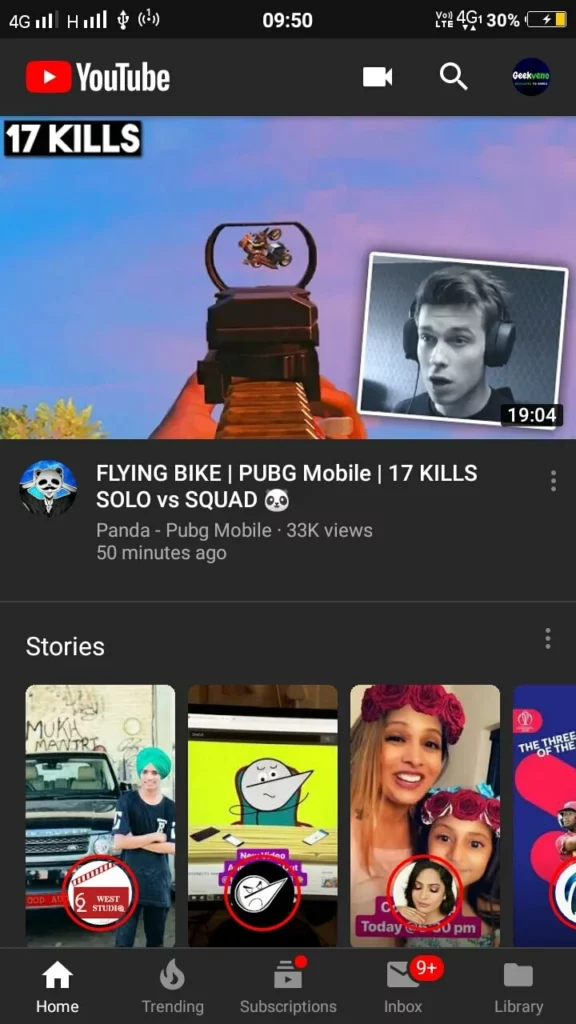
- Go to Settings → General.
- Toggle “Restricted Mode” to ON.
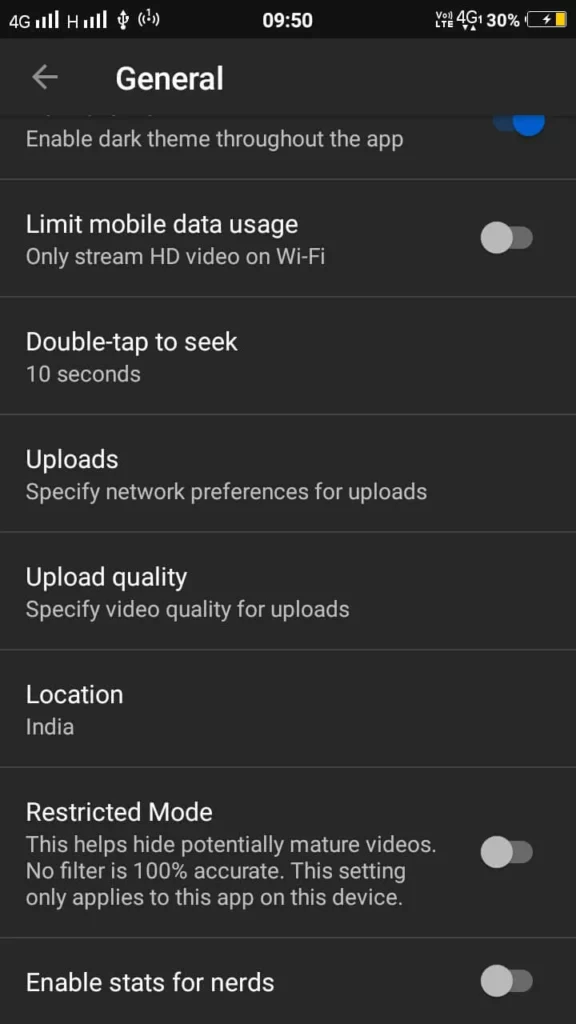
- Lock the Setting (Android):
- Tap the back arrow.
- Select “Lock Restricted Mode” using your device PIN.
Pros:
- Quick setup.
- Works across all devices when signed in.
Cons:
- May block non-adult content (e.g., educational health videos).
- Can be disabled without a PIN on shared devices.
Pro Tip: Pair Restricted Mode with Google Family Link to remotely manage settings from your parent account.
Method 2: Switch to YouTube Kids (100% Child-Friendly)
Why It’s Better:
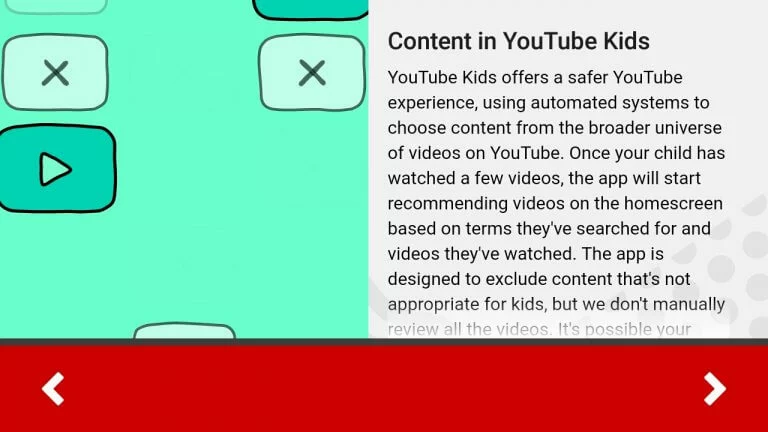
YouTube Kids offers:
- Curated Content: Only family-friendly channels.
- Timer Features: Limit screen time.
- Approval Controls: Handpick videos your child can watch.
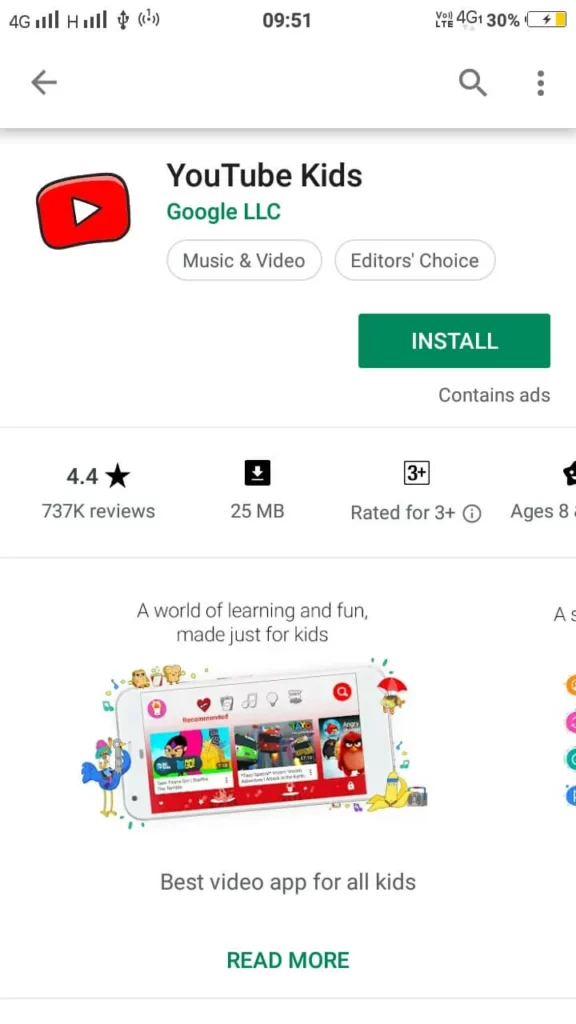
Setup Guide:
- Download YouTube Kids: Available on Google Play or Apple App Store.
- Create a Profile: Select your child’s age (4–12 years).
- Customize Settings:
- Disable search bar to restrict content to pre-approved videos.
- Block specific channels under “Approved Content Only.”
2025 Upgrades:
- AI Guardians: New voice recognition stops kids from disabling settings.
- Educational Playlists: Partnering with Khan Academy and National Geographic.
Limitations:
- Older kids might find the interface “too babyish.”
Method 3: Sign Out of Google Accounts
How It Helps:
YouTube requires age verification (via Google Account) to watch 18+ content. By staying signed out:
- No access to age-restricted videos.
- Prevents personalized recommendations from suggesting mature content.
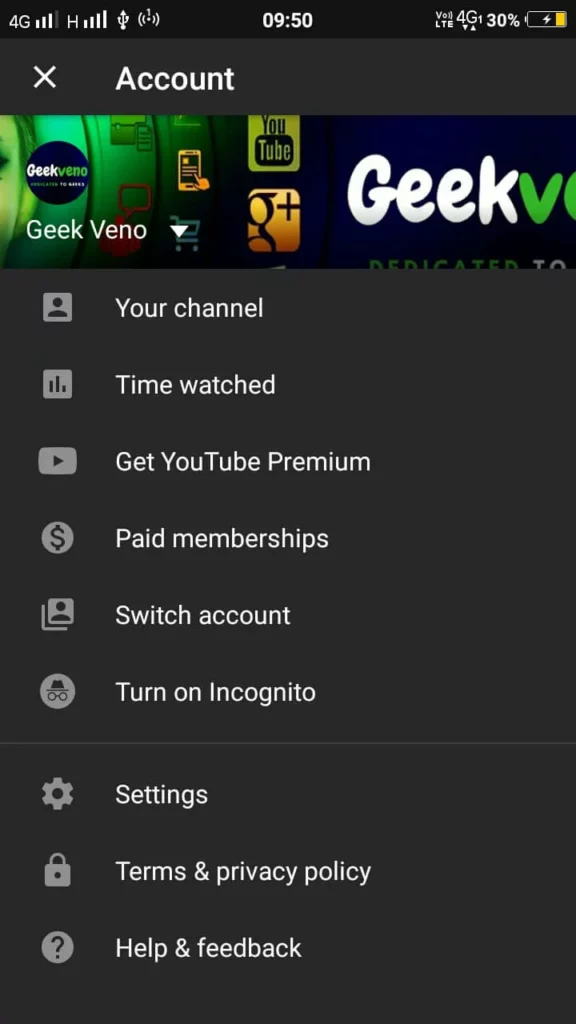
Steps:
- Tap your profile icon → Sign Out.
- Use Incognito Mode: Ensures no account is linked temporarily.
Drawbacks:
- Lose access to subscriptions and playlists.
- Doesn’t block non-age-restricted adult content.
Method 4: Block Specific Channels
Ideal For:
Blocking repeat offenders without restricting broader content.
How-To:
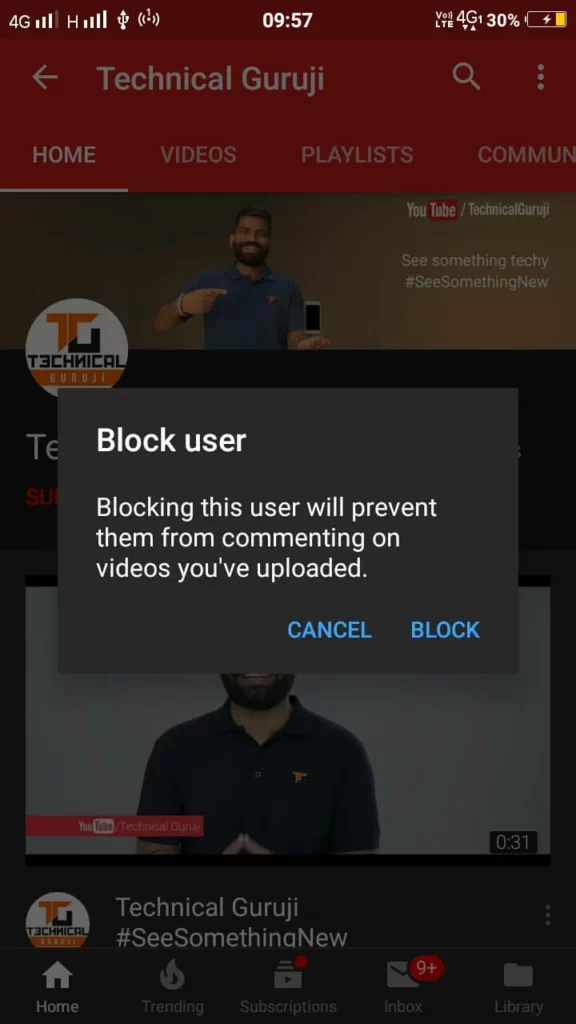
- Open the channel you want to block.
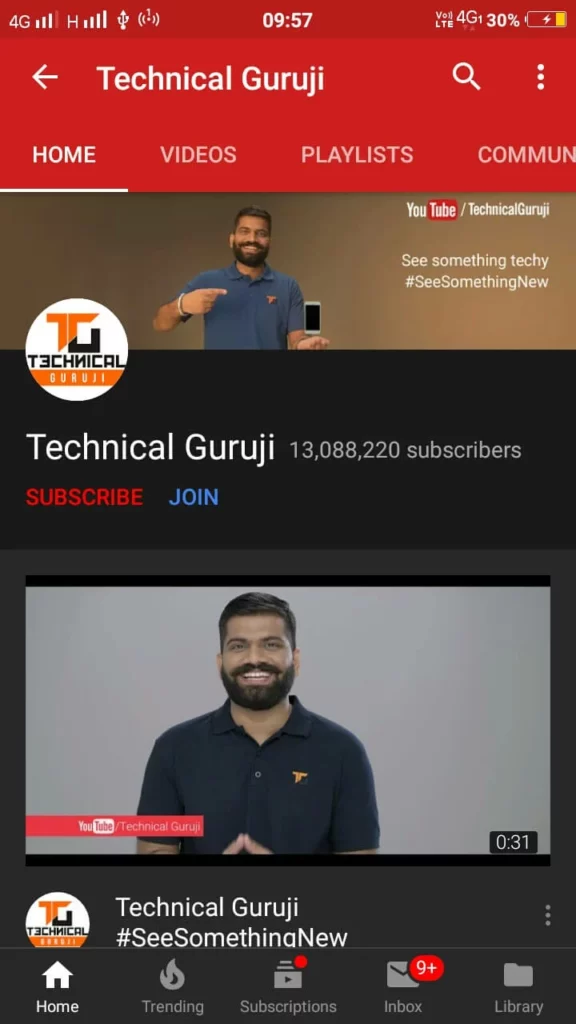
- Tap ⋮ (More) → Block User.
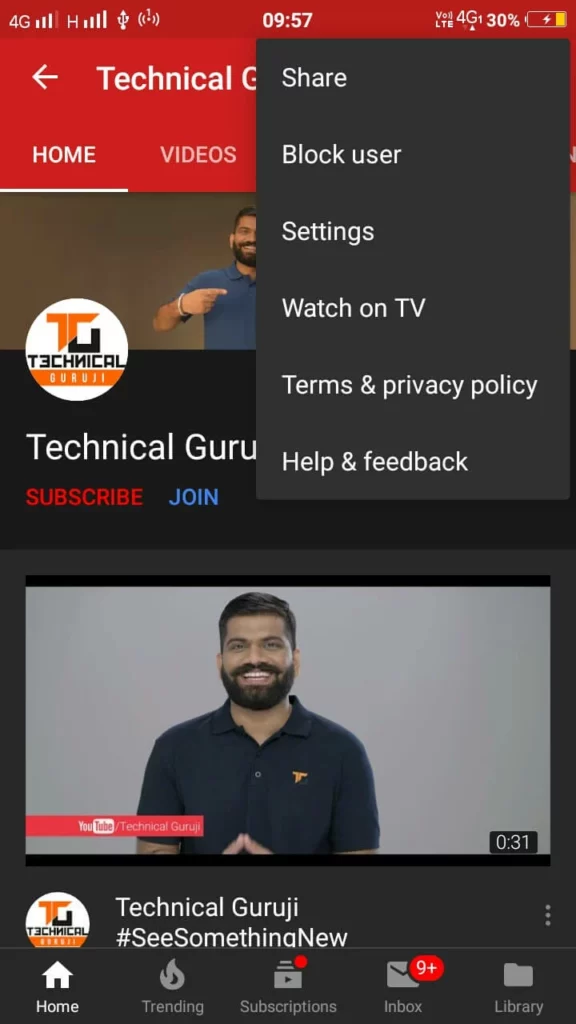
- Confirm → Block All Videos.
Limitations:
- Labor-intensive for multiple channels.
- New accounts can upload similar content.
Solution: Use Browser Extensions like Video Blocker (Chrome) to mass-block keywords (e.g., “explicit,” “mature”).
Bonus: Advanced Parental Controls for 2025
- Router-Level Blocking:
- Use OpenDNS to block YouTube site-wide.
- Create schedules (e.g., disable access after 9 PM).
- Third-Party Apps:
- Qustodio: Monitor watch history in real-time.
- Bark: Alerts parents about risky content.
- Create a Family Account:
- Use Google’s Supervised Experience to restrict mature content.
FAQs
Q1: Can Restricted Mode fail?
Yes. Always review watch history and pair with other tools.
Q2: What if my child bypasses these settings?
Hide app passwords and enable Screen Time limits (iOS/Android).
Q3: Are third-party apps safe?
Stick to reputable options like Net Nanny with encrypted data policies.
Conclusion
Safeguarding your YouTube experience in 2025 requires layers: Restricted Mode, YouTube Kids, account management, and vigilance. Share this guide to empower others, and remember—tech is a tool, but open conversations about online safety matter most. I hope these techniques have been helpful to you and that you can now ban pornographic films on the YouTube app. Adult material is being posted to YouTube in large quantities these days. These four techniques are useful for removing such delicate material from your YouTube app. If you find the information useful, you may want to share it with your friends.