Introduction
Are you searching for the best CamScanner alternatives for your Android phone or iPhone in 2025? You’re not alone! With the rise of remote work, digital classrooms, and paperless lifestyles, document scanning apps have become essential. But let’s face it: while CamScanner was once the go-to app, many users now seek alternatives due to subscription costs, ads, or privacy concerns.
The good news? Your smartphone can do way more than take selfies. With the right app, it transforms into a portable scanner that captures crisp, professional-quality documents, receipts, notes, and even photos. But with hundreds of scanning apps on the Play Store and App Store, how do you pick the best one?
In this guide, we’ll simplify your search. We’ve tested over 20 apps and handpicked the 7 BEST free CamScanner alternatives for 2025. Whether you’re a student digitizing notes, a professional archiving contracts, or someone preserving old photos, these apps deliver top-tier features without breaking the bank. Let’s dive in!
Why Do You Need a Document Scanner App?
Before we explore the alternatives, let’s understand why dedicated scanner apps trump your phone’s default camera for documents:
- Auto-Enhancement: Fix shadows, glare, and blur to make text readable.
- Edge Detection: Smartly crops documents, even if they’re tilted.
- Multi-Page Support: Merge scans into a single PDF.
- OCR (Optical Character Recognition): Extract text from images to edit or copy.
- Cloud Integration: Save scans directly to Google Drive, Dropbox, etc.
Pro Tip: Free apps often include watermarks or ads. We’ve prioritized tools that offer genuine value without hidden paywalls.
7 Best FREE CamScanner Alternatives for Android & iOS (2025)
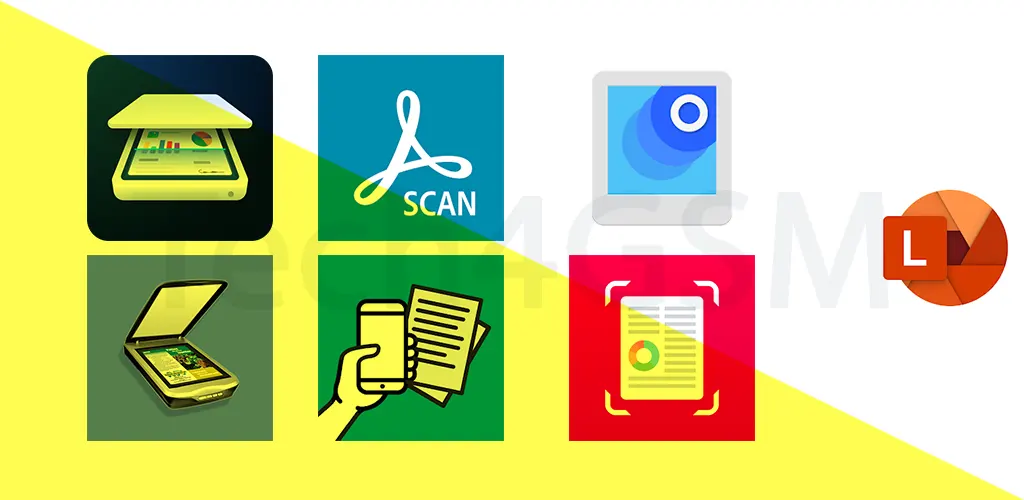
1. Adobe Scan: The All-Rounder for Professionals
Best For: High-quality scans + seamless Adobe ecosystem integration.
Key Features (2025 Updates):
- Free Unlimited Scans: No “pro” subscription needed for basic use.
- AI-Powered Enhancements: Auto-adjusts brightness, sharpness, and color.
- OCR in 20+ Languages: Extract text from scans and translate instantly.
- Adobe Cloud Storage: 5GB free storage for cross-device access.
- Business-Ready Tools: Sign documents, add passwords, and export as Word/Excel files.
Why Try Adobe Scan in 2025?
Adobe Scan feels like a premium tool without the premium price. Its 2025 update introduced real-time collaboration—perfect for team projects. Scan a contract, share it via the cloud, and let colleagues comment or sign digitally.
Drawbacks:
- Advanced features require a Creative Cloud subscription.
- Slightly slower on older Android devices.
2. Microsoft Office Lens: The Office Lover’s Dream
Best For: Whiteboard scans + Microsoft 365 users.
Key Features (2025 Updates):
- Whiteboard Mode: Erase shadows and correct curves for clean presentations.
- Business Card Scanner: Auto-save contacts to Outlook or LinkedIn.
- OneNote Integration: Instantly send scans to your notes.
- Free OCR: Copy text from images to Word or PowerPoint.
Why It Shines in 2025:
Office Lens now supports 3D object scanning—great for architects or artists. Scan a model, rotate it digitally, and share it as a 3D PDF.
Drawbacks:
- Limited editing tools compared to Adobe.
- Requires Microsoft account for full features.
3. Google Photoscan: Preserve Memories, Not Glare
Best For: Digitizing old photos without glare or fingerprints.
Key Features (2025 Updates):
- Glare-Free Scans: Uses AI to remove reflections from glossy photos.
- Auto-Colorize: Breathe life into black-and-white photos.
- Google Photos Sync: Unlimited storage (at “high quality” resolution).
Why It’s Unique:
Photoscan is not for documents—it’s tailored for photos. Point your camera, follow the on-screen dots, and watch faded pictures turn into vibrant digital copies.
Drawbacks:
- No OCR or PDF export.
- Only available on Android.
4. Tiny Scanner: Simplicity at Its Best
Best For: Quick, no-fuss scans.
Key Features (2025 Updates):
- One-Tap Scanning: No adjustments needed.
- Batch Mode: Scan 50+ pages in one go.
- Dark Mode Support: Easy on the eyes during late-night study sessions.
Perks in 2025:
Tiny Scanner added voice commands—say “Scan Now” to capture hands-free. Ideal for multitaskers!
Drawbacks:
- Ads in the free version.
- Basic editing tools.
5. Fast Scanner Pro: Speed Meets Power
Best For: Power users needing advanced editing.
Key Features (2025 Updates):
- Instant Cloud Backup: Auto-upload to Google Drive, Dropbox, or Evernote.
- Custom Watermarks: Brand your PDFs with logos or text.
- QR Code Generator: Turn scanned data into shareable QR codes.
2025 Highlight:
A new “Smart Organize” feature tags scans using AI. Example: Scan a receipt, and it’s auto-labeled “Taxes 2025”.
Drawbacks:
- Free version limits scans to 10 pages/month.
- Complex interface for beginners.
6. Notebloc PDF Scanner: Student’s Best Friend
Best For: Students, researchers, and note-takers.
Key Features (2025 Updates):
- Text-to-Speech: Listen to scanned notes while commuting.
- Math Equation Scanner: Solve equations by scanning them!
- Group Sharing: Share study materials via WhatsApp, email, or Slack.
Why Students Love It:
Notebloc’s 2025 update added AI Summarizer—scan a textbook page, and it generates a summary.
Drawbacks:
- Requires internet for AI features.
- iOS version has fewer tools.
7. Scanbot: The Privacy-Focused Choice
Best For: Secure, encrypted scans.
Key Features (2025 Updates):
- End-to-End Encryption: Protects sensitive documents.
- Multi-Task Scanning: Scan while recording voice notes.
- AR Scanning: Point your camera to measure objects (great for DIY projects).
2025’s Privacy Boost:
Scanbot now offers blockchain-based verification to prove a document’s authenticity.
Drawbacks:
- Expensive pro version.
- No free cloud storage.
How to Choose the Best App?
- For Students: Notebloc or Adobe Scan (for notes and textbooks).
- For Professionals: Office Lens or Fast Scanner Pro (cloud + editing).
- For Photos: Google Photoscan.
- For Security: Scanbot.
FAQs
Q1. Do these apps work offline?
Most do! Adobe Scan, Tiny Scanner, and Notebloc offer offline modes.
Q2. Are there hidden costs?
All listed apps are free, but some have paid upgrades for extra features.
Q3. Can I use these on iPhone?
Yes! Except Google Photoscan, all have iOS versions.
Final Thoughts
Gone are the days of bulky scanners! With these 7 FREE CamScanner alternatives, your Android or iPhone becomes a pocket-sized powerhouse. Whether you prioritize speed (Tiny Scanner), creativity (Adobe Scan), or security (Scanbot), there’s a perfect match for you.
Pro Tip: Try 2-3 apps and stick with the one that feels intuitive. After all, the best scanner is the one you’ll actually use!