Introduction
On your Android device, how many apps are open in the background? If you have many, don’t worry, you’re not alone. For example, I only have three applications open at the moment, including the Settings app that I used to write this post. For the following reasons, I frequently manually close apps on my phone.
The Value of Closing Applications
- Resources: Despite Android’s excellent resource management, your phone may become slower if it has too many background apps. Your smartphone has less RAM available for new tasks when background apps use it.
- Security and privacy: It’s possible for background apps to use the microphone or camera on your phone. Even though Android now warns you when an app uses these functionalities, it’s still advisable to exercise caution. Although rogue applications might take use of these rights, issues don’t always arise when an app is launched.
Closing unwanted apps can improve performance and provide piece of mind.
What Happens When You Open a New App?
The application you were using does not end instantly when you launch a new one. It operates in the background instead. Although there isn’t a “Close” button on Android, there are three simple methods to end an app.
Let’s Examine These Techniques.
Method 1: Closing Apps from the Overview

This approach is fast and compatible with nearly all Android versions.
Step 1: Launch the Overview of the App
- From the bottom of the screen, swipe up.
- Continue moving your finger up until the overview appears if it doesn’t display immediately.
Step 2: Close the application
- Swipe left or right in the overview to find the app you wish to close.
- Swipe up on the app to end it once it’s in the center of the screen.
Except for the app I’m using right now, I typically swipe through and dismiss all of the others. Memory and system resources are freed up as a result.
Method 2: Closing Apps via Settings
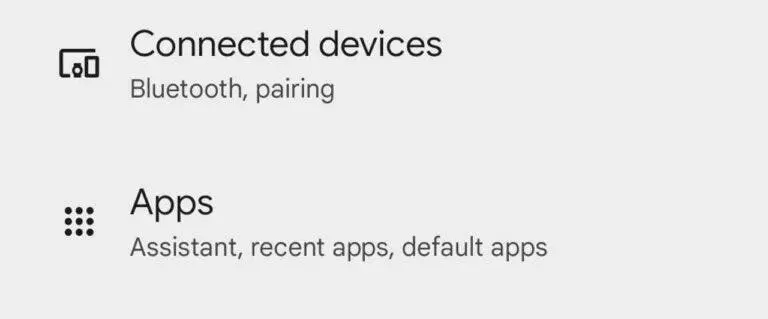
You may exit apps via the Settings on your phone if you’d rather take a more thorough approach.
Step 1: open the settings.
- To access Settings, double-click the Notification Shade and press the gear symbol.
Step 2: Navigate to the App Settings.
- Locate and press the Apps option located close to the top of the screen.
Step 3: Locate the App You Wish to Uninstall
- To see every program that is installed on your phone, choose See all applications if the app you’re looking for isn’t shown.
- Choose the app you wish to terminate.

Step 4: Force the App to Stop
- Tap the Force Stop button on the app’s page. This prevents the program from operating in the background and instantly shuts it.
Method 3: Closing Apps from the Notification Shade (Android 15 Only)
Only Android 15 supports this technique, which is exclusive to background services.
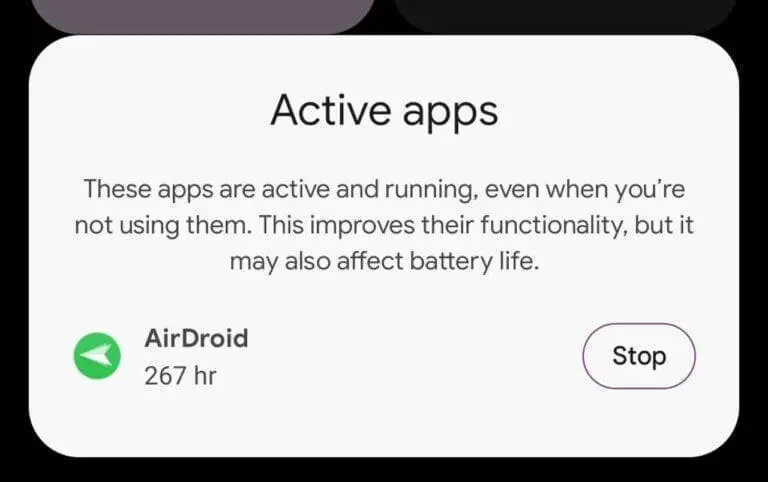
I use AirDroid, for instance, to move files between my Mac and phone. AirDroid keeps running in the background even when I’m not using it. Using this way to close it is easy.
Step 1: launch the notification shade.
- Twice, lower the Notification Shade.
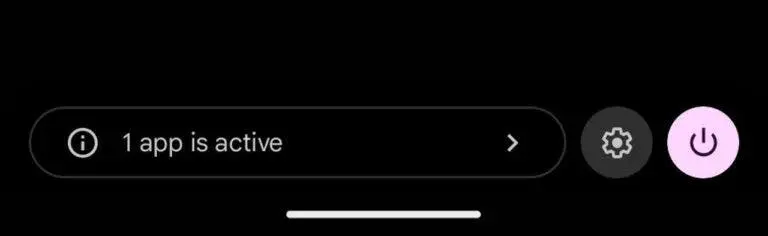
- A little pill-shaped icon may be found in the lower-left corner of Android 15. This displays the number of active applications.
Step 2: Close the application
- To view a list of active apps, tap the pill symbol.
- To end an application, tap the Stop button next to it.
Which Method Should You Use?
The approach you use will vary depending on your circumstances:
- Use the notification shade approach (requires Android 15) for background services.
- The fastest choice in terms of speed is the app overview.
- For dependability, if you experience difficulties seeing the app overview, navigate to Settings.
Why It’s Important to Close Apps
Regularly shutting off applications can have a significant impact. By freeing up memory and stopping apps from accessing resources like your camera or microphone needlessly, it enhances the performance of your phone. Even if Android manages apps well enough on its own, you might feel more at ease if you take charge of this process.
Therefore, think about shutting off an app after you’re done with it. Your phone will appreciate it.