Introduction
Websites and app creators depend on advertisements to stay afloat financially, which frequently enables them to provide free or inexpensive services. Excessive advertising, however, can slow down even the greatest Android phones, reduce user experience, and shorten battery life. Fortunately, Android provides a number of options for limiting or blocking advertisements on your smartphone. You can follow these steps, but only if you swear to keep our advertisements unblocked.
Google Chrome: Prevent Pop-Ups, Redirects, and Ads
Google Chrome comes with built-in features for blocking pop-ups and annoying advertisements. Here’s how to make them available:
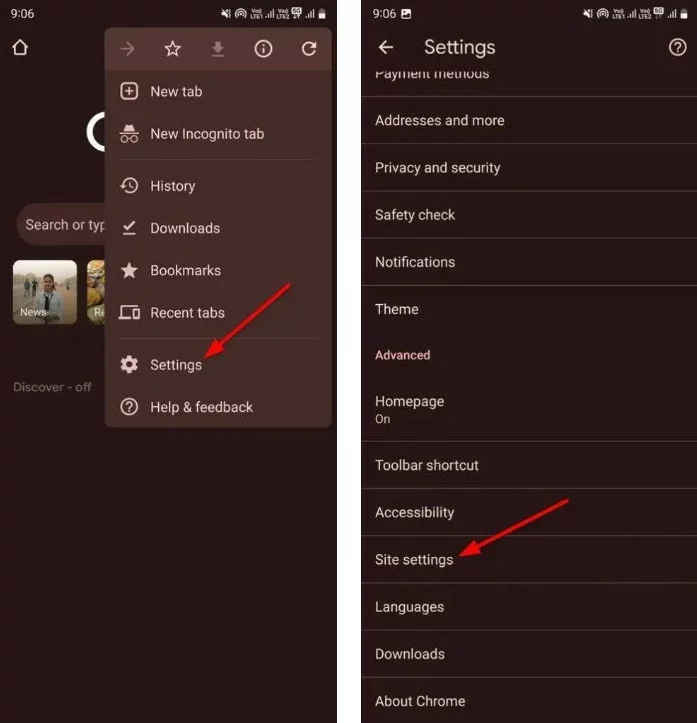
- On your Android smartphone, launch Google Chrome.
- To access Settings, tap the three-dot menu in the upper-right corner.
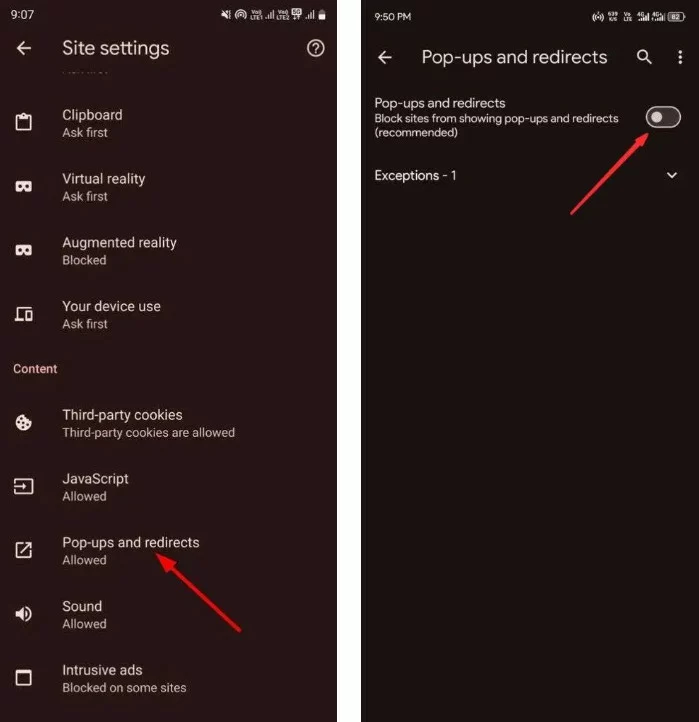
- Choose Pop-ups and Redirects after scrolling to Site Settings.
- Turn off redirects and pop-ups.
- Toggle it off as well by going back to the Site settings page, choosing Intrusive advertisements.
Chrome does not accept ad-blocking addons on mobile devices, even though it does block certain advertising. More powerful ad-blocking features are provided by alternatives like Samsung Internet, Firefox, and Brave through add-ons or integrated solutions.
Manage Site Notifications on Chrome
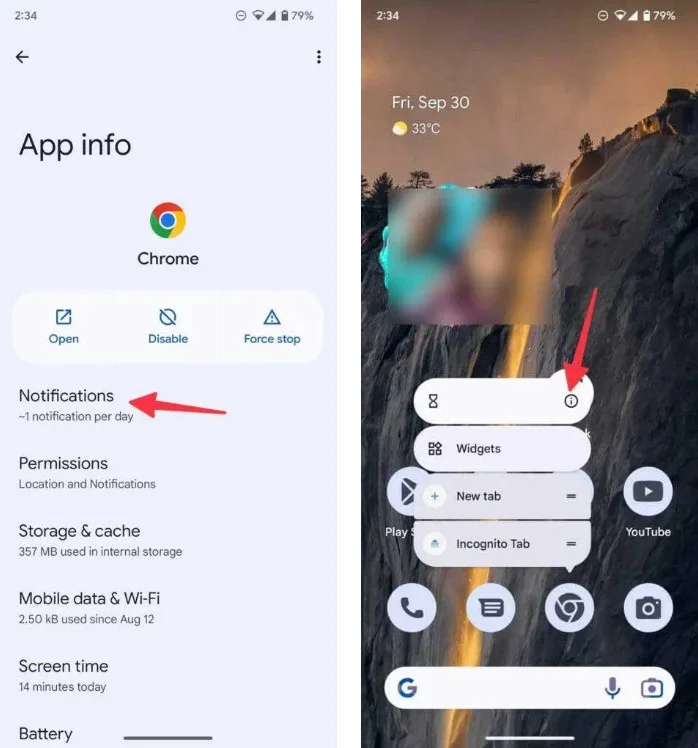
Permitting websites to send notifications may result in alerts that seem like spam. On every Android device, you may restrict or disable these alerts and prevent the majority of advertisements:
- To view App Info, long-press the Chrome app icon and then hit the i button.
- Choose All Sites notifications after navigating to Notifications.
- Examine the list of permitted websites and turn off alerts for those that aren’t needed.
Disabling Chrome’s targeted ad tracking will stop tailored advertisements based on your browser history, further improving privacy.
Block Ads on the Home Screen
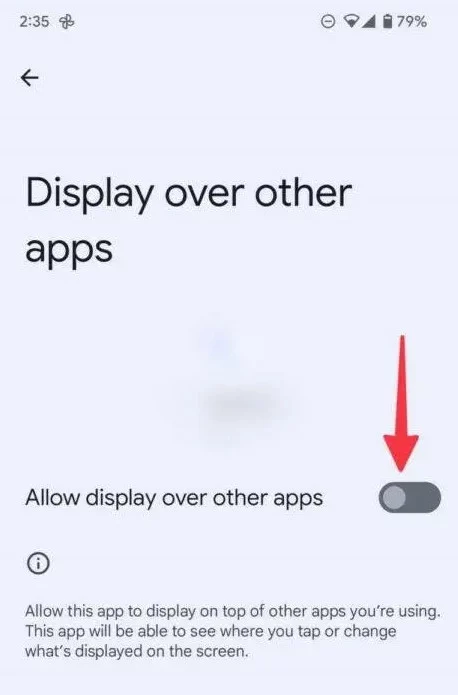
Compared to browser or notification advertisements, home screen ads are more obtrusive. Some applications display banner adverts on your phone by abusing the “Display over other apps” permission.
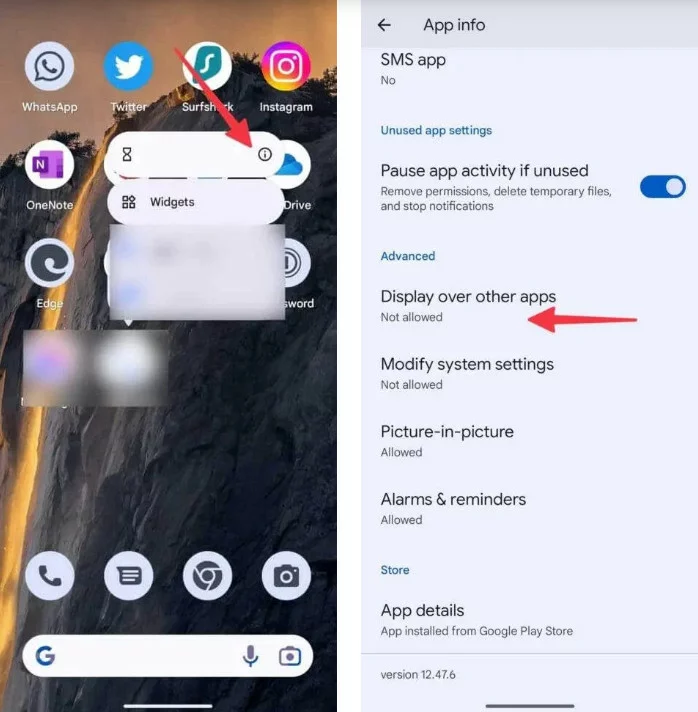
- To get App Info, long-press the app icon.
- Disable the privilege by choosing Display over other programs.
- Uninstall the app straight from the App Info screen if it is not needed.
Deactivate Lock Screen Ads
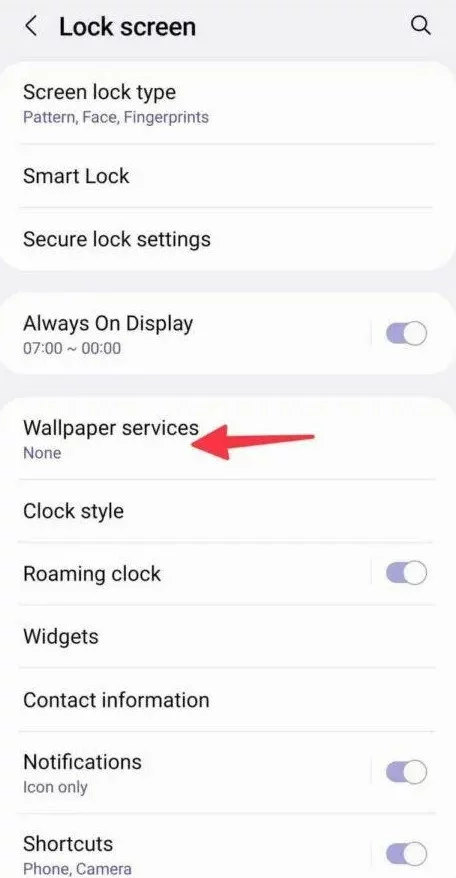
The usefulness of your device may be affected by lock screen advertisements, which are frequently enabled through wallpaper providers like Glance. To disable these:
- Launch the Settings application.
- Choose Wallpaper Services after navigating to the lock screen.
- To turn off dynamic wallpaper adverts, select None.
Mid-range gadgets from companies like Xiaomi and Samsung frequently include this setting.
Use a DNS Service to Block Ads
One of the simplest methods for blocking advertisements on websites and applications is to use a DNS provider. Free options are provided by services such as AdGuard DNS:
- For general ad-blocking: dns.adguard-dns.com.
- For family-oriented filtering (including adult content): family.adguard-dns.com.
How to Set Up a DNS Ad Blocker
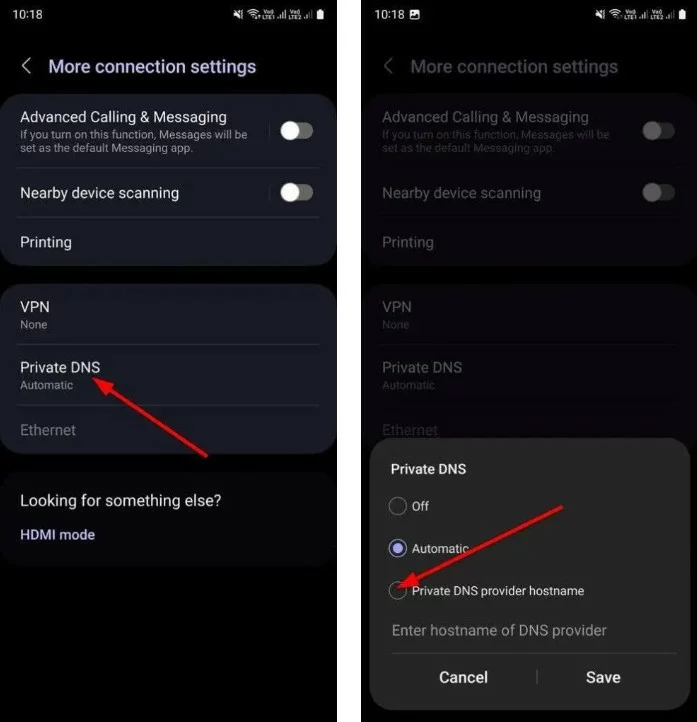
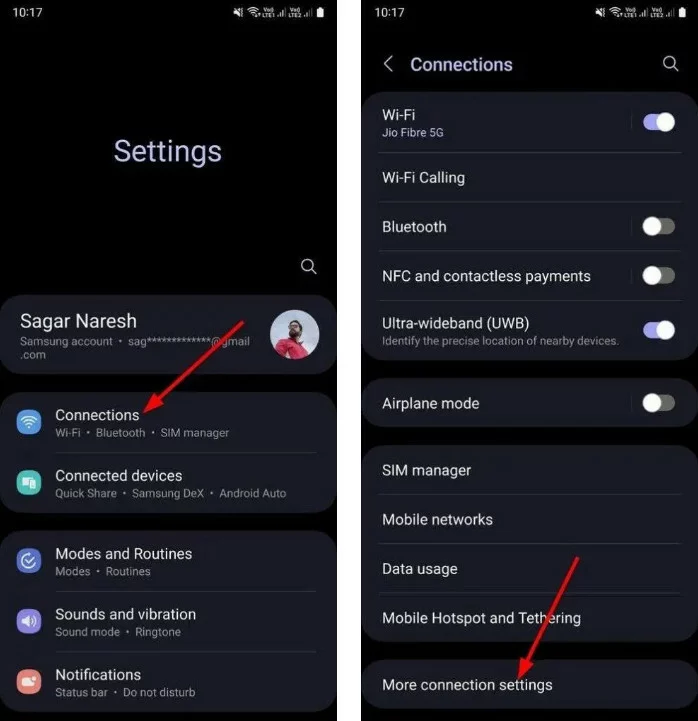
- Launch the Settings application.
- Navigate to Private DNS under Connections > More connection options.
- Enter the required DNS address (such as dns.adguard-dns.com) after selecting the Private DNS provider hostname.
- To apply, tap Save.
Although DNS-based ad blocking works well, it might cause some websites to malfunction or slow down loading speeds.
Think About Premium Subscriptions
Although many developers make money from advertisements, they frequently provide ad-free experiences with paid memberships. Platforms like YouTube and Spotify, for instance, eliminate advertisements and provide paying customers access to additional services.
Use Caution When Installing Apps
Avoid downloading pointless or low-rated applications, including third-party launchers or flashlight apps, as they sometimes include a lot of advertisements. Before installing an app, read reviews on the Play Store.
Although Google’s Play Protect function reduces fraudulent apps, it is unable to manage advertisements in apps that are lawful.
More Complex: Configuring System-Wide Ad Blocking
You may install system-wide ad-blockers on your Android handset by rooting it. But if done improperly, this procedure is dangerous and might nullify your guarantee. Be careful as you go.
Not Every Ad Is Negative
Services are free in large part because of advertisements. They may be able to tell you about sales, brand-new eateries, or intriguing goods. Eliminating all advertisements can cause applications and websites to move toward subscription-based services.
You may still support the platforms you like while lessening the effect of aggressive adverts on your Android device by using these techniques.