
Introduction
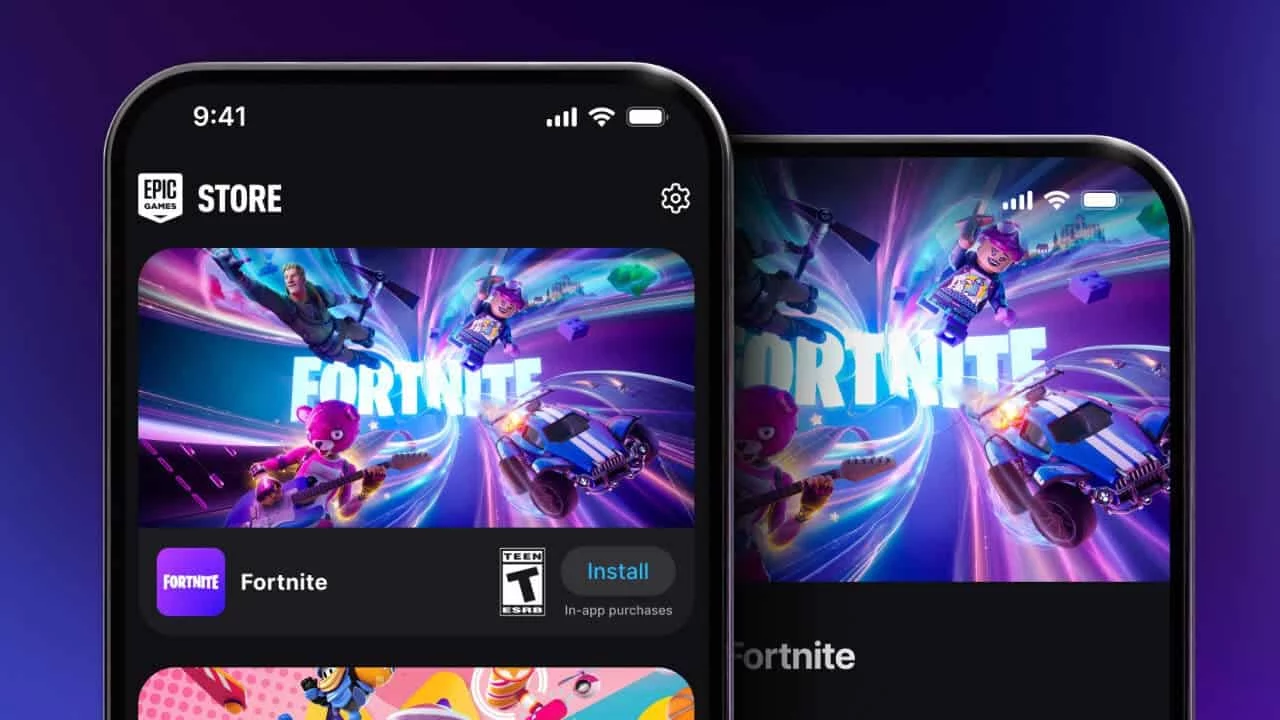
Following a protracted legal dispute with Apple, Epic Games has returned Fortnite to the EU. This triumph follows Apple’s announcement of modifications to its regional app distribution guidelines. These changes were mandated by the EU Digital Markets Act. Developers can sell their apps for these outside of the App Store. You can install Fortnite on iOS and iPad outside of the EU, even though the game is only formally accessible in the EU.

A paid Apple Developer account ($99/year) might be necessary for the process. However, it’s quite simple, and you can finish the steps in around 20 minutes. Let’s get started on how to install Fortnite on an iPhone or iPad if you’re not in the EU.
How to Install Fortnite Outside of the EU on iOS and iPad
In order to install Fortnite on your iPhone or iPad outside of the EU, you must follow a few simple steps. Let’s guide you through this:
Get a decrypted IPA
An iOS app package is called an IPA file. Apple usually encrypts them to maintain security and manage app distribution. However, decrypted versions are available online. These files are frequently taken from Epic’s servers or jailbroken devices.
Remember that it may take some research to locate a trustworthy and current IPA file. Online resources are numerous. However, not all of them offer useful files or are reliable. To prevent possible dangers or problems, exercise caution and select reliable sources.
It’s also crucial to remember that IPA file compatibility may differ. A technique known as IPA trimming makes many of the decrypted files available online especially suited for iPads. This implies that they might not be compatible with iPhones. You may need to do a more thorough search or look into other options if you’re trying to find an IPA that works with both iPhones and iPads.
Install Fortnite On iOS And iPAD Outside Of The EU By Setting Up a Custom Bundle ID
- Go to the “Identifiers” section under “Program resources” after logging into your Apple Developer account to proceed.
- Click the + button to create a new App ID. Give your new identifier a meaningful name and select “App” as the type. Since this name is mainly for your reference, you can choose whatever you want.
- The Bundle ID is the most crucial component of this step. This special number will act as a link between your developer account and your IPA file. Selecting a unique and memorable Bundle ID that you can quickly remember later is essential. Although “com.yourname.fortniteios” is a popular format, you can alter it to fit your tastes.
- Remember to write down the Bundle ID you’ve chosen for future use. This information will be necessary for the next steps in the installation process.
- Lastly, turn on the “Increased Memory Limit” and “Extended Virtual Addressing” features. For Fortnite to function properly and avoid possible crashes, these settings are necessary. The application may have problems when launching or playing if these features are not enabled.
- Once these choices have been made, register your App ID. By doing this, the identifier will be formally created and linked to your developer account. Now that you’ve finished the required steps in the Apple Developer portal.
Install Fortnite on the Sideload of your iPad or iPhone
- You’ll need a computer and a program like Sideloadly in order to sideload Fortnite onto your iOS device. You may change the Bundle ID using this tool, which is necessary to get around Apple’s App Store limitations.
- Connect your iOS device to your PC after downloading and installing Sideloadly. Navigate to the Apple Developer account linked to the premium program. Although many users have had excellent experiences, be warned that using your Apple ID to sign in may present certain hazards.
- Drag the decoded IPA file into the Sideloadly interface after selecting your device and logging in. The “Advanced Options” button should be clicked.
- Deselect “Use automatic bundle ID” from the advanced options menu and type the Bundle ID you generated in the Apple Developer portal. To match the identification and guarantee a successful installation, this step is essential.
- To initiate the sideloading procedure, click “Start.” If your developer account is linked to more than one team, you may need to choose your team ID. It might take a few minutes to install.
- You ought should be able to launch Fortnite on your iOS device upon installation. To launch the app, you may need to activate Developer Mode in the Privacy & Security settings on your device.
- You may now play Fortnite on your iPhone or iPad once it been properly sideloaded. Depending on your device’s capabilities, you could encounter different levels of performance, however many users have mentioned good frame rates and fluid gameplay.
Performance of Fortnite on iOS and iPad Following Sideloading
Depending on a number of variables, Fortnite’s performance after sideloading onto your iPhone or iPad may differ. The SoC that comes with your gadget is one of them. The model’s capability will increase with its recentness.
After sideloading Fortnite, several users have experienced good performance, with lag-free gameplay. But occasionally, especially in busy places or during strong action scenes, some users may experience stuttering or frame dropouts.