Introduction
Is the speed of your brand-new Samsung Galaxy lower than you anticipated? The RAM Plus function from Samsung may be the cause. This function makes use of a portion of your phone’s internal storage to improve multitasking. Keep in mind that this isn’t real RAM. It’s virtual memory instead.
As a result, more apps may run in the background on Galaxy phones. Virtual RAM is slower than actual RAM, despite the fact that this sounds useful. Furthermore, it may eventually cause your device to lag. Turning off RAM Plus might be the answer you need to speed up your Galaxy because it is usually activated by default.
How Does the RAM Plus Feature on the Samsung Galaxy Slow Down the Phone?
Users of Samsung Galaxy devices, such as the Galaxy S22, have recently complained about decreased performance. Even though the Galaxy S22 is made to multitask, it occasionally lags or drops frames. At first, several customers blamed the Exynos 2200 CPU or even early software fixes for this. But after more research, a lot of consumers discovered that Samsung’s RAM Plus function was the true problem.
RAM Plus may be the source of these speed problems, according to forum discussions on sites like XDA Developers. Since RAM Plus turns some storage into virtual memory, it could appear advantageous. However, compared to actual RAM, it is slower.
Reduced responsiveness may result from this, particularly while using numerous programs. Users reported instant performance gains after turning off RAM Plus after testing on a variety of Galaxy devices. While the Galaxy S22 Ultra became more fluid and fulfilled its high-performance promise, devices such as the Galaxy S20 and Galaxy M53 resumed its smooth, pre-update performance levels.
How Can Newer Galaxy Phones Turn Off RAM Plus?
With a straightforward option in the settings, customers of Samsung Galaxy devices running One UI 5.1 or later may quickly disable RAM Plus. In order to provide customers greater control over their device’s memory settings without requiring technological workarounds, Samsung simplified this procedure. Here’s how to accomplish it:
Open the RAM Plus Menu
Locate the RAM Plus option by selecting Settings > Device care > Memory.
Turn Off RAM Plus
Find the toggle switch at the top of the screen in the RAM Plus menu. To turn off RAM Plus, turn it off. Once deactivated, there’s no need to restart your device because the adjustment takes effect instantly. Your Galaxy phone may feel more responsive, have quicker speed, and have smoother transitions if you disable RAM Plus. For people who wish to maximize performance without changing complex settings, this straightforward option is really useful.
How Can I Turn Off the RAM Plus Feature on Older Galaxy Phones to Improve Performance?
There are a few more steps needed to disable RAM Plus for customers with older Samsung Galaxy handsets that can’t update to the newest One UI. You may successfully turn off RAM Plus and get better performance on a PC by utilizing the Android Debug Bridge (ADB) application. To assist you in the process, below is a detailed guide.
Set Up ADB on Your Computer
Begin by setting up USB debugging on your phone and installing ADB on your PC. To get set up if you’ve never used ADB before, follow the comprehensive installation instructions.

Enter the ADB Command
Connect your Samsung Galaxy smartphone to the PC after ADB has been set up. On your PC, open a terminal window and type the following command:
adb shell settings put global ram_expand_size_list 0,1,2,4,6,8
Restart and Modify the RAM Plus Configuration
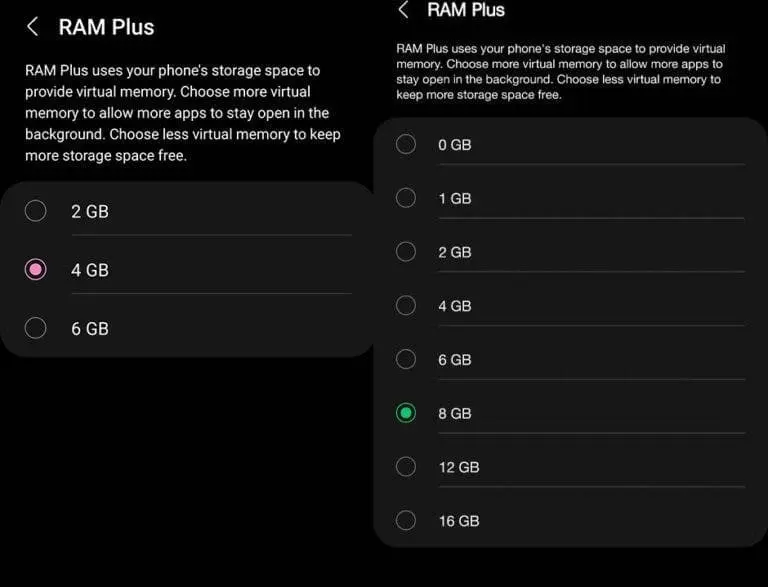
Once the command has been executed, restart your device. The RAM Plus menu may then be accessed by selecting Settings > Battery & Device Care > Memory. Virtual memory settings are now under your control, and depending on your device, you can select between 0GB and 8GB or more.
Select 0GB for Optimal Performance
After selecting “0GB” from the menu, restart your device. By doing this, RAM Plus will be fully disabled, lowering background load and enhancing animation responsiveness, fluidity, and consistency in general.

Is Disabling the RAM Plus Feature a Good Idea?
Depending on your device and needs, you may choose to disable RAM Plus. RAM Plus could not have a noticeable effect on speed for customers with more recent Samsung models, like the Galaxy S24 Ultra, or smartphones with a lot of RAM, such 12GB or more. The virtual RAM functionality is less important on these devices because they have adequate physical memory to support multitasking without any issues. Disabling RAM Plus, however, may provide a discernible speed increase for phones with less RAM or somewhat outdated software, especially if the device has been acting sluggish.
Battery life is another factor to take into account. Turning off RAM Plus may lower power usage and perhaps prolong the battery life of your phone because it uses internal storage as virtual memory.
Numerous new features, including as enhanced AI capabilities and enhancements that aid in system resource optimization, are included in Samsung’s One UI 6. Updating your software will improve system-intensive apps’ efficiency and further improve your device’s performance. However, turning off RAM Plus can be a quick step toward a more seamless experience if you’re still having speed problems.