Introduction
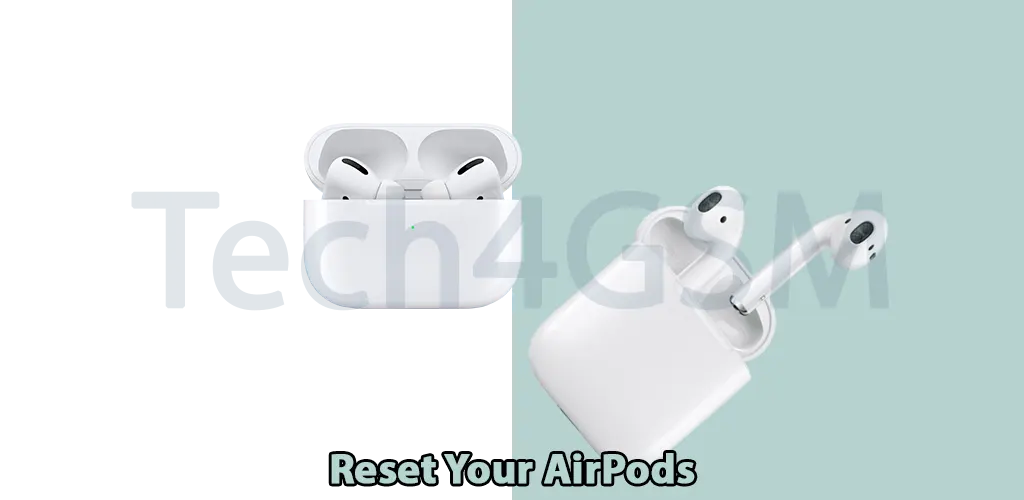
Apple’s AirPods are a game-changer for wireless audio, but even the best tech can run into issues. Whether you’re facing connectivity problems, sound glitches, or planning to sell or gift your AirPods, a quick reset can solve most problems. Here’s your easy guide to resetting AirPods, AirPods Pro, and AirPods Max.
Why Reset Your AirPods?
Resetting your AirPods can help with:
- Connectivity Issues: Fix pairing problems with your iPhone or other devices.
- Audio Problems: Resolve sound distortions or one AirPod not working.
- Battery Drain: Restore normal battery performance.
- Selling or Gifting: Erase your personal settings and connections.
How to Reset AirPods or AirPods Pro
Step 1: Place AirPods in the Charging Case
- Put both AirPods in the charging case.
- Close the lid and wait 30 seconds.
- Ensure the case has enough charge (low battery can interfere with resetting).
Step 2: Unpair AirPods from Your Device
- For iPhones/iPads (iOS 16 or later):
- Go to Settings > AirPods (under your Apple ID).
- Tap the “i” icon next to your AirPods’ name.
- Select Forget This Device and confirm.
- For Older iOS Versions:
- Open Settings > Bluetooth.
- Tap the “i” icon next to your AirPods.
- Choose Forget This Device and confirm.
Step 3: Reset AirPods Using the Setup Button
- Keep the charging case lid open.
- Press and hold the Setup button (on the back of the case) for 15 seconds.
- Watch the indicator light:
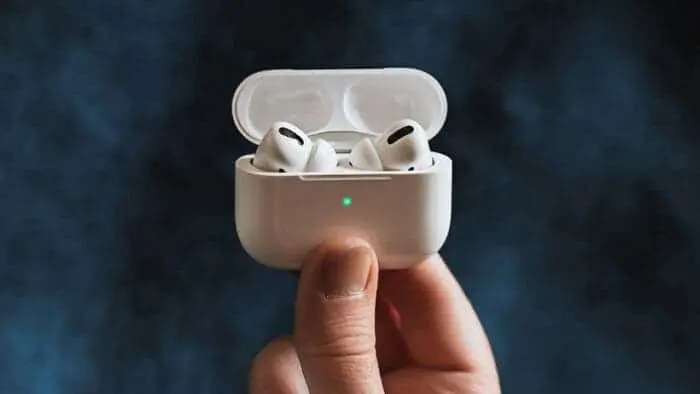
- It will flash amber, then turn white.
- Release the button—your AirPods are now reset!
Step 4: Reconnect Your AirPods
- Bring your AirPods close to your iPhone or iPad.
- A setup animation will appear—tap Connect.
- Follow on-screen prompts to customize settings.
How to Reset AirPods Max
Resetting AirPods Max is slightly different:
- Charge Your AirPods Max for at least a minute.
- Locate the Digital Crown and Noise Control button (on the same earcup).
- Press and hold both buttons for 15 seconds.
- Watch the status light:
- It will flash amber, then turn white.
- Release the buttons—your AirPods Max are reset!
Using AirPods with Non-Apple Devices
To pair your AirPods with Android or other Bluetooth devices:
- Open the device’s Bluetooth settings.
- Select your AirPods from the list of available devices.
- Confirm the pairing.

Troubleshooting Tips
- Still Having Issues?
- Check for firmware updates.
- Ensure your device’s Bluetooth is working properly.
- Contact Apple Support for further assistance.
Final Thoughts
Resetting your AirPods is a quick and easy fix for most issues. Whether you’re troubleshooting problems or preparing to pass them on, this guide ensures your AirPods are back to factory settings in minutes.