Introduction
Android Auto is a convenient feature that allows you to connect your smartphone to your car’s infotainment system. It helps you navigate, control music, and stay connected while keeping your hands on the wheel and your focus on the road. However, if your Android Auto keeps disconnecting, it can be frustrating and disruptive. This guide provides easy-to-follow solutions to help you fix the issue and enjoy a seamless driving experience.
What is Android Auto?
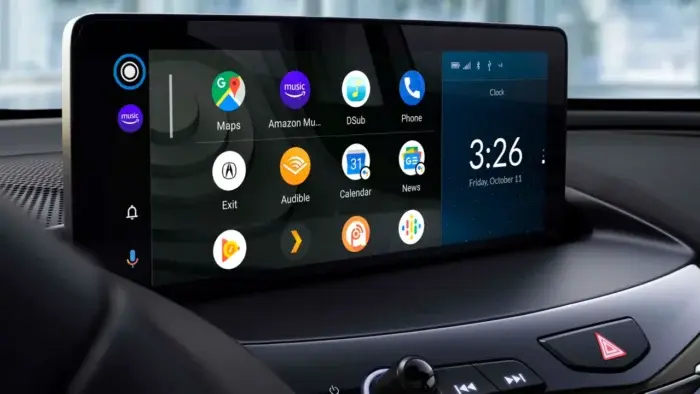
Android Auto is a smart driving companion that brings the essential features of your Android phone to your car’s display. It enables you to use Google Maps, make calls, send messages, and play music through your car’s infotainment system. This app ensures safety and convenience while driving by offering a hands-free experience.
However, frequent disconnections can interrupt this experience. Let’s explore the reasons behind these issues and the steps you can take to resolve them.
Steps to Fix Android Auto Disconnecting
If Android Auto disconnects frequently, the issue could be due to unstable connections, outdated software, or system glitches. Follow these troubleshooting steps to identify and fix the problem:
1. Check Your USB, Wi-Fi, or Bluetooth Connections
- Inspect USB Cables and Ports:
- If you’re using a USB connection, ensure that the cable is in good condition. Check for physical damage, frayed ends, or bent connectors.
- Use a high-quality USB cable that supports data transfer. Avoid cheap cables, as they may cause intermittent connections.
- Clean the USB ports on both your phone and the car’s infotainment system. Dust and debris can block connections.
- Verify Wireless Connectivity:
- If you’re using wireless Android Auto, ensure both Wi-Fi and Bluetooth are enabled on your phone and car.
- Check for strong signals. Weak Wi-Fi or Bluetooth connections can cause frequent disconnections.
2. Disconnect Other Devices
- If multiple devices are paired with your car, it might cause conflicts. For example, if your partner’s phone is also connected, the system might switch to their device.
- Solution: Disconnect other devices by turning off their Bluetooth or unplugging their USB cables during your drive.
3. Update the Android Auto App
- Outdated versions of Android Auto can cause compatibility issues.
- How to Update:
- Open the Google Play Store on your phone.
- Search for Android Auto and check for updates.
- Install the latest version to ensure all bugs are fixed and new features are added.
4. Ensure Android Auto is Properly Configured
- Sometimes, incorrect settings can prevent Android Auto from working seamlessly.
- Steps to Configure:
- Open your phone’s Settings.
- Search for Android Auto and tap on it.
- Set Start Android Auto Automatically to Always.
- Enable Start Android Auto While Locked to allow the app to work even when the screen is off.
5. Clear the App’s Cache
- Corrupted cache data can interfere with Android Auto’s functionality.
- How to Clear Cache:
- Go to your phone’s Settings.
- Tap on Storage or Apps (depending on your device).
- Find Android Auto and select it.
- Tap Clear Cache to remove temporary files.
6. Restart Your Phone
- Temporary glitches in your phone’s system can affect Android Auto.
- Solution: Restart your phone to refresh its system and resolve minor issues.
7. Restart Your Car’s Infotainment System
- Sometimes, the problem lies with your car’s system.
- How to Restart:
- Turn off the engine and remove the key (if applicable).
- Wait for a few minutes and then restart your car.
- This can clear temporary glitches in the infotainment system.
8. Update Your Android Operating System
- Outdated Android OS versions can cause compatibility issues with Android Auto.
- How to Update:
- Go to your phone’s Settings.
- Tap on System > Software Update.
- Check for updates and install the latest version.
9. Reset App Permissions
- Android Auto requires certain permissions to function correctly.
- How to Reset Permissions:
- Open Settings > Apps > Android Auto.
- Tap Permissions and ensure that all necessary permissions are granted.
10. Check Compatibility
- Ensure that your phone and car are compatible with Android Auto.
- How to Check:
- Visit the official Android Auto compatibility page to verify if your car model and phone are supported.
Final Thoughts
Frequent disconnections in Android Auto can disrupt your driving experience, but these troubleshooting steps can help you resolve the issue. Regular maintenance of your phone’s software and hardware connections is crucial for a seamless experience.