Introduction
Ever jotted down a note on your phone or tablet and watched it magically turn into typed text? That’s handwriting recognition—a tech trick that turns your doodles into digital words. Let’s decode how it works (and why your sticky notes just got cooler).
What is Handwriting Recognition?
Think of it as a digital translator for your penmanship. This tech analyzes the shapes of your cursive or printed letters drawn on a touchscreen and converts them into:
- Letters, words, numbers.
- Punctuation marks (like commas or exclamation points).
- Even emojis if you draw a smiley face!
How It Works: From Scribble to Text
- You Write: Use your finger or stylus to jot something on the screen.
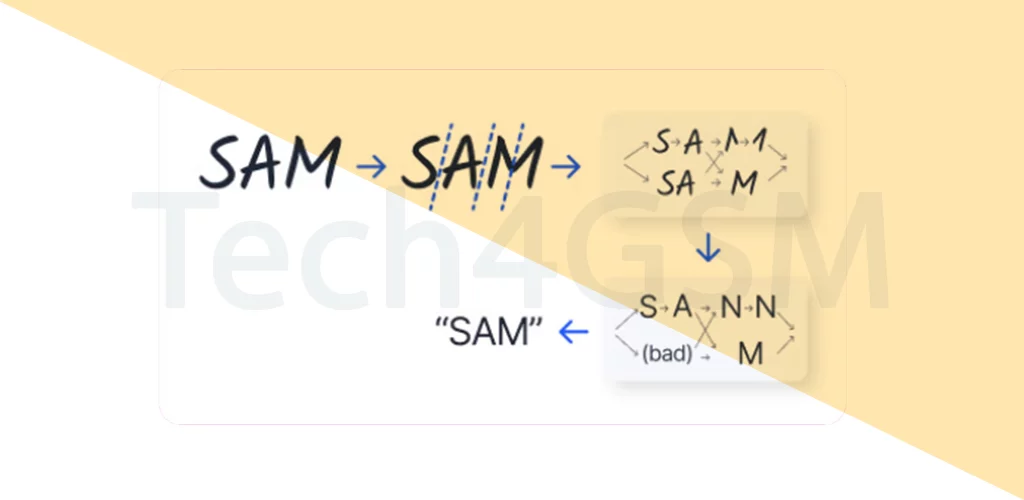
- Device Scans: The software breaks down each stroke’s shape, speed, and direction.
- AI Guesses: Matches your squiggles to the closest letters/words in its database.
- Voilà!: Your handwriting appears as neat text.
Stylus vs. Finger: What Works Best?
- Stylus (Pen):
- Precision: Like writing with a real pen—cleaner lines, better accuracy.
- Pressure Sensitivity: Some styluses detect how hard you press (great for artists!).
- Finger:
- Convenient: Always with you, but…
- Messy: Thumbs aren’t ideal for tiny cursive letters.
Pro Tip: For exams or detailed notes, use a stylus. For quick lists, your finger works!
Resistive vs. Capacitive Screens: Why It Matters
Not all touchscreens handle handwriting the same way:
| Feature | Resistive Touchscreen | Capacitive Touchscreen |
|---|---|---|
| Input Method | Works with any object (stylus, fingernail, pen cap). | Needs human finger or special stylus (with conductive tip). |
| Accuracy | High (feels like paper) | Good (optimized for fingers) |
| Devices | Older PDAs, budget tablets | Smartphones, iPads, modern tablets |
Real-Life Uses of Handwriting Recognition
- Note-Taking Apps: Samsung Notes, OneNote.
- Digital Signatures: Sign contracts on your phone.
- Language Learning: Write Chinese characters or Arabic script for instant translation.
- Accessibility: Helps people with typing difficulties communicate.
(For stylus recommendations, check out tech4gsm.com.)
Why Your Chicken Scratch Fails Sometimes
- Messy Writing: The tech can’t decode sloppy loops or rushed letters.
- Cursive Challenges: Connected letters confuse older software.
- Screen Limits: Capacitive screens struggle with fine details using fingers.
Fix It: Write slower, use print letters, or switch to a stylus.
Tips for Better Handwriting Recognition
- Enable “Write Anywhere”: Some apps let you scribble anywhere on the screen.
- Use Grids/Lines: Turn on virtual ruled paper for neater writing.
- Train the AI: Some devices learn your style over time—keep using it!
- Shortcuts: Draw “@” for email addresses or “/” to add dates.
The Future: Smarter Than Ever
- AI Upgrades: Tools like Google’s Quick, Draw! guess sketches, not just text.
- Real-Time Translation: Write in French, get instant English text.
- 3D Handwriting: AR glasses that let you write in the air!
Final Thoughts
Handwriting recognition bridges the gap between old-school pen-and-paper charm and modern tech convenience. Whether you’re signing a PDF or journaling on your iPad, this tech turns your quirkiest scribbles into something the digital world understands.
Key Takeaways:
- Handwriting recognition converts scribbles to text using AI and touchscreens.
- Works best with a stylus (especially on resistive screens).
- Train yourself to write clearly and use app shortcuts for efficiency.
Modern capacitive screens (like phones) need fingers/special styli.