Introduction
You’re not alone if you’ve ever been in a panic trying to find an outlet before your Android battery runs out. For many users, Android battery life has been a persistent worry. You may, however, significantly extend your device’s battery life without compromising functionality by making a few adjustments. This is a summary of the best Android settings to keep your phone charged all day.
1. Turn Off The Always-On Screen
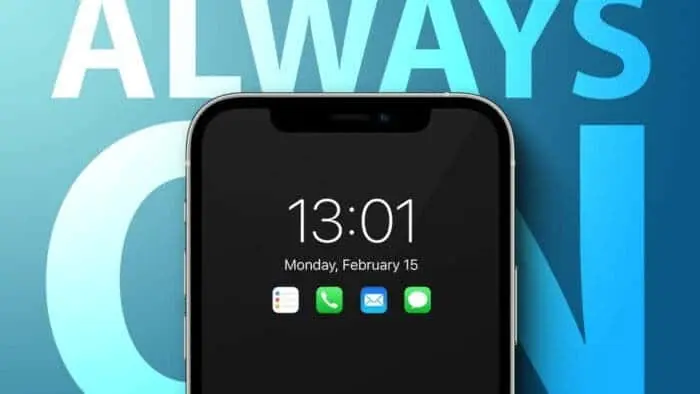
Many contemporary smartphones include a convenient function called the always-on display, which shows the time, date, and alerts without completely lighting up the screen. In actuality, it can be a substantial energy drain, even though it is said to only use 1% to 2% of the battery every hour. Although checking the time without pressing the smartphone is useful, turning it off could be a good way to get more battery life.
How to: Head to Settings > Lock Screen, then look for “Always-on Display” or a similar option, and turn it off.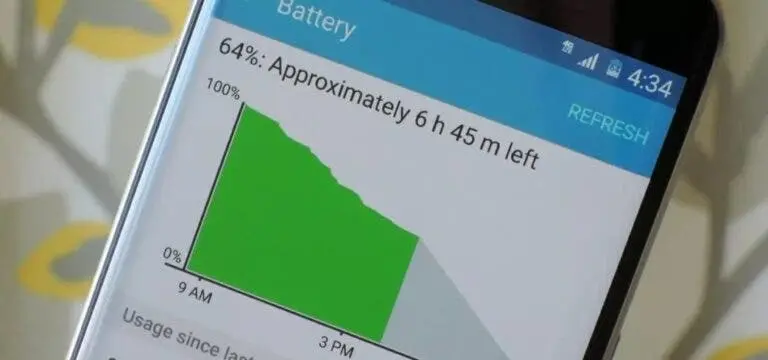
2. Activate Battery Adaptive Mode
The sophisticated Android Adaptive Battery feature limits battery drain for infrequently used applications and learns your usage habits to dynamically control your phone’s energy consumption. This feature is especially helpful since it lets your phone save battery life without compromising regular functionality.
How to: Go to Settings > Battery > Adaptive preferences and enable “Adaptive Battery.”
3. Switch On The Battery-Saving Mode
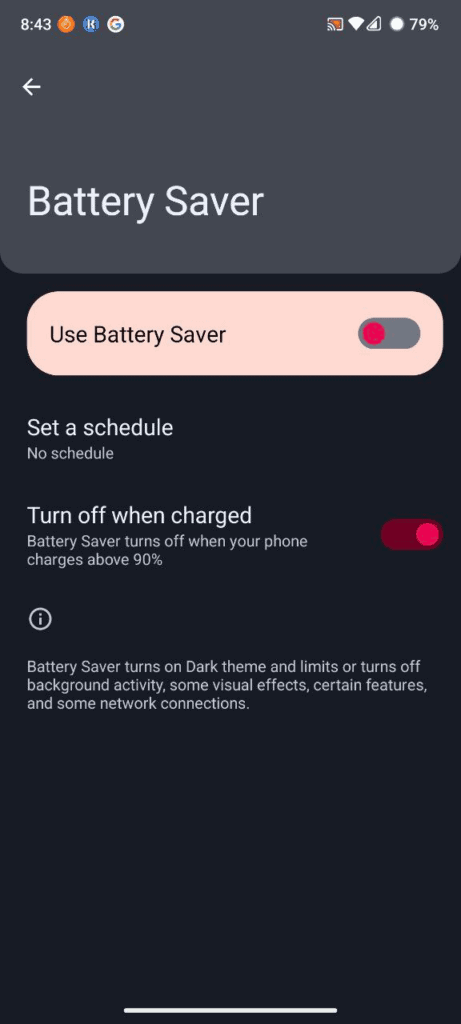
By restricting background activities, lowering brightness, and turning on dark mode, Android’s Battery Saver mode—also known as Power Saving Mode on some brands—can prolong battery life. This function helps your smartphone make the most of every last percent of battery life, which is especially helpful when your battery is low.
How to: On Google Pixel phones, navigate to Settings > Battery > Battery Saver. On Samsung Galaxy devices, it’s located in Settings > Battery and Device Care > Battery > Power Saving Mode.
4. Switch to Dark Mode
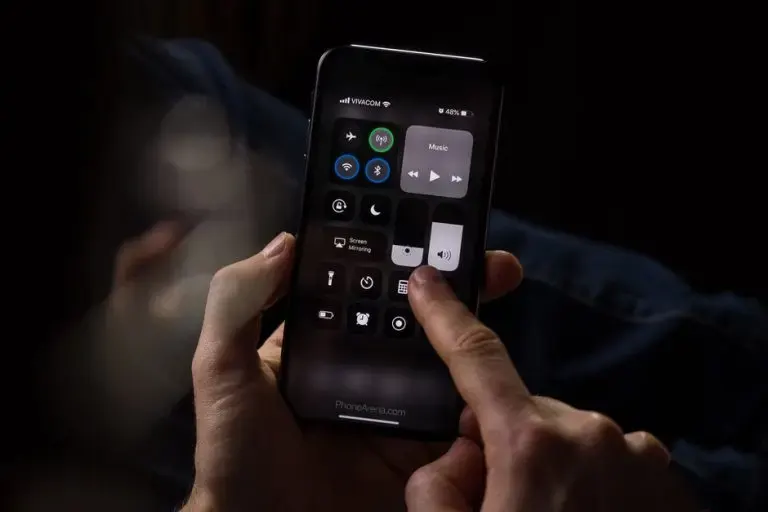
Using dark mode on your Android device might assist minimize battery consumption if it has an OLED display. OLED technology reduces power usage by enabling individual pixels to switch off when the screen is black. You may save energy and enjoy a darker look by keeping your phone in dark mode.
How to: Open Settings > Display and select Dark Mode or Dark Theme. You can set it to always stay on or activate at a specific time.
5. Adjust Display Brightness and Sleep Time
It is well known that one of the main causes of battery depletion is excessive screen brightness. You may save a significant amount of Power by turning down the brightness, especially at night or inside. Battery life may also be preserved by reducing the screen timeout, or the amount of time it takes for your screen to shut down automatically.
How to: Swipe down on your home screen to access quick settings, and reduce brightness by moving the slider left. Adjust screen timeout in Settings > Display > Screen Timeout and set it to 30 seconds or less.
6. Remove Unused Accounts
Having too many accounts on your phone might result in pointless background syncs that deplete your power without offering any meaningful advantages. Performance can be enhanced and this drain lessened by deleting unneeded or outdated accounts.
How to: Go to Settings > Accounts or Settings > Passwords & Accounts (varies by device). Select each account and look for an option to remove it.
7. Switch Off Haptic Feedback and Keyboard Sound
Although haptics, or keyboard noises and vibrations, can improve typing, they also drain more power. Battery life can be somewhat increased by turning off these functions.
How to: Open Settings > Language and Input and select your default keyboard. Then go to Preferences > Keypress and turn off both “Sound on keypress” and “Haptic feedback on keypress.”
8. Limit App Notifications
Because they continuously light up your screen and keep programs running in the background, notifications—especially from many apps—can deplete your battery. You may increase battery life without compromising usefulness by limiting alerts to those that are absolutely necessary.
How to: Head to Settings > Notifications > App Notifications and turn off unnecessary notifications.
9. Turn Off “Hey Google” Recognition
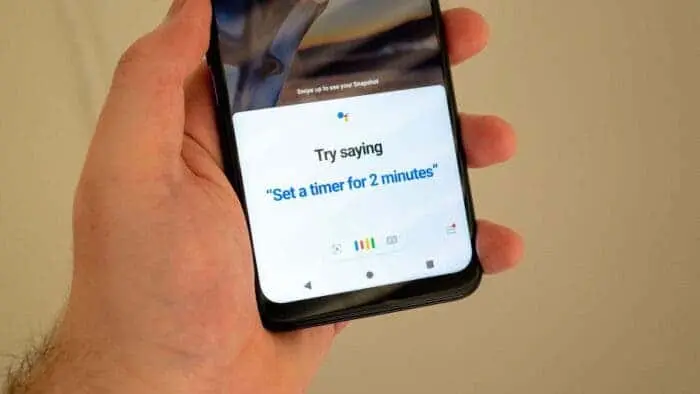
Your device’s battery may drain significantly if it is always listening for “Hey Google.” To extend the life of your Android battery, think about turning off voice activation unless you use it frequently.
How to: Go to Settings > Google Assistant > Hey Google & Voice Match, hit your profile icon, open the Google app, and turn off “Hey Google.”
10. Reduce Screen Refresh Rate
Although they deplete the battery faster, higher refresh rates (such as 90Hz or 120Hz) make your smartphone seem more snappy. Battery life may be increased by lowering it to the typical 60Hz without noticeably reducing usage.
How to: Open the Google app, tap your profile icon, go to Settings > Google Assistant > Hey Google & Voice Match, and disable “Hey Google.”
11. Turn Off Unnecessary Wireless Features
When kept on, wireless functions like Bluetooth, Wi-Fi, and location services can deplete your battery. Your phone will last longer between charges if you turn off these functions while not in use.
How to: Toggle off any unused wifi services and access fast settings by swiping down on your home screen.
12. Bonus Advice: Use the Low-Power Mode
Every Android phone has a low-power mode that may extend the life of your device by turning off background apps, limiting app refreshes, and lowering screen brightness. It’s a simple and efficient method of battery conservation when your battery is low.
How to: To enter low-power mode, hit the battery symbol after making two swipes down from the top of the screen.