Introduction
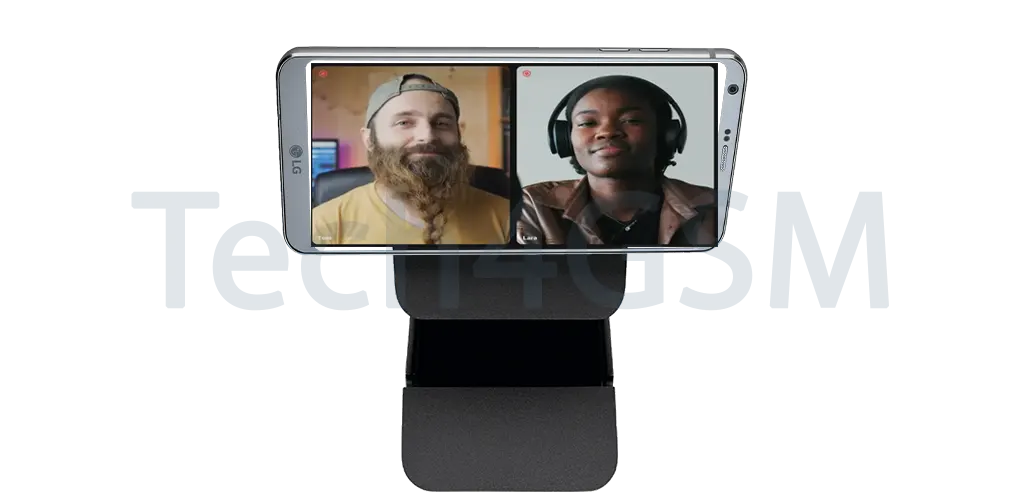
Webcams have become essential in our daily lives, especially with the rise of remote work, online learning, and virtual meetings. They offer a convenient way to connect visually with colleagues, classmates, for live streaming, content creation, and staying in touch with loved ones. However, traditional webcams often have limitations, such as low resolution, limited features, poor performance in low lighting, and compatibility issues. These shortcomings can lead to frustrating experiences during important calls or presentations.
Fortunately, smartphones can solve many of these problems. Most modern smartphones have advanced cameras capable of producing high-quality video, making them excellent substitutes for traditional webcams. In this article, we’ll explore five ways to turn your smartphone into a webcam, with step-by-step instructions for easy implementation.
Method 1: Use Third-Party Apps (Windows and Mac)
Apps like DroidCam make it easy to use your smartphone as a webcam. This method works for both Android and iPhones.

Steps:
- Download the App: Open the Google Play Store or App Store on your phone. Search for DroidCam and install it.
- Download the Software: Visit the DroidCam website on your computer. Download and install the software compatible with Windows or Mac.
- Connect Both Devices: Launch the DroidCam app on your phone and the software on your computer. Ensure both devices are on the same Wi-Fi network.
- Choose Connection Type: Select how to connect your phone to your computer. Use Wi-Fi for a wireless setup or a USB cable for a stable connection.
- Set Up Your Meeting App: Open Zoom, Skype, or any other video app. Go to settings and select DroidCam as your video source.
- Start Using It: Position your phone to get the best camera angle. You’re now ready to use your phone as a webcam.
Method 2: Use iPhone with Continuity Camera (Mac Only)
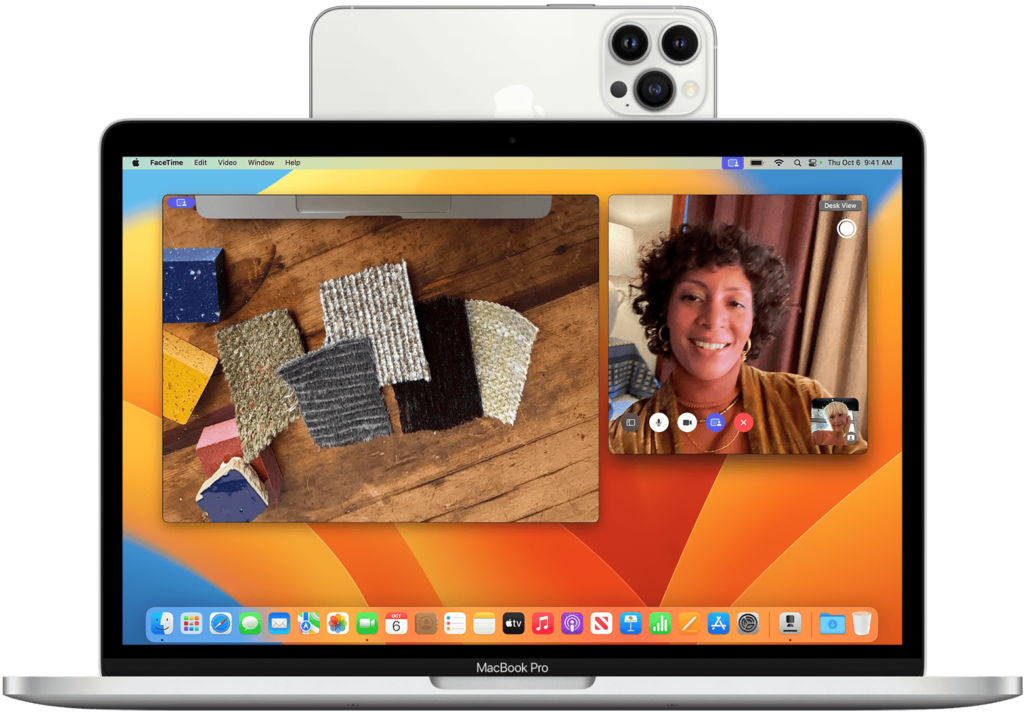
Apple users can take advantage of the Continuity Camera feature to use their iPhone as a webcam with a Mac.
Steps:
- Update Your Devices: Ensure your iPhone has iOS 16 or newer and your Mac has macOS Ventura or newer.
- Connect via Wi-Fi and Bluetooth: Log in to the same Apple ID on both devices. Turn on Wi-Fi and Bluetooth.
- Open a Video App: Launch FaceTime, Zoom, or another video app on your Mac.
- Select Your iPhone: The app will detect your iPhone automatically. Choose it as the webcam source.
- Adjust Video Settings: Use the Control Center on your Mac to tweak settings like zoom and focus for better results.
Method 3: Use EpocCam (Windows and Mac)
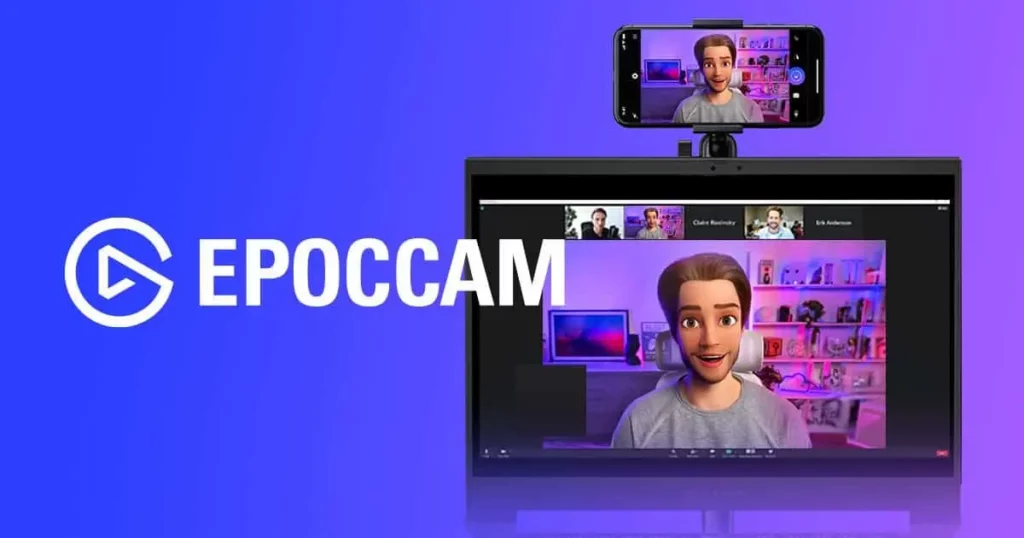
EpocCam is another app that works well for converting your smartphone into a webcam.
Steps:
- Install the App: Download EpocCam from the App Store or Google Play and install it on your phone.
- Install the Driver: Visit the EpocCam website to download and install the driver on your computer.
- Connect to Wi-Fi: Make sure your phone and computer are connected to the same Wi-Fi network.
- Open the App: Launch EpocCam on your phone and start the software on your computer.
- Check the Connection: Your phone’s camera feed should appear on your computer screen.
- Use as a Webcam: Open a video conferencing app and select EpocCam as the video input source.
Method 4: Use IP Webcam (Windows and Linux)
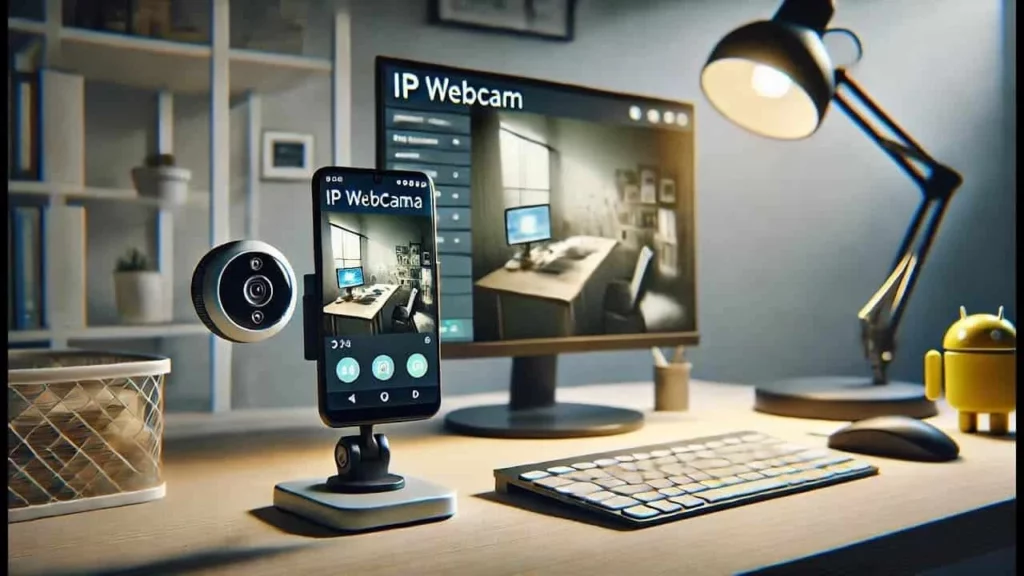
IP Webcam is a powerful app for advanced users. It offers extra features and works well on both Windows and Linux.
Steps:
- Install IP Webcam: Go to the Google Play Store, download, and install the app on your Android phone.
- Start the App: Launch IP Webcam and tap “Start Server.” The app will display an IP address.
- View the Camera Feed: Open a browser on your computer and enter the IP address shown in the app. Press Enter to view the camera feed.
- Set Up OBS Studio: Download and install OBS Studio on your computer. Add a new “Media Source” and paste the IP address to integrate the camera feed.
- Use in Video Apps: Configure your video conferencing app to use OBS Studio as the video source.
Method 5: Use a USB Connection (All Platforms)
Using a USB connection ensures a stable and reliable setup. This method works on all operating systems.
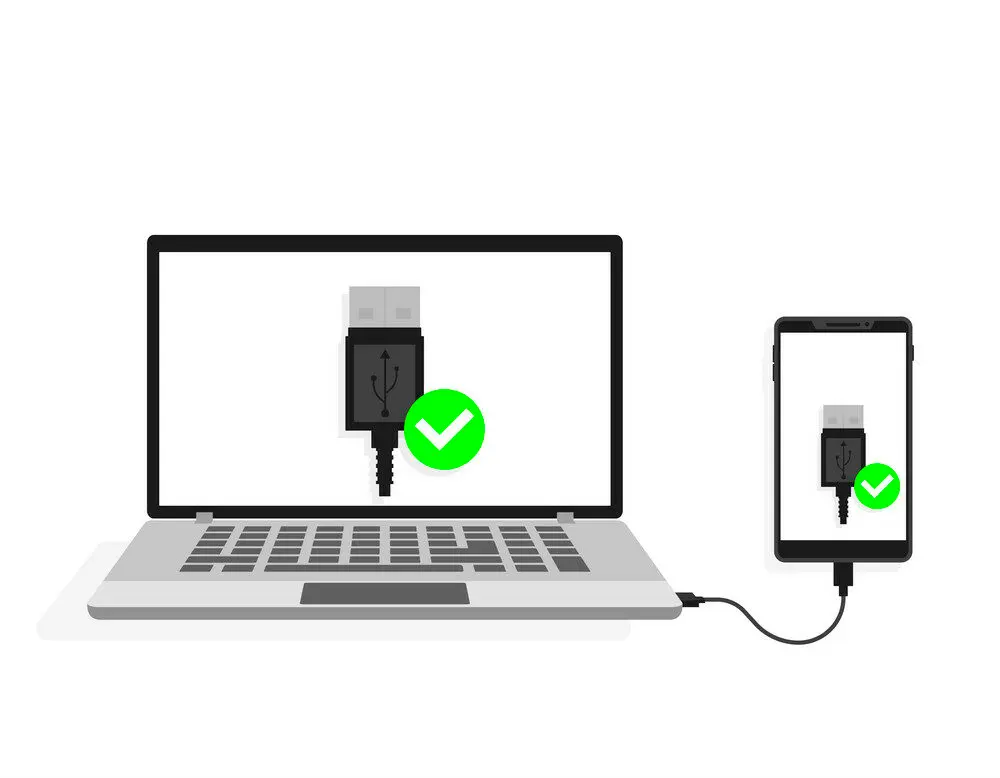
Steps:
- Enable Developer Mode (Android Only): Go to Settings > About Phone. Tap “Build Number” seven times. Return to Settings, open Developer Options, and enable USB Debugging.
- Install a Webcam App: Download apps like DroidCam or Iriun Webcam on both your phone and computer.
- Connect via USB: Plug your phone into your computer using a USB cable.
- Set Up the App: Open the app on your phone and computer. Choose “USB” as the connection type.
- Select Video Source: Open a video app and choose the webcam app as the video source.
- Start Using It: Adjust the camera angle for the best results. Your phone is now a high-quality webcam.
Benefits of Using Smartphones as Webcams
Using a smartphone as a webcam offers several advantages:
- Better Quality: Smartphones often have higher-quality cameras compared to basic webcams, resulting in clearer video.
- Cost Savings: Avoid the expense of buying a new webcam by using your existing phone.
- Easy to Position: Smartphones are portable and can be easily adjusted for the best angle.
- More Features: Many smartphone apps include features like autofocus, filters, and enhanced video quality.
- Eco-Friendly: Repurposing your smartphone reduces electronic waste.
Conclusion
Turning your smartphone into a webcam is a simple and effective way to improve your video experience. Whether you use apps like DroidCam and EpocCam, features like Continuity Camera, or advanced setups with IP Webcam, the options are versatile and easy to implement.
Smartphones provide better video quality, more flexibility, and cost savings compared to traditional webcams. With the detailed steps in this guide, you can enjoy high-quality video calls without investing in new equipment. Try it today and take your video conferencing to the next level!