Introduction
BIOS settings are generally avoided by those who are new to PC construction and tuning. Changing BIOS settings irresponsibly might result in major issues and could brick your system, even though contemporary motherboards come with built-in fail-safes. Nonetheless, this article will help you comprehend some crucial options and get you ready for your first foray into BIOS if you’re interested in learning more.
Entering Computer BIOS: Boot Priority
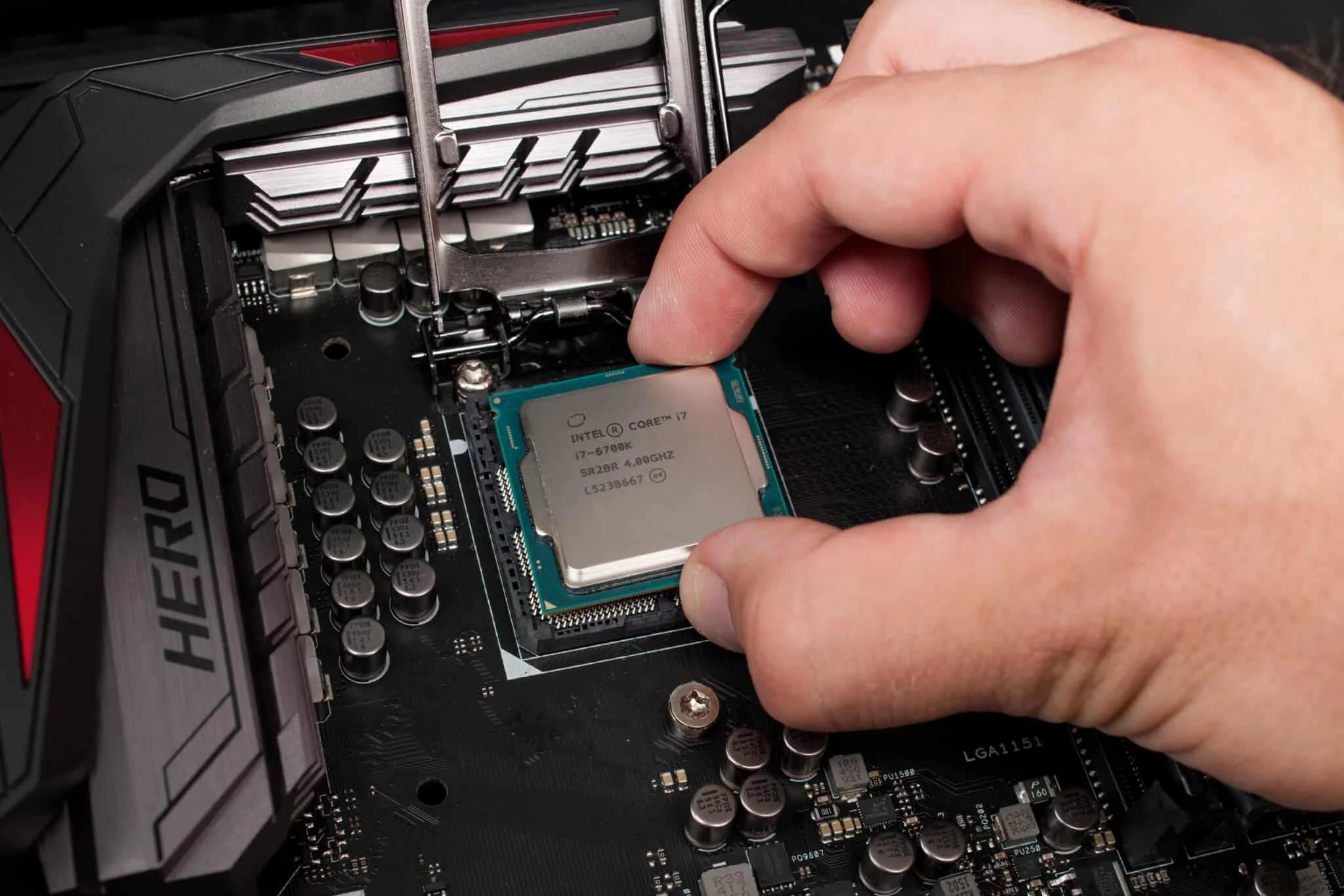
You could have previously changed the boot priority in BIOS if you build your own computer. You may select which storage device your computer will attempt to start from first by adjusting the start Priority settings. The gadget with the highest priority is the one with the lowest number. This is especially helpful if installing an operating system requires booting from a USB device.
You may have noticed the Hard Drive BBS Priorities area if you are using UEFI Boot Mode. You may swap between disks with various bootloaders here. These options will become familiar to you if you’re configuring a dual-boot system or switch operating systems often.
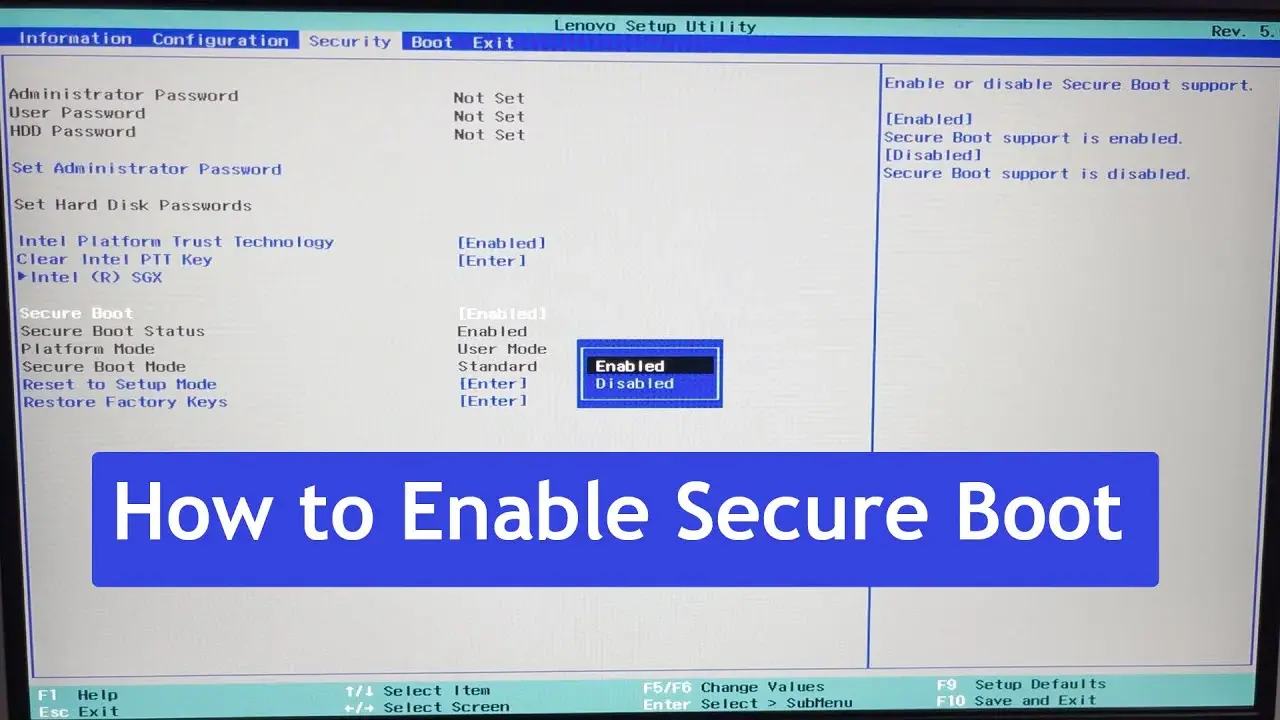
One essential component that guards against malware on your machine is Secure Boot. It protects your computer from rootkits and other harmful applications by using digital signatures to confirm the firmware’s legitimacy. Secure Boot is now required for Windows 11 by Microsoft. For most users, we advise keeping it enabled. You’ll need to disable Secure Boot if you’re installing an operating system other than Windows 11 since it could stop the installation.
Virtualization: Increasing the Potential of Your Computer
You may divide the resources and processing power of your PC into virtual machines thanks to virtualization. You may use this to run other operating systems without installing them on your primary computer. Because virtualization separates each virtual computer, it also improves security by enabling safe experimentation.
You must activate CPU virtualization in your BIOS in order to use virtualization. This option may be known as AMD-V (AMD), SVM, or VT-x (Intel), depending on your motherboard. IOMMU must be enabled in order for virtual machines to access the GPU and other PCI Express devices for advanced users running Linux-based systems such as Proxmox.
Overclocking: Using CautionPC BIOS to Increase Performance
While overclocking might improve the performance of your CPU and RAM, it can also raise their temperatures and shorten their lifespans. Pay attention to the CPU Core Voltage (power delivered to the CPU) and CPU Ratio (clock speed) if you’re prepared to overclock. You can increase the clock speed by increasing the voltage, but doing so also causes the temperature to rise.
You may change the DRAM frequency, timings, and voltages to overclock the RAM. Beginners might think about using the dependable and system-stable Auto OC settings for the CPU and the XMP/EXPO choices for memory.
Resizable BAR: Improved Graphics Processing
Resizable BAR is a helpful feature seen on contemporary motherboards. This option increases frame rates by allowing your processor to access all of the GPU’s VRAM. Under PCIe settings, usually in the PCI Subsystems Options, you may locate it. Performance can be improved by turning on Resizable BAR, particularly for users using Intel Alchemist graphics cards.
Controlling the Fan to Manage System Cooling
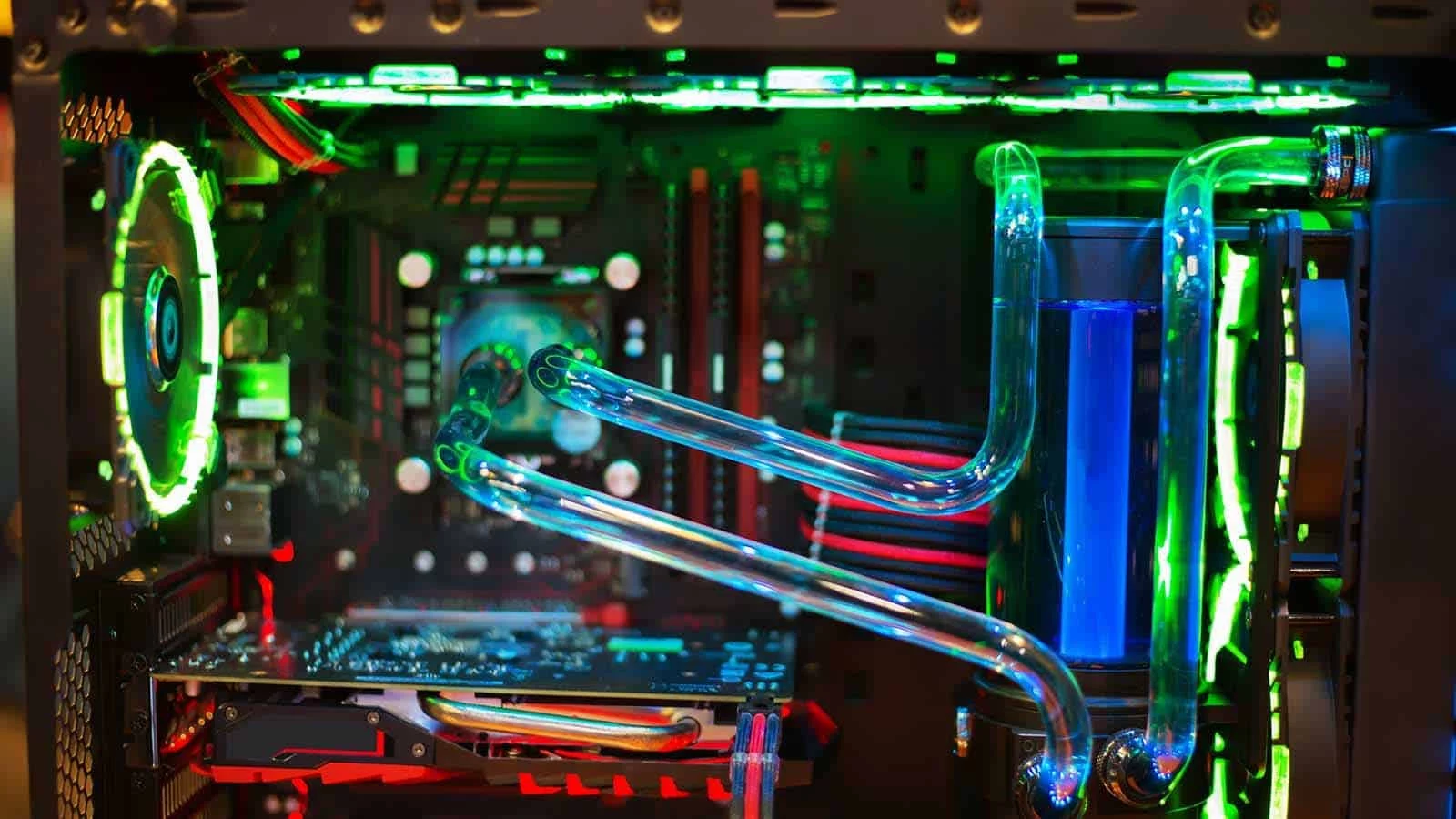
Using a program like Fan Control offers greater customization choices without the danger of altering important BIOS settings, even if BIOS enables you to configure fan curves to control your system’s cooling. Using temperature sensors, this program allows you to adjust fan speeds to keep your system quiet and cool.
Do You Need to Change the BIOS Settings?
Don’t hurry if you’re not sure how to change BIOS settings. The best choices for the typical user are Resizable BAR and turning on virtualization. You may enjoy decent gaming performance without overclocking, and most users won’t need to adjust the Boot Priority or Secure Boot settings.
Final Words
Gaining an understanding of BIOS settings can improve your PC experience, but you should approach cautiously. From controlling boot choices to turning on more complex features like virtualization and Resizable BAR, this article offers a starting point for learning about BIOS. Remember that many users find that the default BIOS settings are enough for daily usage, and always make sure you understand the ramifications of any modifications you make.