Introduction
Are you having trouble remembering your Apple ID password and would like to know how to get around the Screen Time passcode on your iPhone? Or maybe your iPhone doesn’t have a “Forgot Screen Time passcode” option.
Key TakeAways:
- To manage and modify Screen Time settings on Apple devices and stop unwanted modifications to app limits and content restrictions, a four-digit PIN known as a Screen Time password is utilized.
- If you forget this passcode, need to make a quick configuration change, or discover that it is preventing you from using your iPhone as needed, you may need to get around it.
- Not every technique for getting around the Screen Time passcode is effective in every situation, and some can have restrictions or special requirements.
However, read this post before searching for methods that will just be a waste of your time and sound absurd while also being impossible to implement. We have revealed eight simple yet effective methods for getting around the Screen Time passcode, both with and without a computer. Let’s get started!
Part 1: Things Need to Note that Bypass Screen Time Passcode on iPhone
Here are some things to consider before learning how to get around iPhone Screen Time:
- Ethical Issues: It is against the law and unethical to use someone else’s smartphone to bypass screen time. If you have forgotten your Apple ID, you must be the legitimate owner of your iPhone.
- Data Loss: All data will be erased using techniques like factory resets. Consequently, you need to have a backup of your iPhone data.
Here is a brief synopsis of the techniques discussed in this article:
| Method | Description | Limitations |
| Tenorshare 4uKey | Removes Screen Time passcode without data loss and need for an Apple ID password. | Requires installation of third-party software. |
| App Deletion | Delete and reinstall restricted apps to bypass Screen Time restrictions for specific apps. | Does not work if there is a downtime schedule for whole device or if App Store is restricted. |
| Ignore Limit Bug | Utilize “Ignore Limit” feature to get extra time beyond set limits for a specific app. | Only provides an extra minute daily and may not work on all iOS versions. |
| Text Friends with Share Feature | Use Contacts app’s Share feature to access iMessage during downtime. | Ineffective if Contacts app itself has restrictions or if Messages are restricted. |
| Send Messages Through Siri | Use Siri to send messages even if iMessage is restricted. | Won’t work if Siri & Dictation are disabled. |
| View YouTube Videos via iMessage | Access restricted YouTube videos by having them shared through iMessage. | Ineffective if YouTube or Messages app is restricted. |
| Use Links in Other Apps | Open links through apps like Mail or Messenger to access Safari if it is restricted. | Limited effectiveness if most apps or websites are restricted. |
Part 2: How to Bypass Screen Time Passcode on iPhone?
Here are eight methods for getting around the Screen Time passcode, depending on the situation, ranging from factory resetting your iPhone to employing a bypass tool. Select the option that best suits your circumstances:
Method 1: Tenorshare 4uKey (compatible with iPhone and iPad)
Tenorshare 4uKey is the greatest option if you’re looking for a way to get around the iPad/iPhone’s Screen Time passcode.
This is because you can use this technique to get around the Screen Time passcode on all of your iDevices if you are unable to see a “Forgot Passcode” option. not merely taking it down from a specific website or app. Additionally, it may erase data loss and the Screen Time passcode without using an Apple ID password. Here is a summary of the main attributes of this tool:
- Even as a child, turn off the Screen Time password.
- Avoid using Touch ID, Face ID, or 4- or 6-digit passcodes.
- Without an Apple ID or prior owner, get around the iCloud activation lock.
- Without a passcode, remove the MDM profile.
- Create a new Apple account and log out of Apple ID without losing any info.
- Compatible with iOS 18, 17, 16, and previous iterations.
Here’s how to use Tenorshare 4uKey to disable Screen Time without knowing the password:
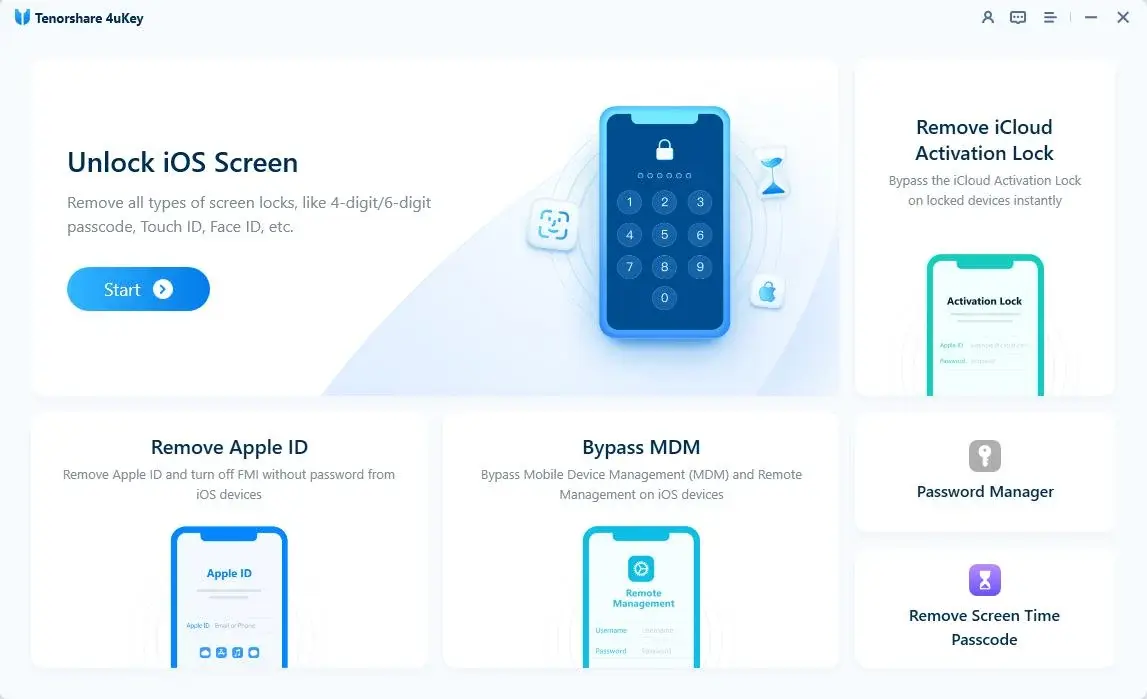
Step 1: Install 4uKey on your PC after downloading it. Run it next, then select “Remove Screen Time Passcode.”
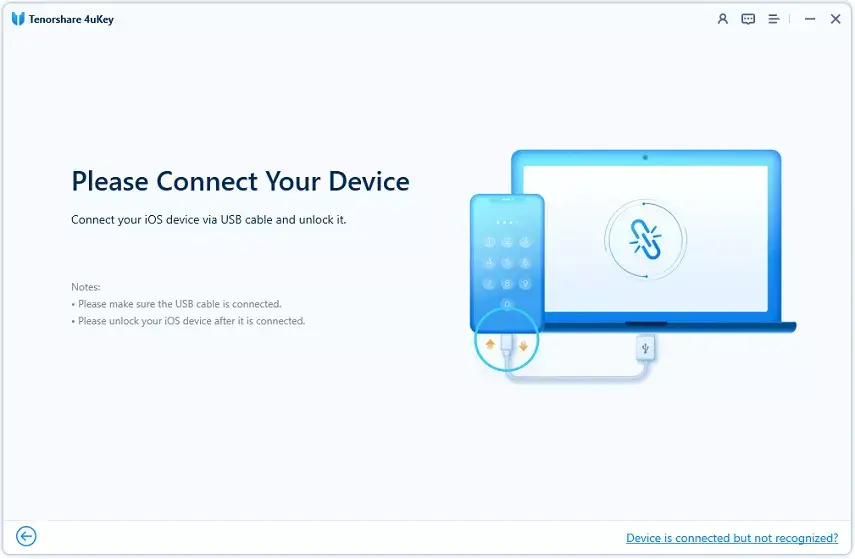
Step 2: Link your iPhone that has screen time passcode limitations to the same PC that 4uKey is operating on. Have faith in your iPhone PC. Then choose “Start Remove.”
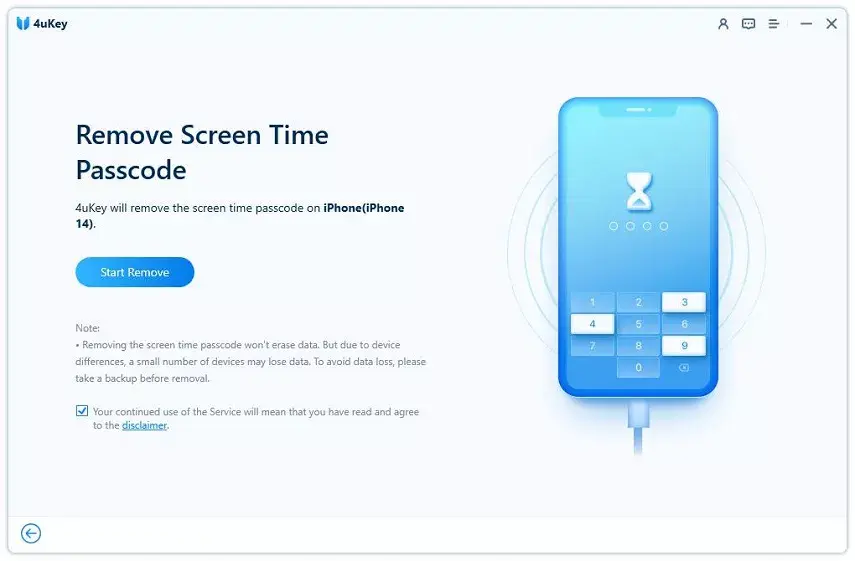
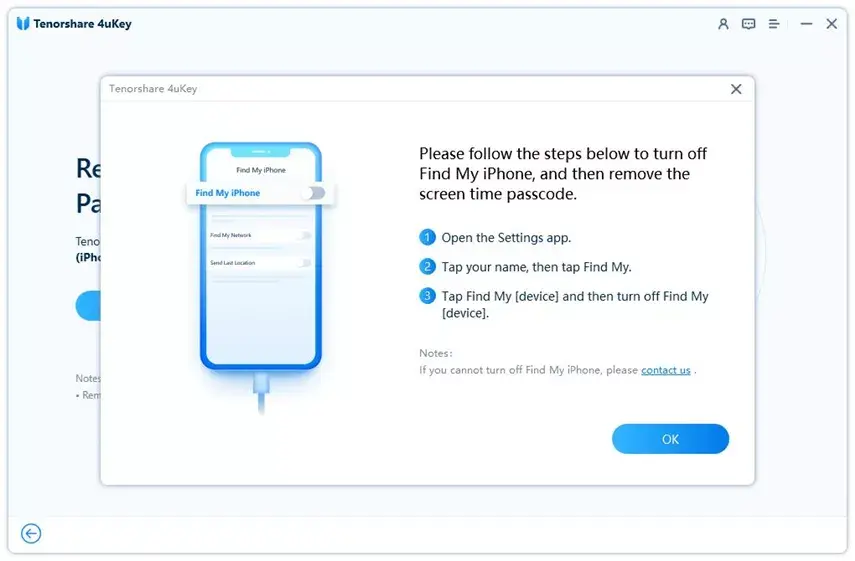
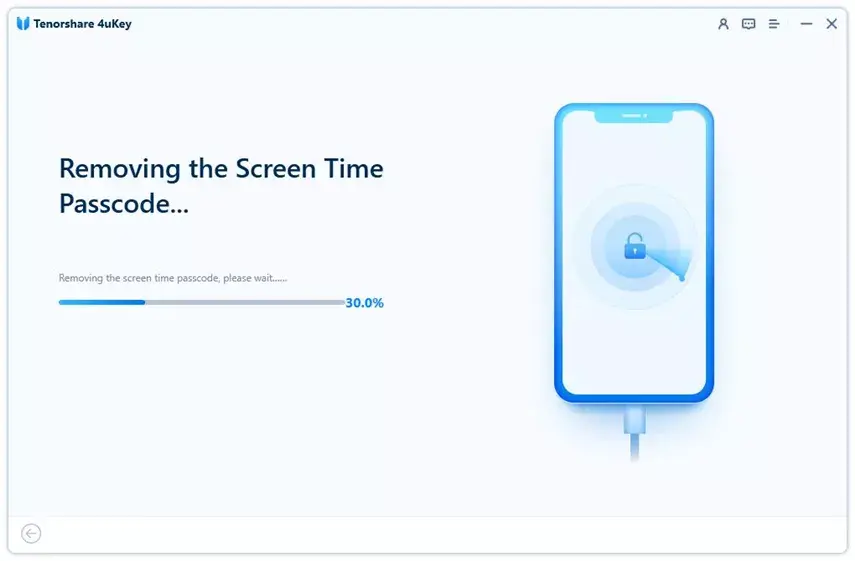
Step 3: If you have activated Find My iPhone, follow the on-screen instructions to disable it. Following that, 4uKey will start to remove the Screen Time passcode. That’s how to disable Screen Time without a passcode, then.
Method 2: Delete the App to Get Around the Screen Time Passcode
You can get around the Screen Time passcode by deleting and reinstalling any prohibited applications. It’s a rapid method of getting rid of limitations on certain apps. You can use these programs without restrictions after reinstalling them. Here’s how to remove and then reinstall applications on your iPhone to get around the Screen Time passcode:
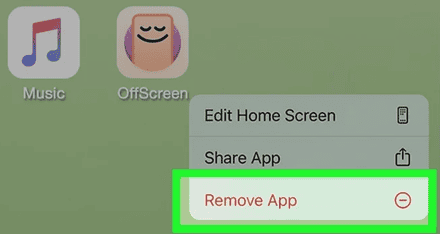
- Step 1: Hold down the icon for the restricted app. Press “Remove App.” After that, select “Delete App.”
- Step 2: Next, launch the “App Store,” look for the program you removed, and click the “Download” option to install it again.
Advantages:
- It’s perfect for getting rid of a certain app’s Screen Time passcode.
- After reinstalling, you may use apps without any limitations.
Disadvantages:
- If the entire gadget is scheduled for downtime, it won’t function.
- If the App Store is restricted, it won’t function.
Method 3: Make Use of the “Ignore Limit” Bug
With your iPhone, you can get around apps that have time limits by exploiting the “Ignore Limit” bug. It will provide you an additional minute every day to complete your tasks. Here’s how to use the iOS “Ignore Limit” flaw to get around the Apple Screen Time password:
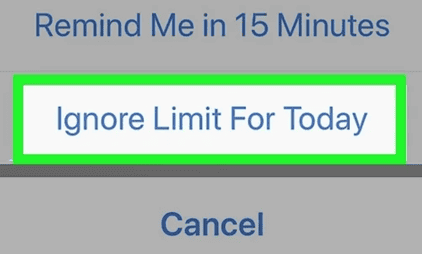
- Step 1: When the allotted time has passed, tap “Ignore Limit” and choose “Ignore Limit for Today.” Limit is lifted for the remainder of the day.
- Step 2: You may select “Ask For More Time” and then “One More Minute” even if the “Block at End of Limit” function is enabled.
Advantages:
- A quick fix to temporarily get past app constraints.
- gives some control over how the gadget is used.
Disadvantages:
- It simply provides one additional minute per day, which may not be enough.
- It might not function in every version of iOS.
Method 4: Use the Share Feature to Text Friends
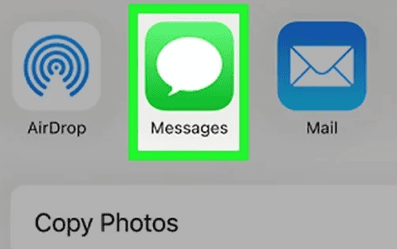
You may share a contact using the Contacts app, which will launch iMessage, if you wish to access it when the system is down. Here’s how to use the Share function on your iPhone to get beyond Screen Time:
- Step 1: Take a screenshot or picture. Next, press the “Share” icon. Choose “Messages.”
- Step 2: Select a contact, compose your message, click the “Send” link, and remove any shared items you’d like.
Advantages:
- The most effective way to text when messages are blocked or there is downtime.
Disadvantages:
- It won’t work if there’s a time limit on Contacts app itself.
- It can only bypass restrictions on Messages app.
Method 5: Use Contacts or Siri to Send Messages
You can ask Siri to send a message even if Screen Time is limiting iMessage. After that, Siri will ask who you wish to message. Here’s how to use Siri to turn off Screen Time without a password:
- Step 1: Say, “Hey Siri, send [the name of your friend].”
- Step 2: Speak your message and confirm sending it when Siri asks.

Advantages:
- If iMessage is also banned, it is best to get around the Screen Time passcode.
Disadvantages:
- This method will not function if you have turned off Siri and Dictation.
- Only the Messages app’s limitations can be bypass.
Method 6: Use iMessage to Watch YouTube Videos
Have a friend send you a message if you wish to view YouTube videos that are prohibited. Here’s how to use the iMessage app to remove Screen Time without a password:
Tap the thumbnail when a video link appears in Messages. You can tap on videos that are currently in your messages or ask a friend to send you fresh films via text.

Advantages:
- how to watch YouTube videos that are blocked by the Screen Time passcode in the easiest way.
Disadvantages:
- If the Messages app or YouTube website are blocked, it won’t function.
Method 7: Access Safari by Using Links in Other Apps
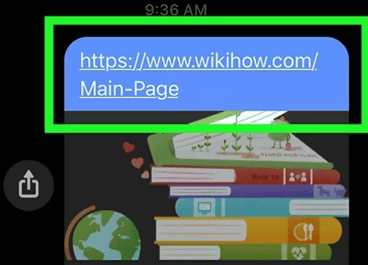
You can still open links you wish to view using an app you have access to if Safari is limited but you still want to browse web content. Here’s ways to use other apps to get around the Screen Time passcode:
Launch an unrestricted app, like as Mail or Messenger, and touch a link you want to view. This will cause Safari to open that link.
Advantages:
- Even if Safari is restricted, this is the greatest way to browse web material.
Disadvantages:
- You’ll have problems using Safari or opening links if the majority of websites or apps are blocked.
Method 8: iPhone Factory Reset
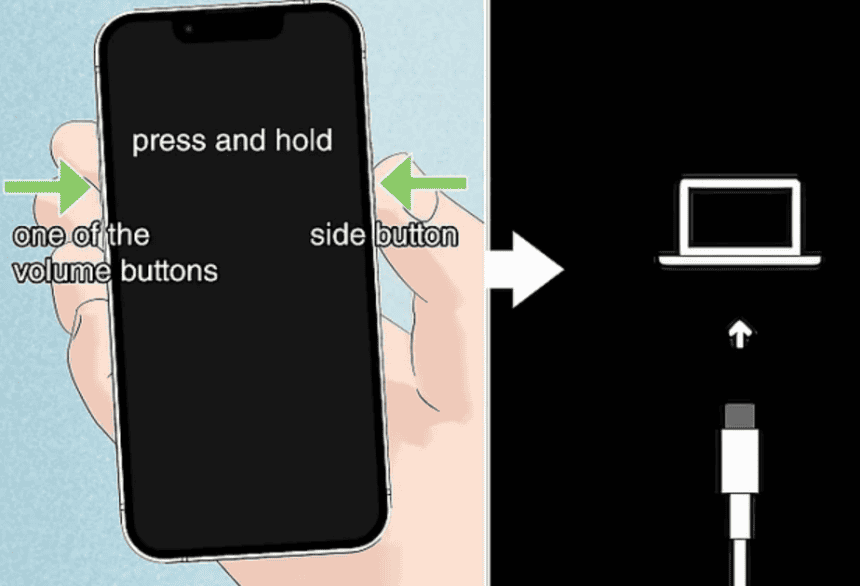
You can factory reset your iPhone as a last resort, or if you wish to access everything that is blocked by the Screen Time passcode. This procedure requires a computer and your iDevice in Recovery Mode. To reset the Screen Time passcode without using Apple ID, follow these steps:
Step 1: switch off your iPhone. For models without a home button, simultaneously press the volume and sleep/wake buttons. Hold the sleep/wake button on your iPhone if it has one.
Step 2: Next, select Recovery Mode based on your iPhone model:
- iPhone 8 and Later – Hold side button while connecting to a computer.
- iPhone 7 and 7 Plus – Press and hold volume down button.
- iPhone SE (1st Gen), 6s, and Earlier – Hold home button.
Step 3: Release all buttons when the Recovery Mode screen appears. Open “Finder” on a Mac (Catalina or later) and choose your iPhone from the sidebar. Open iTunes on a Windows computer or an older Mac, then choose your iPhone.
Step 4: Give your iPhone a reboot. Disconnect once it’s finished and adhere to the setup guidelines.
Advantages:
- A factory reset can frequently solve the problem if no other method is able to get past the Screen Time passcode.
- This is the best way to get rid of limits on all iPhone settings and content.
Disdvantages:
- All of your iPhone’s data will be deleted with this procedure.
- Resetting your iPhone is a difficult and time-consuming process.
Part 3: Frequently Asked Questions about Resetting the Screen Time Passcode
1. What occurs after ten unsuccessful attempts to enter the Screen Time passcode?
Screen Time will be momentarily disabled after ten unsuccessful tries at the passcode. Until the waiting period is over, you won’t be able to access or modify the Screen Time settings.
2. After unsuccessful tries, how can I reset my Screen Time passcode?
Tenorshare 4uKey is a good option if you’re wondering how to reset the Screen Time passcode on your iPhone and can’t remember your Apple ID password. Without requiring a password or Apple ID, it can erase the Screen Time passcode without erasing any data.
3. How can I get around the Mac’s Screen Time passcode?
To get around the Screen Time passcode on a Mac, follow the same steps as described in the response to “Question 2.”
4. How to reset a child’s Screen Time passcode
If you are a family organizer, you can reset your child’s Screen Time passcode by completing these steps:
- Step 1: Go to your iDevice’s “Settings.” Next, select “Screen Time.”
- Step 2: Decide on a name for your child. Next, press the “Change Screen Time Passcode” button twice.
- Step 3: Enter the passcode for your smartphone. Next, create a new password for Screen Time.
5. How can I reset my iPad’s Screen Time passcode?
Use the same technique as described in the response to “Question 2” if you wish to learn how to reset your iPhone without using the Screen Time passcode. If you have a backup, you can also manually factory reset your iPhone.
Final Words
In order to take back control of your iPhone, this post explained how to get around the Screen Time passcode in eight different ways. The majority of these techniques, such as removing apps, utilizing the “Ignore Limit” bug, or utilizing Siri and Messages, have restrictions and only function in specific situations. However, we suggest Tenorshare 4uKey as a solution that is unrestricted and condition-free. Without erasing data or requiring an Apple ID, it can get around the Screen Time password.