
Introduction
Got a frozen iPhone 16? Need to restore it without cables? Don’t sweat it! This simple, jargon-free guide covers everything from force restarts to iOS 18’s cool wireless restore. Let’s dive in!
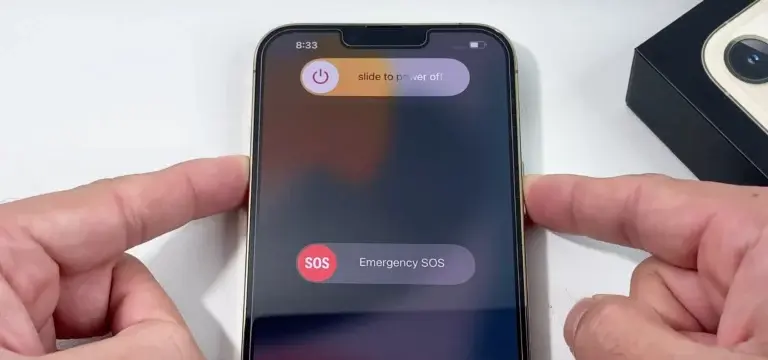
1. 🔄 3 Ways to Turn Off Your iPhone 16
Quick fixes for a fresh start:
- Control Center Method:
- Swipe down from the top-right corner.
- Long-press the power icon (top-right) → Slide to power off.
- Button Combo:
- Hold the Side button (right) + Volume button (left) → Slide to shut down.
- Settings Route:
- Go to Settings > General > Shut Down → Slide to turn off.
Pro Tip: Use Method 2 if your screen is unresponsive!
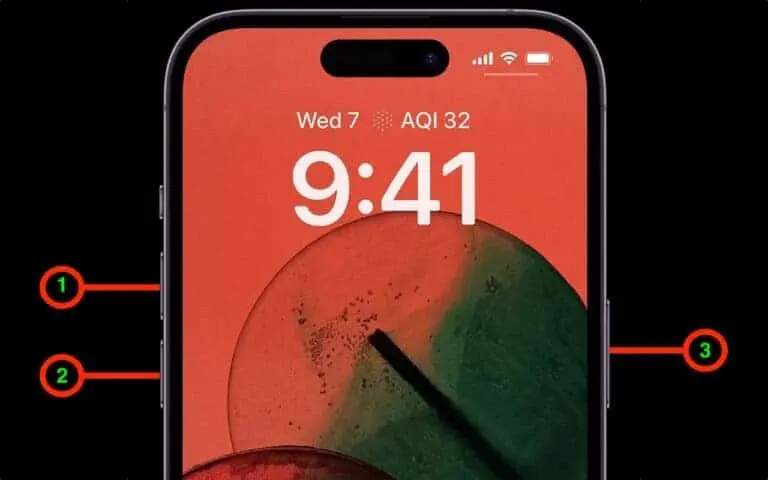
2. ⚡ How to Turn It Back On
No logo? Don’t panic!
- Hold the Side button until the Apple logo appears.
- Black screen? Charge it first (might be dead).
- Still stuck? It could be in DFU mode (fix below).
3. 🔥 Force Restart iPhone 16
Fix freezes in seconds!
- Quickly press Volume Up → Release.
- Quickly press Volume Down → Release.
- Hold the Side button until the Apple logo pops up.
Works for: Frozen apps, unresponsive touchscreen, or ghost taps.
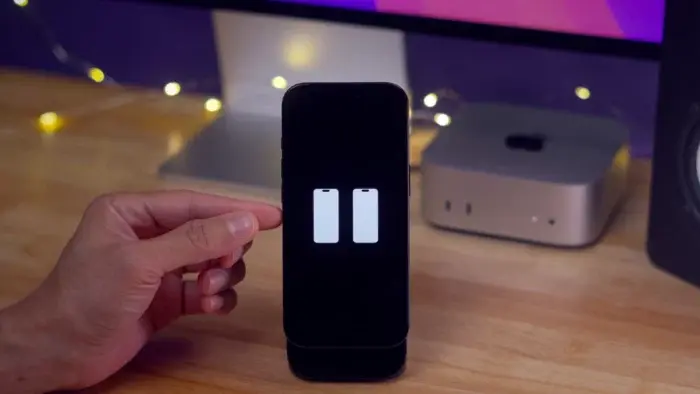
4. 💻 Enter Recovery Mode (Wired)
For major software glitches:
- Connect to a Mac via USB-C.
- Tap Trust on your iPhone if prompted.
- Open Finder → Click your device under Locations.
- Press Volume Up → Volume Down → Hold Side button until “Connect to computer” appears.
- Choose Update (keeps data) or Restore (wipes data).
Note: Use “Update” first to avoid data loss!
5. 🌐 Wireless Restore in iOS 18
Restore a friend’s iPhone—no cables needed!
- Put their iPhone in recovery mode (steps above).
- On your iPhone (iOS 18), bring it close → Tap Restore Nearby iPhone.
- Enter their verification code → Choose Exit Recovery or System Recovery.
Perfect for: Helping pals fix their phones on the go!

6. 🛠️ DFU Mode (Deep Fix)
Last resort for stubborn issues:
- Connect to Mac → Press Volume Up → Volume Down.
- Hold Side button for 10 secs → Add Volume Down for 5 secs → Release Side, keep holding Volume Down for 10 secs.
- Screen stays black? Success! Use Finder to restore.
Warning: DFU mode erases everything. Backup first!
7. 🎭 Temporarily Disable Face ID
Need privacy?
- Hold Side + Volume buttons until power slider appears. Face ID stays off until you enter your passcode.
8. 🆘 Emergency SOS: Save the Day!
Quickly call for help:
- Hold Side + Volume buttons until SOS slider appears.
- OR Enable Call with Side Button (Settings > Emergency SOS) → Press Side button 5 times.
Pro Tip: Use Call Quietly to mute alarms during emergencies.
9. 📍 Track a Powered-Off iPhone
Lost your phone?
- If Find My and location are on, you can track it even when off!
10. ⏰ Check Time on a Dead iPhone
Battery died?
- Press the Side button once → Time shows in the top-right corner.
11. 🏡 Use Home Key with Dead Battery
Unlock your door—even with 0% battery!
- Enable Express Mode in Wallet → Tap dead iPhone on your smart lock.
Final Thoughts
Mastering these tricks turns you into an iPhone 16 wizard! Whether it’s a force restart, wireless restore, or emergency SOS, you’re covered.