Introduction
Losing a gadget may ruin your day and make you feel very anxious. With capabilities like remote locking, ringing, and even data erasure, Google Find My Device provides a simple and efficient method of finding misplaced Android devices and peripherals. This is a thorough tutorial that covers every aspect of Google Find My Device, from setup to its more sophisticated capabilities.
Overview of Google Find My Device
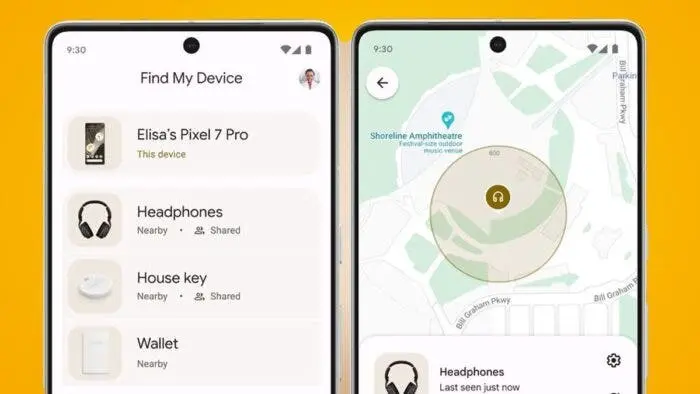
In order to assist consumers in finding misplaced or stolen Android devices, Google originally released the Android Device Manager in 2013. The function was rebranded as Google Find My Device in 2017 and extended with the introduction of the Find My Device Network in 2024. In order to accurately identify misplaced things connected to your Google account, this update makes use of Bluetooth and crowdsourced data from neighboring Android smartphones.
The Latest Development: Tracking Devices Offline
Previously, an internet connection and active Location Services were needed to locate a misplaced Android handset. The latest version makes it possible to use the Find My Device Network to identify devices that are offline or turned off. As of right now, only the Google Pixel 8 and Pixel 9 series have this capability. Although it takes particular hardware to keep the Bluetooth chip active when the phone is off, therefore low-cost Android devices could not support it, Google is also collaborating with Android makers to broaden this feature.
Finding Devices At Home With Google Nest
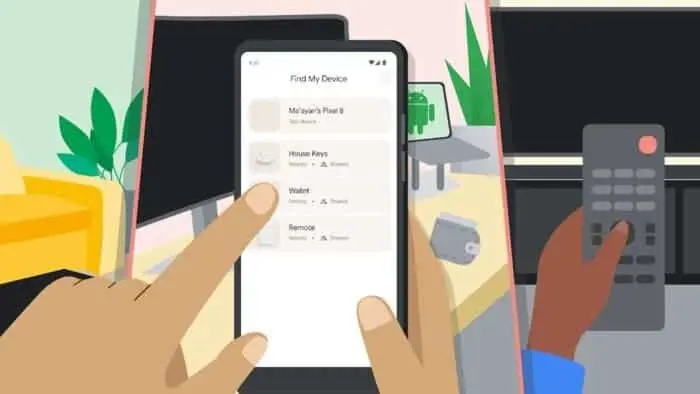
For home monitoring, Google Nest devices are integrated with Google Find My Device. Nest devices may be used to find misplaced objects in your house. Among the prerequisites are:
- A Google Assistant-Enabled Google Nest Gadget
- A Google account-linked Android phone, tablet, or accessory that has Wi-Fi or mobile data enabled and Find My Device activated.
Once configured, Google Assistant will ring your phone, even if it is in Do Not Disturb mode, when you say, “Hey Google, find my phone” or “ring my headphones.”
How to Find or Call an Android Phone
- Go to android.com/find. or launch the Google Find My Device app.
- Use your Google account to log in.
- Choose the misplaced gadget.
- To get the gadget to ring as loudly as possible, tap Ring.
How to Do a Factory Reset Remotely
You may safeguard your personal information by remotely deleting it in the event that your device is stolen:
- Go to android.com/find. or launch the Find My Device application.
- Choose the device you lost.
- Select “Farmy reset device” after tapping Settings.
- To remove all data from the device, confirm the operation.
How to Report a Lost Device
You may put your contact details on the lock screen of a misplaced smartphone by using the Mark as Lost function. Find My Device will alert you and designate the device as found automatically when it is close to you. To make use of this function:
- Open Locate My Device.
- Choose the device you lost.
- Mark should be marked as lost.
- Enter and confirm your contact details.
Finding Your Device’s IMEI
Carriers use the IMEI as a unique identification to deactivate phones that have been misplaced. To find the IMEI of your device:
- Launch “Find My Device.”
- To display the IMEI, choose your device and touch the gear icon.
Google Find My Device Compatibility With Bluetooth Tracker Compatibility
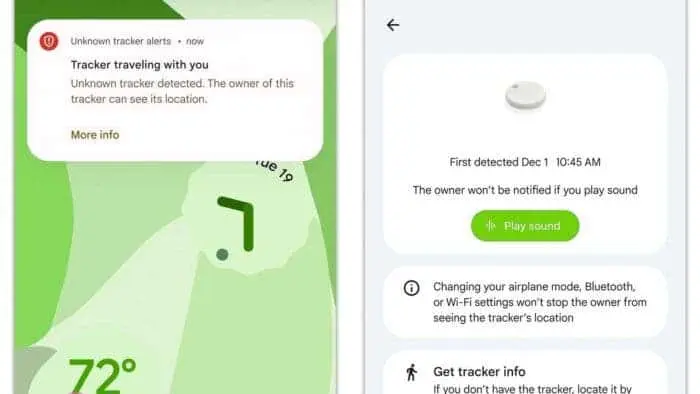
Chipolo and other Bluetooth trackers are supported by the Find My Device app, which also provides notifications for unfamiliar trackers. Although no release date has been specified, there are also speculations that Google is working on its own Bluetooth tracker, code-named Grogu.
Security And Privacy
Google protects privacy and security by excluding personal identifiers from crowdsourced data and encrypting location data from beginning to finish. By default, the Unknown Tracker Detection function is activated, looking for devices that may be following you. To verify or modify this configuration:
- Select Safety & Emergency under Settings.
- Make sure Allow notifications is enabled before tapping Unknown tracker alerts.
Future Enhancements: Integration of UWB and AR
Google intends to improve Find My Device by adding Augmented Reality (AR) overlays and Ultra-Wideband (UWB) technologies. This integration will revolutionize how Android users find misplaced gadgets by enabling the phone’s camera to deliver accurate item tracking.