Introduction
Apple’s latest operating system, iOS 18, is now available for beta testing, offering exciting new features and improvements. However, beta versions often come with bugs and glitches that can affect the functionality of your device. If you’ve tried the iOS 18 beta and found it unstable, don’t worry—you can downgrade to iOS 17 without losing your data. This detailed guide will walk you through all the steps to ensure a smooth and secure downgrade process.
Can You Downgrade iOS 18 to iOS 17 on iPhone and iPad?
Yes, you can downgrade from iOS 18 to iOS 17 on both iPhone and iPad. However, the process depends on the method you choose. Some methods are simple and user-friendly, while others may require technical knowledge. This guide will cover three methods for downgrading:
- Using Tenorshare ReiBoot – Fast and effective.
- Using iTunes/Finder – Reliable but time-consuming.
- Removing the Beta Profile – Quick but limited to beta versions.
Backup Data Before Downgrading iOS 18 to 17
Before starting the downgrade process, it’s essential to back up your data to prevent losing important files like photos, messages, and apps. Here are three easy ways to back up your iPhone:
1. iCloud Backup
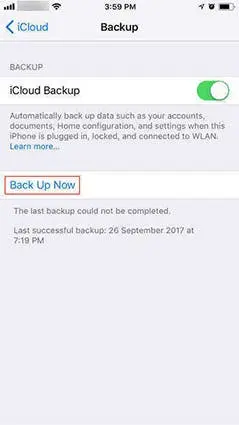
- Open Settings and tap your Apple ID.
- Go to iCloud > iCloud Backup and toggle the switch ON.
- Tap Back Up Now to start a manual backup.
2. iTunes (Windows) or Finder (Mac)
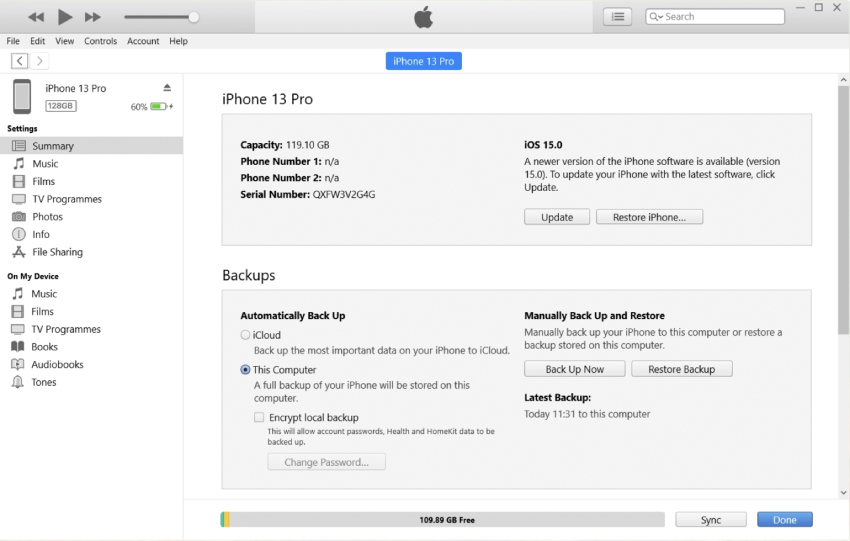
- Connect your iPhone to your computer and open iTunes/Finder.
- Select your device and click on Back Up Now.
3. Third-Party Tools
- Use reliable tools like Tenorshare iCareFone to back up specific files or your entire iPhone.
Tip: Ensure your backups are compatible with iOS 17 to restore them after downgrading.
How to Downgrade from iOS 18 to iOS 17 Using a Computer
Method 1: Downgrade iOS 18 to 17 Using Tenorshare ReiBoot
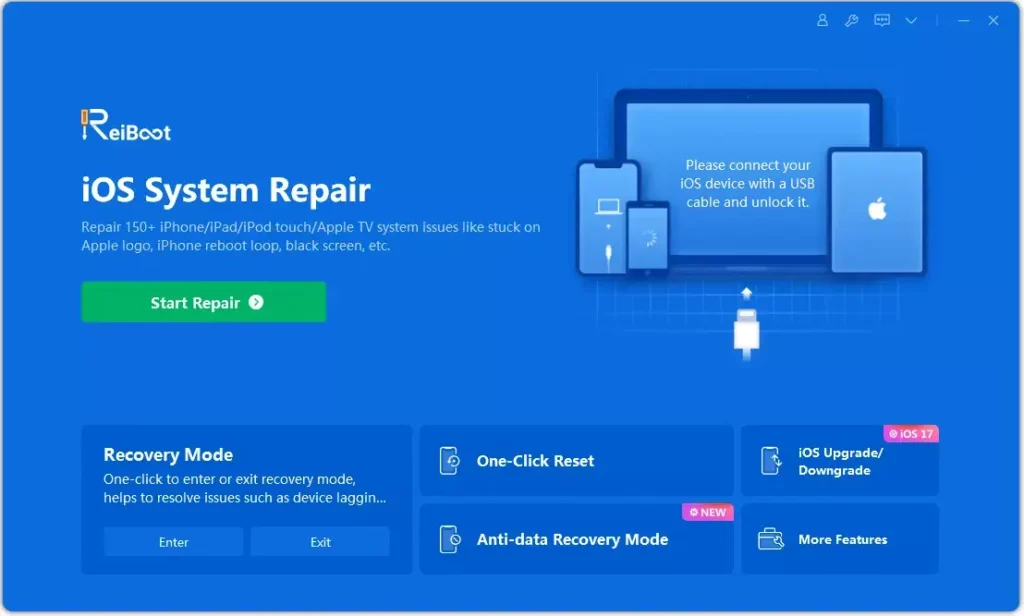
Tenorshare ReiBoot is one of the easiest and safest tools for downgrading iOS. Here’s how to use it:
- Download and Install ReiBoot
- Install ReiBoot on your computer (Windows or Mac).
- Connect Your iPhone
- Plug your iPhone into the computer and launch ReiBoot.
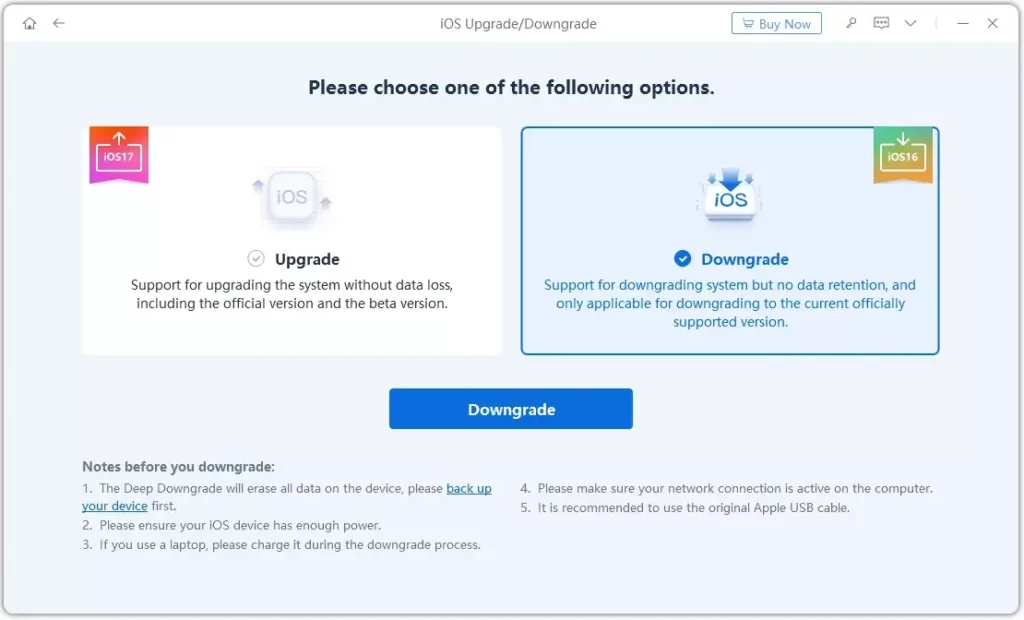
- Click on iOS Upgrade/Downgrade.
- Select Downgrade Option
- Choose Downgrade from the available options.
- Download Firmware
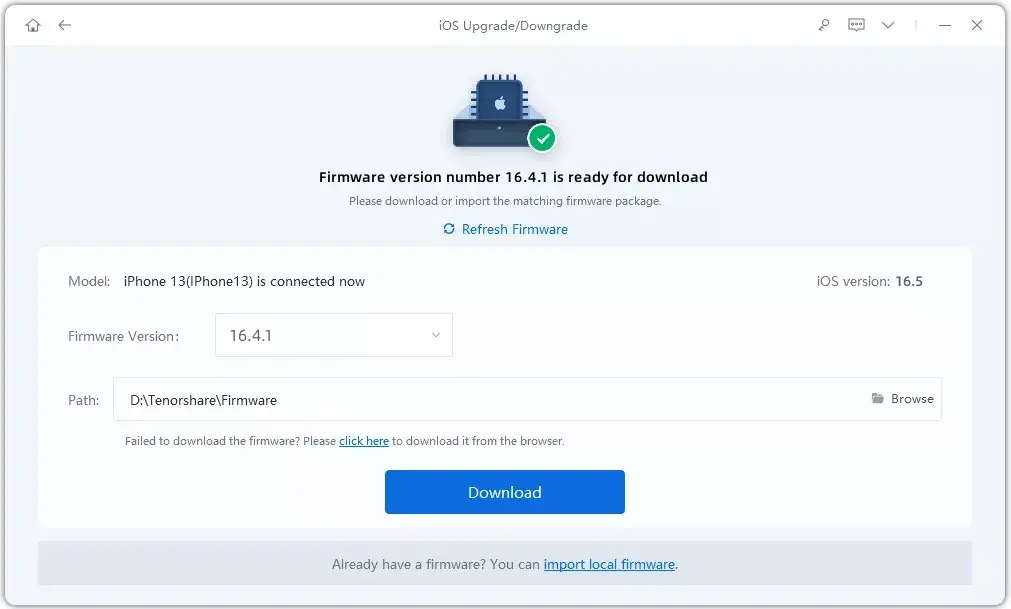
- ReiBoot will automatically detect compatible iOS 17 firmware.
- Click Download to get the firmware.
- Start the Downgrade Process
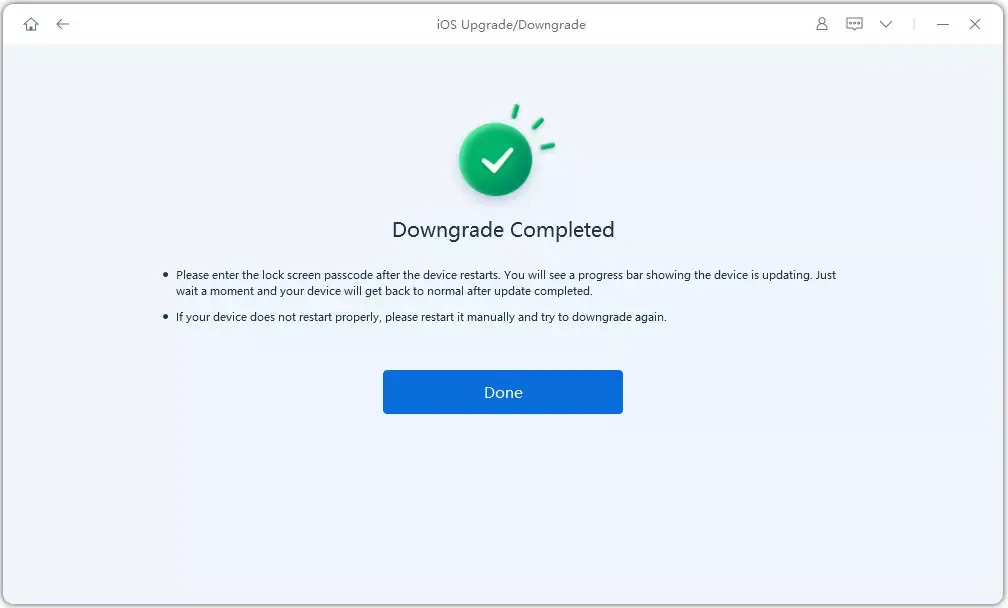
- Once downloaded, click Initiate Downgrade.
- Ensure your data is backed up as this process might erase it.
- Wait for Completion
- Let ReiBoot handle the downgrade. Do not disconnect your device until the process finishes.
Note: Check Apple’s IPSW website to ensure iOS 17 is still being signed. If not, downgrading will not be possible.
Method 2: Downgrade iOS 18 to 17 Using iTunes or Finder
This method requires more steps but is effective:
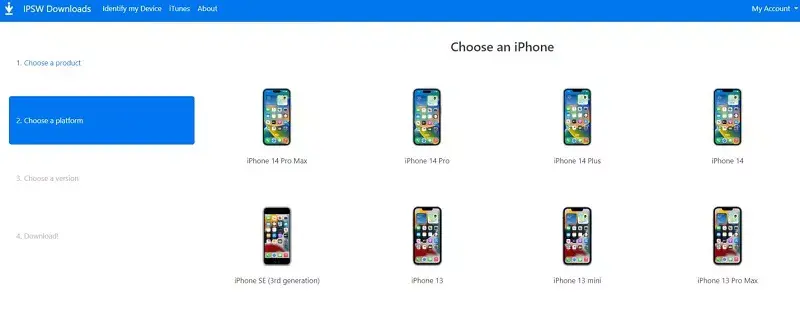
- Download iOS 17 IPSW File
- Visit the IPSW Downloads website and select the signed iOS 17 firmware for your device.
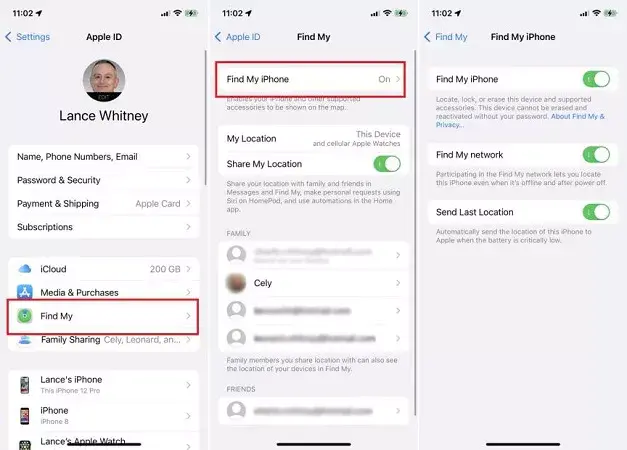
- Disable Find My iPhone
- Go to Settings > Apple ID > Find My > Find My iPhone and turn it OFF.
- Connect to Computer
- Plug your iPhone into the computer and open iTunes/Finder.
- Click the iPhone icon and trust the computer if prompted.
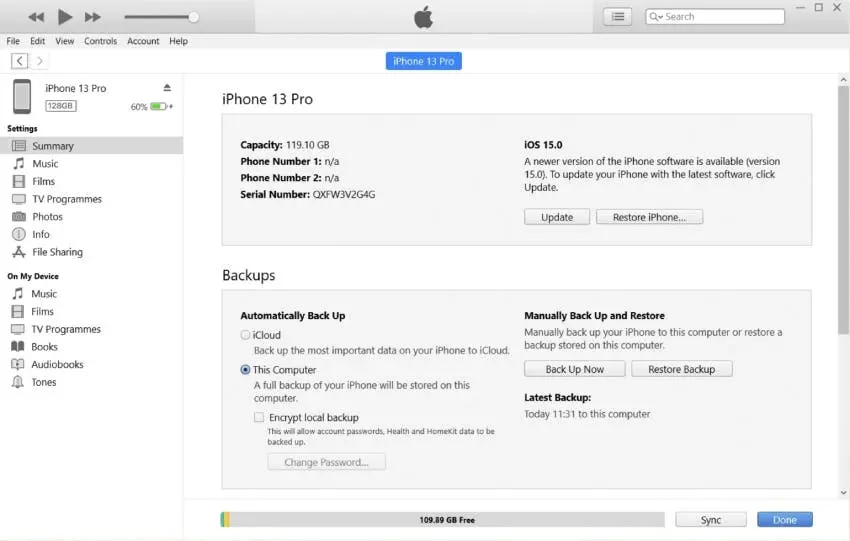
- Restore iPhone
- Hold the Shift (Windows) or Option (Mac) key and click Restore iPhone.
- Select the downloaded iOS 17 IPSW file.
- Start the Downgrade
- Confirm the process and let iTunes/Finder restore your device to iOS 17.
Important: Keep your device connected until the process is complete.
How to Remove iOS 18 Beta Without a Computer
If you’re running the iOS 18 beta, you can revert to iOS 17 without a computer by removing the beta profile:
- Open Settings on your iPhone.
- Navigate to General > VPN & Device Management.
- Tap on the iOS 18 Beta Software Profile and select Remove Profile.
- Restart your iPhone.
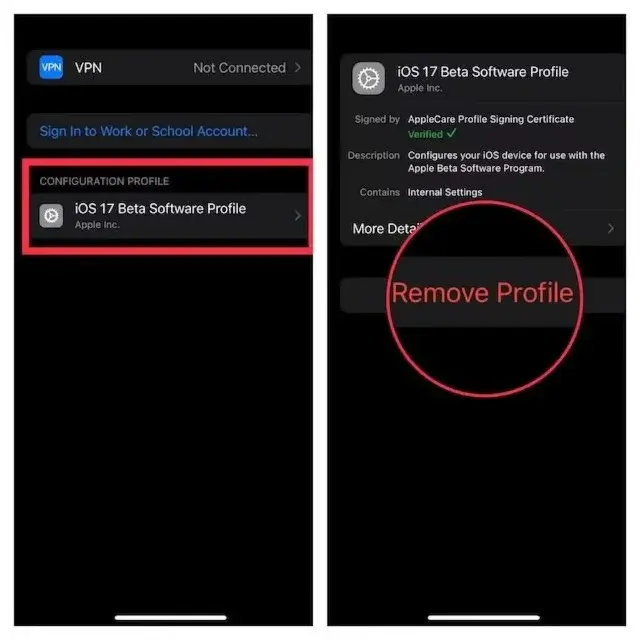
After restarting, your iPhone will revert to the latest stable version of iOS 17.
Restore Backup After Downgrading
Once downgraded, you can restore your backed-up data:
Using iTunes/Finder
- Connect your iPhone to the computer and open iTunes/Finder.
- Click on the iPhone icon and select Restore Backup.
- Choose the most recent backup compatible with iOS 17.
Using iCloud
- Set up your iPhone as a new device after erasing it.
- During setup, select Restore from iCloud Backup.
- Sign in to iCloud and choose the desired backup.
FAQs About Downgrading iOS 18 to iOS 17
Can I Downgrade Without Losing Data?
Yes, if you back up your data beforehand and use a reliable tool like ReiBoot, you can downgrade without data loss.
Is Downgrading Risk-Free?
Downgrading is generally safe if done correctly. However, always create a backup to safeguard your data.
What if Apple Stops Signing iOS 17?
If Apple stops signing iOS 17, downgrading using IPSW files will no longer be possible.
Final Words
Downgrading from iOS 18 to iOS 17 is a straightforward process if you follow the correct steps. Whether you use ReiBoot, iTunes/Finder, or remove the beta profile, ensure you back up your data first. For a hassle-free experience, we recommend using ReiBoot, as it simplifies the process and minimizes risks.