Introduction
In today’s digital world, understanding file sizes is essential for managing data effectively. Whether you’re storing photos, downloading apps, or streaming videos, knowing how memory works helps you make smarter tech decisions. Let’s break down the basics of computer memory and file sizes in simple language.
What is Computer Memory?
Computer memory is any physical device that stores information temporarily or permanently. It’s where your data, apps, and operating system live. There are two main types:
- Volatile Memory: Loses data when power is off (e.g., RAM).
- Non-Volatile Memory: Retains data even without power (e.g., SSDs, USB drives).
Example: RAM (Random Access Memory) is volatile and stores temporary data for quick access, while your hard drive (HDD/SSD) is non-volatile and saves files permanently.
Types of Computer Memory
- Primary Memory (Main Memory):
- Fast, short-term memory (e.g., RAM).
- Directly accessible by the CPU.
- Volatile – data disappears when the device turns off.
- Secondary Memory:
- Used for long-term storage (e.g., HDDs, SSDs).
- Slower but has larger storage capacity.
- Non-volatile – keeps data safe even without power.
- Cache Memory:
- Super-fast memory that speeds up CPU tasks.
- Stores frequently used data but is volatile.
Units of Memory: From Smallest to Largest
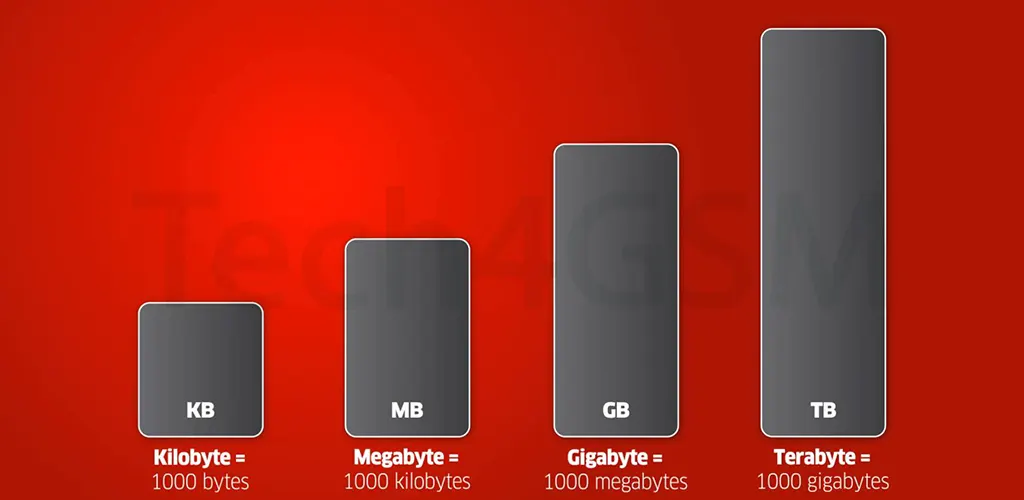
Computer memory is measured in units that grow exponentially. Here’s the hierarchy:
| Unit | Abbreviation | Size in Bytes | Real-World Example |
|---|---|---|---|
| Bit | b | 1/8 of a byte | A single binary digit (0 or 1). |
| Byte | B | 8 bits | One character (e.g., “A”). |
| Kilobyte | KB | 1,024 Bytes | A small text file (~10 KB). |
| Megabyte | MB | 1,024 KB | A 3-minute MP3 song (~3 MB). |
| Gigabyte | GB | 1,024 MB | A DVD movie (~4.7 GB). |
| Terabyte | TB | 1,024 GB | 250,000 photos (~1 TB). |
| Petabyte | PB | 1,024 TB | Data stored by large companies (e.g., Google). |
| Exabyte | EB | 1,024 PB | Global monthly internet traffic (~100 EB). |
| Zettabyte | ZB | 1,024 EB | All data created worldwide in a year. |
| Yottabyte | YB | 1,024 ZB | Theoretical; no practical use yet. |
The Binary vs. Decimal Confusion
- Why 1 KB = 1,024 Bytes?
Computers use binary (base 2), so 1 KB is 2¹⁰ = 1,024 bytes. However, marketers often use decimal (base 10), where 1 KB = 1,000 bytes. This causes confusion! - Solution: Terms like kibibyte (KiB) for 1,024 bytes and kilobyte (KB) for 1,000 bytes were introduced. But most people still use “KB” for 1,024 bytes.
Data Transfer Speeds
Data speed is measured in bits per second (bps), while file sizes use bytes. Key conversions:
- 1 Byte = 8 bits.
- 1 MBps (megabyte/second) = 8 Mbps (megabits/second).
Fastest Speed in 2025: 1.84 petabits per second (Pbps) – that’s 14.7 billion Mbps!
SSD vs. HDD Speeds
- HDD: 30–150 MB/s (good for bulk storage).
- SSD: 500–3,500 MB/s (ideal for speed, e.g., gaming).
FAQs
1. What’s the order of file sizes from smallest to largest?
Bit < Byte < Kilobyte < Megabyte < Gigabyte < Terabyte < Petabyte < Exabyte < Zettabyte < Yottabyte.
2. Which is bigger: MB or KB?
1 MB = 1,024 KB, so MB is larger.
3. How many GBs are in 1 TB?
1 TB = 1,024 GB.
4. How long does transferring 1 TB take?
At 60 MB/s, it takes ~4.8 hours.
5. How fast are SSDs?
Up to 3,500 MB/s for NVMe SSDs.
6. How many bits in a byte?
8 bits = 1 byte.
Conclusion
From tiny bits to massive yottabytes, understanding file sizes helps you navigate storage needs, data transfers, and tech purchases confidently. As technology evolves (think 2025’s 1.84 Pbps speeds!), staying informed ensures you’re ahead of the curve.
Remember: Whether it’s a smartphone or a supercomputer, memory units are the backbone of our digital lives! 🚀