Introduction
Getting locked out of your Android phone feels like losing your keys—frustrating and panic-inducing! Whether you’ve forgotten your password, bought a locked second-hand device, or faced a tech glitch, don’t worry. This guide shares easy, step-by-step methods to unlock your Android phone without the password, plus tips to avoid future lockouts. Let’s dive in!
Why Being Prepared Saves the Day
Before exploring fixes, set up safety nets now to save hassle later:
- Link your Google account to the phone.
- Enable Find My Device (explained below).
- Back up data regularly to Google Drive or Samsung Cloud.
Modern phones have tight security, so some methods need pre-setup. A little prep today means peace of mind tomorrow!
Method 1: Use Google Find My Device (Free & Fast)
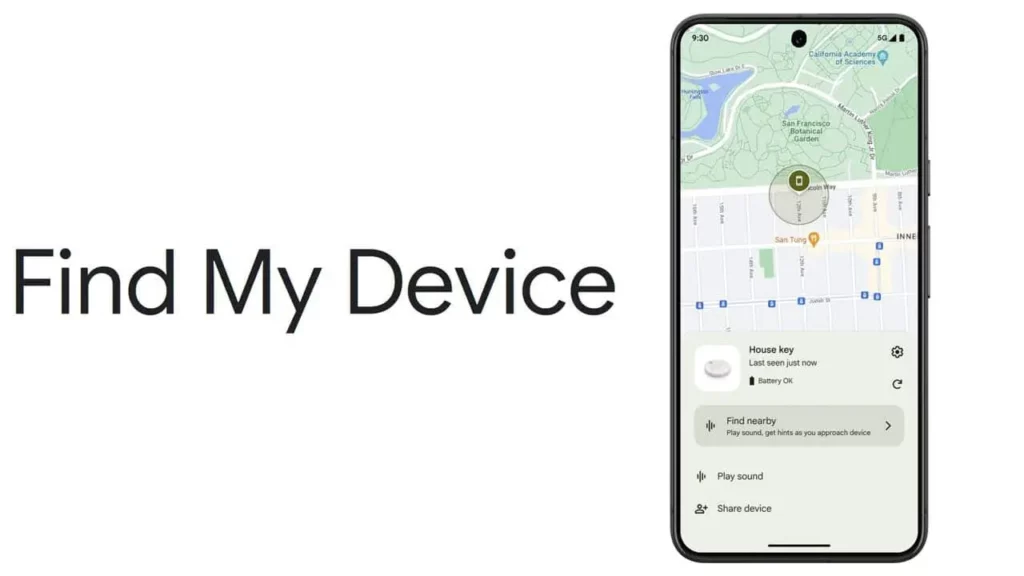
Google Find My Device is a lifesaver if you’ve linked your Google account. It lets you remotely reset your phone.
How to Set It Up:
- Open Settings > Security > Find My Device.
- Toggle it ON and ensure location access is enabled.
Unlocking Steps:
- Visit Google Find My Device on any browser.
- Log in with your Google account.
- Select your phone and click Erase Device.
- Confirm the reset. Your phone will reboot without a password!
⚠️ Note: This wipes all data, so restore from a backup afterward.
Method 2: Android’s Extend Unlock Feature
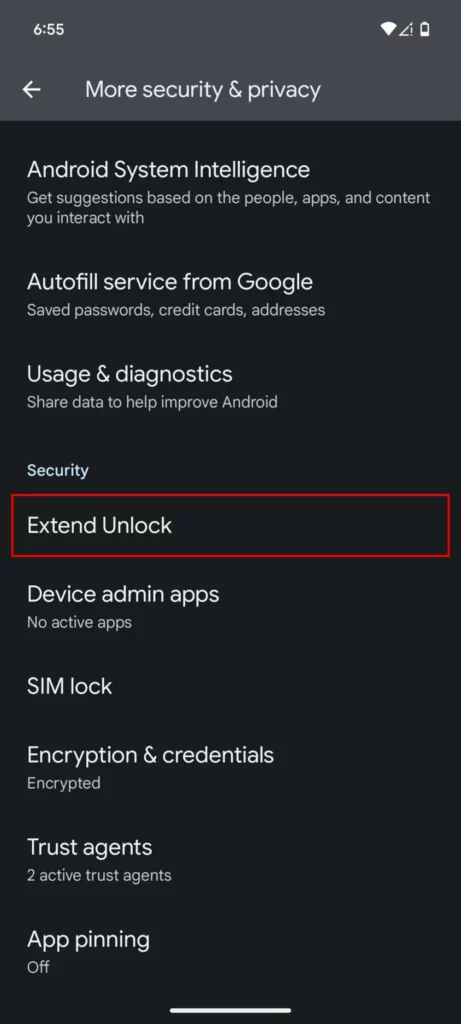
Extend Unlock (formerly Smart Lock) keeps your phone unlocked in trusted situations. Activate these before getting locked out!
Setup Guide:
- Go to Settings > Security > Extend Unlock.
- Choose from:
- Trusted Places (unlocks at home/work).
- Trusted Devices (unlocks when connected to your car or watch).
- On-Body Detection (stays unlocked while moving).
Once enabled, your phone skips the password in these scenarios.
Method 3: Third-Party Tools (Like DroidKit)
If the above fails, reliable software like DroidKit can bypass passwords. It works for PINs, patterns, and biometric locks.
Steps to Use DroidKit:
- Download DroidKit from tech4gsm.com (check for discounts!).
- Install it on your computer and connect your phone via USB.
- Follow the tool’s prompts to remove the lock.
💡 Tip: While not free, DroidKit offers a trial. Great for urgent cases!
Method 4: Factory Reset (Last Resort)
A factory reset erases everything but removes the password. Use this only if other methods fail.
How to Reset:
- Turn off the phone.
- Press Power + Volume Up (varies by brand) to enter Recovery Mode.
- Select Wipe Data/Factory Reset.
- Reboot the phone.
Samsung Users? Try SmartThings Find!
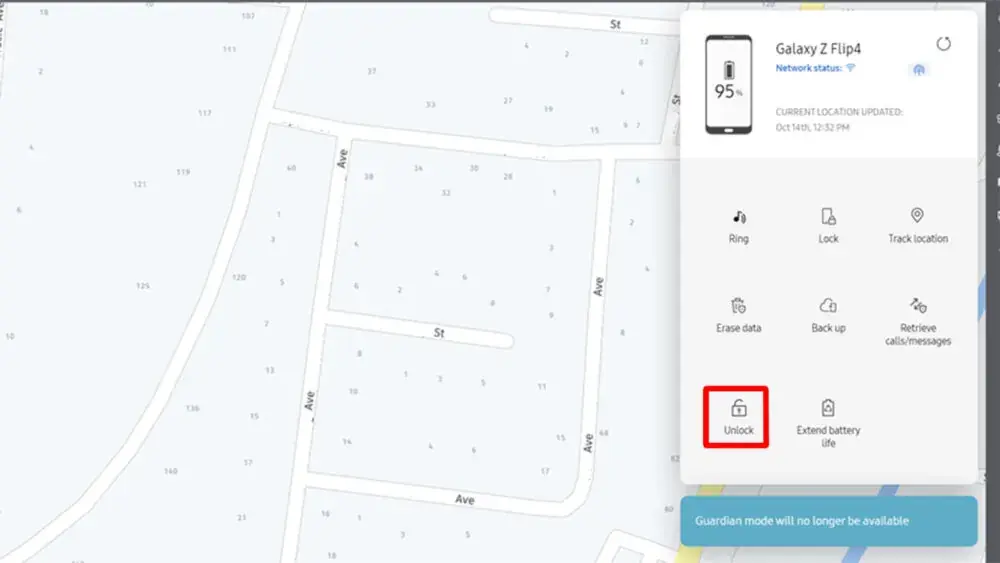
Samsung phones have SmartThings Find, a remote unlock tool. Here’s how:
- Enable it via Settings > Biometrics & Security > Find My Mobile.
- Visit SmartThings Find, log in, and click Unlock.
Final Tips to Stay Unstuck
- Write down passwords and store them securely.
- Use biometrics (fingerprint/face scan) for easier access.
- Regular backups save you from data disasters.