Introduction
Tired of clicking through endless menus? Your Windows key (that little flag on your keyboard) is a secret weapon for speed and efficiency! Whether you’re working, studying, or just browsing, these 12 shortcuts will save you time, reduce mouse dependency, and make your computer experience smoother. Let’s unlock the magic of the Windows key!
Why Learn Windows Shortcuts?
Most users ignore the Windows key, but it’s like having a cheat code for your PC. Instead of digging through menus or hunting for apps, these shortcuts let you:
- Open tools instantly
- Manage windows effortlessly
- Boost workflow by 2x
Ready to level up? Let’s dive in!
Quick Navigation & Access
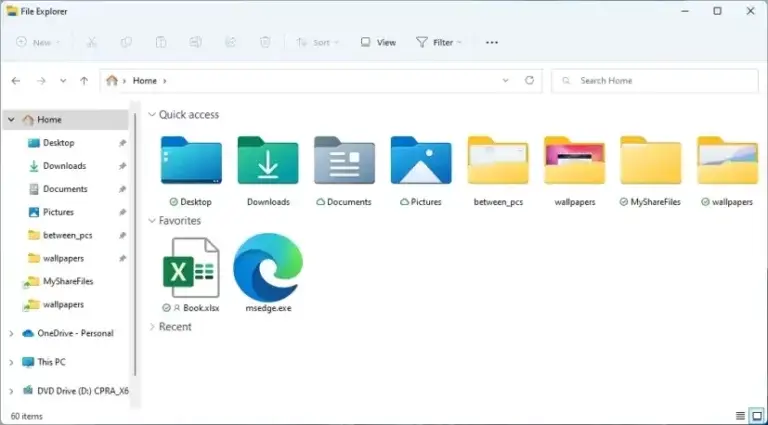
- Win + E – Open File Explorer in a Flash
Instantly launch File Explorer to access files, folders, or drives. By default, it opens to “Home,” but you can customize it to start at “This PC” or OneDrive in settings. Perfect for organizing files without the hassle! - Win + I – Open Settings Directly
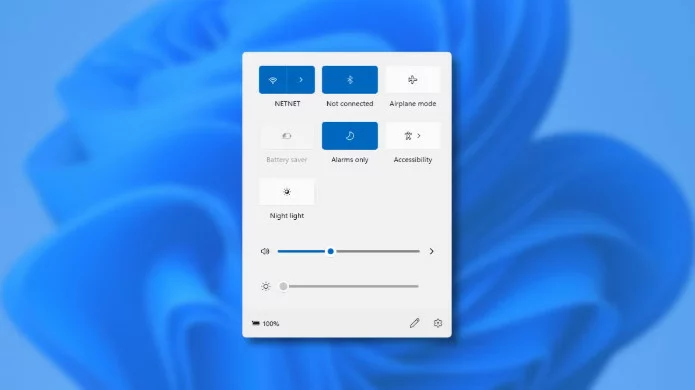
Skip the Start menu! Press Win + I to jump straight to system settings. Adjust Wi-Fi, display brightness, or app preferences in seconds. - Win + A – Quick Settings Panel
Need to tweak brightness, toggle airplane mode, or check battery life? Win + A opens a handy sidebar with all essential controls. - Win + V – Clipboard History
Tired of losing copied text? Win + V reveals up to 25 recently copied items (text, links, images). Never re-copy anything again! - Win + R – Run Command Like a Pro
Open apps or tools instantly with commands like:cmd(Command Prompt)notepad(Notepad)devmgmt.msc(Device Manager)
Ideal for tech-savvy users or quick tasks.

Window & Desktop Management
- Win + D – Instantly Clear the Clutter
Minimize all windows with Win + D to access your desktop. Press it again to restore everything. Great for hiding distractions! - Win + Tab – Task View & Virtual Desktops
See all open apps at a glance and switch between them. Create virtual desktops (e.g., one for work, one for entertainment) to stay organized. - Win + Left/Right Arrow – Snap Windows
Working on two apps side-by-side? Win + Left/Right snaps your current window to half the screen. Compare documents, take notes, or multitask like a pro!
Handy Tools for Everyday Use
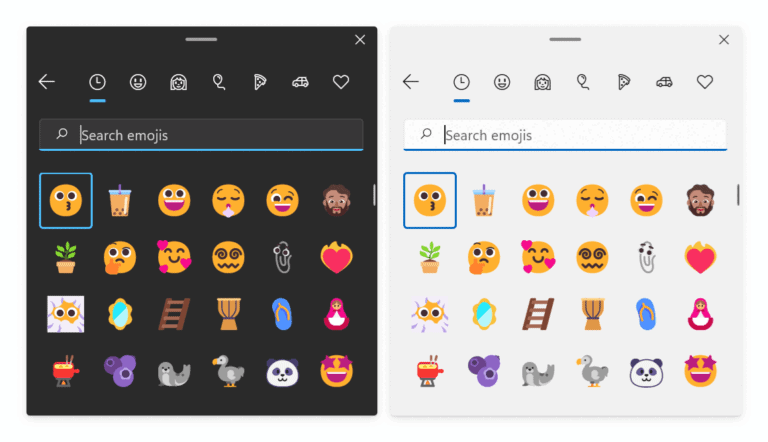
- Win + . (Period) – Emoji & Symbols Panel
Add flair to messages or docs! Win + . opens emojis, GIFs, and special characters (★, ©, etc.). Works in most apps, even browsers! - Win + L – Lock Your PC Instantly
Step away from your desk? Win + L locks your screen immediately. Essential for privacy in public spaces or offices. - Win + Ctrl + T – Pin Any Window on Top
Need a calculator or chat window always visible? Use PowerToys (free Microsoft tool) and press Win + Ctrl + T to pin it above other apps. - Win + Shift + S – Smart Screenshots
Capture specific screen areas with the Snip & Sketch tool. Edit, save, or share screenshots instantly—no more cropping!
Conclusion: Work Smarter, Not Harder!
Mastering these Windows shortcuts can transform how you use your PC. Imagine opening apps in a keystroke, managing windows effortlessly, or locking your screen in half a second—all without touching the mouse!
Start with 2-3 shortcuts and gradually add more to your routine. Soon, you’ll wonder how you ever lived without them.