Introduction
Issues with declining battery life are a common problem for Android users. This is especially noticeable for people who use mid-range smartphones or apps that are known to use a lot of power. It can be really annoying to experience battery drain at crucial times. To fix this problem and keep your device functioning consistently, you must be aware of the applications that deplete your power. The successful methods for locating the troublesome apps are shown below.
Launch The Settings Application
Opening your phone’s Settings app is the first step. Tap the gear icon after lowering the Notification Shade twice. This will bring up the settings menu on your smartphone. The application may also be found and opened in your App Drawer.
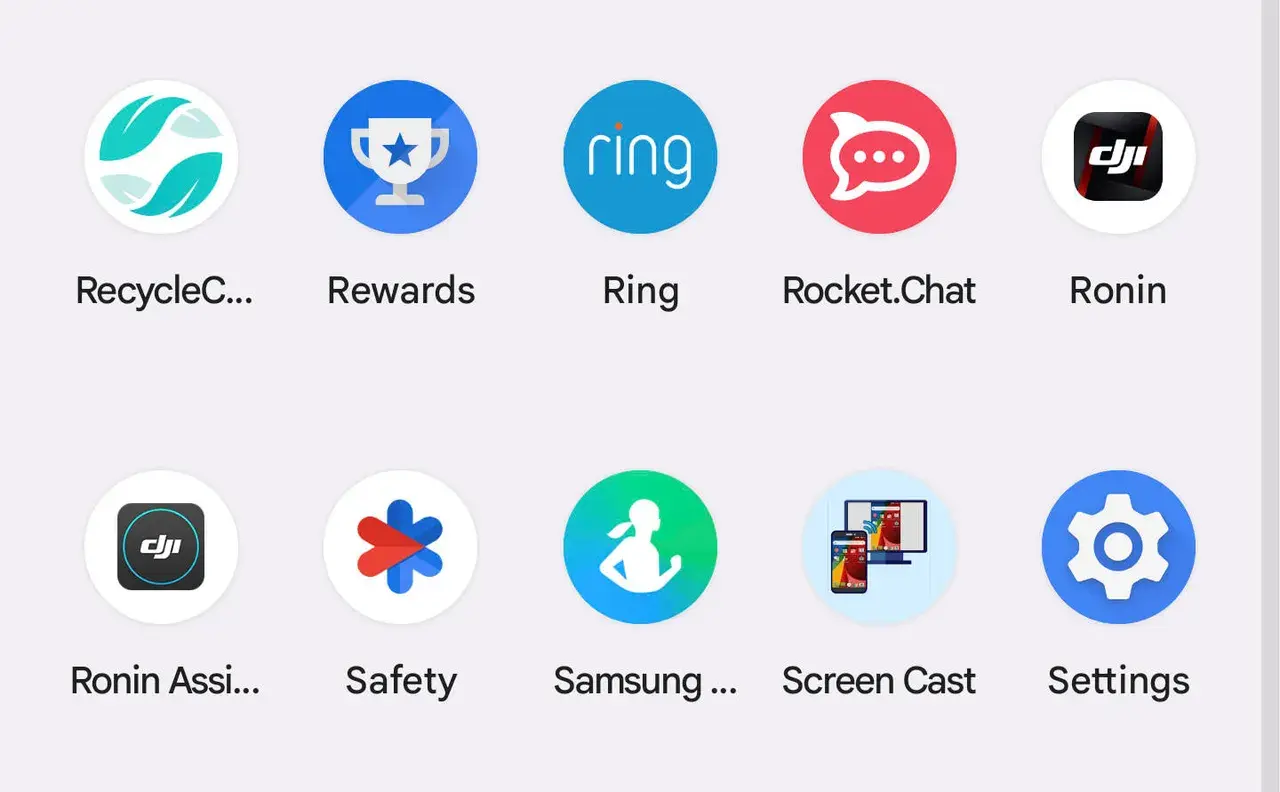
Locate the Battery section once you’re inside. This section provides important information regarding your device’s power consumption on more recent Android phones.
Verify the Battery’s Usage
Select Battery Usage from the Battery menu. This will provide a list of every app on your smartphone along with the battery use for each during the previous day. The most power-hungry apps are those with high percentages.
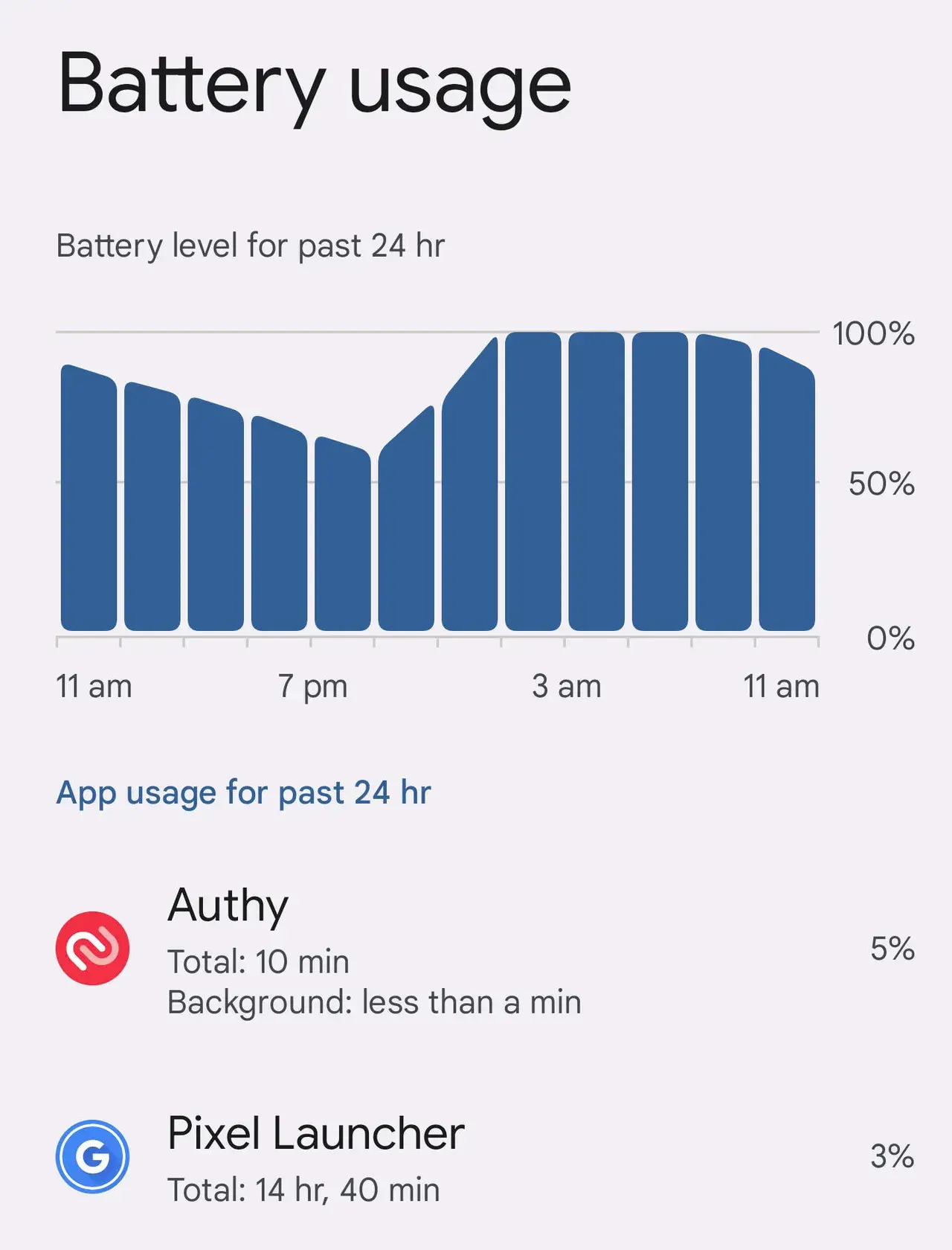
You can identify which applications may be causing your phone to drain too rapidly with the use of this information.
Take Control of Apps
There are several things you may do if an app displays a high battery use. First, use the App Overview page to exit the application. If necessary, swipe up or use the Force Stop button. You may also see if the app has been updated. Bugs in previous versions might occasionally result in excessive battery usage. Usually, updating the app resolves the problem. Uninstalling the app might be the best option if it keeps using up battery even after you close it or reset your phone. If you don’t use the app frequently, this is a smart move.
Manage App Settings
You might be able to configure Optimized Battery Usage for every app on previous Android versions. Apps using this functionality consume less Power when operating. To manage whether an app runs in the background on a more recent Android phone, navigate to Settings > Apps. For apps you don’t need to update in real time, disable this option. Be cautious, though, since turning this off for email or messaging applications can prevent updates from arriving on time.
Keep Your Battery Healthy
You can monitor how much power your applications are consuming and make sure none of them are burning up your battery too quickly by following the preceding instructions. Regular maintenance and frequent upgrades will prolong the life of your smartphone and guarantee longer intervals between charges. By putting these tips into practice, you can maximize your Android smartphone and use it for longer without worrying about when it will be time for another charge.