Introduction
In Windows 11, hiding folders is a smart way to prevent sensitive or private data from being seen by uninformed people. This method creates a barrier for people who aren’t aware of your files’ existence, but it won’t totally protect them against determined persons. This strategy finds a compromise between keeping your data freely available to you and discouraging any accidental users. Adding a password will provide you an additional line of defense against unwanted access, especially if you require a greater degree of protection.
Hiding Folders in Windows 11 – Why the Feature Can Be Useful?
In Windows, hiding folders can be helpful in a number of situations:
- Protecting Personal Data: By concealing these folders, you may keep private documents out of the public eye, such as bank information, journals, or pictures that you don’t want other people to see.
- Avoiding Inadvertent Changes: Hide critical files or directories that you don’t want to be inadvertently altered or removed to lessen the possibility of unforeseen changes.
- Organizing Workspace: To clear your workspace and concentrate exclusively on the files you’re using at the moment, you may wish to conceal some folders when working on a project that involves a lot of files.
- Minimizing Distractions: By concealing folders that aren’t necessary, you may reduce the amount of time that others spend on your computer when you’re sharing it with others.
- Storing Temporary Files: You may keep drafts or temporary files secret until you’re ready to share or finish them by concealing these folders after you’ve finished them.
- Preserving Confidentiality: Hide folders to preserve the privacy of sensitive work-related papers that shouldn’t be readily visible to anybody using a shared computer.
Although concealing folders offers some privacy in each of these situations, it is advised to use further security measures, such as encryption or passwords, for highly sensitive material. Anyway, as you can see from the above, this function is helpful for a number of reasons.
How to Hide Folders in Windows 11
In Windows 11, follow these steps to conceal a folder (the procedures are the same for Windows 10):
- Right-click or Tap and Hold: Locate the folder you wish to conceal, then right-click or tap and hold it. Right-click on it, or if you’re using a touchscreen, tap and hold.
- Choose Properties: Select Properties from the drop-down menu.
- Verify Hidden: Click on the General tab in the Properties box. Locate the Attributes area. Next to Hidden, check the box.
- Implement Changes: To end the Properties window, click Apply and then OK.
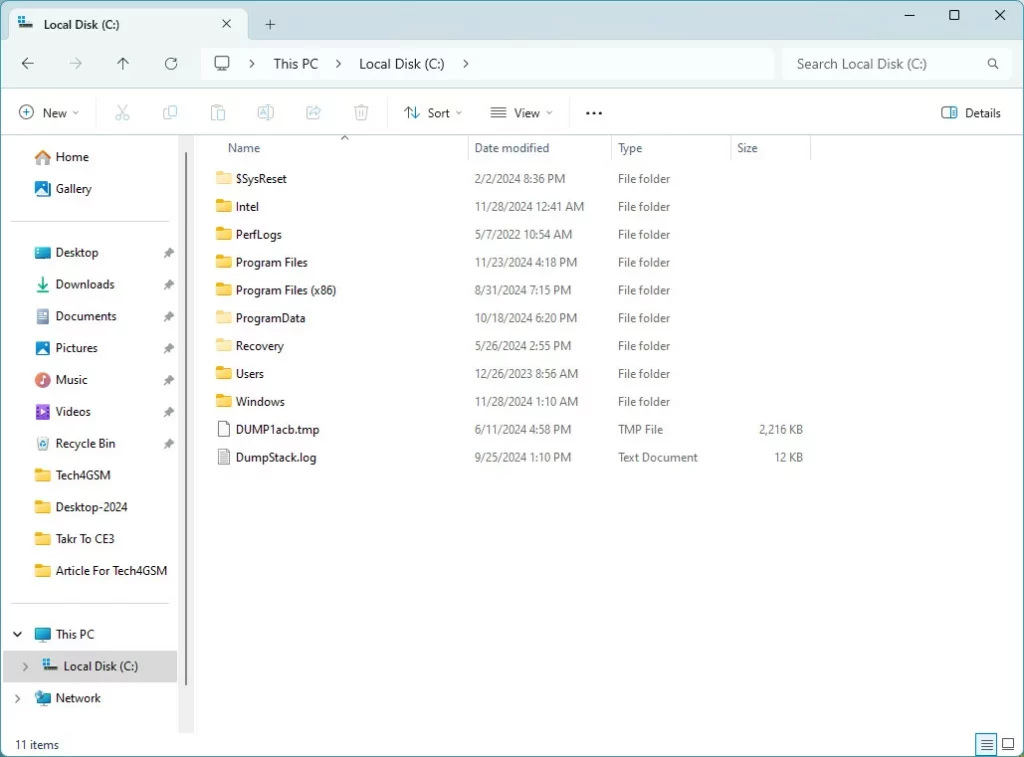
- Verify the Hidden Folder: Open the File Explorer and make sure the folder is hidden. The folder is hidden if it is not visible to you. Navigate to File Explorer’s View tab and choose Hidden objects to see hidden folders.
Although the folder will be hidden from casual view using this approach, someone who knows how to search for hidden objects will still be able to locate it. Use password protection or encryption for added security.
Showing Hidden Folders in Windows 11
Here’s how to locate Windows’ hidden folders:
- Launch Windows Explorer: Open Windows Explorer or any other folder on your computer to get started.
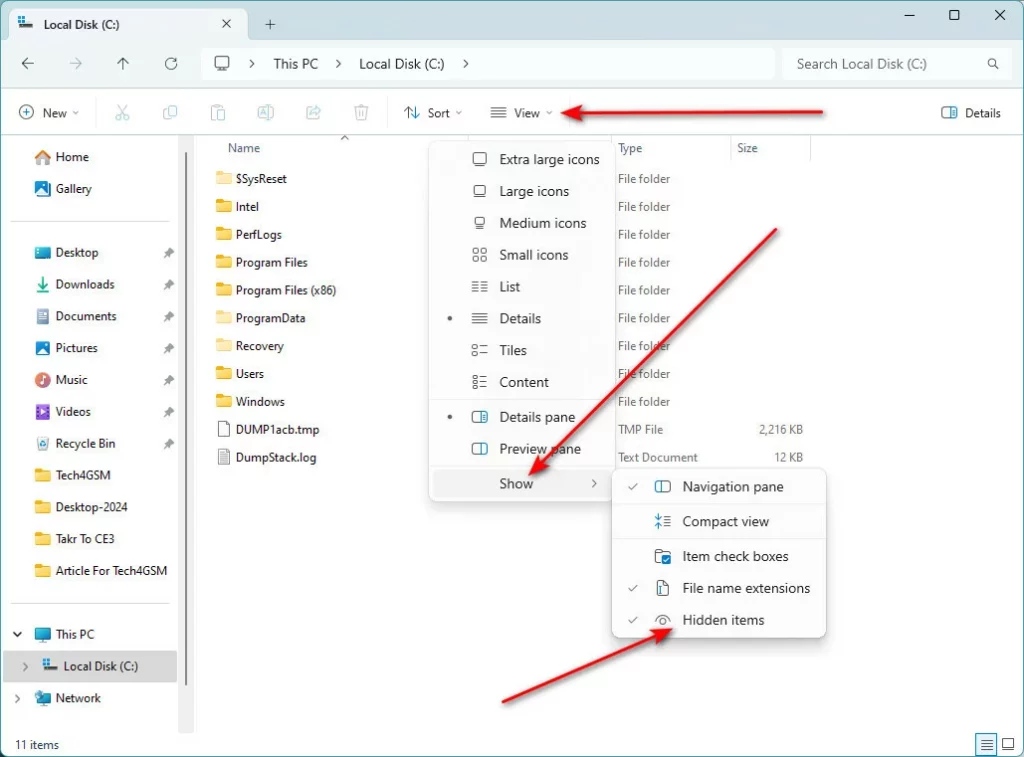
- Navigate to the View Menu: Click on the View tab at the top of the window.
- Choose Show: Select Show from the drop-down menu, and then Hidden objects.
Files and folders that are hidden will now show up as somewhat transparent icons. Their hidden state does not change, but they are still accessible and interactable. Take into account these choices to further secure your data, files, and folders:
- Password-protect your files: by using third-party software or Windows’ built-in tools to encrypt your private information. This guarantees that your data can only be accessed by authorized individuals.
- Utilize Cloud Storage: Make use of a cloud storage service to keep your files. This lowers the possibility of unwanted access because your data is not physically on your device. Additionally, cloud storage frequently provides extra security features like multi-factor authentication and encryption.
Can Hidden Folders Be Password-Protected?
There isn’t a built-in functionality in Windows 11 for password-protecting folders. Nonetheless, there are a few ways you may secure your files and folders using a password:
Use File Encryption
Encrypting folders with Windows’ built-in encryption tool is one method to provide your folder an additional degree of protection. The Professional, Enterprise, and Education versions are available. To accomplish this:
- Do a right-click on the folder or file.
- Choose Properties.
- Click on Advanced after selecting the General tab.
- To safeguard data, check the Encrypt contents box.
- After selecting OK, click Apply.
Because the files are encrypted and linked to your Windows user account, unauthorized users cannot access them without your login information.
Use Compression Software
Utilizing programs like WinRAR or 7-Zip is an additional option. They let you compress data and make the compressed archive password-protected.
- To protect a file or folder, right-click on it.
- Select the option to build a new archive after choosing the compression program (such as WinRAR or 7-Zip).
- Before storing it, choose a password in the archive settings.
Third-Party Software
Many third-party programs, such Folder Lock, AxCrypt, or Folder Guard, are made to password-protect folders. These tools provide more functionality and more robust data security.
Final Words
In conclusion, a straightforward method of keeping your files hidden in Windows 11 is to hide folders. Although it’s not very secure, it does a good job of making things less evident to others. You may choose to utilize encryption, passwords, or cloud storage if you want further security. In this manner, you protect your data while maintaining convenient access to it when needed.