Introduction
The EFS Encrypted File System is a powerful security feature integrated into Microsoft Windows. It encrypts files or folders using advanced cryptographic algorithms, ensuring only authorized users can access them. Built on the NTFS (New Technology File System), EFS acts as a digital lockbox, protecting sensitive data from hackers, thieves, or unauthorized access—even if someone physically steals your device.
Why EFS Matters in 2025
As cyber threats grow more sophisticated, EFS remains a frontline defense for personal and business data. It’s free, user-friendly, and doesn’t require third-party software. Whether you’re safeguarding financial records, medical data, or confidential projects, EFS ensures your files stay private.
EFS and NTFS: The Dynamic Duo
NTFS is the backbone of Windows file storage, managing how data is saved and retrieved. EFS enhances NTFS by adding encryption capabilities. Here’s how they work together:
- Automatic Encryption: Files stored in EFS-protected folders are encrypted seamlessly.
- Hardware Independence: EFS works on any NTFS-supported drive, including SSDs, HDDs, or USB devices.
- Granular Control: Encrypt individual files or entire folders based on your needs.
Key Fact: EFS encryption stays intact even if files are moved to another NTFS drive. Unauthorized users see “Access Denied” errors, while authorized users unlock files with a click.
How EFS Works: A Step-by-Step Breakdown
- User Initiates Encryption: Right-click a file/folder → Properties → Advanced → Check “Encrypt contents to secure data”.
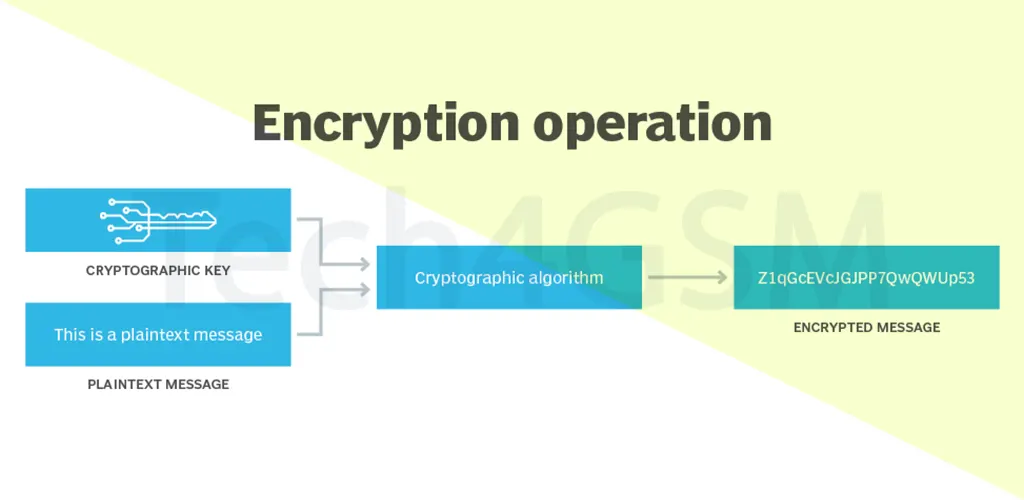
- Certificate Generation: EFS creates an X.509 certificate with a public-private key pair (RSA algorithm).
- AES Encryption: A random AES (Advanced Encryption Standard) key encrypts the file.
- Key Protection: The AES key is encrypted using the user’s public key and stored with the file.
- Decryption Process: When accessed, the private key decrypts the AES key, which then unlocks the file.
Recovery Agents: Administrators can decrypt files if users lose access. Recovery keys are critical for avoiding data loss.
Key Characteristics of EFS
- User-Friendly: Enable/disable encryption via a checkbox.
- Data Recovery: Admins can recover files using recovery certificates.
- Sparse File Support: Efficiently encrypts files with empty data blocks.
- File Sharing: Securely share encrypted files with other authorized users.
Top Benefits of EFS Over Third-Party Tools
- Transparent Operation: No passwords needed—encryption/decryption happens automatically.
- Stronger Security: AES and RSA algorithms resist brute-force and dictionary attacks.
- Kernel-Mode Execution: Keys aren’t exposed in paging files, reducing leakage risks.
- Audit-Friendly: Admins can track encrypted files and authorized users.
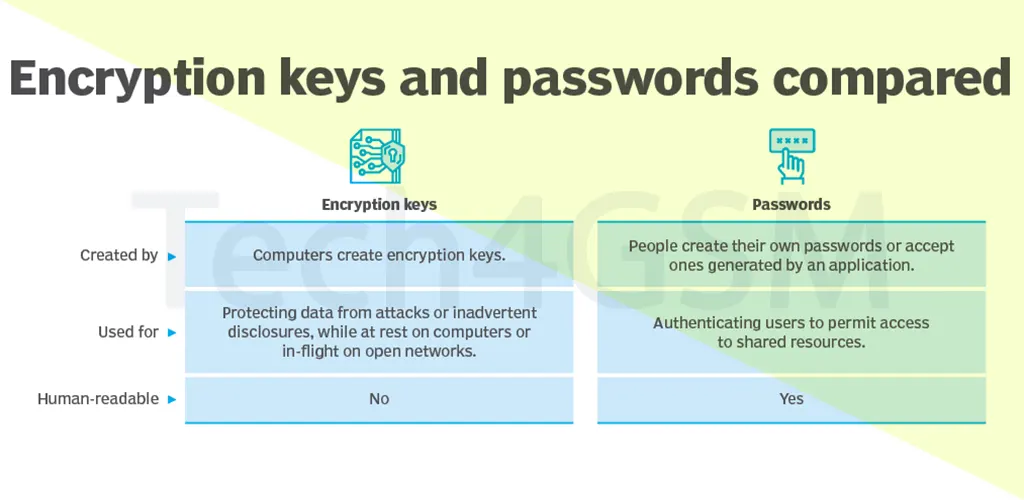
Encryption Keys vs. Passwords: Why Keys Win
- Encryption Keys:
- Generated using RSA (mathematically complex).
- Stored in secure Windows profiles.
- No user input required—eliminates weak password risks.
- Passwords:
- Often reused or easy to guess.
- Vulnerable to phishing or keylogging.
EFS Advantage: Keys are managed by the system, not users, ensuring stronger protection.
EFS Best Practices for 2025
- Secure Private Keys:
- Store keys on hardware security modules (HSMs) or password-protected USB drives.
- Never share private keys via email or cloud storage.
- Backup Certificates:
- Export recovery certificates to external drives.
- Use Windows’ “Manage File Encryption Certificates” tool.
- Recovery Agent Accounts:
- Create 2+ recovery accounts on separate devices.
- Use these accounts only for data recovery.
- Avoid Over-Encryption:
- Encrypt only sensitive folders to optimize system performance.
- Regular Audits:
- Use tools like
cipher.exeto list encrypted files. - Update recovery agents when employees leave.
- Use tools like
Caution: Never delete recovery certificates—you could lose access to encrypted data permanently!
FAQs About EFS in 2025
Q1: Is EFS compatible with Windows 11/2025 updates?
Yes! EFS remains supported in all Windows NTFS versions, including 2025 updates.
Q2: Can EFS encrypt cloud-stored files?
Only if the cloud drive uses NTFS (e.g., OneDrive locally synced folders).
Q3: What happens if I lose my private key?
Recovery agents can decrypt files. Without backups, data is irrecoverable.
Q4: Does EFS slow down my PC?
Minimal impact—encryption occurs during file saves/opens.
Q5: How is EFS different from BitLocker?
EFS encrypts individual files; BitLocker encrypts entire drives. Use both for layered security.
Final Thoughts
EFS is a must-use tool for anyone serious about data security in 2025. Its seamless integration with Windows, military-grade encryption, and recovery options make it ideal for businesses and individuals alike. Follow best practices, keep backups, and stay ahead of cyber threats!