
Introduction
Google is adding useful features to Android, and Android 15 brings a revolutionary tool to address storage problems. Users may clear up space on their phones without having to deal with manually removing applications thanks to the App Freeze function. Let’s examine how it works and its many advantages.

What is App Freeze?
Unused applications and the data they contain are archived via the App Freeze function. The storage that an application took up is released once it is archived. While keeping a small portion of the application, the archiving process eliminates superfluous files. Until they are reactivated, archived applications are dormant; all of their data is preserved upon restoration.
With the help of this function, Android can manage unneeded applications automatically, saving you the trouble of choosing which ones to remove. A little cloud symbol appears on the launcher of archived applications, which may be found in the App Drawer or on the home screen. Just press an app to revive it, and all of its data will be restored.
Why Does This Matter?
Apps, images, and other data may rapidly fill up available storage space, even on smartphones with substantial capacity, like the Pixel 9 Pro, which has 256GB of space. By allowing Android to manage storage sensibly, App Freeze removes the stress associated with it.
How to Turn on or Off App Freeze
Things You’ll Need
A Pixel phone running Android 15 is all you need. Although this function is only available on Pixel smartphones at the moment, other Android devices that get Android 15 are anticipated to get it as well.
How to Turn on or off
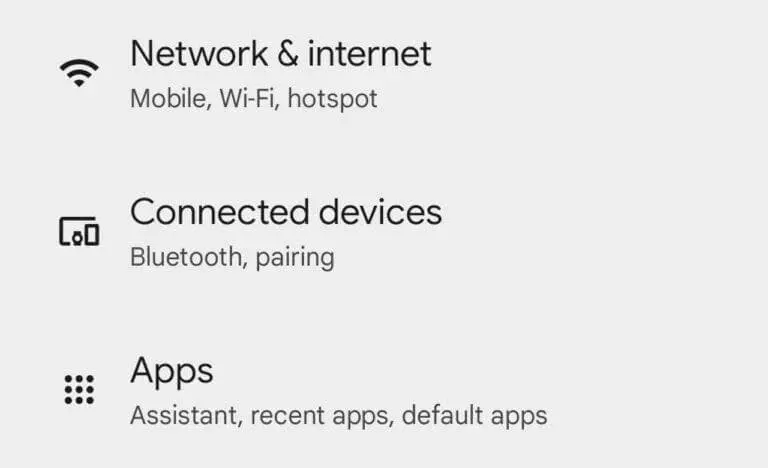
1. Launch the Settings App
To begin, open Settings. Pull down the Notification Shade twice, then press the gear symbol to accomplish this.

2. Locate the App That You Wish to Archive
Navigate to the Apps area and press X is the number of installed apps; view all X apps. Locate the app you wish to archive by scrolling through the list.
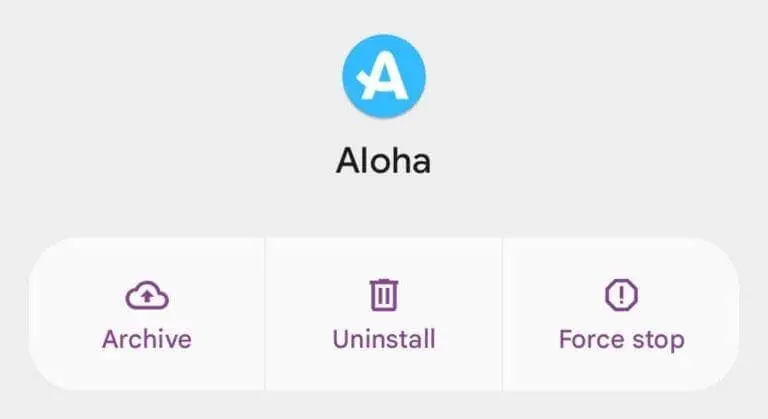
3. Allow App Freeze or Archive by Hand
Make sure the Manage app if unused option is activated at the bottom of the app’s settings page. This is enabled by default in most applications. You may manually archive programs that you don’t often use rather than removing them from your computer.
How to Make an App Active Again

Tap the icon of an archived app to restore it. All of the app’s data will be immediately recovered when it has been unarchived.
The Reasons App Freeze Is Game-Changer
You may effectively manage storage without losing access to your data by using the App Freeze function. For customers who have storage issues or would rather not deal with the headache of choosing what to remove, it’s ideal. Even while it’s only accessible on Pixel smartphones running Android 15, its usefulness makes it a serious contender to be added to all Android devices in the future.