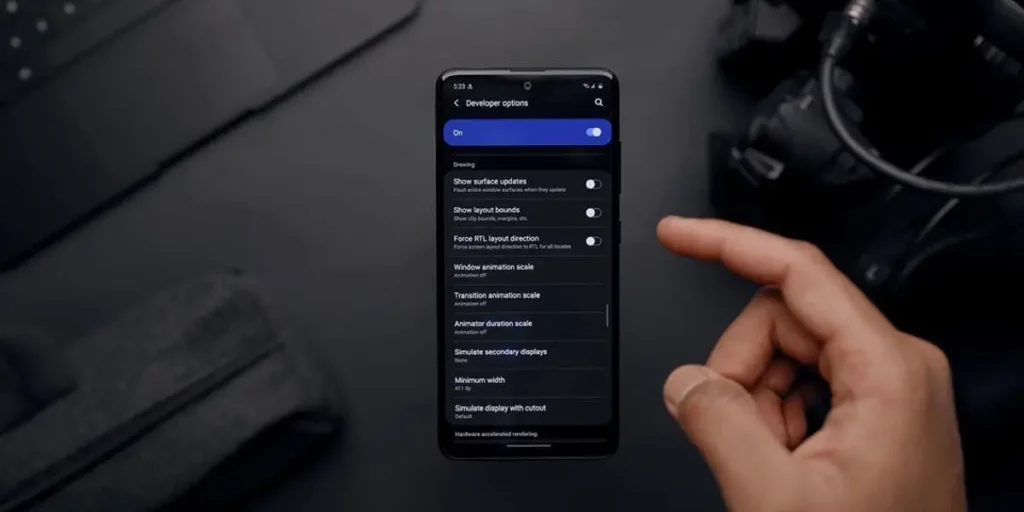
Introduction
Smartphone screens keep getting bigger and sharper, but the options to adjust how things look on them often feel limited. Want to fit more on your screen without squinting? There’s a hidden Android setting called Display Minimum Width that lets you customize your phone’s interface like a pro. Here’s how to use it and why it’s a game-changer!
The Problem: One-Size-Fits-All Doesn’t Work
Most Android phones offer basic sliders for “Screen Zoom” or “Display Size,” but these only give a few preset options. Even the smallest setting might leave buttons, text, and icons feeling too big on modern large screens. This limits how much you can see at once and makes multitasking harder.
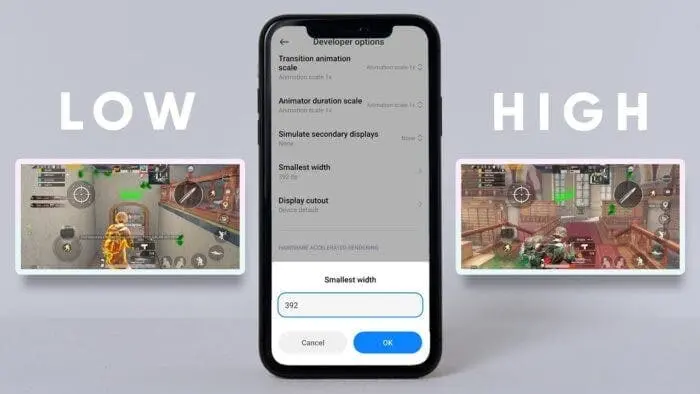
The Solution: Android Display Minimum Width
Hidden in your phone’s Developer Options, the Minimum Width setting lets you fine-tune your screen’s layout with precision. Think of it as a secret dial to shrink or expand everything on your screen to your exact liking.
How to Adjust Display Minimum Width
Step 1: Enable Developer Options
- Open Settings > About Phone.
- Tap Build Number 7 times until you see “You’re now a developer!”
Step 2: Find the Minimum Width Setting
- Go back to Settings > System > Developer Options.
- Scroll down to Minimum Width (measured in dp or “density-independent pixels”).
Step 3: Experiment with Values
- Default values are usually between 360–411 dp.
- Increase the number to make UI elements smaller (fit more on the screen).
- Decrease the number to make them larger (easier to read).
Pro Tip: Start with small changes (e.g., 411 dp → 450 dp) and test until it feels right.
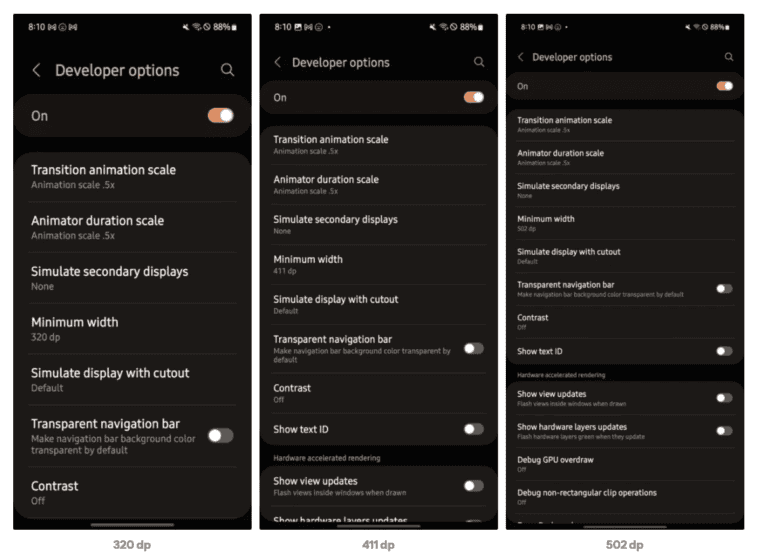
My Sweet Spot: 502 dp on a Galaxy S24 FE
On my Galaxy S24 FE, the smallest default setting (411 dp) still felt too bulky. After testing, 502 dp became my magic number:
- More Content: Apps show more text, buttons, and icons without clutter.
- Better Multitasking: Split-screen mode feels roomier.
- Comfortable Readability: No squinting needed!
Why This Matters
- Boost Productivity: Fit more on your screen for faster workflows.
- Personal Comfort: Tailor your phone to your eyes and habits.
- Future-Proof: Unlocks the full potential of big, sharp screens.
Not Just for Techies
You don’t need to be a tech expert to use this! Whether you:
- Prefer bigger text (lower dp) for easy reading.
- Want a minimalist look (higher dp) for sleek efficiency.
- Love customization – this setting puts you in control.
A Word of Caution
- Extreme values might break app layouts. Stick to small adjustments.
- Write down your original dp value in case you need to reset.
Final Thoughts
The Android Display Minimum Width setting is a hidden gem for making your phone truly yours. It’s like getting a custom-tailored suit for your screen—everything fits just right.