Introduction
Smart TVs are an excellent way to stream content, browse the web, and use various applications. However, the selection of apps available on the official store can sometimes feel restrictive. You might want to install apps that aren’t included in the store. This is where third-party APK files come into play.
APK files let you install apps manually, bypassing the restrictions of official app stores. Although the process may seem intimidating at first, it’s straightforward when broken down into steps. Here’s a detailed guide on how to safely and easily install third-party APK files on your Smart TV.
Step 1: Enable Installation from Unknown Sources
To install third-party apps, you must allow your TV to install applications from sources other than the official app store.
Steps:
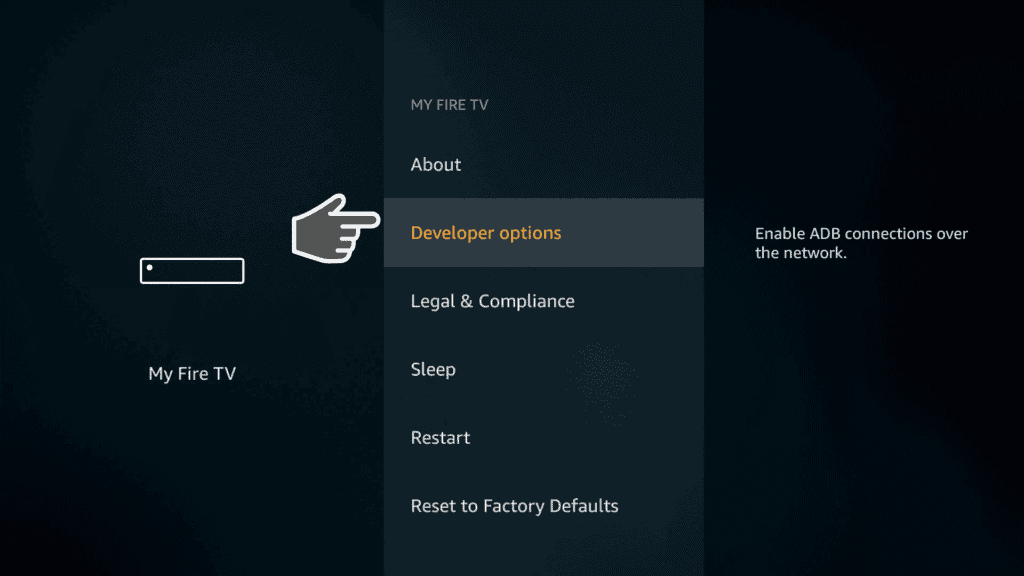
- Go to Settings: On your Smart TV’s home screen, navigate to the Settings menu. You can usually find it in the main menu or by pressing the settings button on your remote.
- Find Security or Privacy Options: Look for a section labeled “Security,” “Privacy,” “Developer Options,” or “Device Preferences.”
- Enable Unknown Sources: Toggle the option to allow installations from unknown sources. Some TVs may ask you to enable this setting for specific apps, like a file manager.
Step 2: Download the APK File
You’ll need to obtain the APK file for the app you wish to install. Ensure you download it from a trusted source to avoid malware.
Steps:
- Use a Browser on Your TV: Open your TV’s built-in web browser. If your TV doesn’t have a browser, download one from the app store.
- Search for the APK File: Look for the app’s official website or a trusted APK repository like APKMirror or APKPure.
- Download the File: Click the download link and save the APK file to your TV’s storage. Be patient, as the download may take some time depending on your internet speed.
Tip:
If your TV’s browser is limited, you can download the APK on a computer and transfer it to your TV using a USB drive. Alternatively, you can use cloud storage services like Google Drive or Dropbox to move files.
Step 3: Use a File Manager to Locate the APK
After downloading the APK file, you’ll need to find it in your TV’s storage.
Steps:
- Install a File Manager: If your TV doesn’t have one, download a file manager app like File Commander or X-plore File Manager from the app store.
- Open the File Manager: Launch the app and navigate to the “Downloads” folder or the location where the APK is stored. Most file managers categorize files for easy access.
- Select the APK File: Click on the APK file to prepare it for installation. Make sure the file name matches the app you intend to install.
Step 4: Install the APK File
Once you locate the APK file, follow these steps to install it on your Smart TV.
Steps:
- Run the APK File: Click on the APK file in the file manager. A prompt will appear asking if you want to install the app.
- Review Permissions: Check the permissions the app requires. Ensure these align with the app’s purpose. If everything looks good, proceed.
- Complete the Installation: Click “Install” and wait for the process to complete. Installation time varies depending on the app size.
- Open the App: After installation, you can open the app directly or find it on your home screen or app list.
Step 5: Use a USB Drive (Optional Method)
If your Smart TV’s browser is inconvenient or unavailable, you can use a USB drive to install APK files.
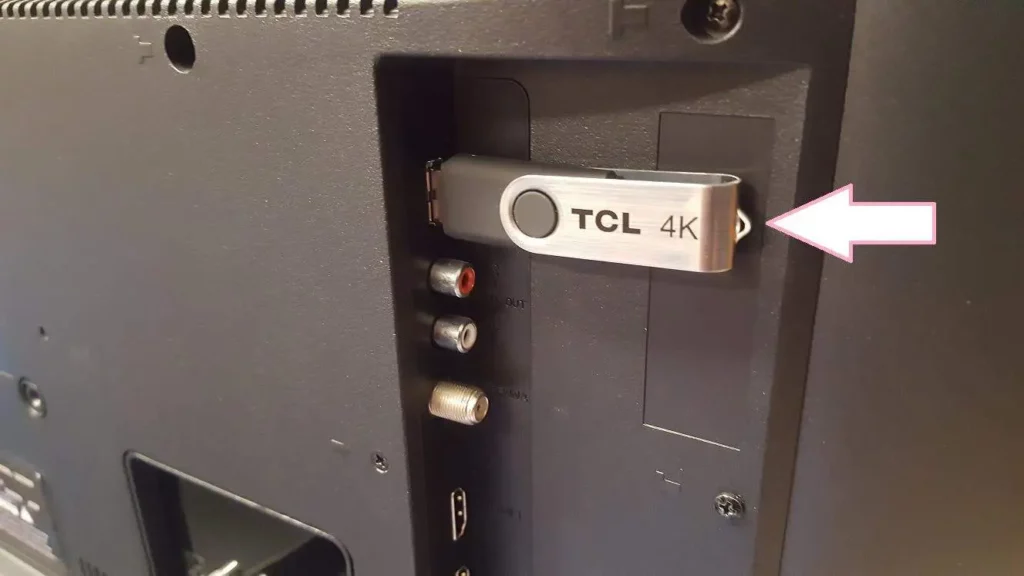
Steps:
- Download the APK on a Computer: Use a computer to download the APK file from a trusted source. Save it to a location that’s easy to access.
- Copy the APK to a USB Drive: Insert a USB drive into your computer and copy the APK file onto it. Ensure the drive is formatted to a file system compatible with your Smart TV (e.g., FAT32 or exFAT).
- Connect the USB to Your TV: Insert the USB drive into your Smart TV’s USB port and wait for the TV to detect it.
- Open the File Manager: Access the USB drive via your TV’s file manager. Locate the APK file.
- Install the APK: Click on the APK file and follow the same installation steps as before. Safely eject the USB drive after installation.
Step 6: Update the App
Third-party apps don’t update automatically. You must manually update them to enjoy new features and security improvements.
Steps:
- Check for Updates: Visit the app’s official website or APK repository to see if a new version is available.
- Download the Updated APK: Follow the same download steps as before. Save the updated file to your TV or USB drive.
- Uninstall the Old Version: Remove the old version of the app through the Settings menu or app list.
- Install the New Version: Install the updated APK file using the previous installation steps.
Benefits of Installing Third-Party APK Files
- Access to More Apps: Install apps unavailable in the official store, including region-specific or niche apps.
- Customization: Enjoy apps with advanced features or additional functionalities.
- Free Alternatives: Access free versions of premium apps.
- Better Compatibility: Use apps tailored to your preferences and needs.
Safety Tips for Installing APK Files
Installing third-party APK files comes with risks if you’re not cautious. Follow these safety tips:
- Use Trusted Sources: Download APKs only from reputable websites. Avoid suspicious or unknown sources.
- Check Permissions: Carefully review app permissions before installing. Be wary of unnecessary permissions.
- Install Antivirus Software: Use antivirus tools on your Smart TV to scan for malware or viruses.
- Update Regularly: Keep apps updated to avoid security and compatibility issues.
- Backup Your Data: Regularly back up your TV’s settings and files to prevent data loss.
Conclusion
Installing third-party APK files on your Smart TV allows you to expand its capabilities and enjoy a broader range of apps. By following these simple steps, you can enhance your viewing experience and customize your TV to suit your needs. Whether you’re trying new features or exploring niche apps, the possibilities are endless.
Always ensure you download APKs from trusted sources and exercise caution with app permissions. With this guide, you’re now equipped to unlock your Smart TV’s full potential. Enjoy exploring and making the most of your device!