Introduction
Since its launch in 2005, Google Maps has revolutionized navigation, becoming an essential tool for millions worldwide. It has replaced traditional maps and GPS devices, offering reliable navigation for cars, bikes, and pedestrians. However, not all features are universally available. One such feature, speed camera alerts, is missing in several countries due to local legal restrictions. Fortunately, there is a way to add this functionality to Google Maps with the help of an additional app. Here’s a detailed guide to enable speed camera alerts while using Google Maps for navigation.
The Challenge with Speed Camera Alerts
While speed limit indicators are now a standard feature in Google Maps, real-time alerts for speed cameras are not available everywhere. This limitation leaves drivers unaware of upcoming speed enforcement zones, increasing the likelihood of fines. The Google Maps interface itself does not support this functionality directly in restricted regions, requiring users to find alternative solutions.
One common workaround is using speed camera alert apps. However, these often don’t integrate seamlessly with Google Maps, forcing users to choose between navigation and alerts. With the TomTom AmiGo app, you no longer have to compromise. This app allows both navigation and speed camera alerts to function simultaneously, enhancing your driving experience.
Step-by-Step Guide to Enable Speed Camera Alerts in Google Maps
To enable speed camera alerts alongside Google Maps navigation, follow these steps:
1. Download and Install TomTom AmiGo
- Go to the Google Play Store.
- Search for TomTom AmiGo.
- Install the app on your smartphone.
The app is free and highly rated for its reliability and ease of use.
2. Set Up the App
- Launch the app after installation.
- Select your preferred voice output when prompted. This ensures you receive clear, audible notifications while driving.
- The app will download the required language files to enhance the user experience.
3. Enable Overlay Mode
- Open the app’s menu by tapping the three lines in the bottom left corner.
- Navigate to Settings and find the Overlay Mode option.
- Activate this feature to allow the app to display its widget over other applications, such as Google Maps.
4. Grant Permissions
- Return to the map view and tap the speed indicator.
- The app will request permission to show speed and camera alerts as a floating widget over other apps.
- Approve this request to enable the overlay feature.
Customizing and Using the Widget
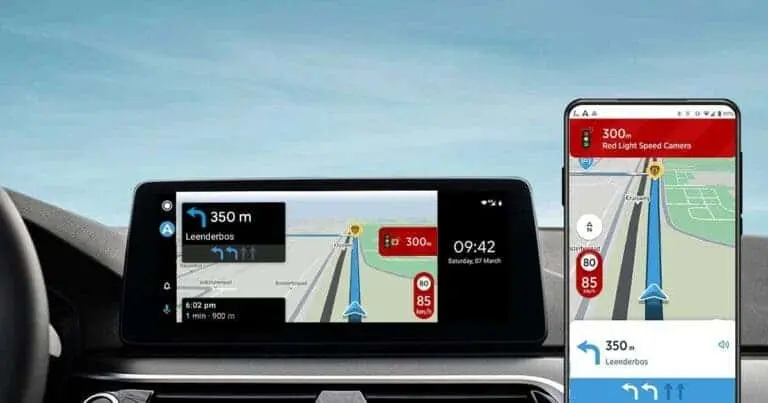
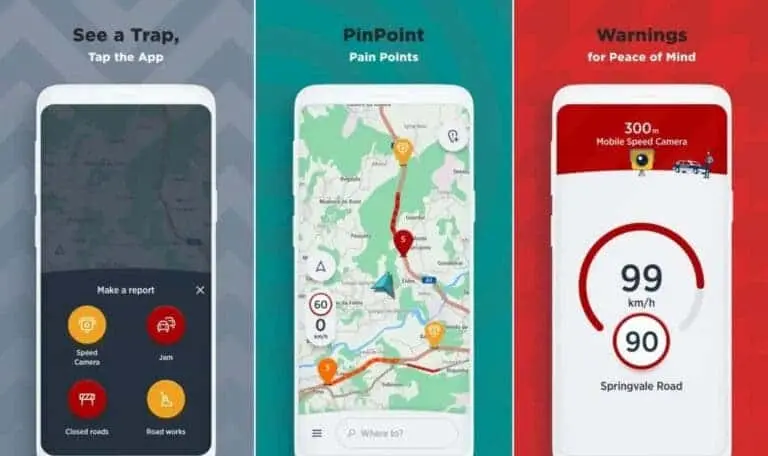
Once the overlay is active, the AmiGo widget will appear as a floating window on top of Google Maps. This widget provides real-time:
- Speed camera alerts to notify you of enforcement zones ahead.
- Maximum speed indicators to help you stay within legal speed limits.
Moving and Adjusting the Widget
- The widget is fully interactive and can be moved to any position on your screen for convenience.
- Its clean design ensures it doesn’t obstruct your view of the map while driving, offering a seamless experience.
Troubleshooting: When the Widget Doesn’t Appear
If the widget doesn’t show up:
- Check your smartphone’s app settings.
- Locate TomTom AmiGo in the app list and ensure it has permission to display pop-ups or use the overlay feature.
- Depending on your device, this setting might be under “App Permissions” or “Special Access Permissions.”
- Restart the app to activate the widget.
Limitations for iPhone Users
While TomTom AmiGo is available for both Android and iOS, iPhone users face limitations due to Apple’s strict operating system restrictions. Unfortunately, the overlay feature is not supported on iOS, meaning iPhone users cannot enjoy the same seamless integration of speed camera alerts with Google Maps.
Why Enable Speed Camera Alerts?
Adding speed camera alerts to your navigation setup enhances both safety and convenience. Here are the benefits:
- Maintain Legal Speed Limits: Avoid accidental speeding in enforcement zones.
- Prevent Fines: Receive real-time notifications about upcoming speed cameras.
- Drive Safely: Stay informed about speed limits and potential hazards, promoting better driving habits.
For frequent drivers, especially those navigating unfamiliar areas, speed camera alerts provide peace of mind and ensure compliance with traffic laws.
The Future of Navigation Integration
As technology evolves, navigation tools like Google Maps continue to add features that make driving safer and more efficient. While the inclusion of speed camera alerts directly within Google Maps may happen in the future, apps like TomTom AmiGo bridge the gap for now, offering drivers the best of both worlds: detailed navigation and real-time speed camera warnings.
If you’re an Android user, integrating TomTom AmiGo with Google Maps is an easy and effective way to enhance your driving experience. For iPhone users, exploring alternative navigation solutions or using standalone speed camera apps may be the next best option.
Take Control of Your Driving Safety
Turn on speed camera alerts on Google Maps today and enjoy safer, smarter navigation. By following this guide, you can easily integrate this functionality into your daily commute or road trips.