Introduction
The Start Menu has always been a key feature of Windows. Microsoft’s approach to its design has evolved significantly over the years. After the controversial Metro UI in Windows 8, the Start Menu made a comeback in Windows 10, balancing tradition with modernity. Windows 11 takes it a step further, introducing a fresh, centered layout that is both stylish and functional. Let’s explore how to customize the Start Menu in Windows 11 and make it uniquely yours.
Why Customize the Start Menu in Windows 11?
- Ease of Use: Personalizing the Start Menu can make frequently used apps and settings easier to access.
- Aesthetic Appeal: A customized Start Menu matches your style and enhances your overall experience.
- Improved Productivity: Organizing your Start Menu saves time, reducing clutter and distractions.
Exploring the Start Menu in Windows 11
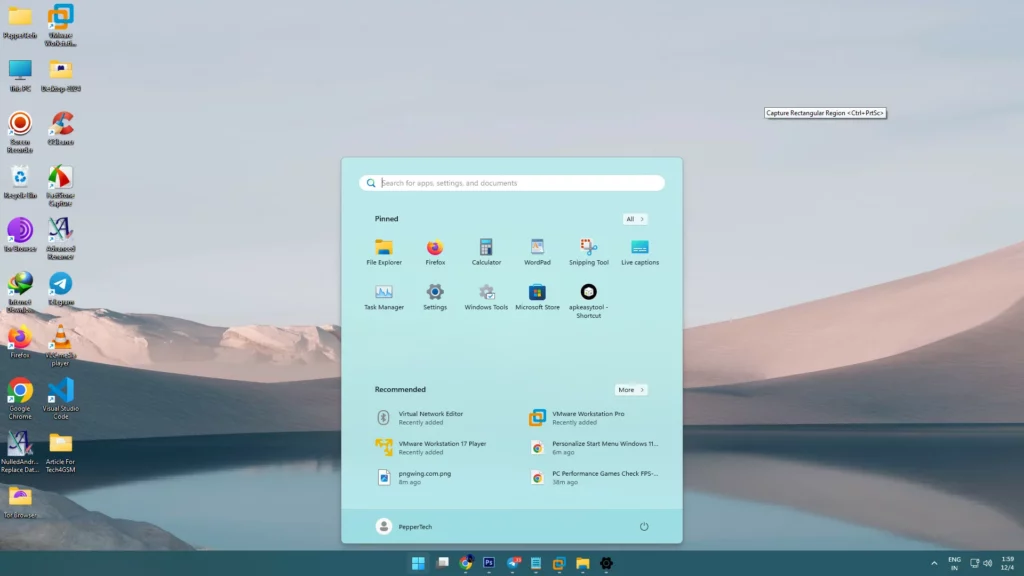
The Windows 11 Start Menu introduces a centered design with features like pinned apps, a recommended section, and folders. Here are some key features of the new Start Menu:
- Pinned Apps: You can pin your most-used apps for quick access.
- Recommended Section: Dynamically shows recently used files and apps.
- Search Bar: A central place to search for apps, documents, and web content.
- Customization Options: Allows you to tweak the menu’s layout, color, and more.
Now, let’s dive into the step-by-step guide to customize your Start Menu in Windows 11.
Customizing the Start Menu in Windows 11
1. Adjusting the Recommended Section
The Recommended Section displays recently opened apps and files. Here’s how to customize it:
- Open Settings: Press the Windows Key + I to open Settings.
- Go to Personalization: In the left sidebar, select Personalization, then click Start.
- Modify Display Options: Toggle off options like Show recently added apps and Show most used apps to declutter the menu.
- Create Space: Turning off these options leaves room for other customizations, like pinning apps or adding folders.
2. Managing Pinned Apps
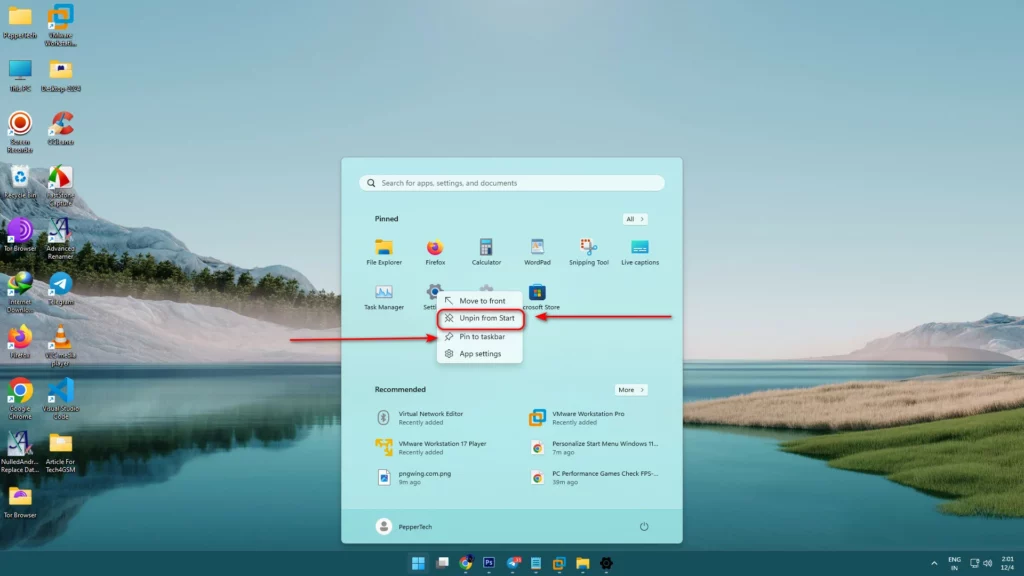
The pinned apps section lets you add, remove, and rearrange apps for a personalized experience.
Step 1: Unpin Apps
- Right-click on an app and select Unpin from Start to remove it.
Step 2: Pin New Apps
- Open the All Apps menu, right-click on your desired app, and choose Pin to Start.
Step 3: Rearrange Apps
- Drag and drop apps to reorder them. Place frequently used apps in prominent positions for easier access.
3. Adding Folders to the Start Menu
Folders provide a convenient way to organize shortcuts and settings.
- Open Settings: Navigate to Personalization > Start > Folders.
- Toggle Folders On: Select the folders you want, like Documents, Downloads, or Settings.
- Access Your Folders: These will appear as icons next to the Power button in the Start Menu.
Changing the Start Menu Location
By default, the Start Menu is centered in Windows 11. If you prefer the traditional left-aligned layout, follow these steps:
- Open Taskbar Settings: Go to Settings > Personalization > Taskbar behaviors.
- Adjust Alignment: Under Taskbar alignment, select Left.
- Confirm Changes: The Start Menu will now shift to the left side of the screen.
Personalizing the Start Menu Colors
Adding a splash of color can make your Start Menu visually appealing.
- Open Colors Settings: Go to Settings > Personalization > Colors.
- Switch Theme: Select a Custom theme, then choose Dark or Light mode.
- Set Accent Colors: Choose a color under Accent color or create a custom one.
- Apply to Start Menu: Toggle on options like Show accent color on Start and taskbar.
Third-Party Tools for Advanced Customization
If the built-in options don’t meet your needs, try third-party software for additional features.
1. Start11
- Features: Revert to the classic Windows 10 Start Menu, move the menu to the top of the screen, and more.
- Cost: $6, offering extensive customization options.
2. StartIsBack
- Features: Brings back the classic Start Menu experience from Windows 8 and Windows 10.
- Considerations: While these tools enhance customization, they may consume additional system resources.
Benefits of Customizing the Start Menu
- Personalized Workspace: Reflect your style and preferences.
- Improved Navigation: Quickly access the apps and files you need.
- Enhanced Aesthetics: Enjoy a polished and visually pleasing desktop.
Conclusion
Customizing the Start Menu in Windows 11 is a straightforward process that lets you tailor your desktop experience. Whether you adjust the layout, tweak colors, or explore third-party tools, these changes can transform the way you interact with your PC.