Introduction
Is your keyboard acting up? Does it feel like there’s a delay between your keystrokes and the actions on your screen? Don’t worry; we’ve all been there. A laggy keyboard can be incredibly frustrating, especially when you’re in the middle of an important task. The good news is that this issue is fixable. In this guide, we’ll explore practical solutions to fix keyboard input lag on Windows 10 and 11.
1. Adjust Keyboard Properties for Better Performance
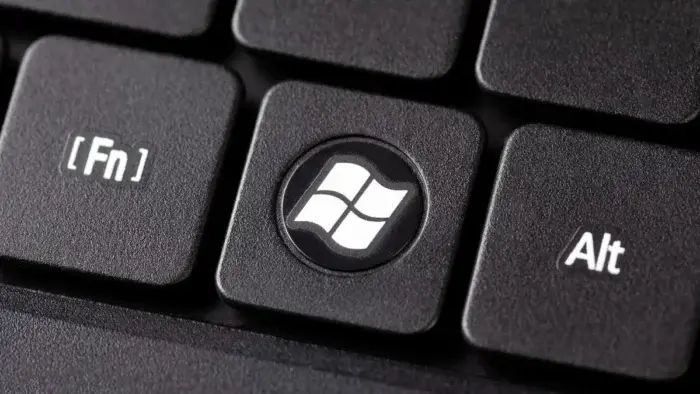
One simple yet effective way to tackle keyboard input lag is by tweaking your keyboard’s properties. Windows offers built-in settings that allow you to adjust the delay and speed of your keyboard’s response.
Steps to Adjust Keyboard Properties:
- Open Keyboard Properties:
- Press the Windows key + R to open the Run dialog box.
- Type
control keyboardand hit Enter.
- Modify Repeat Delay and Repeat Rate:
- In the Character Repeat section, you’ll see two sliders:
- Repeat delay: Shorten this to reduce the time it takes for a keystroke to repeat.
- Repeat rate: Increase this to make repeated keystrokes faster.
- In the Character Repeat section, you’ll see two sliders:
- Test and Save Your Settings:
- Experiment with different configurations to find the perfect balance.
- Click OK to apply the changes.
Making these adjustments can significantly improve your keyboard’s responsiveness, ensuring a smoother typing experience.
2. Update or Reinstall Your Keyboard Driver
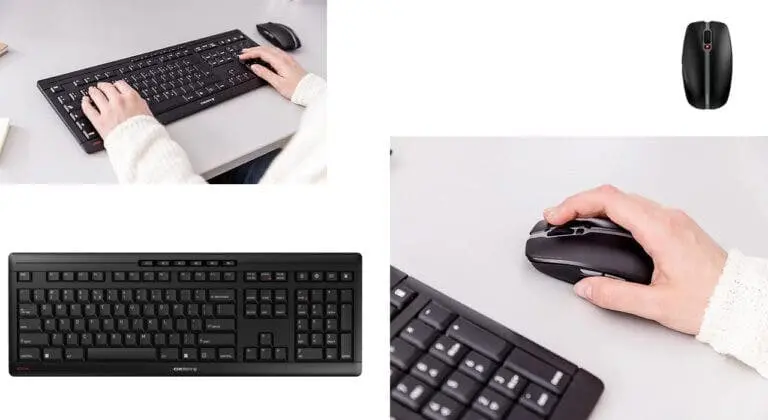
Outdated or corrupted drivers are a common cause of keyboard input lag. Ensuring that your drivers are up to date can resolve many performance issues.
Steps to Update Your Keyboard Driver:
- Access Device Manager:
- Press the Windows key, type Device Manager, and hit Enter.
- Locate Your Keyboard Driver:
- Expand the Keyboards section.
- Right-click your keyboard driver and select Update driver.
- Search for Updates Automatically:
- Choose Search automatically for drivers.
- Follow on-screen instructions to install any available updates.
If Updating Doesn’t Work:
- Uninstall the Driver:
- Right-click your keyboard driver and select Uninstall device.
- Restart Your Computer:
- Windows will automatically reinstall the necessary drivers upon reboot.
If this doesn’t happen, you can manually download the driver from the manufacturer’s website.
3. Disable Filter Keys for Smoother Input

Filter Keys is a Windows accessibility feature designed to help users with specific needs. However, it can inadvertently cause input lag for those who don’t require it.
Steps to Disable Filter Keys:
- Open Settings:
- Press the Windows key, type Settings, and open it.
- Navigate to Accessibility Settings:
- Select Ease of Access or Accessibility.
- Turn Off Filter Keys:
- Scroll down to the Keyboard section.
- Toggle off the option for Filter Keys.
Disabling this feature ensures that your keystrokes are registered promptly, eliminating unnecessary delays.
4. Test Your Keyboard in Safe Mode

To determine whether the input lag is caused by software or hardware, try using your keyboard in Safe Mode. Safe Mode loads only essential drivers and services, which can help isolate potential issues.
How to Boot into Safe Mode:
- Access Windows Recovery Environment (WinRE):
- Press Windows key + X and select Shut down or sign out > Restart while holding the Shift key.
- Navigate to Startup Settings:
- In WinRE, go to Troubleshoot > Advanced options > Startup Settings.
- Click Restart.
- Select Safe Mode:
- When the computer restarts, press F6 to choose Safe Mode with Networking.
Analyze Results:
- If the lag disappears in Safe Mode, the issue is likely software-related (e.g., a faulty driver or software conflict).
- If the lag persists, it might be a hardware issue, and testing with another keyboard is recommended.
5. Optimize Wireless Keyboard Performance
If you’re using a wireless keyboard, several factors could contribute to input lag, including signal interference and low battery power.
Tips to Improve Wireless Keyboard Performance:
- Check and Replace Batteries:
- Ensure the keyboard’s batteries are fresh and fully charged.
- Resync the Keyboard:
- Follow the manufacturer’s instructions to resync your keyboard with its USB receiver.
- Change USB Ports:
- Plug the USB receiver into a different port to rule out connectivity issues.
- Reduce Distance:
- Position the keyboard closer to the receiver to minimize signal interference.
- Minimize Wireless Interference:
- Keep other wireless devices, such as routers and Bluetooth gadgets, away from the USB receiver.
These steps can help restore your wireless keyboard’s performance and eliminate annoying delays.
6. Perform a Clean Boot to Eliminate Software Conflicts
Sometimes, third-party software or background processes can cause input lag. Performing a clean boot allows you to identify and disable conflicting programs.
Steps for a Clean Boot:
- Open System Configuration:
- Press Windows key + R, type
msconfig, and hit Enter.
- Press Windows key + R, type
- Disable Startup Programs:
- Go to the Services tab.
- Check Hide all Microsoft services and click Disable all.
- Disable Startup Items:
- Open the Startup tab and click Open Task Manager.
- Disable all startup items.
- Restart Your Computer:
- Check if the input lag persists. If it’s resolved, re-enable services one by one to identify the culprit.
7. Update Windows for the Latest Fixes
An outdated operating system can lead to various performance issues, including keyboard input lag. Keeping Windows updated ensures you have the latest patches and improvements.
Steps to Update Windows:
- Open Windows Update Settings:
- Press the Windows key + I and go to Update & Security > Windows Update.
- Check for Updates:
- Click Check for updates and install any available updates.
Keeping your system up-to-date can address compatibility issues and improve overall performance.
8. Use Alternative Input Methods
If none of the above solutions work, consider exploring alternative input methods while troubleshooting or waiting for a replacement keyboard.
Options Include:
- On-Screen Keyboard:
- Open it by searching for “on-screen keyboard” in the Start menu.
- Virtual Keyboard Apps:
- Download a virtual keyboard app from the Microsoft Store or third-party sources.
- Speech-to-Text Software:
- Use tools like Windows Speech Recognition to dictate text instead of typing.
9. Consider Replacing Your Keyboard
If all else fails, the issue might lie with the hardware. Test your keyboard on another device to confirm. If the problem persists, it’s time to invest in a new keyboard.
Tips for Choosing a New Keyboard:
- Determine Your Needs:
- Do you need a mechanical keyboard for gaming or a quiet one for office work?
- Consider Connectivity:
- Choose between wired or wireless options based on your preference.
- Research and Read Reviews:
- Check user reviews and expert recommendations for reliable models.
Conclusion
Keyboard input lag can disrupt your workflow and cause unnecessary frustration. By following these practical solutions, you can identify and fix the root cause of the problem. Whether it’s adjusting keyboard settings, updating drivers, or replacing faulty hardware, there’s always a way to regain smooth and responsive typing.
Remember, regular maintenance and updates are key to keeping your devices running efficiently. Stay proactive, and enjoy a lag-free typing experience!