Introduction
The Ctrl (Control) key is your keyboard’s secret weapon for speed and efficiency. Whether you’re a student, professional, or casual user, mastering Ctrl shortcuts can save hours every week. In 2025, as technology evolves, knowing these tricks is more vital than ever. Let’s dive into how this tiny key can transform your workflow!
What is the Ctrl Key?
Pronounced “control,” the Ctrl key is a modifier key found on both Windows and Mac keyboards (labeled as “Control” on Macs). Located in the bottom-left or right corner, it works with other keys to execute commands instantly—no mouse required!
Key Facts:
- History: Introduced in the 1960s for early computer systems, Ctrl became mainstream with Windows and macOS.
- Universal Use: Over 90% of software apps support Ctrl shortcuts.
- Productivity Boost: Studies show Ctrl shortcuts can save 8 days yearly by reducing mouse reliance!
How Does the Ctrl Key Work?
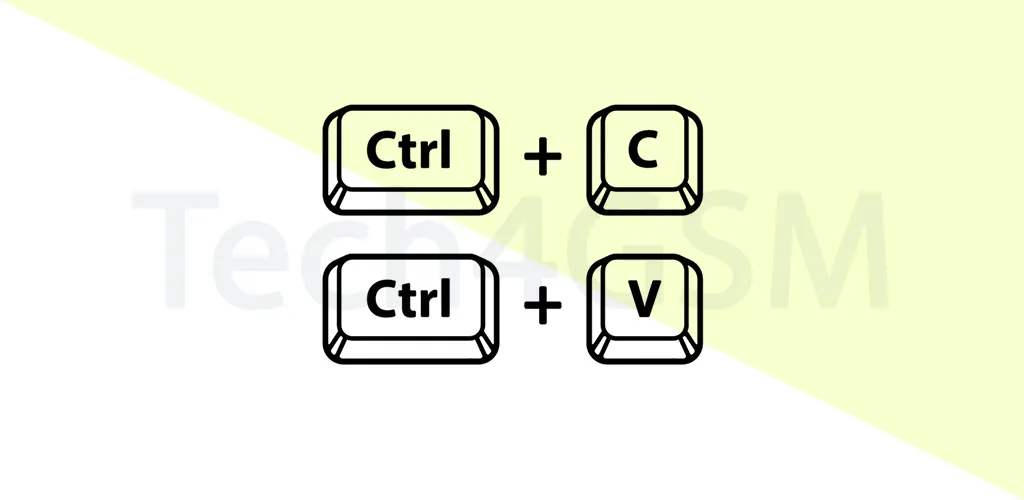
The Ctrl key modifies the function of other keys. For example:
- Ctrl + C copies text.
- Ctrl + V pastes it.
This combo sends a signal to your OS, triggering predefined actions.
Why It’s Powerful:
- Speed: Execute tasks in 1–2 seconds vs. navigating menus.
- Multitasking: Keep hands on the keyboard, boosting focus.
- Customization: Some apps let you create custom shortcuts!
All Essential Ctrl Shortcuts (2025 Update)
Pro Tip: Bookmark this list! Bold = most frequently used.
Basic Shortcuts Everyone Should Know
These are the bread-and-butter shortcuts for daily tasks:
| Shortcut | Action |
|---|---|
| Ctrl + A | Select All (text, files, or objects). |
| Ctrl + C | Copy selected content. |
| Ctrl + V | Paste copied content. |
| Ctrl + Z | Undo your last action. |
| Ctrl + Y | Redo an undone action. |
| Ctrl + X | Cut selected content. |
| Ctrl + S | Save your current document or file. |
| Ctrl + P | Print a document or image. |
| Ctrl + F | Find text, files, or folders. |
Web Browsing Shortcuts
Surf smarter with these browser hacks (works in Chrome, Firefox, Edge, etc.):
| Shortcut | Action |
|---|---|
| Ctrl + T | Open a New Tab. |
| Ctrl + W | Close the current tab. |
| Ctrl + Shift + T | Reopen the last closed tab. |
| Ctrl + D | Bookmark the current page. |
| Ctrl + L | Jump to the Address Bar. |
| Ctrl + R | Reload/Refresh the page. |
| Ctrl + J | Open Downloads folder. |
| Ctrl + H | View Browser History. |
| Ctrl + Enter | Auto-complete a URL (e.g., type “google” + Ctrl + Enter → “www.google.com“). |
Microsoft Office Shortcuts (Word, Excel, PowerPoint)
Work like a pro in Office 365 (2025 Edition):
Microsoft Word
| Shortcut | Action |
|---|---|
| Ctrl + B | Bold selected text. |
| Ctrl + I | Italicize selected text. |
| Ctrl + U | <u>Underline</u> selected text. |
| Ctrl + [ | Decrease font size. |
| Ctrl + ] | Increase font size. |
| Ctrl + M | Indent a paragraph. |
| Ctrl + G | Go To a specific page or section. |
Microsoft Excel
| Shortcut | Action |
|---|---|
| Ctrl + ; | Insert Current Date. |
| Ctrl + Space | Select Entire Column. |
| Ctrl + Arrow Keys | Navigate to the edge of data ranges. |
| Ctrl + ‘ | Copy the formula from the cell above. |
| Ctrl + 1 | Open Format Cells dialog. |
PowerPoint
| Shortcut | Action |
|---|---|
| Ctrl + M | Add a New Slide. |
| Ctrl + Enter | Start a new text box. |
Advanced System & App Shortcuts
Level up with these power-user tricks:
| Shortcut | Action |
|---|---|
| Ctrl + Alt + Del | Open Task Manager (Windows). |
| Ctrl + Shift + Esc | Directly launch Task Manager. |
| Ctrl + Esc | Open Start Menu (if Windows key is missing). |
| Ctrl + Tab | Switch between open tabs (browsers/apps). |
| Ctrl + F4 | Close active window/tab. |
| Ctrl + F5 | Hard Refresh (clear cache and reload). |
Program-Specific Shortcuts
Adobe Photoshop
| Shortcut | Action |
|---|---|
| Ctrl + / | Lock/Unlock layers. |
| Ctrl + T | Activate Free Transform tool. |
Google Docs/Sheets
| Shortcut | Action |
|---|---|
| Ctrl + Alt + M | Insert Comment. |
| Ctrl + Alt + Shift + C | Copy cell formatting (Sheets). |
Keyboard Navigation Shortcuts
Move like a ninja without touching the mouse:
| Shortcut | Action |
|---|---|
| Ctrl + Home | Jump to the top of a document/page. |
| Ctrl + End | Jump to the bottom of a document/page. |
| Ctrl + ←/→ | Move one word left/right. |
| Ctrl + ↑/↓ | Jump to start/end of paragraphs (Word). |
Pro Tips for 2025
- Custom Shortcuts: Use apps like AutoHotkey to create your own combos.
- Practice Daily: Start with 3–5 shortcuts and gradually add more.
- Cheat Sheets: Print a shortcut list and stick it near your desk.
Troubleshooting Common Issues
- Shortcut Not Working? Check app settings or update software.
- Ctrl Key Stuck? Clean your keyboard or disable Sticky Keys (Windows: Settings
> Accessibility > Keyboard).
Troubleshooting Ctrl Key Issues
If shortcuts fail:
- Update Drivers
- Check Sticky Keys: Disable in Settings > Accessibility.
- Test Hardware: Use online keyboard testers.
FAQ: Your Questions Answered
Q: Can I create custom Ctrl shortcuts?
A: Yes! Apps like AutoHotkey or Shortcut Wizard allow custom combos.
Q: Why doesn’t Ctrl + C work sometimes?
A: The app might not support it—try right-clicking to copy.
Q: Mac vs. Windows Ctrl keys?
A: Mac uses “Cmd” for most shortcuts (e.g., Cmd + C), but Ctrl works in cross-platform apps.
Conclusion: Master the Ctrl Key in 2025!
The Ctrl key is a timeless productivity tool. By learning even 5–10 shortcuts, you’ll navigate apps faster, reduce errors, and impress peers. Ready to level up? Practice one shortcut daily—it’ll soon become second nature!
Pro Tip: Share this guide with friends and watch productivity soar! 🚀
Follow Us for Weekly Tech Tips!