Introduction
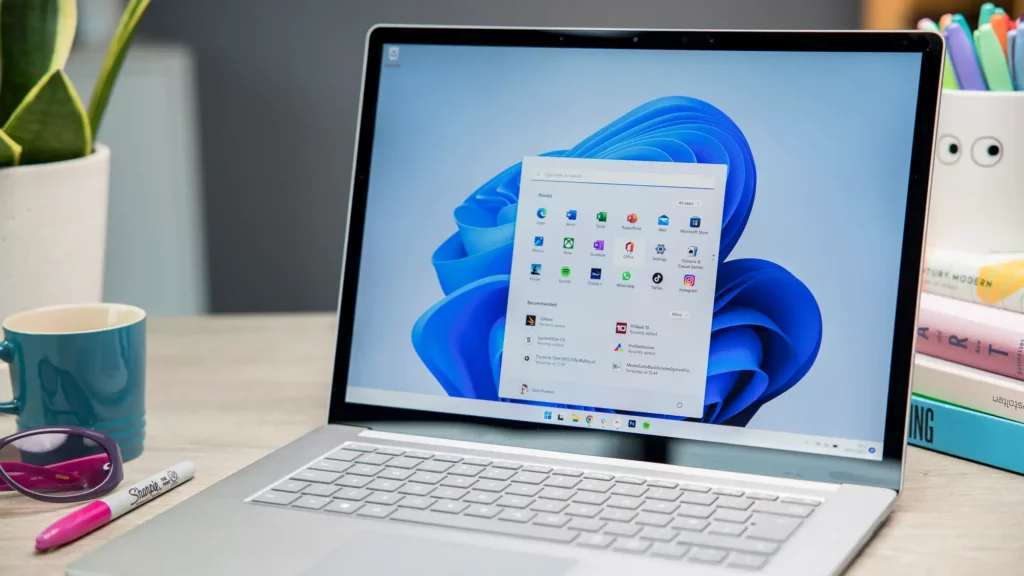
Congratulations on your new Windows 11 PC! 🎉 While the setup process is straightforward, a few extra tweaks can transform your experience from good to great. Let’s dive into 10 must-do steps to optimize security, privacy, and performance for 2025’s Windows 11.
1. Lock Down Your Login with a Microsoft Account
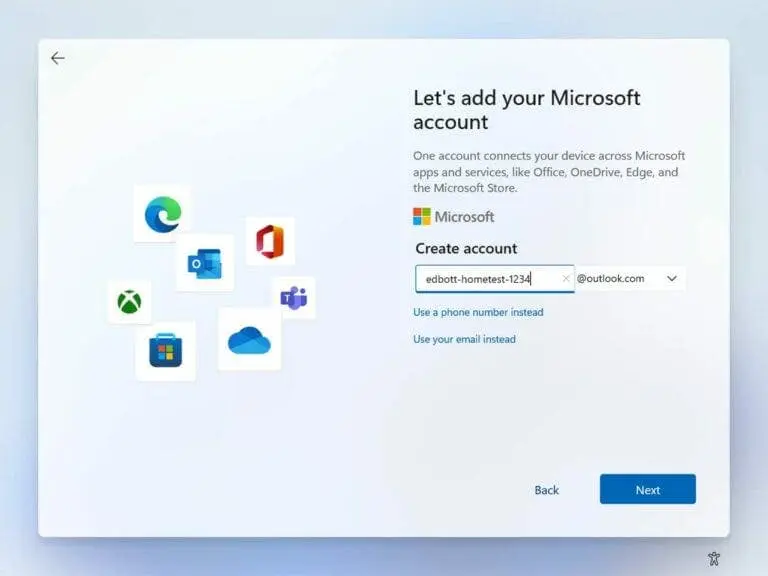
Skip the local account! A Microsoft Account is your gateway to enhanced security and features:
- Extra Security Layers: Enable two-factor authentication and sign in with face/fingerprint recognition (Windows Hello).
- Automatic Encryption: Even on Home editions, your system drive encrypts itself (Settings > Privacy & Security > Device Encryption).
- Easy Recovery: Lost your password? Retrieve it via Microsoft’s tools.
Pro Tip: Hate OneDrive moving your files? Turn off auto-backup in OneDrive settings.
2. Declutter Your Start Menu & Apps
New PCs come with bloatware—let’s clean house!
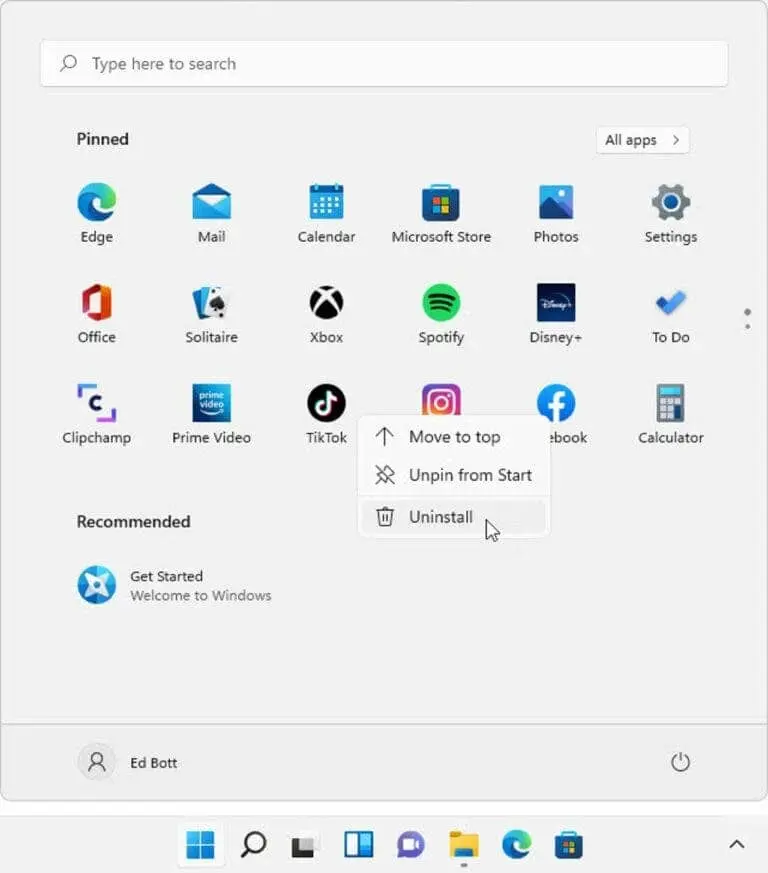
- Remove Pre-Installed Shortcuts: Right-click apps like TikTok or Disney+ and select Uninstall.
- Tame the Start Menu: Right-click “Recommended” apps and hit Remove from list.
Why It Matters: Fewer distractions = a cleaner, faster workflow.
3. Test Risky Apps Safely with Windows Sandbox
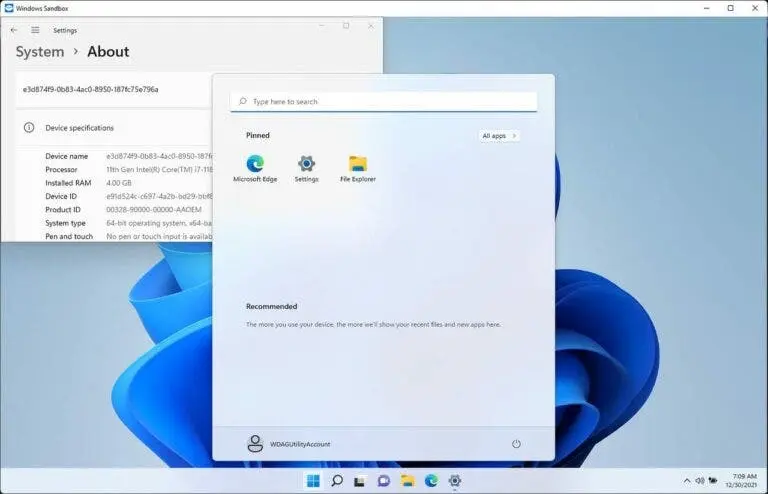
Think of Sandbox as a virtual playground for suspicious files. Perfect for Pro/Enterprise users:
- Enable It: Search Windows Features > Check Windows Sandbox > Restart.
- Use It: Open Sandbox from the Start menu, test apps/websites, and close to erase all traces.
Bonus: No more “oops” moments from untrusted downloads!
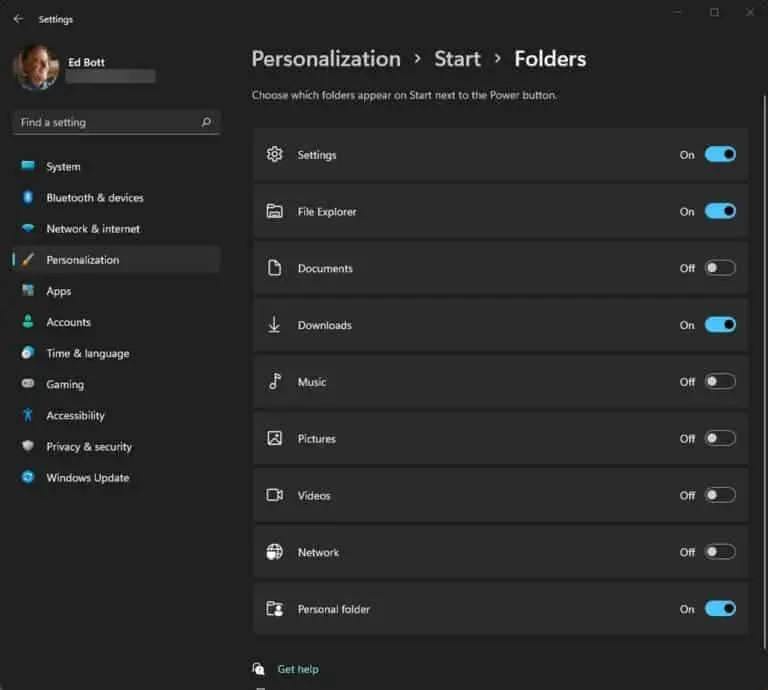
4. Make the Start Menu Work for You
The minimalist Start menu needs tweaking:
- Add Quick Folders: Go to Settings > Personalization > Start > Folders—enable Downloads, Documents, etc.
- Adjust Spacing: Reduce clutter by spacing icons evenly.
- Dark Mode Magic: Switch to dark theme (Settings > Personalization > Colors) for late-night work.
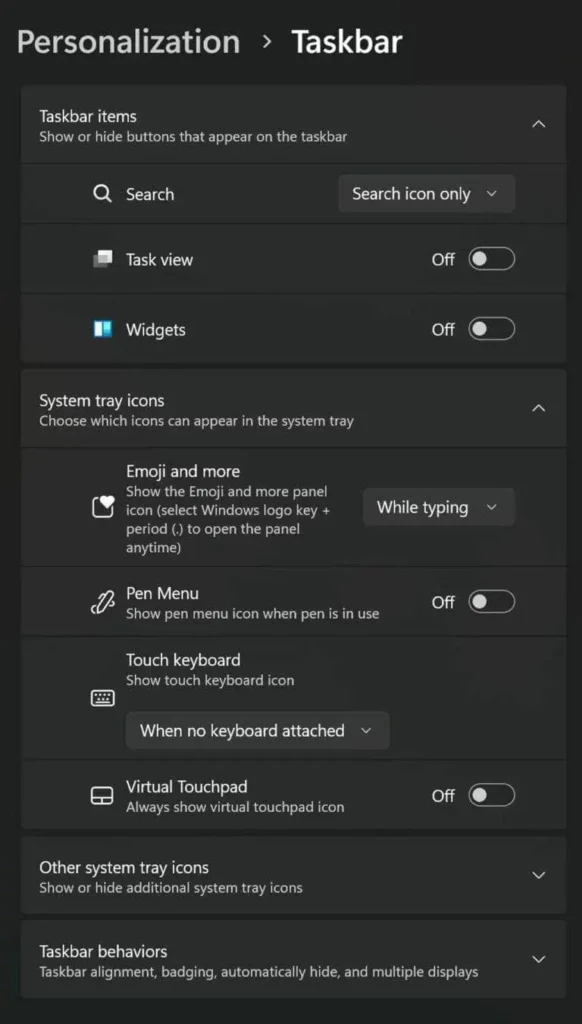
5. Tidy Up Your Taskbar for a Cleaner Look
Free up space by removing unnecessary icons:
- Disable Search/Task View/Widgets: Settings > Personalization > Taskbar.
- Say Bye to Copilot: Right-click its icon > Unpin from taskbar.
- Customize Tray Icons: Expand Other system tray icons to show/hide what you need.
6. Save Your Encryption Key Before You Need It
BitLocker encrypts your drive by default. Back up your recovery key NOW:
- Visit microsoft.com/recoverykey.
- Sign in, download the key, and store it securely (e.g., password manager).
Note: For Pro users, encrypt external drives manually via BitLocker.
7. Guard Your Privacy with These Quick Tweaks
Windows 11 loves data—reign it in:
- Limit Tracking: Settings > Privacy & Security > Diagnostics & Feedback > Set to Basic.
- Kill Ads: Turn off Advertising ID in the same menu.
- Disable Location: No need for apps to know where you are? Toggle it off.
8. Stop Unwanted Restarts with Smart Update Settings
Auto-updates are vital but annoying:
- Set Active Hours: Settings > Windows Update > Advanced Options > Choose when updates install.
- Delay Feature Updates: Opt for Stable builds if you hate bugs.
9. Never Lose Files with Automatic Backups
Backups are your safety net:
- OneDrive: Syncs files to the cloud.
- File History: Saves file versions to an external drive (Settings > System > Storage > Backup Options).
Rule of Thumb: Follow the 3-2-1 rule—3 copies, 2 local, 1 offsite.
10. Boost Battery Life or Speed with Power Tweaks
Laptop user? Optimize battery:
- Choose a Mode: Settings > System > Power > Best efficiency (battery) or Best performance (speed).
- Advanced Tweaks: Customize sleep settings or GPU usage for demanding apps.
Final Thoughts
A little setup goes a long way! By following these steps, your Windows 11 PC becomes safer, faster, and tailored to you.