Introduction
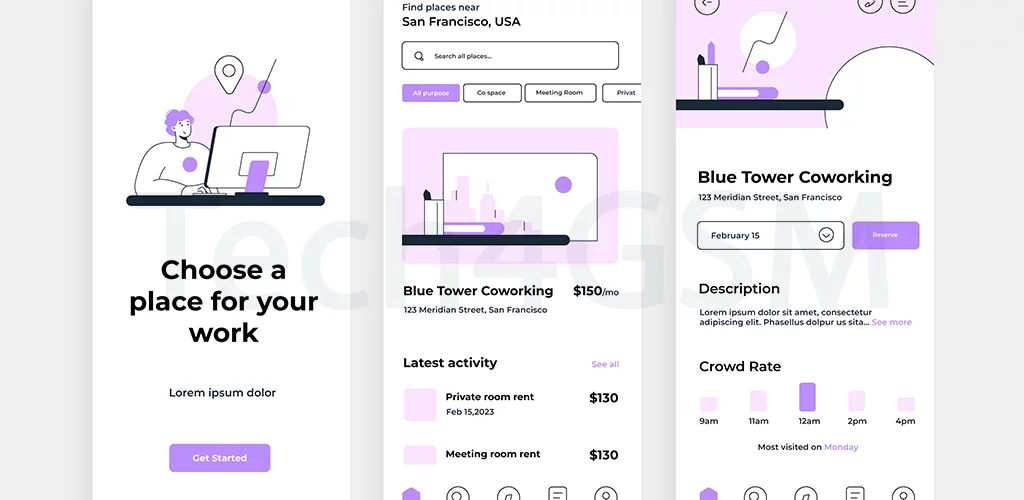
Ever tapped an app icon, swiped through menus, or cursed a confusing setting? That’s User Interface (UI) in action—the digital handshake between you and your phone. Let’s break down how UI shapes your tech life and why some phones just “feel” easier to use!
What is User Interface (UI)?
- Your Phone’s Conversation Starter: UI is the look and feel of your device’s software—icons, menus, buttons, and everything you interact with on the screen.
- Software’s Smile: While UI can include hardware (like volume keys), it’s mostly about the software design guiding your taps and swipes.
- Goal: Make your phone intuitive, so even your grandma can video call without a manual!
Fun Fact: The first mobile UI was text-only (think Nokia 3310 menus). Today, it’s all colorful icons and animations!
UI Elements: The Building Blocks of Your Screen
A great UI blends these parts seamlessly:
- Icons: Visual shortcuts for apps (e.g., a camera icon for photos).
- Menus: Organized lists (Settings, Contacts) for easy navigation.
- Buttons: “Back,” “Home,” or “Search”—your digital steering wheel.
- Text Boxes: Where you type messages or search the web.
- Animations: Smooth transitions when switching apps or scrolling.
Why “User-Friendly” UI is a Big Deal
- Less Frustration: Ever used a phone where nothing makes sense? That’s bad UI.
- Faster Tasks: Good UI lets you send texts, shop, or set alarms in seconds.
- Inclusivity: Features like larger text or voice commands help users with disabilities.
Pro Tip: Test a phone’s UI before buying. If it feels clunky, skip it!
UI Showdown: iOS vs. Android
| Feature | Apple iOS | Google Android |
|---|---|---|
| Design Style | Minimalist, uniform icons | Customizable, diverse skins |
| Ease of Use | Simple for beginners | Flexible for tech lovers |
| Updates | Consistent across devices | Varies by brand (e.g., Samsung) |
How Mobile UI Has Evolved
- 2000s: Basic grids (Symbian, BlackBerry).
- 2010s: Touch-friendly icons (iOS, Android).
- 2020s: Gesture controls, dark mode, and AI-driven suggestions.
Fun Fact: The “hamburger menu” (☰) was born in 1981 but became a mobile UI staple in the 2010s!
Customizing Your UI: Make It Yours
- Themes/Skins: Change colors, icons, and fonts (like digital wallpaper).
- Widgets: Add weather, calendars, or music controls to your home screen.
- Launchers: Apps like Nova Launcher let you redesign your UI entirely.
Warning: Over-customizing can slow your phone. Keep it balanced!
What Makes a UI “Good”?
- Consistency: Buttons and menus behave the same way everywhere.
- Clarity: Icons make sense (a gear for Settings, not a random shape).
- Feedback: Vibrations or sounds confirm your taps (no guessing!).
Final Thoughts
UI is the unsung hero of your phone experience. It’s why some devices feel like old friends and others like puzzling riddles. Next time you effortlessly navigate your apps, tip your hat to the clever UI designers behind the scenes!
Your Turn!
What’s your favorite UI feature? Share this article with someone who loves (or hates) their phone’s design! 📱✨