
Introduction
A frozen iPhone screen can feel like a nightmare. You tap, swipe, and press buttons, but nothing works! Before heading to the Apple Store or worrying about data loss, try these proven methods to fix your frozen iPhone. This guide explains why your iPhone might freeze and walks you through five simple fixes.
Why Does My iPhone Screen Freeze?
Understanding why your iPhone freezes can make solving the problem easier. Here are some common reasons:
- Low Storage Space: If your iPhone is full, it may stop responding.
- Failed Software Updates: Incomplete or failed updates can disrupt your iPhone’s functionality.
- Malicious Software: Viruses or harmful apps can cause crashes and freezes.
- Jailbreaking Issues: Modifying your iPhone’s software (jailbreaking) may result in freezing.
- Too Many Open Apps: Running multiple apps can overload your iPhone’s resources.
- Outdated Software: Old software can cause performance glitches, including freezing.
How to Fix a Frozen iPhone Screen?
Fix 1: Force Restart Your iPhone
When your iPhone is frozen, a force restart is often the fastest solution. This process doesn’t delete any of your data. Here’s how:
For iPhone 8 and Later:
- Quickly press and release the Volume Up button.
- Quickly press and release the Volume Down button.
- Press and hold the Side (Power) button until the Apple logo appears.
For iPhone 7 and 7 Plus:
- Press and hold the Volume Down and Side (Power) buttons simultaneously.
- Hold them until the Apple logo appears, then release.
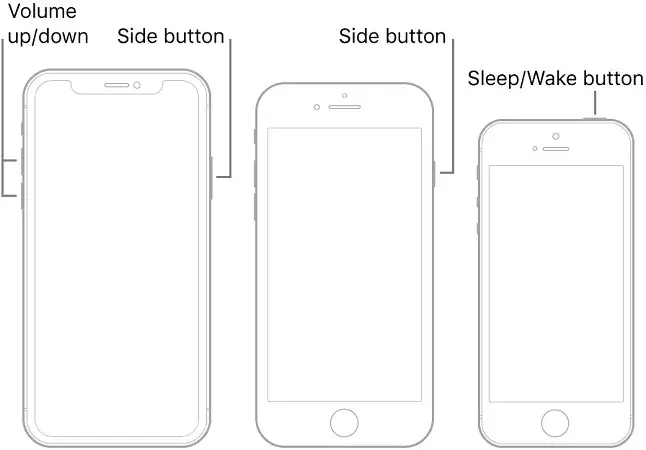
For iPhone 6s and Earlier:
- Press and hold the Home and Side (or Top) buttons at the same time.
- Keep holding them until the Apple logo appears.
Fix 2: Close Background Apps
If restarting didn’t work, your iPhone might be overloaded with apps running in the background. Here’s how to close them:
For iPhone X and Later:
- Swipe up from the bottom of the screen and pause in the middle.
- Locate the app previews in the App Switcher.
- Swipe up on the app cards to close them.
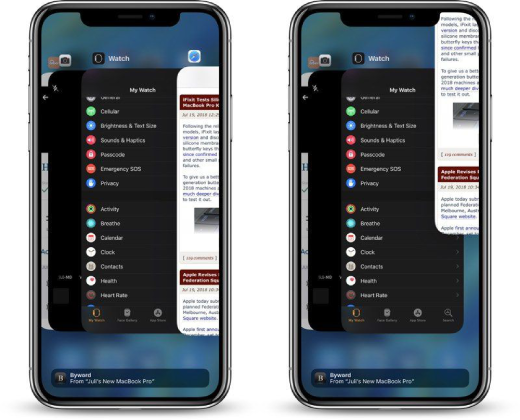
For iPhone 8 and Earlier:
- Double-tap the Home button to open the App Switcher.
- Swipe up on each app card to close it.
Closing apps reduces resource usage, which can help unfreeze your iPhone.
Fix 3: Use Tenorshare ReiBoot (No Data Loss)
For more persistent issues, a reliable tool like Tenorshare ReiBoot can repair your iPhone without erasing data. Here’s how to use it:
- Download and Install ReiBoot: Visit the official website and install it on your PC or Mac.
- Connect Your iPhone: Use a USB cable to connect your frozen iPhone to the computer.
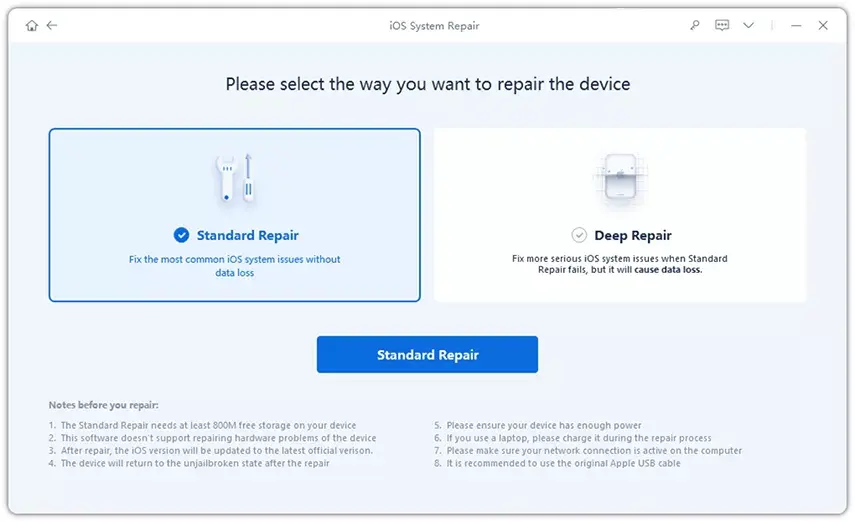
- Launch ReiBoot and Start Standard Repair:
- Open the program and click Start.
- Select Standard Repair for a safe fix.
- Download Firmware: Allow ReiBoot to download the required firmware package.
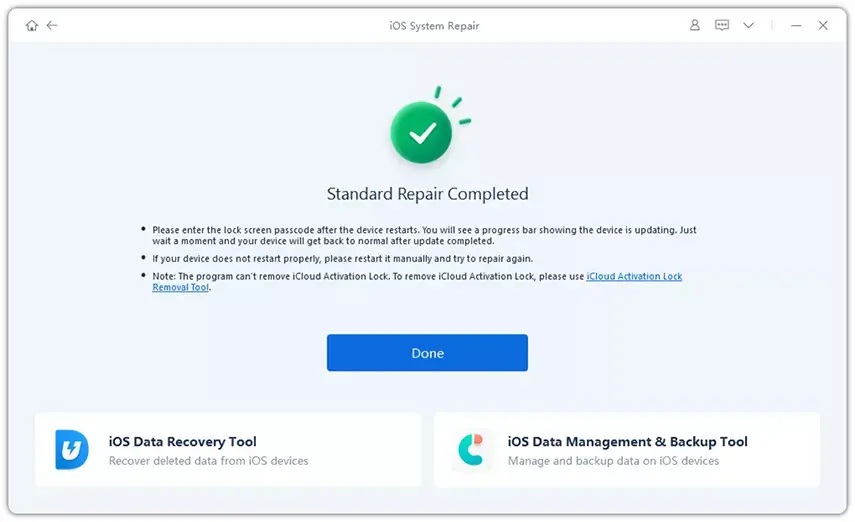
- Repair Your iPhone: Once the firmware is ready, click Start Standard Repair and wait for the process to complete.
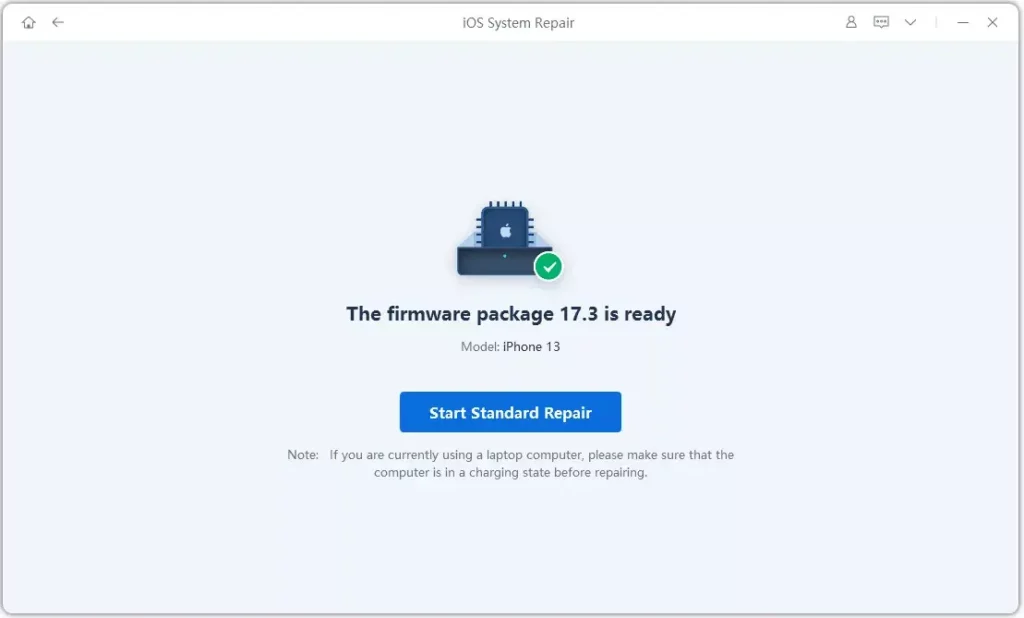
Your iPhone should restart normally after the repair.
Fix 4: Reset Your iPhone
A reset is another effective way to unfreeze your iPhone. You can use ReiBoot to perform this safely:
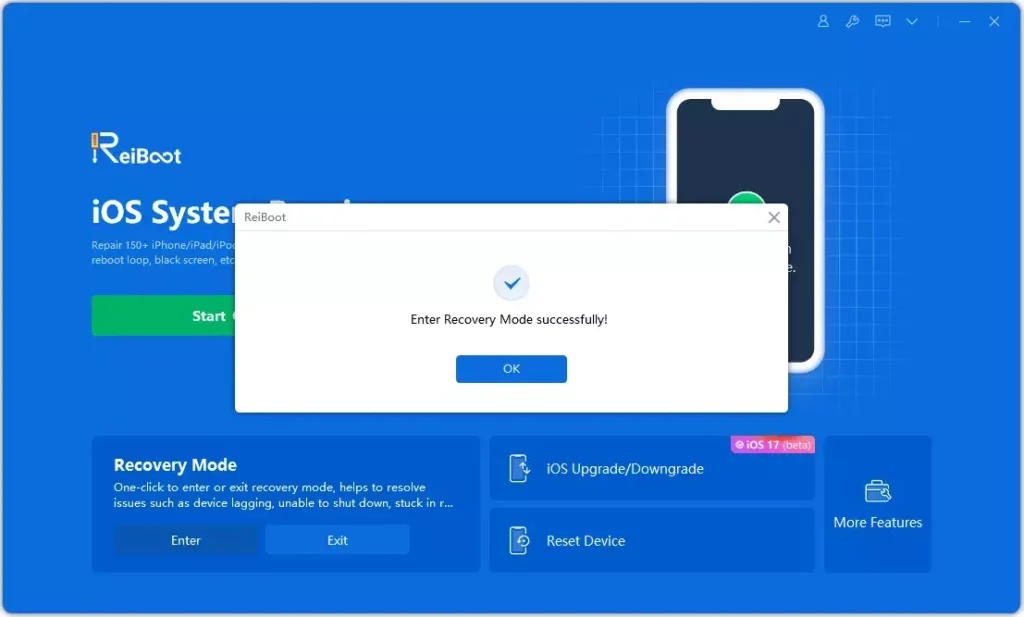
- Enter Recovery Mode:
- Connect your iPhone and click Enter Recovery Mode in ReiBoot.
- Wait for your device to enter recovery mode.
- Exit Recovery Mode:
- Once in recovery mode, click Exit Recovery Mode to restore normal functionality.
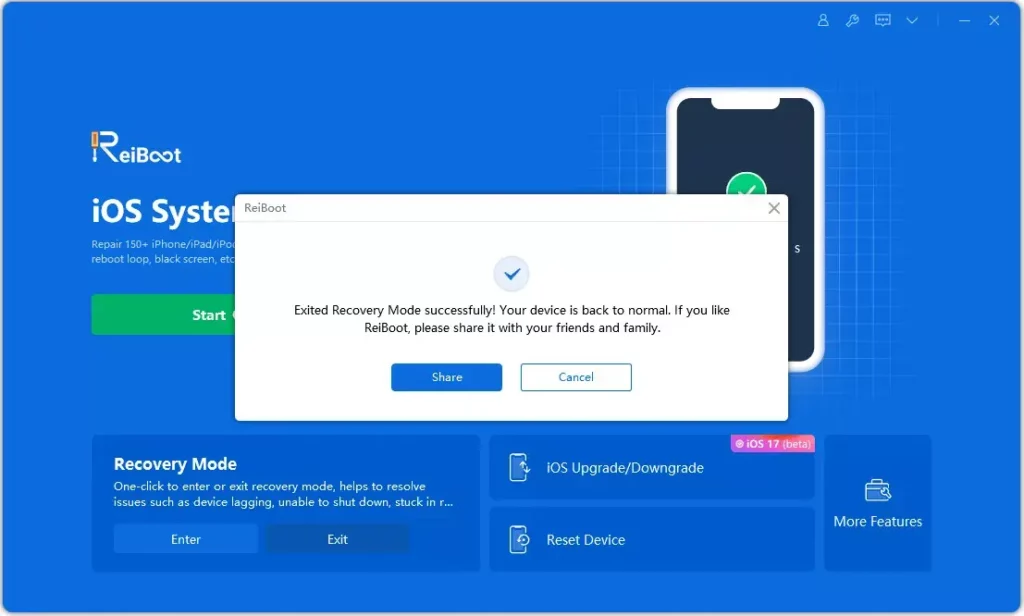
This reset doesn’t erase your data but resets your system.
Fix 5: Use DFU Mode (Last Resort)
DFU Mode (Device Firmware Update) can fix severe issues but erases all data. Make sure to back up your iPhone first. Here’s how to enter DFU mode:
For iPhone 6s and Earlier:
- Press and hold the Power and Home buttons for 10 seconds.
- Release the Power button but continue holding the Home button for 5 seconds.
For iPhone 7 and 7 Plus:
- Press and hold the Volume Down and Power buttons for 10 seconds.
- Release the Power button but keep holding the Volume Down button for 5 seconds.


For iPhone 8 and Later:
- Quickly press and release the Volume Up button.
- Quickly press and release the Volume Down button.
- Hold the Power button until the screen turns black.
- Press and hold the Volume Down button while continuing to hold the Power button for 5 seconds.
After entering DFU mode, connect your iPhone to iTunes and follow on-screen instructions to restore it.
Final Thoughts
A frozen iPhone screen doesn’t mean the end of your device. Try these methods:
- Start with a force restart.
- Close background apps to free up resources.
- Use tools like Tenorshare ReiBoot for safe and effective repairs.
- Reset your iPhone or use DFU mode as a last resort.