
Introduction
Android smartphones have become smarter, thanks to artificial intelligence (AI). From voice assistants to camera enhancements, AI tries to make your life easier. But what if you find these features annoying, intrusive, or just unnecessary? Whether you dislike auto-correct mishaps, AI-edited photos, or privacy concerns, here’s a simple guide to disable AI features on your Android device.

Why Turn Off AI Features?
AI tools like predictive text, smart notifications, and auto photo edits are built to learn from your habits. However:
- Predictions can feel intrusive (e.g., weird text suggestions).
- AI camera edits might ruin the natural look of your photos.
- Privacy worries arise when AI analyzes your data.
- Battery optimizations might restrict apps you actually use.
If you prefer full control over your phone, follow these steps to deactivate AI features.
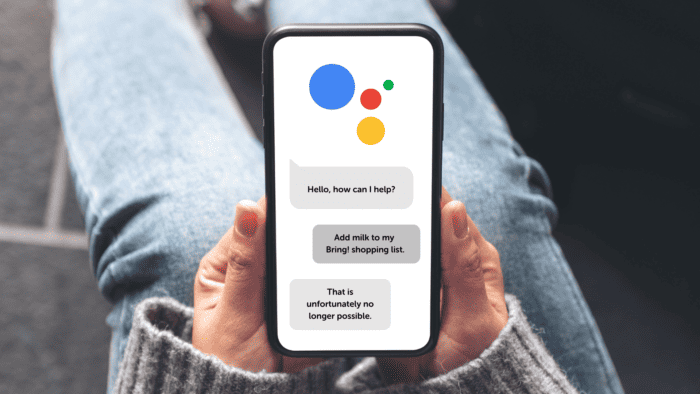
1. Disable Google Assistant
Google Assistant is handy but can trigger accidentally. Here’s how to turn it off:
- Open the Google app.
- Tap your profile icon (top-right) → Settings → Google Assistant.
- Scroll to General and toggle off Google Assistant.
Result: The Assistant won’t respond to “Hey Google” or home button holds.
2. Stop Smart Text Predictions
Tired of AI guessing your next word?
- Go to Settings → System → Languages & input → On-screen keyboard.
- Choose your keyboard (e.g., Gboard or Samsung Keyboard).
- In Gboard, disable Show suggestion strip and Next-word suggestions.
- For Samsung Keyboard, turn off Predictive text.
Result: Your keyboard stops suggesting words.
3. Turn Off AI Camera Enhancements
Love natural photos? Disable auto-edits:
- Open your Camera app → Tap the gear icon (Settings).
- Look for Scene optimizer, AI enhancements, or Auto HDR.
- Toggle these options off.
Pro Tip: Settings vary by brand. For Galaxy AI features, check “Advanced Settings.”
4. Disable AI Battery Management
AI often limits apps to save battery. Regain control:
- Go to Settings → Battery (or Device Care on Samsung).
- Tap Adaptive Battery or Battery Optimization.
- Toggle it off.
Result: Apps run freely, but battery life may dip slightly.
5. Stop Smart Notifications
Don’t let AI prioritize your alerts:
- Navigate to Settings → Apps & notifications → Notifications.
- Turn off Adaptive notifications or Smart notifications.
6. Disable AI in Google Photos
Prevent auto-edits and “Memories”:
- Open Google Photos → Tap your profile picture → Photos settings.
- Turn off Suggested edits and Memories.
Result: No more surprise collages or AI tweaks.
7. Block AI Search & Recommendations
Stop personalized suggestions:
- Go to Settings → Google → Manage your Google Account.
- Select Data & privacy → Web & App Activity.
- Toggle off Include Chrome history and activity.
8. Turn Off AI Voice Typing
Want raw speech-to-text?
- Open Settings → Languages & input → Voice typing.
- Disable Enhanced voice typing (Google Voice Typing).
Final Thoughts
Deactivating AI features gives you a simpler, more controlled Android experience. While some AI functions might still run in the background, these steps ensure your phone works your way—without unsolicited suggestions or privacy concerns.
By customizing these settings, you can enjoy a smartphone that feels less like a robot and more like your trusted tool. 📱✨