Introduction
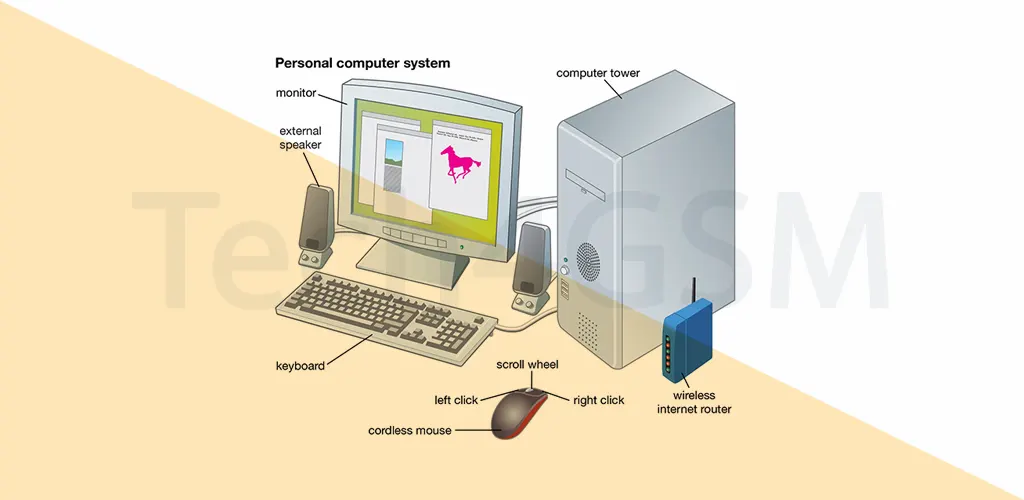
In today’s fast-paced digital world, the Personal Computer (PC) remains a cornerstone of productivity, creativity, and entertainment. Whether you’re a student, professional, or gamer, understanding your PC can unlock its full potential. Let’s dive into the essentials of PCs in easy-to-grasp language!
What is a Personal Computer (PC)?
A PC is a versatile machine designed for individual use. It helps you tackle tasks like writing documents, browsing the web, gaming, editing videos, and much more. From sleek laptops to powerful desktops, PCs have evolved to meet diverse needs.
Key Components of a PC
Every PC relies on core parts working together:
- Motherboard: The main circuit board connecting all components.
- CPU (Central Processing Unit): The brain handling calculations and instructions.
- RAM (Random Access Memory): Temporary storage for active tasks.
- Storage: HDDs (traditional hard drives) or faster SSDs (Solid-State Drives).
- PSU (Power Supply Unit): Keeps everything powered up.
- Input/Output Devices: Keyboard, mouse, and monitor.
Desktop vs. Laptop: Which is Better?
- Desktop PCs are stationary, customizable, and ideal for heavy tasks like gaming or 3D design.
- Laptops are portable, all-in-one devices perfect for on-the-go use.
Popular PC Operating Systems
PCs run on systems like Windows, Linux, and macOS (on Apple devices). Each offers unique features—Windows is user-friendly, Linux is great for coding, and macOS excels in creative workflows.
Virtual Memory Explained
When your PC’s RAM fills up, virtual memory borrows space from your storage drive to keep things running smoothly. It’s like a backup workspace for your computer!
Why You Need a Graphics Card
A graphics card (GPU) handles visuals, making games, videos, and design software look stunning. Gamers and editors should invest in a dedicated GPU for top performance.
Protecting Your PC from Viruses
A PC virus is malicious software that can damage files or steal data. Stay safe by:
- Installing trusted antivirus software.
- Updating your OS and apps regularly.
- Avoiding suspicious links or downloads.
Cloud Computing & PCs
Cloud computing lets you store data and run apps online instead of locally. Services like Google Drive or Microsoft Azure let you access files from any device.
Why SSDs Are a Game-Changer
SSDs (Solid-State Drives) use flash memory for lightning-fast speeds, durability, and lower power use. Upgrade to an SSD to breathe new life into an old PC!
VPNs: Your Online Privacy Shield
A VPN (Virtual Private Network) encrypts your internet connection, hiding your IP address. Use one on public Wi-Fi to stay secure.
CPU: The Brain Behind Performance
A faster CPU means quicker task handling. For gaming or video editing, opt for multi-core processors like Intel Core i7 or AMD Ryzen.
Managing Startup Programs
Too many startup programs slow down boot times. Use Task Manager (Windows) or System Settings (Mac) to disable unnecessary apps.
Clearing Your Browser Cache
A browser cache stores website data to speed up loading. Clear it regularly to free space and fix loading errors.
BIOS: Your PC’s Setup Menu
The BIOS lets you configure hardware settings like boot order. Access it by pressing F2/DEL during startup (varies by model).
Boost Productivity with Dual Monitors
A dual-monitor setup doubles your screen space, making multitasking a breeze. Compare documents, code, or design with ease!
RAM Disks for Speed Demons
A RAM disk uses your PC’s memory as ultra-fast storage. Perfect for temporary files or speeding up software.
Network Adapters: Stay Connected
A network adapter connects your PC to Wi-Fi or Ethernet. Upgrade yours for faster internet speeds.
Expand USB Ports with a Hub
A USB hub adds extra ports for devices like printers, keyboards, or phones. Great for laptops with limited connectivity.
Capture Cards for Content Creators
A capture card records video from consoles or cameras. Stream gameplay or create YouTube videos effortlessly.
FAQ
Q1: Can I upgrade my PC’s RAM?
Yes! Adding more RAM improves multitasking.
Q2: Is a laptop as powerful as a desktop?
High-end laptops can match desktops but may cost more.
Q3: How often should I replace my PC?
Every 5-6 years, depending on usage and tech advancements.
Q4: Do I need antivirus for Mac?
While less common, Macs can still get viruses—better safe than sorry!
Q5: What’s the best OS for beginners?
Windows or macOS for simplicity; Linux for tech enthusiasts.