Introduction
In today’s fast-paced world, your Samsung Galaxy smartphone is more than just a communication device—it’s a powerful mini-computer that can replace your desktop for many tasks. With the right setup, you can transform your Galaxy phone into a fully functional desktop computer, perfect for work, streaming, or browsing. This guide will show you how to use Samsung DeX to turn your phone into a desktop powerhouse.
What is Samsung DeX?
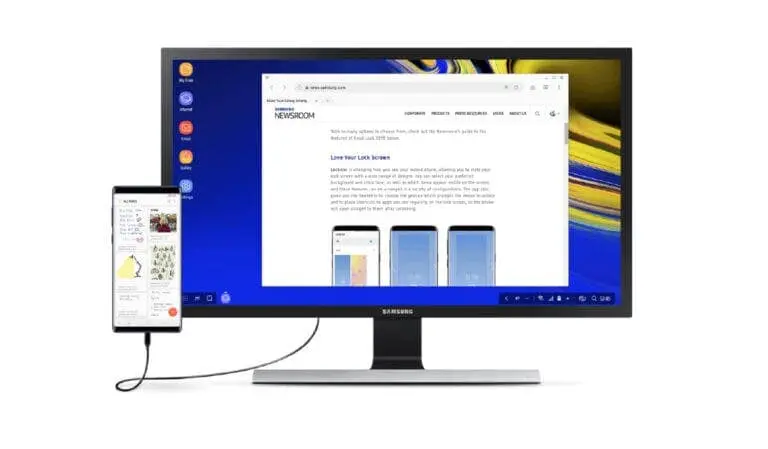
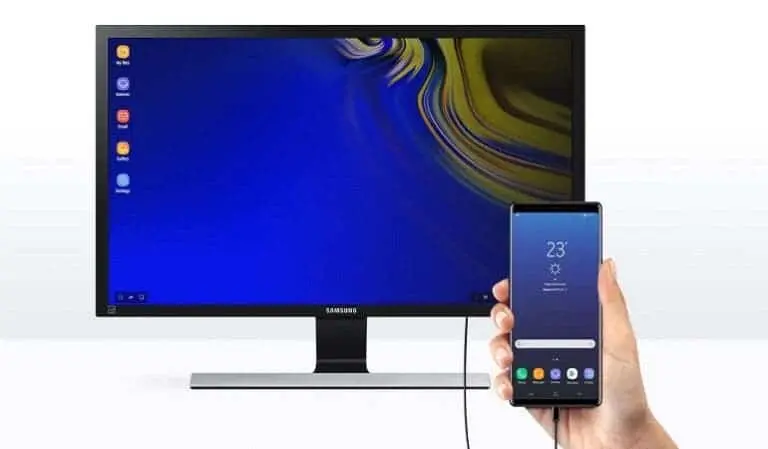
Samsung DeX (Desktop Experience) is a feature that lets you connect your Galaxy smartphone to a monitor, keyboard, and mouse, creating a desktop-like environment. Whether you’re working on documents, editing photos, or multitasking, DeX makes it all possible from your phone.
Step-by-Step Guide to Setting Up Your Galaxy Phone as a Desktop
1. Check Compatibility
First, ensure your Galaxy smartphone supports Samsung DeX. Most recent models, including the Galaxy S series (S8 and later), Note series (Note 8 and later), and some A series phones, are compatible. Check your phone’s settings or Samsung’s official website to confirm.
2. Gather Your Equipment
To create a desktop setup, you’ll need:
- Monitor or TV: Any display with an HDMI port.
- Keyboard and Mouse: USB or Bluetooth models work fine.
- USB-C to HDMI Adapter: For a wired connection. Alternatively, use a USB-C hub with HDMI output.
- Charging Cable: Keep your phone plugged in to avoid battery drain.
3. Connect Your Phone to a Monitor
There are two ways to connect:
Wired Option:
- Plug the USB-C to HDMI adapter into your phone.
- Connect an HDMI cable from the adapter to the monitor.
- Your phone will detect the display and prompt you to enable DeX.
Wireless Option:
- Swipe down from the top of your phone’s screen to access Quick Settings.
- Tap Smart View and select your monitor from the list.
- Launch DeX from your phone’s settings.
4. Enable Samsung DeX
Once connected, a prompt will appear on your phone asking if you want to start DeX. Tap Start Now. If the prompt doesn’t appear, go to Settings > Advanced Features > Samsung DeX to enable it manually.
5. Connect Keyboard and Mouse
For a wired setup, plug your keyboard and mouse into the USB-C hub or adapter. For wireless, pair them via Bluetooth by going to Settings > Connections > Bluetooth.
6. Customize Your Desktop
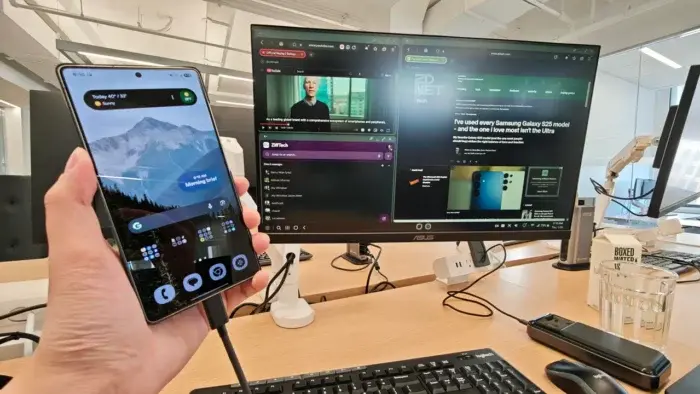
DeX offers a familiar desktop environment with a taskbar, resizable windows, and drag-and-drop functionality. Customize it to suit your workflow:
- Arrange Apps: Open multiple apps side by side for multitasking.
- Resize Windows: Drag the edges of app windows to resize them.
- Taskbar: Use it to switch between apps or access tools.
- Settings: Adjust display resolution, sound output, and more.
7. Start Using Your Phone as a Desktop
With everything set up, you’re ready to go! Open apps, browse the web, edit documents, or stream content just like you would on a traditional desktop. Apps like Microsoft Office, Google Chrome, and Adobe Lightroom are optimized for DeX, providing a seamless experience.
Benefits of Using Your Galaxy Phone as a Desktop
- Portability:
- Your phone is always with you, making it easy to switch between mobile and desktop modes.
- Cost-Effective:
- Save money by using one device for both mobile and desktop tasks.
- Eco-Friendly:
- Reduce electronic waste by consolidating your computing needs into a single device.
- Seamless Integration:
- Access files, apps, and data across devices without syncing.
- Multitasking:
- Run multiple apps in resizable windows, boosting productivity.
- Gaming and Entertainment:
- Play mobile games on a bigger screen or stream movies with ease.
Downsides to Consider
- Limited Processing Power:
- Resource-intensive tasks like video editing or 3D rendering may be challenging.
- Small Storage:
- Limited phone storage may require reliance on cloud services or external drives.
- Dependence on Peripherals:
- You’ll need a monitor, keyboard, and mouse for the best experience.
- Battery Drain:
- Extended DeX use can drain your phone’s battery quickly. Keep it plugged in.
- App Compatibility:
- Not all apps are optimized for DeX, which may limit functionality.
Conclusion
Using your Samsung Galaxy smartphone as a personal desktop computer is a game-changer for productivity and convenience. With Samsung DeX, you can create a desktop-like experience that’s perfect for work, entertainment, or casual browsing. The setup is straightforward, and the benefits—portability, cost savings, and seamless integration—make it an attractive option for many users.