Introduction
It’s typical to struggle to keep your iPhone charged throughout the day. It’s understandable why your battery drains so rapidly when you have many applications open, alerts appear, and background functions like location services and Siri are always operating. To increase your iPhone’s battery life without sacrificing necessary features, you may adjust a few settings. Here are seven practical techniques to extend the battery life of your iPhone, regardless of whether you have the most recent model, the iPhone 15 Pro Max, or an older model.
1. Disable the Always-On Screen
iPhone Pro models’ always-on display function can seriously deplete your battery. Even while Apple says it only uses 1% every hour, this may pile up over the course of a day. Your iPhone’s battery life might be simply extended by turning it off.
How to: Go to Settings > Display & Brightness > Always On Display and toggle it off.
2. Turn off the haptic feedback
Every time you type, haptic feedback may use more battery power. Turning this function off can help conserve Power.
How to: Navigate to Settings > Sounds & Haptics > Keyboard Feedback and turn off “Haptics.”
3. Disable “Hey Siri” Recognition
Your iPhone can conserve battery life if you don’t use Siri frequently since it won’t need to continuously listen for the “Hey Siri” command.
How to: Go to Settings > Siri & Search > Listen for and select “Off.”
4. Reduce Notifications
Regular alerts that play sounds and light up your screen might deplete your battery. Restrict alerts to only the most important applications.
How to: Open Settings, select the app you want to adjust, go to Notifications, and toggle off unnecessary alerts.
5. Turn Off Nearby AirDrop Sharing
Especially in congested places, this feature searches for neighboring devices to exchange files, which might deplete your battery.
How to: Go to Settings > General > AirDrop and disable “Bringing Devices Together.”
6. Steer clear of live activities
Live Activities show real-time app updates, which can quickly drain battery life. Turn off this function to conserve Power.
How to: Use Live Activities to locate the applications under Settings. For every app, turn off Live Activities. As an alternative, turn off Live Activities on the lock screen by going to Settings > Face ID & Passcode.
7. Take away the lock screen widgets
Because lock screen widgets are always changing their data, they might deplete batteries. Take out any widgets that aren’t needed.
How to: Hold down on the lock screen after waking up your iPhone. Widgets that update often can be removed by selecting “Customize.”
8. Reduce the Rate of Refresh
The 120Hz refresh rate found on more recent iPhone Pro models might cause the battery to deplete more quickly. It may be helpful to reduce it to 60Hz.
How to: To enable “Limit Frame Rate,” navigate to Settings > Accessibility > Motion.
9. Turn off the app refresh in the background
Background-refreshing apps have the potential to deplete battery life. Turn off this function to conserve Power.
How to: To disable background app refresh completely or for individual apps, navigate to Settings > General > Background App Refresh.
10. Make Use of Charge Optimization
By modifying charging rates according to your schedule, optimized charging helps extend battery life. Make sure you have this feature turned on.
How to: To activate Optimized Charging, navigate to Settings > Battery > Battery Health & Charging. You may also set a charge maximum of 80% for iPhone models 15 and up.
Bonus: Switch to Low Power Mode
Low Power Mode is a quick way to save battery by disabling several power-hungry features at once.
How to: Swipe down from the top right corner to access Control Center and tap the battery icon to enable Low Power Mode.
Extra Advice for Increasing Battery Life
There are more methods you may use to increase the battery life of your iPhone in addition to the 10 settings already discussed. For instance, reducing screen brightness and turning off location services for apps that don’t need it can make a significant difference. Additionally, keeping your iPhone updated ensures you have the latest battery optimizations from Apple.
Controlling Permissions for Apps
Applications frequently ask for authorization to access your location and run in the background. Make sure that only necessary applications have these permissions by routinely reviewing them. To control which applications have access to your location, navigate to Settings > Privacy > Location Services.
Tracking Battery Consumption
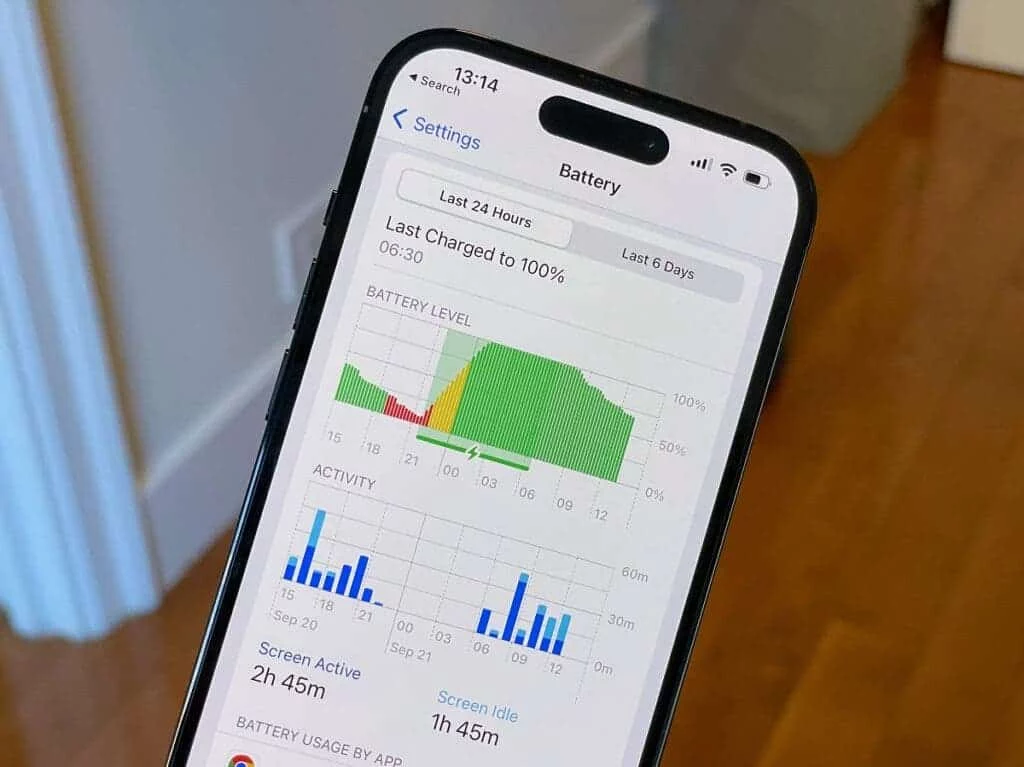
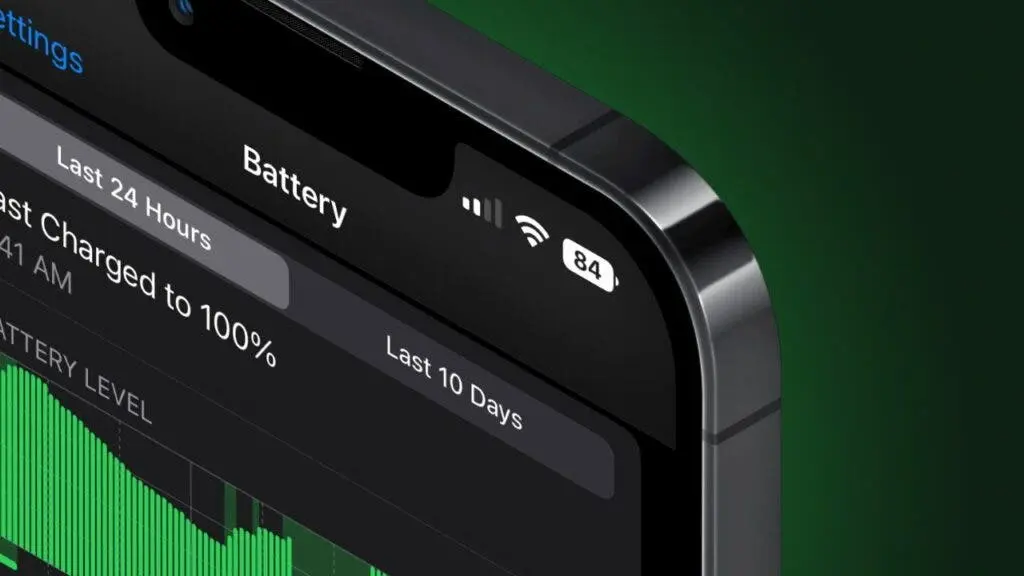
iOS gives you comprehensive battery consumption information, including which apps use the most energy. This may be accessed by selecting Settings > Battery. This feature makes it easier to find and control the applications that are using up the most battery life.
Final Words
You may greatly increase the battery life of your iPhone by adjusting these settings and implementing better energy management techniques. This guarantees that you remain connected and productive throughout the day in addition to improving the performance of your device.