
Introduction
Imagine being able to virtually teleport your iPhone or iPad to any location on Earth. This is the power of location spoofing, a technique that allows you to trick apps and websites into thinking you’re somewhere else entirely. But how exactly can you spoof the location on an iPhone without jailbreaking? This guide provides a step-by-step explanation of how to spoof your location on iPhone safely and effectively.
Why Do People Spoof Their Location on iPhone?
There are several reasons why people want to spoof their location on iPhones running iOS 17 or iOS 18. Let’s dive into the most common ones:
1. Privacy Protection
Spoofing your location can add an extra layer of privacy, masking your real whereabouts from apps, websites, and even advertisers.
2. Enhance Gaming Experiences
Popular location-based games, such as Pokémon Go, rely on your physical location. By spoofing, you can explore new regions, catch rare Pokémon, and access in-game events from anywhere in the world.
3. Expand Dating Opportunities
Apps like Tinder and Bumble connect you with people nearby. Changing your location enables you to match with individuals from different cities or even countries.
4. Testing Apps
Developers and testers often need to simulate different user locations to test app functionality across regions.
5. Bypass Geo-Restrictions
Many streaming services and websites restrict content based on your location. By spoofing, you can unlock movies, shows, and services unavailable in your region.
4 Best Ways to Spoof Location on iPhone/iPad
Here are the four most effective methods to spoof your location on iPhone or iPad without jailbreaking:
1. Use Tenorshare iAnyGo
One of the easiest and safest ways to spoof your location is by using Tenorshare iAnyGo, a reliable desktop application. Here’s how:
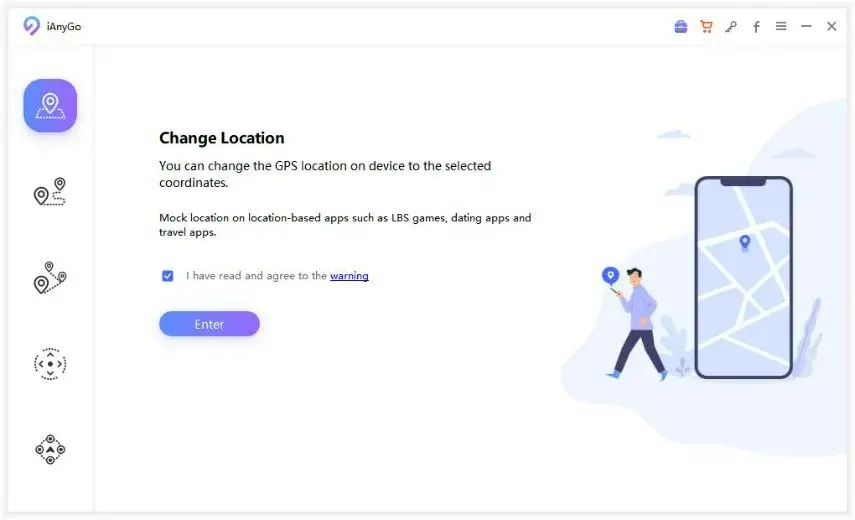
Steps to Spoof Location Using Tenorshare iAnyGo:
- Download and Install
Visit the official Tenorshare website and download the iAnyGo software on your computer. - Connect Your Device
Use a USB cable to connect your iPhone or iPad to the computer. Open iAnyGo, and wait for it to detect your device.
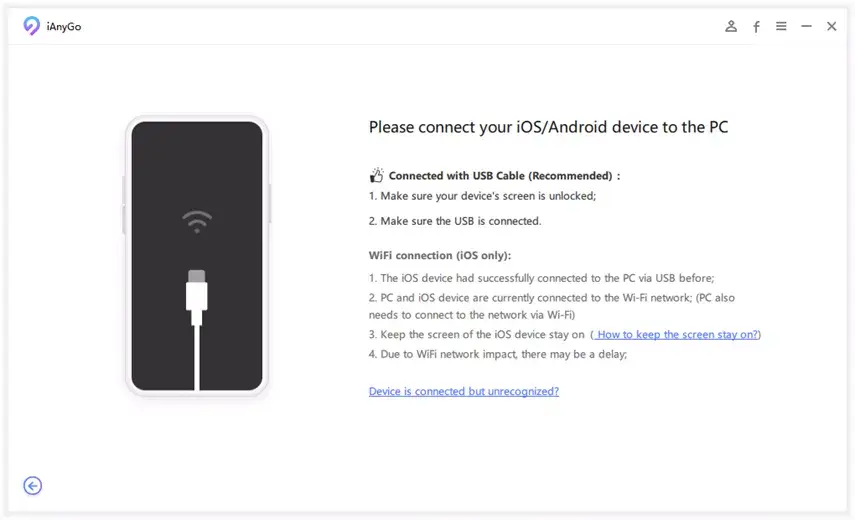
- Select a Location
In the iAnyGo interface, select “Change Location” and use the map to pick your desired virtual location. - Apply the Location
Click “Start to Modify” to apply the new location. Your iPhone will now appear as if it’s in the selected area.
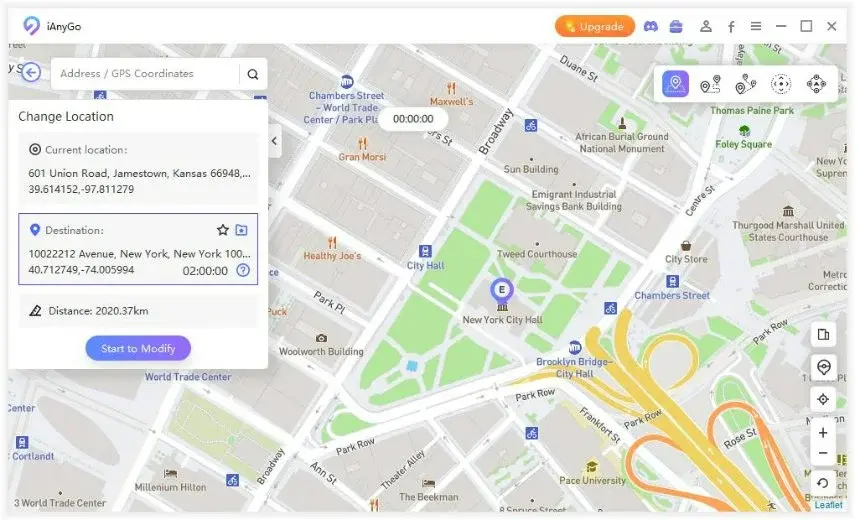
Why Choose Tenorshare iAnyGo?
- User-Friendly: Easy to set up and use.
- Versatile: Works with gaming apps, social media, and more.
- Safe: No risk of malware or data theft.
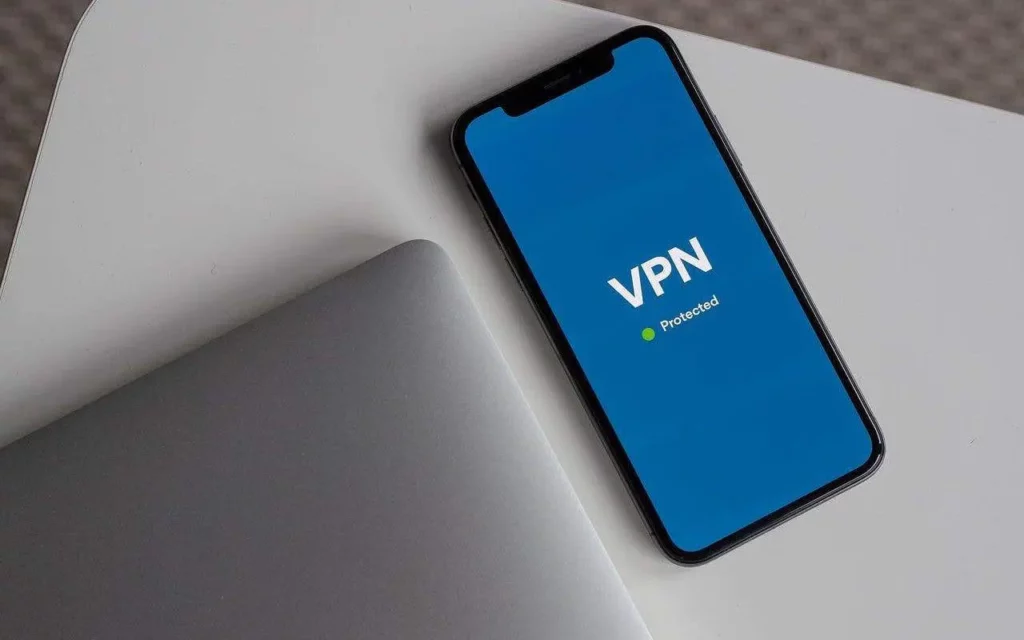
2. Use a VPN to Fake Your Location
A Virtual Private Network (VPN) can help you change your IP address, giving the appearance that you’re in a different location. Here’s how:
Steps to Spoof Location Using a VPN:
- Choose a VPN Provider
Popular VPNs include NordVPN, ExpressVPN, and Windscribe. Download your preferred VPN app from the App Store. - Set Up the VPN
Follow the installation instructions and log in with your credentials. - Select a Server
Browse the list of servers and choose one in your desired location. - Connect and Test
Click “Connect.” Once connected, your IP address will reflect the new location.
Limitations of VPNs:
- Some apps and websites use GPS data in addition to IP addresses. A VPN may not spoof your GPS location effectively.
3. Use iTools for Virtual Location
iTools is a specialized tool for iPhones that allows you to set a virtual GPS location.
Steps to Spoof Location Using iTools:
- Download and Install iTools
Visit the official iTools website and install the program on your computer. - Connect Your iPhone
Plug your iPhone into your computer and open iTools.
- Access Virtual Location
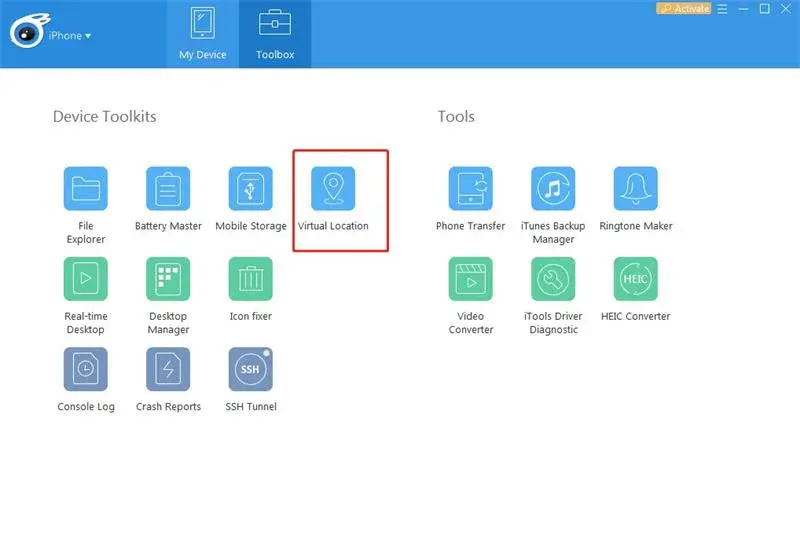
Navigate to the “Toolbox” section and select Virtual Location.
- Set Your Location
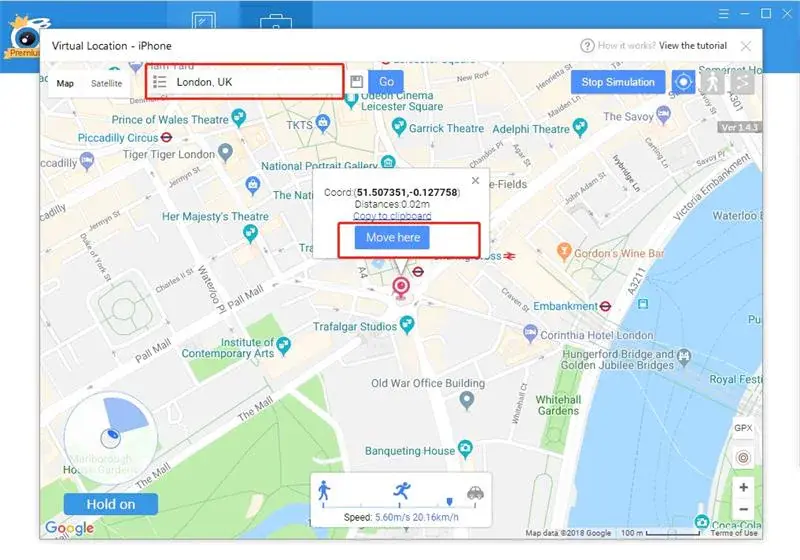
Choose a location on the map, click “Move Here,” and confirm the selection. Your device will now reflect the chosen virtual location.
Important Note:
Using iTools might require enabling Developer Mode on your iPhone, which can involve additional steps.
4. Use Windscribe VPN to Fake GPS Location
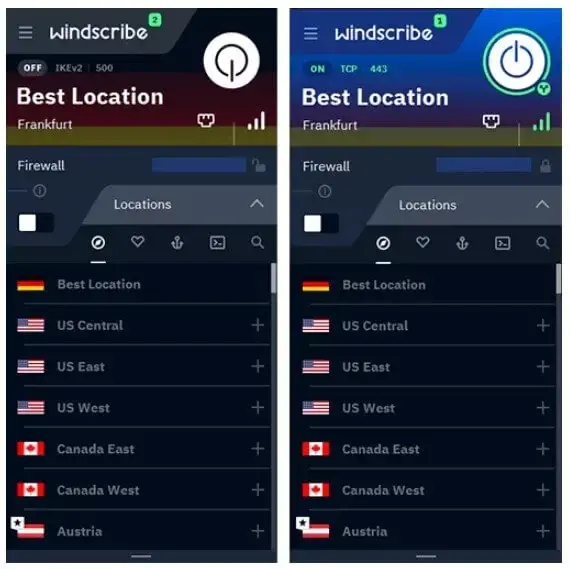
Windscribe VPN offers a simple and effective way to spoof your iPhone’s location.
Steps to Use Windscribe:
- Download Windscribe
Search for Windscribe VPN in the App Store and install the app. - Create an Account
Follow the prompts to create your account. - Choose a Server
Select a server from the list based on your preferred location. - Verify the Change
Once connected, check if the location has been spoofed successfully.
Why Use Windscribe?
- Free plan available with limited servers.
- Easy-to-use interface for beginners.
Hot FAQs About Spoofing Location on iPhone
1. Can You Tell If Someone is Spoofing Their Location?
It’s difficult to detect location spoofing directly. However, inconsistent location data or unusual GPS behavior could indicate spoofing.
2. Is Spoofing Location Legal?
Spoofing your location is generally legal, but it may violate the terms of service for certain apps or services.
3. Which Tool is the Best for Spoofing Location?
Tenorshare iAnyGo is widely recommended due to its ease of use, safety, and reliable features.
Final Thoughts
Spoofing your iPhone’s location might seem daunting, but with the right tools, it’s a straightforward process. Among the available methods, Tenorshare iAnyGo stands out as the best choice for its reliability and user-friendly interface. However, VPNs, iTools, and Windscribe are also excellent alternatives depending on your specific needs.