Introduction
Do you find yourself endlessly scrolling through thousands of photos to find a specific memory? You’re not alone! Google Photos is an excellent solution for storing your pictures, but without organization, it can quickly turn chaotic. The good news is, with the right strategies, you can transform your photo collection into a well-ordered library.
Here’s how to keep your Google Photos library organized with powerful tips and features.
1. Create Specific Albums to Find Photos Faster
Albums are like digital folders that let you group photos by theme, event, or purpose. This is one of the easiest ways to categorize your pictures and make them easily accessible.
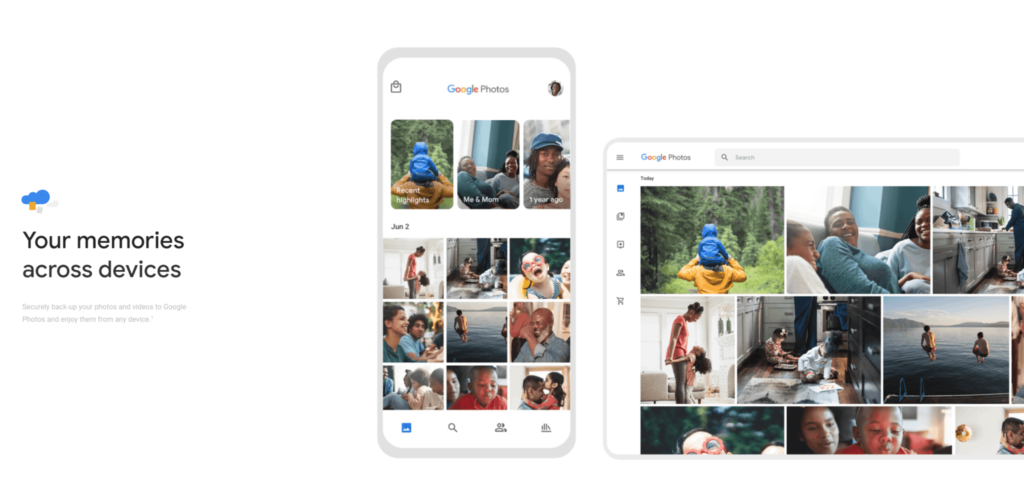
- Start with themes: Create albums for “Family & Friends,” “Vacations,” “Work,” or even “Screenshots.”
- Add photos to albums as soon as you upload them. This prevents clutter from building up over time.
- Google Photos shows the date range within each album, giving you a clear timeline of events.
Example: If you need a photo of your dog for a birthday invitation, open your “Pets” album instead of scrolling through your entire library.
2. Use the Date Filter for Quick Navigation
Remember the times when finding a photo meant swiping endlessly? The date filter can save you from this hassle.
- How it works: Use the speedy scroll button to zip through your photos by year or month.
- Get precise: Tap the desired year, then narrow down to specific dates.
- This feature even provides haptic feedback, giving you a tactile sense of control.
Pro Tip: Use this feature when you’re in a rush to find a photo from a birthday, holiday, or special event.
3. Take Full Advantage of the ‘Sort by Person’ Feature
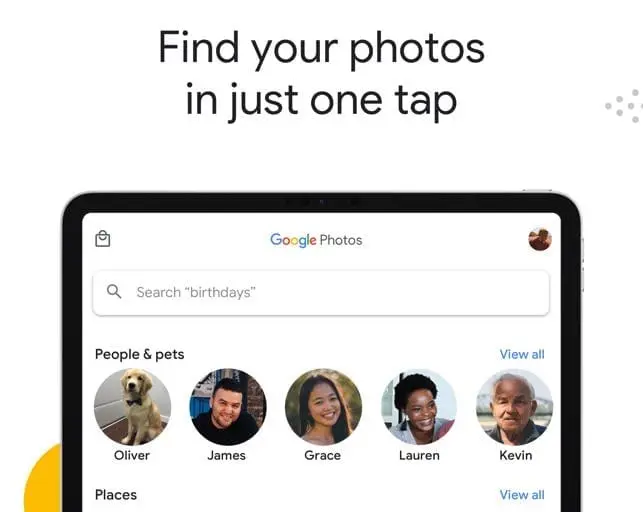
Google Photos uses facial recognition technology to automatically group photos of people into “People” albums.
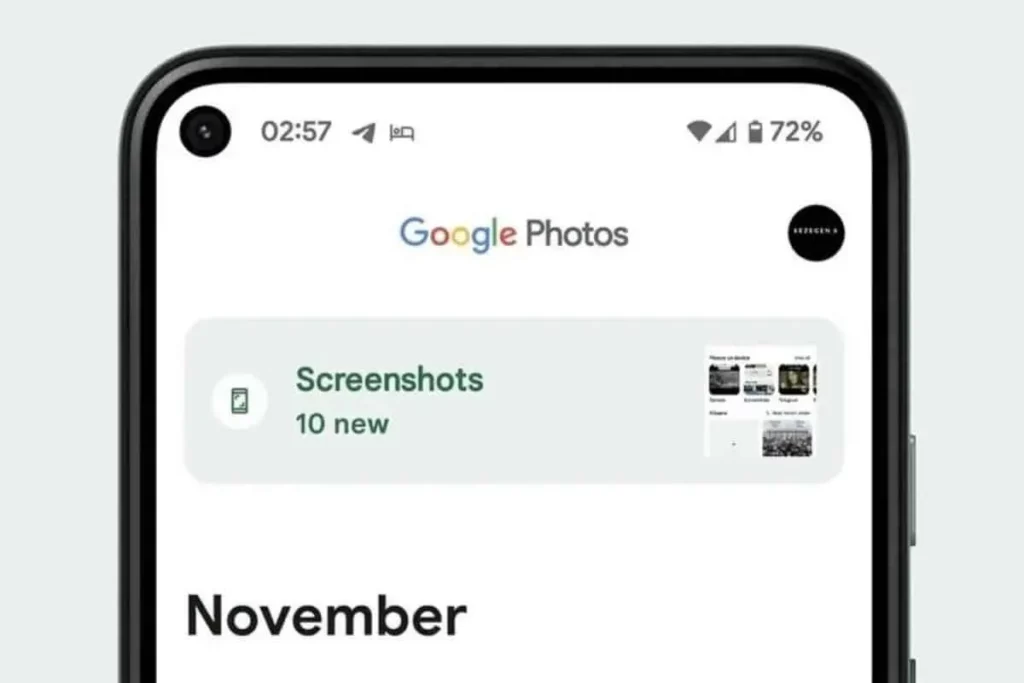
- Create a people-based album: Google Photos identifies faces and lets you organize memories for specific individuals.
- Filter within albums: For instance, find photos of you and a close friend by selecting both faces.
- It’s a hands-free way to keep track of cherished memories with loved ones.
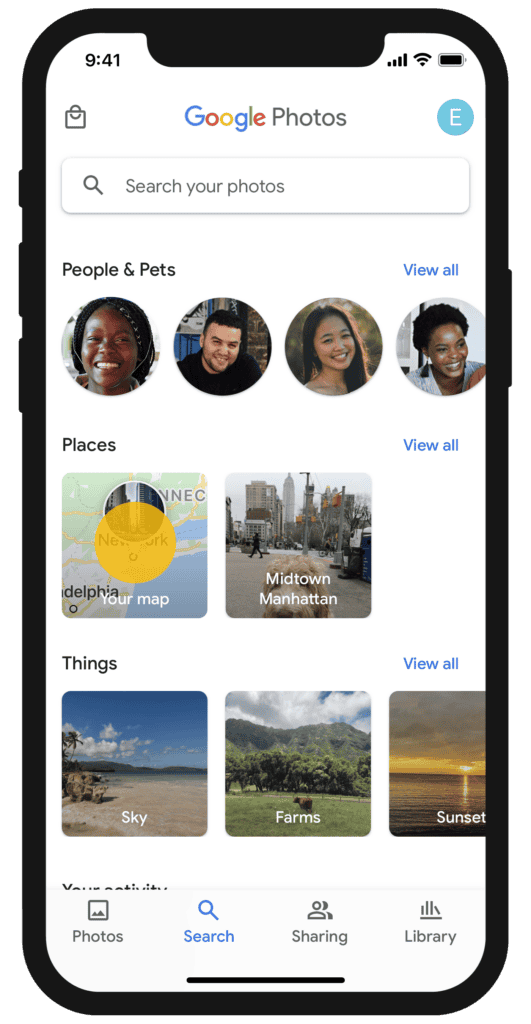
Bonus: You can also rename the person’s album for quick recognition, like “Mom,” “Best Friend,” or even “Fluffy” for your pet.
4. Leverage the Sort by Location Feature
Ever struggle to recall when or where a photo was taken? Google Photos’ location filter helps you sort pictures based on the places they were captured.
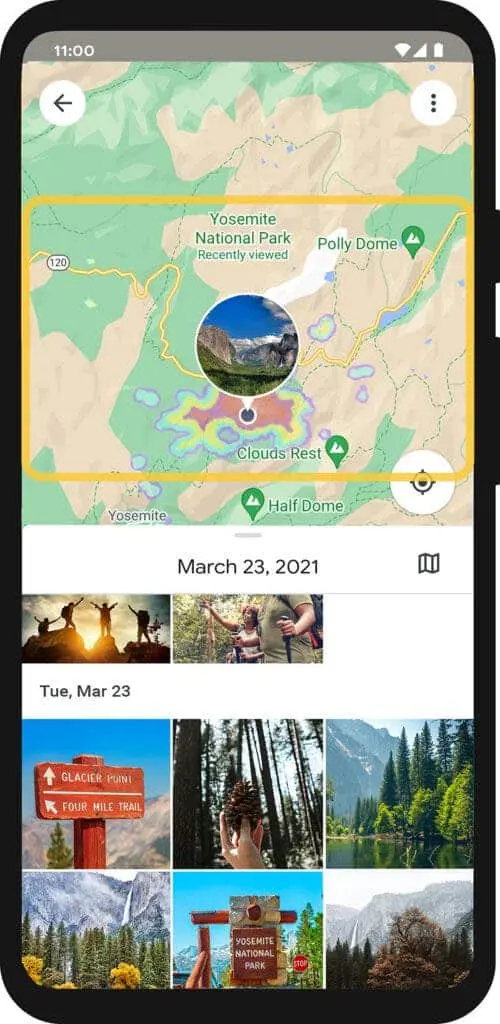
- Tap ‘Location’: Access a map view that shows all your travel destinations.
- Zoom in for specifics: See individual cities or landmarks and find related pictures.
- It’s perfect for reminiscing about vacations or events tied to certain locations.
Example: Revisit all your photos from a Paris trip by simply clicking the location on the map.
5. Organize Photos by Objects or Things
Did you know Google Photos can recognize objects in your pictures? This search by object feature is a game-changer.
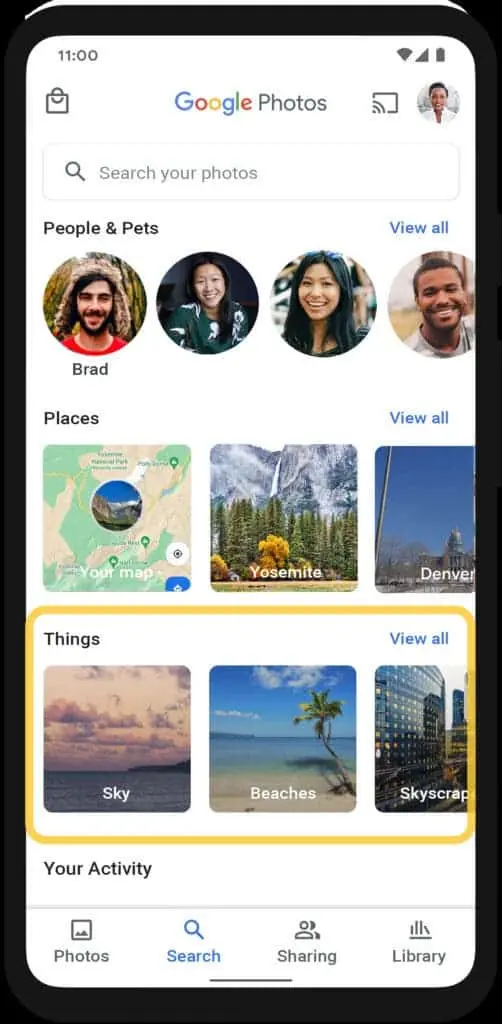
- Search for items like “cake,” “beach,” or “car,” and Google Photos will display all related images.
- Great for finding inspiration, such as outfit ideas or home decor.
- AI-assisted album naming: Google can suggest album names based on the objects it detects, making organization even easier.
Fun Tip: Use this feature to collect memories like all the “flowers” or “sunsets” you’ve captured over time.
6. Maximize the Powerful Search Function
The search bar in Google Photos is more than a basic tool; it’s a powerhouse for finding specific photos.
- Type keywords like “wedding,” “dog,” or “birthday” to quickly locate related images.
- You can combine keywords for better results, such as “John’s wedding 2019.”
- Use this feature instead of scrolling endlessly—it’s fast and precise.
Pro Tip: Regularly check suggested searches to see how Google Photos categorizes your library.

7. Explore AI-Powered Features Like Gemini
Google Photos is constantly evolving, and AI-powered tools like Gemini hint at a smarter future.
- Gemini can suggest album names or automatically group related photos.
- While still experimental, it showcases how AI can make photo organization effortless.
What to Expect: Imagine AI handling the bulk of organizing, leaving you with more time to enjoy your photos.
Bonus Tips for Maintaining an Organized Google Photos Library
- Delete duplicates: Use built-in tools or third-party apps to remove repeated photos.
- Back up regularly: Ensure your library is safely stored in the cloud.
- Add captions and descriptions: These small details can make future searches even easier.
- Archive less-used images: Hide photos you don’t frequently access to reduce clutter.
Final Thoughts
Google Photos offers an incredible array of tools to keep your memories organized. From creating albums to using AI-powered search, these tips will help you transform your chaotic photo library into a well-organized treasure trove of moments. Start organizing your library today and enjoy the peace of mind that comes with knowing your memories are just a click away.