Introduction
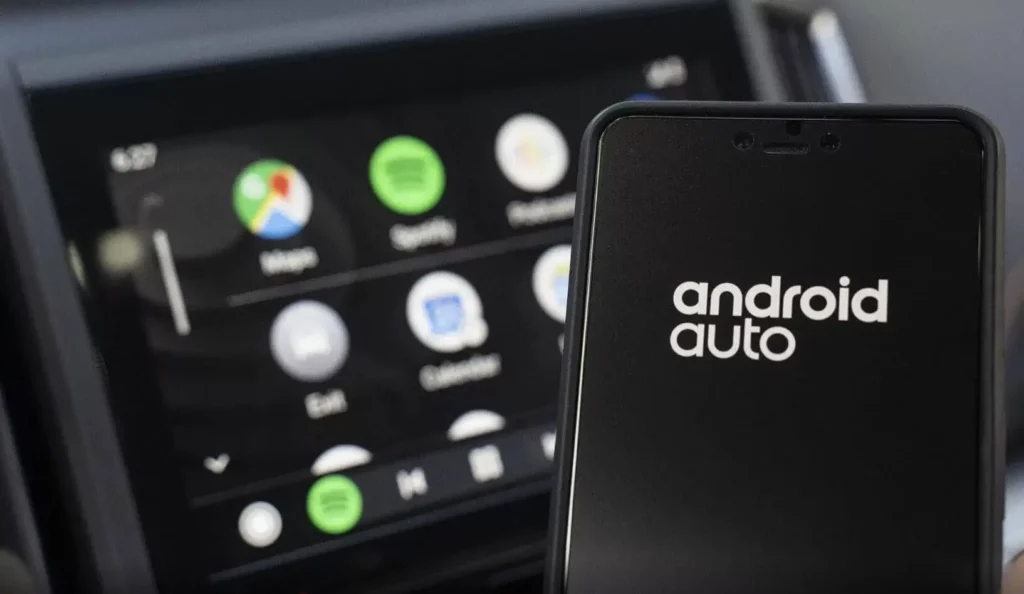
Android Auto transforms your car into a smart, connected space, letting you use maps, music, and messages safely while driving. While many 2025 car models come with built-in Android Auto, older vehicles might lack this feature. Don’t worry—you can still add it! Below are four simple ways to bring Android Auto to your car, whether you’re tech-savvy or prefer plug-and-play solutions.
1. Plug In with a USB Cable (Simplest Method)
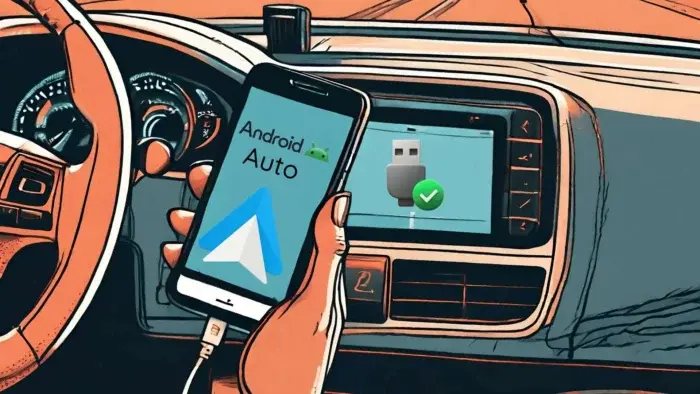
Android Auto works seamlessly when connected via USB. It’s reliable, lag-free, and perfect for drivers who want a no-fuss setup.
Steps to Connect:
- Check Compatibility: Confirm your car supports Android Auto.
- Update Your Phone: Ensure your phone runs Android 12+ and the Android Auto app is updated.
- Start Your Car: Keep it in Park and power on the infotainment system.
- Use a High-Quality Cable: Avoid charging-only cables—opt for one that supports data transfer.
- Follow Prompts: Plug in your phone, and the system will guide you.
Troubleshooting Tip: If it doesn’t work, restart your phone or try a different cable.
2. Go Wireless with Bluetooth & Wi-Fi
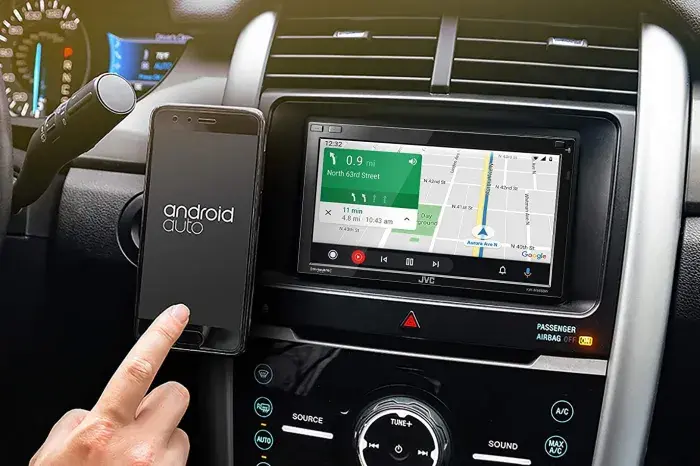
Cut the cord! Wireless Android Auto offers cable-free convenience but needs a stable 5GHz Wi-Fi and Bluetooth connection.
Steps to Set Up:
- Check Compatibility: Only select 2025 models and newer cars support wireless mode.
- Update Your Phone: Requires Android 13+ and the latest Android Auto version.
- Enable Bluetooth/Wi-Fi: Turn both on for your phone and car.
- Pair Devices: Press your steering wheel’s voice button to start pairing.
- Follow On-Screen Instructions: Complete setup in a few taps.
Pro Tip: Weak signal? Park in an open area during setup for smoother pairing.
3. Upgrade with an Aftermarket Head Unit
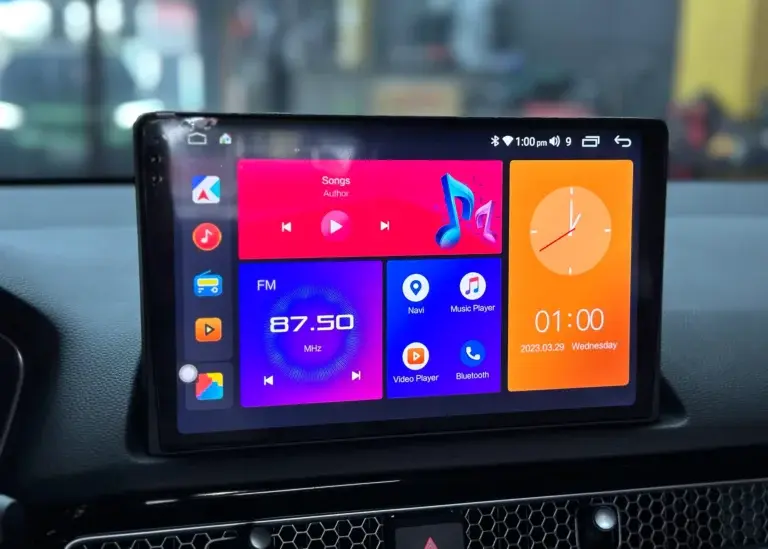
No built-in support? Swap your old stereo with a modern Android Auto head unit. It’s a game-changer for older cars!
Installation Guide:
- Pick a Quality Unit: Avoid budget models—opt for brands like Pioneer or Sony.
- Professional Installation Recommended: Experts ensure wiring and fitment are flawless.
- Connect Your Phone: Use USB or wireless pairing post-installation.
Cost Note: Prices range from 300to1,000+, but the upgrade is worth it for long-term use.
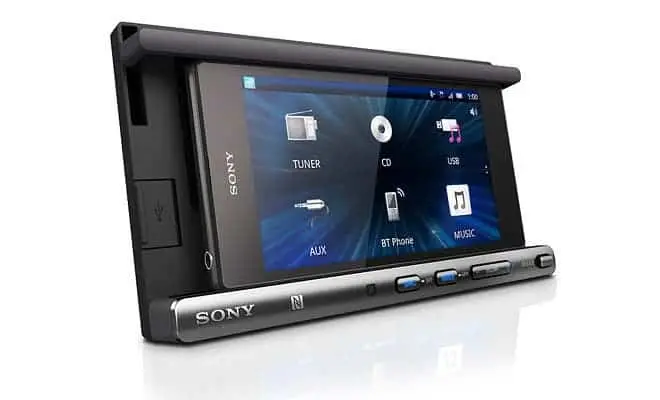
4. Repurpose an Old Android Phone
Turn a spare phone into a dedicated Android Auto display! Apps like Headunit Reloaded mimic the built-in experience.
How to Set It Up:
- Choose a Device: Use a phone with a 5.5-inch+ screen and decent speed.
- Install Headunit Reloaded: Download from the Play Store ($10).
- Mount & Connect: Secure the phone on your dashboard and link it via Bluetooth/USB.
Drawback: Performance depends on the phone’s age—lag is possible with older models.
Which Method Fits You Best?
| Method | Pros | Cons |
|---|---|---|
| USB Cable | Zero lag, easy setup | Cable clutter |
| Wireless Connection | No wires, auto-connect | Needs strong Wi-Fi/Bluetooth |
| Aftermarket Head Unit | Premium experience, future-proof | Costly, requires installation |
| Old Phone as Display | Budget-friendly, flexible | May lag, extra setup steps |
Final Thoughts
Android Auto keeps your eyes on the road and hands on the wheel. For 2025 drivers, USB connections are ideal for reliability, while wireless setups suit tech lovers. If your car lacks support, invest in an aftermarket head unit for a seamless experience or repurpose an old phone for a quick fix.